8 Best Video Compressors for Desktop (2026)
Compare the 8 best desktop video compressors of 2026 for sharing, batches, and size limits, from GetCompress to HandBrake, FFmpeg, and VLC.
Large video files fail email forms, stall uploads, and fill disks long before quality becomes the real problem. The best compressor for you depends on the job: a free one-off encode, a scriptable pipeline, or a simple local app that meets a size limit without you rebuilding codec settings each time.
This guide compares the 8 best desktop video compressors for sharing and file preparation in 2026. It is based on current first-party documentation and product information, not a single lab benchmark of every encoder. Real results always depend on the source file, codec, resolution, and the settings you choose.
How we ranked these video compressors
We included tools that run on a desktop computer, keep the core compression job local (no upload required), and are commonly used to reduce video file size for sharing, storage, or delivery. Paid system and professional tools appear only where they are a genuine local option, not to lengthen the list.
Evaluation criteria, applied to every option:
| Criterion | What we looked for |
|---|---|
| Ease and speed | Sensible defaults, presets, drag-and-drop, batch, and steps a non-expert can finish quickly |
| Size control | Quality modes, bitrate options, and, where available, an exact target file size for video |
| Learning curve | Whether defaults produce a usable result without studying CRF and rate-control theory |
| Local processing | Files stay on the machine for the core compression job |
| Platforms | macOS, Windows, and Linux support where it matters |
| Cost | Free, paid, or tied to another product ecosystem |
GetCompress ranks first for the fastest path to a smaller, good-looking video: sensible defaults, drag-and-drop, preview, and an exact target size when you need one. It does not replace HandBrake or FFmpeg for free, fine-grained encode control, and those tools remain the better pick for their own jobs below.
Quick comparison
| Tool | Best for | Platforms | Cost model |
|---|---|---|---|
| GetCompress | Simple local compression with target size and batch | macOS, Windows, Linux | |
| HandBrake | Free high-quality re-encodes with presets | macOS, Windows, Linux | Free, open source |
| FFmpeg | Scripts, exact flags, automation | macOS, Windows, Linux | Free, open source |
| Shutter Encoder | FFmpeg power with a graphical interface | macOS, Windows, Linux | Free, open source |
| VLC Media Player | One-off convert or compress you already have | macOS, Windows, Linux, more | Free, open source |
| Apple Compressor | Final Cut Pro and pro Mac delivery | macOS | Paid Mac app |
| VidCoder | HandBrake-based batch on Windows | Windows | Free, open source |
| Avidemux | Cut, filter, then encode a single file | macOS, Windows, Linux | Free, open source |
1. GetCompress
Best for: A much smaller video with good quality in seconds, without learning codec settings.
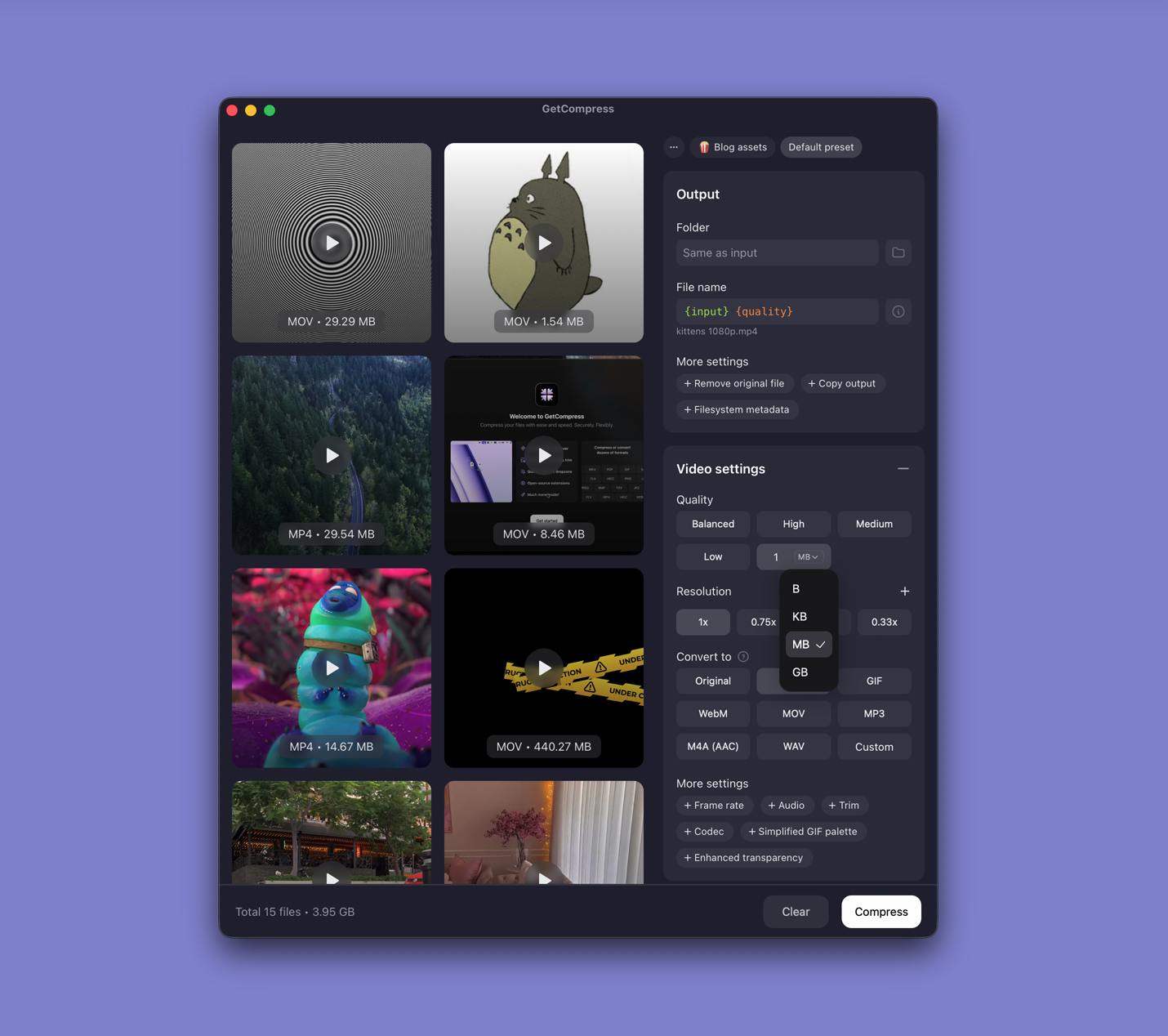
GetCompress is a desktop app for macOS, Windows, and Linux that compresses video (and images, GIFs, and PDFs) fully on your machine. Drag a file in and it aims for significant size reduction with minimal quality loss straight from the defaults. When a job is stricter, the same panel opens up an exact target file size, quality, resolution, codec, and frame rate. You can preview and trim first, save a preset to reuse in one click, and drag the finished file straight into an email, Slack, or an upload form. Nothing is uploaded, so private footage stays on your device.
That answers the three reasons people look for a compressor: size (clear an email or upload limit, exactly when the cap is fixed), quality (strong compression that stays watchable), and speed (a single file takes seconds, and a whole batch drops in at once).
Strengths
- Significant compression with minimal quality loss from the defaults, no encoder tuning required
- Exact target file size for video when the blocker is a hard limit
- Preview and trim before export, so you keep the right part the first time
- Drag-and-drop and reusable presets keep a single job to a few seconds; batch handles many files at once
- Local-only processing, so files never leave the device
Limitations
-
- Not a full video editor or color suite
- Exact output size still depends on content complexity, so keep the master and check the result
Who should pick it: Anyone who wants a smaller, good-looking video quickly for email, Slack, files you send to clients, course uploads, or the web, without studying encoder settings. See how to compress video on Mac , how to compress video on Windows , and, for hard caps, compress video to a target size on Mac .
2. HandBrake
Best for: Free, high-quality re-encoding with device and quality presets.
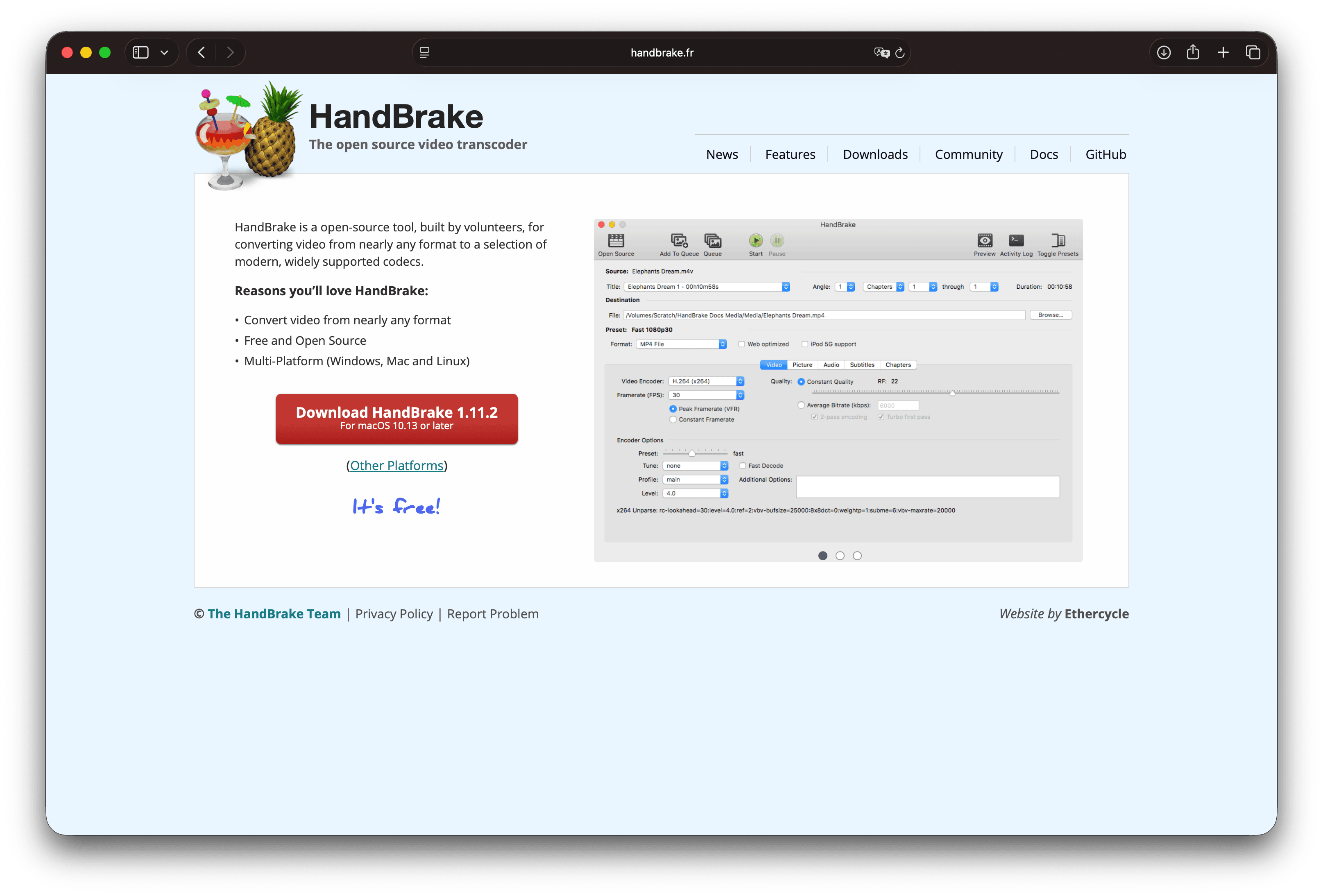
HandBrake is a free, open-source video transcoder for Windows, macOS, and Linux. It accepts a wide range of sources and encodes to modern, widely supported codecs with a full preset library and deep quality controls.
Strengths
- Free and open source, no account required, runs locally
- Strong presets and fine control over quality, filters, audio, and subtitles
- Batch queue for multiple titles
- Active documentation and community
Limitations
- Dense interface for first-time users
- Output containers are limited by design (mainly MP4 and MKV), so it is not a general format converter
- No one-step target-size control; you reach a size through quality, bitrate, and resolution settings
Who should pick it: Power users and cost-conscious teams who want excellent free encodes and are willing to learn RF/CRF-style quality settings. Download only from the official HandBrake site .
3. FFmpeg
Best for: Scriptable compression, CI jobs, and exact encoder control.
FFmpeg is the leading open-source multimedia framework. The ffmpeg command-line tool can decode, encode, filter, and remux nearly any practical format, and many graphical compressors are built on top of it.
Example quality-oriented H.264 encode (edit the filenames, and install FFmpeg first):
ffmpeg -i input.mov -c:v libx264 -crf 23 -preset medium \
-c:a aac -b:a 128k -movflags +faststart output.mp4| Flag | Practical meaning |
|---|---|
-crf 23 | Quality target (lower is better quality and a larger file; try roughly 20 to 28) |
-preset medium | Speed versus compression efficiency |
-movflags +faststart | Better progressive download and web start |
Strengths
- Maximum control and format coverage
- Ideal for folders, cron jobs, and reproducible team scripts
- Free and open source
Limitations
- Command-line only for the core tool
- Easy to produce a smaller file that fails playback, audio, or platform checks if the flags are wrong
- No built-in visual preview workflow
Who should pick it: Developers, technical editors, and anyone automating compression. For a single one-off smaller file, a graphical tool is usually faster.
4. Shutter Encoder
Best for: FFmpeg-level features without working in a terminal.
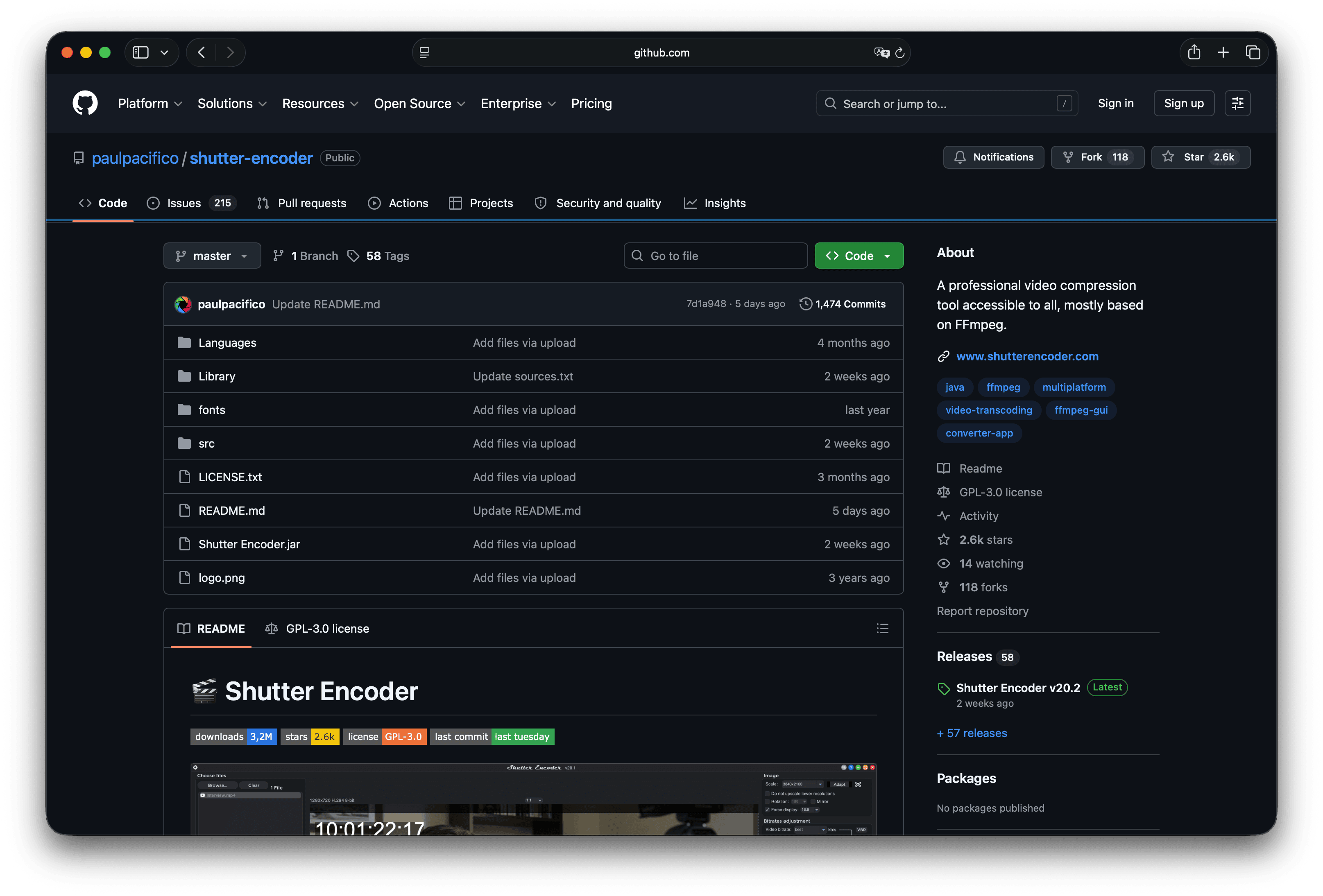
Shutter Encoder is a free, open-source media converter and compressor with a graphical interface built around FFmpeg. It targets video editors who want broad codec access, filters, and analysis tools in one panel.
Strengths
- Wide codec and function surface: encode, convert, analyze, and more
- Free for macOS, Windows, and Linux
- Strong when you need more than a simple 1080p export but less than the raw command line
Limitations
- Dense interface; the first few runs take some orientation
- Still a technical tool, so the wrong function can re-encode when a remux would have been enough
Who should pick it: People who like HandBrake-level control but prefer Shutter Encoder’s FFmpeg-oriented layout and extras.
5. VLC Media Player
Best for: Occasional convert or compress when VLC is already installed.
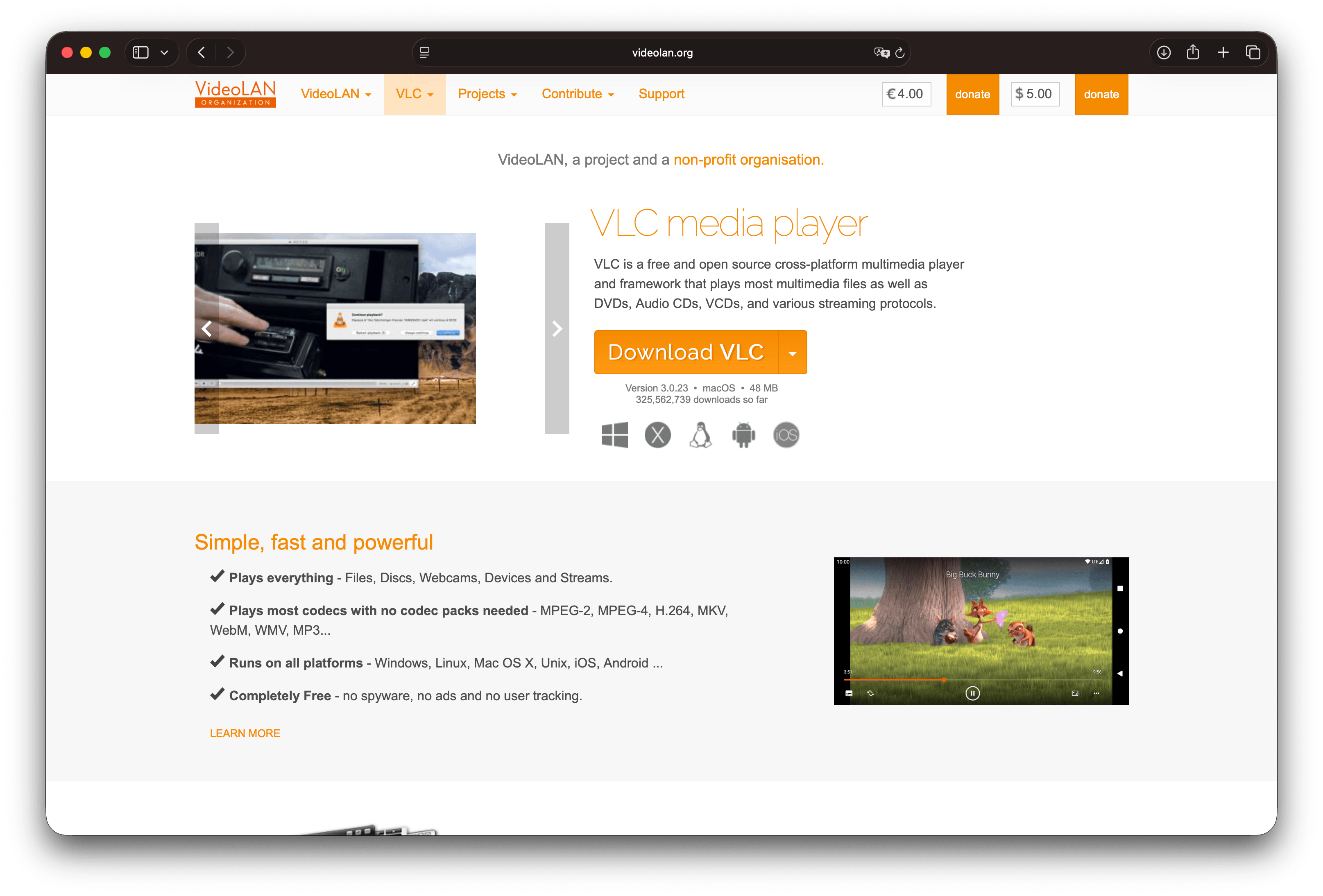
VLC is primarily a free media player, but it includes a Convert / Stream flow (labeled Convert / Save on some platforms). It plays and can transcode a large range of formats, with no adware in the official builds.
Strengths
- Free, local, and available on almost every platform
- Enough for a single clip when you already trust VLC for playback
- No separate compressor to install for light use
Limitations
- The conversion dialog is easy to misconfigure
- Weak batch and preset workflow compared with dedicated compressors
- Not the first choice for a team standard
Who should pick it: One-off shrinks when you need a result quickly. For a focused walkthrough, see how to compress a video in VLC .
6. Apple Compressor
Best for: Final Cut Pro delivery and professional packaging on Mac.
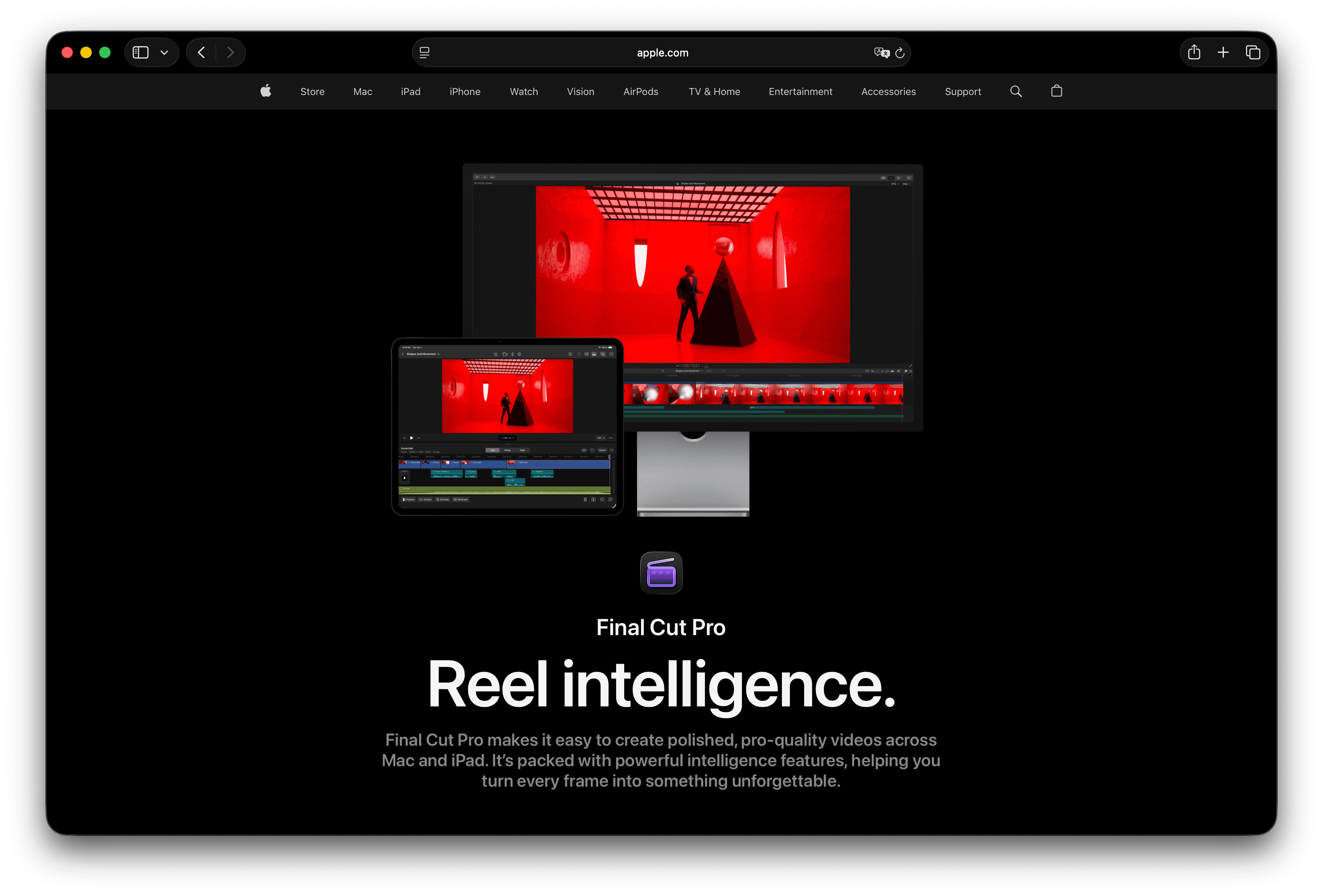
Apple Compressor extends encoding around Final Cut Pro workflows: custom settings, batch jobs, droplets, watch folders, HEVC and H.264, HDR-related delivery, MXF, captions, and more. On the Mac App Store it is a paid Mac app, listed at $49.99 at the time of writing, so confirm current pricing before you buy.
Strengths
- Deep macOS and Final Cut Pro integration
- Batch jobs, droplets, and watch folders for studio-style encoding
- Professional formats and delivery packaging beyond casual uploads
Limitations
- macOS only, and recent versions require a current macOS (check the App Store listing for system requirements)
- Paid, and heavier than needed for a quick screen recording
- Learning curve if you are not already in Apple’s professional video tools
Who should pick it: Editors already using Final Cut Pro who need controlled delivery encodes rather than casual file shrinking.
7. VidCoder
Best for: Windows users who want HandBrake’s engine with a batch-focused interface.
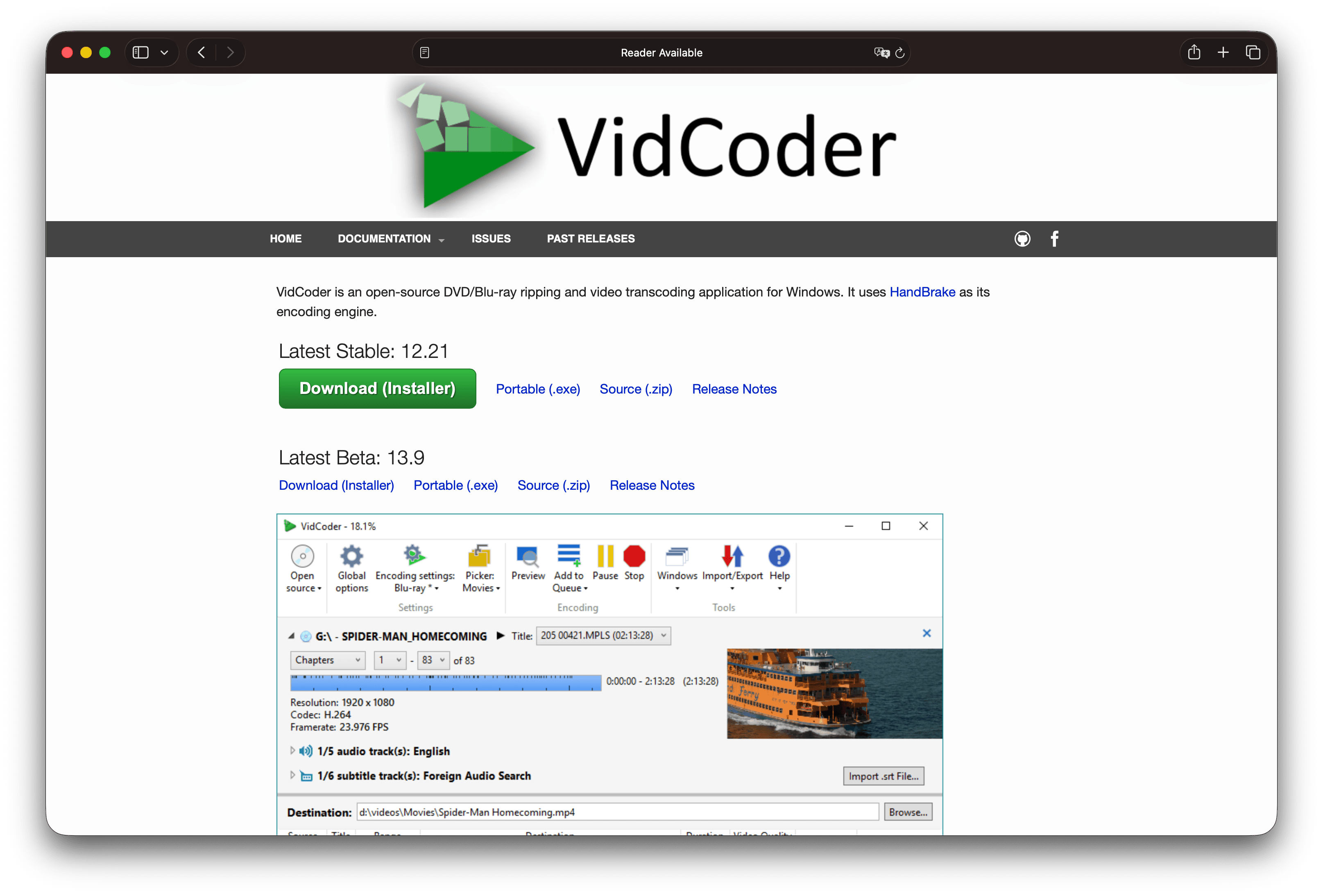
VidCoder is a free, open-source Windows app that uses HandBrake as its encoding engine. It emphasizes batch encoding, simultaneous encodes, folder watching, and integrated pipeline controls, without a separate HandBrake install.
Strengths
- Free HandBrake-level encoding on Windows
- Strong batch and folder-watch features for large libraries
- Hardware encoding options documented for AMD, NVIDIA, and Intel
Limitations
- Windows only
- Still a technical transcoder, not a lightweight tool for quickly getting under an upload limit
- Overlaps with HandBrake, so pick one graphical tool and standardize your settings
Who should pick it: Windows power users building a free encoding station for many files.
8. Avidemux
Best for: Cutting first, then encoding a single project without a full editor.
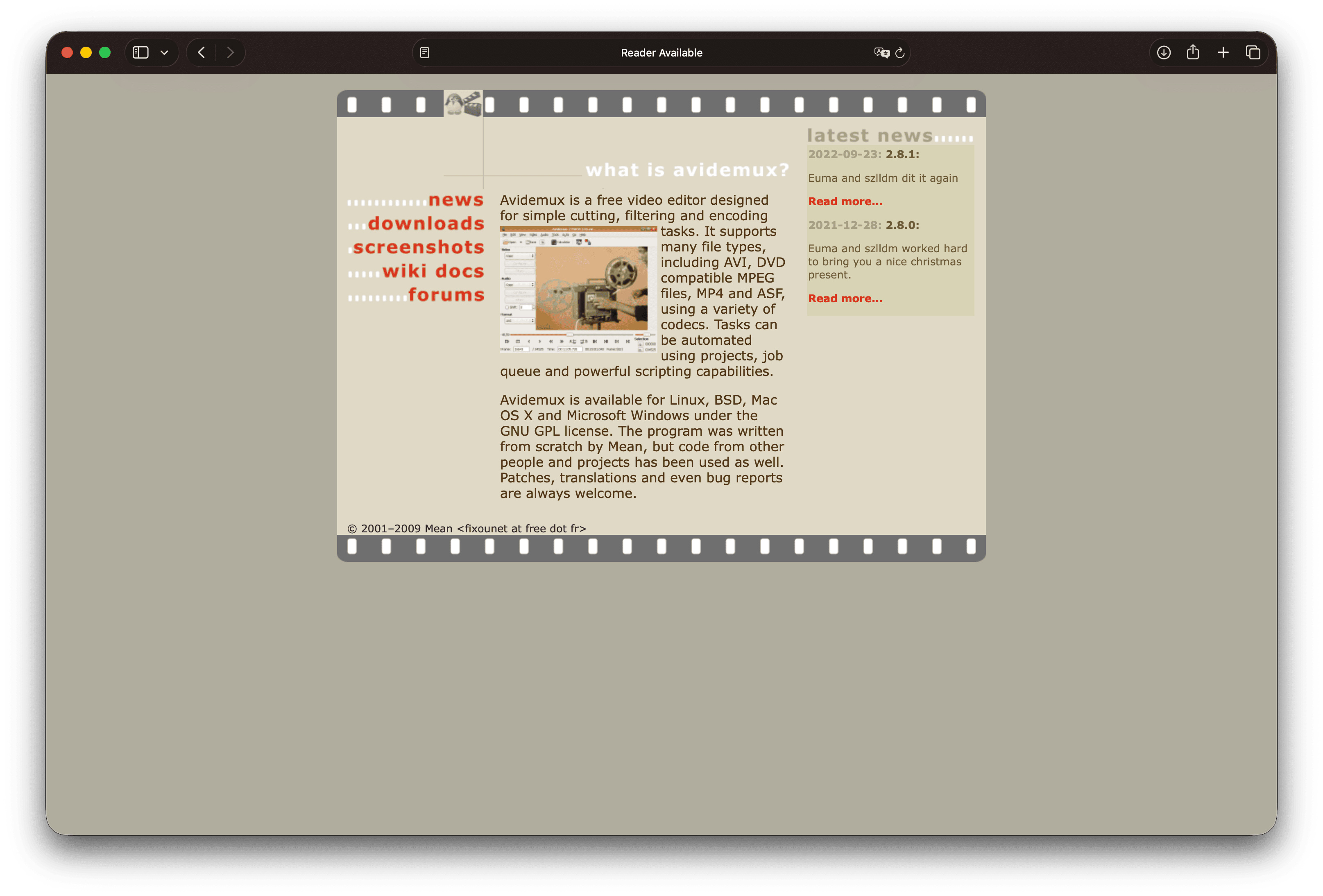
Avidemux is a free video editor aimed at simple cutting, filtering, and encoding. It supports common containers and codecs, job queues, and scripting on Linux, BSD, macOS, and Windows under the GNU GPL.
Strengths
- Trim and encode in one free tool
- Useful when dead air at the start is the real size problem
- Scripting for repeated jobs
Limitations
- Not a modern multi-track editor
- Interface and format behavior vary by build and platform
- Awkward as a team’s only compression standard
Who should pick it: Single-file prep where cutting matters as much as the codec.
Which video compressor should you use
| Your situation | Start with |
|---|---|
| A smaller file for email, a portal, or the web, fast | GetCompress (defaults, presets, target size) |
| Free high-quality re-encode on any major desktop OS | HandBrake |
| Scripts, servers, reproducible flags | FFmpeg |
| FFmpeg features with a graphical interface | Shutter Encoder |
| You already have VLC and one urgent file | VLC |
| Final Cut Pro delivery on Mac | Apple Compressor |
| Free Windows batch library encodes | VidCoder |
| Cut the boring intro, then encode | Avidemux |
If your problem is destination-specific (YouTube, Instagram, email), the settings matter more than the brand. Pair this comparison with guides such as optimize video for YouTube or compress video for email .
Compression settings that matter more than the app
Whichever tool you pick, these decisions shrink files more reliably than any single quality slider:
- Trim first. Removing dead air is free size reduction.
- Downscale before crushing quality. 4K shared at 1080p often looks fine on laptops and phones.
- Prefer H.264 for maximum compatibility. Use H.265 or AV1 when you control the players and want smaller files. See AV1 vs H.265 and H.264 vs H.265 .
- Keep masters. Compress a copy, because lossy encodes stack poorly when you re-compress repeatedly ( lossy vs lossless ).
- Validate the hard parts: small UI text, faces in motion, gradients, and audio sync.
Illustrative only: a five-minute 1080p screen recording can reach hundreds of megabytes before trimming and re-encoding. Exact sizes vary with motion, text detail, and the original encoder.
When a free tool is enough
You do not need a paid compressor for every job.
- One clip, no strict megabyte target: QuickTime export tiers on Mac, or HandBrake and VLC elsewhere, are often enough.
- You already automate with FFmpeg: keep the script, and document the CRF, scale, and audio flags in the team README.
- You want free and open source for the long term: HandBrake, FFmpeg, Shutter Encoder, VLC, VidCoder, and Avidemux all qualify.
Choose GetCompress when you want the smallest good-looking file with the least effort: sensible defaults instead of codec research, drag-and-drop, one-click presets, preview and trim in the same window, and an exact target size when a limit is fixed, all processed locally. The free tools remain strong specialists for hands-on encoding control and zero-cost setups.
- HandBrake AlternativeLooking for a HandBrake alternative? GetCompress is simpler for smaller, shareable video with target size, preview, and local processing, plus images, GIFs, and PDFs.
- FFmpeg AlternativeNeed an FFmpeg alternative with a GUI? GetCompress wraps FFmpeg-style compress and convert behind defaults, target size, preview, and local processing.
- Shutter Encoder AlternativeLooking for a Shutter Encoder alternative? GetCompress finishes compress and convert faster with defaults, target size, preview, and local multi-media support.
- How to Compress Video on MacCompress video on Mac with GetCompress, QuickTime, or FFmpeg. Trim first, pick 720p or 1080p, and hit email or upload size limits without guessing.