H.264 vs H.265 (HEVC)
Compare H.264 (AVC) and H.265 (HEVC) for file size, quality, compatibility, and when to pick each codec for sharing video.
Export dialogs list H.264, HEVC, AVC, and H.265 as separate options. They are two generations of the same idea: throw away data your eyes will not miss, then pack what remains efficiently.
What a video codec actually does
A codec (encoder/decoder pair) compresses raw frames into a bitstream. Container formats like MP4 and MOV hold that bitstream plus audio and metadata. Codec choice affects size and compatibility more than the container label on the file.
| Lever | Effect |
|---|---|
| Resolution | 4K vs 1080p dominates size |
| Bitrate or CRF | Higher quality = more bits |
| Content type | Screen text needs more data than a static talking head |
| Codec | H.265 often shrinks the file at similar visible quality |
See video bitrate for size planning and MP4 vs MOV for containers.
H.264 in plain terms
H.264, also called AVC, has been the default for web, phones, and editors for years. Hardware decoders exist in virtually every laptop, TV, and browser stack shipped since the early 2010s.
Strengths:
- Plays on old phones, projectors, and corporate laptops without extra software.
- Fast to encode on modest hardware.
- Well supported in editing tools and upload pipelines.
Tradeoff: at a given file size, H.264 preserves less fine detail than newer codecs, especially in high-motion 4K footage. Editors may label it AVC or H.264; they refer to the same family.
H.265 (HEVC) in plain terms
H.265, marketed as HEVC (High Efficiency Video Coding), targets the same job as H.264 with better compression efficiency.
Strengths:
- Smaller files at similar subjective quality.
- Useful for archiving phone 4K clips or reducing upload time.
Tradeoffs:
- Encoding is slower unless you have hardware acceleration.
- Some older browsers, editors, and Android devices lack smooth HEVC decode.
- Licensing history made web adoption uneven, though local playback is widely fine on modern desktops.
File size and quality compared
Rules of thumb (same resolution, similar visible quality):
| Scenario | H.264 | H.265 |
|---|---|---|
| 1080p talking head, 5 min | Roughly 80 to 120 MB | Roughly 40 to 70 MB |
| 1080p screen recording | Roughly 150 to 300 MB | Roughly 80 to 160 MB |
| 4K outdoor action | Very large | Large, but often noticeably smaller |
These are ranges, not guarantees. A high CRF H.264 file can beat a poorly tuned HEVC export. Always watch the output on the device your audience uses.
At low bitrates, H.265 often shows fewer blocky artifacts in gradients and shadows. Screen recordings with small UI text are a good A/B test: export both ways at a fixed megabyte target and pause on a spreadsheet cell.
Compatibility and playback
Choose H.264 when:
- The video goes to email, Slack, or a generic upload form.
- You do not know the recipient’s hardware.
- You need smooth scrubbing in an older NLE.
Choose H.265 when:
- You control playback (your phone, your archive drive, your team on current hardware).
- File size or bandwidth is the bottleneck.
- You are storing camera originals long term and want fewer terabytes.
MP4 can hold either codec. The extension alone does not tell you which is inside.
When to choose each codec
| Goal | Start here |
|---|---|
| Client review with unknown devices | H.264 in MP4 |
| Personal archive of family 4K | H.265 if your TV and laptop decode it |
| Bug reproduction clip for a ticket | H.264 720p for small size and wide play |
| Re-upload to a social platform | Often re-encoded anyway; prioritize a clean master |
If HEVC fails on a stakeholder laptop, re-export to H.264 rather than debating codecs in the thread. Paths: convert HEVC to H.264 on Mac or on Windows . For size workflows, see how to compress video on Mac and target file size on Mac .
When a simple H.264 export is enough
QuickTime, Clipchamp, or a single HandBrake pass can work when one H.264 MP4 already plays for everyone and fits the upload cap.
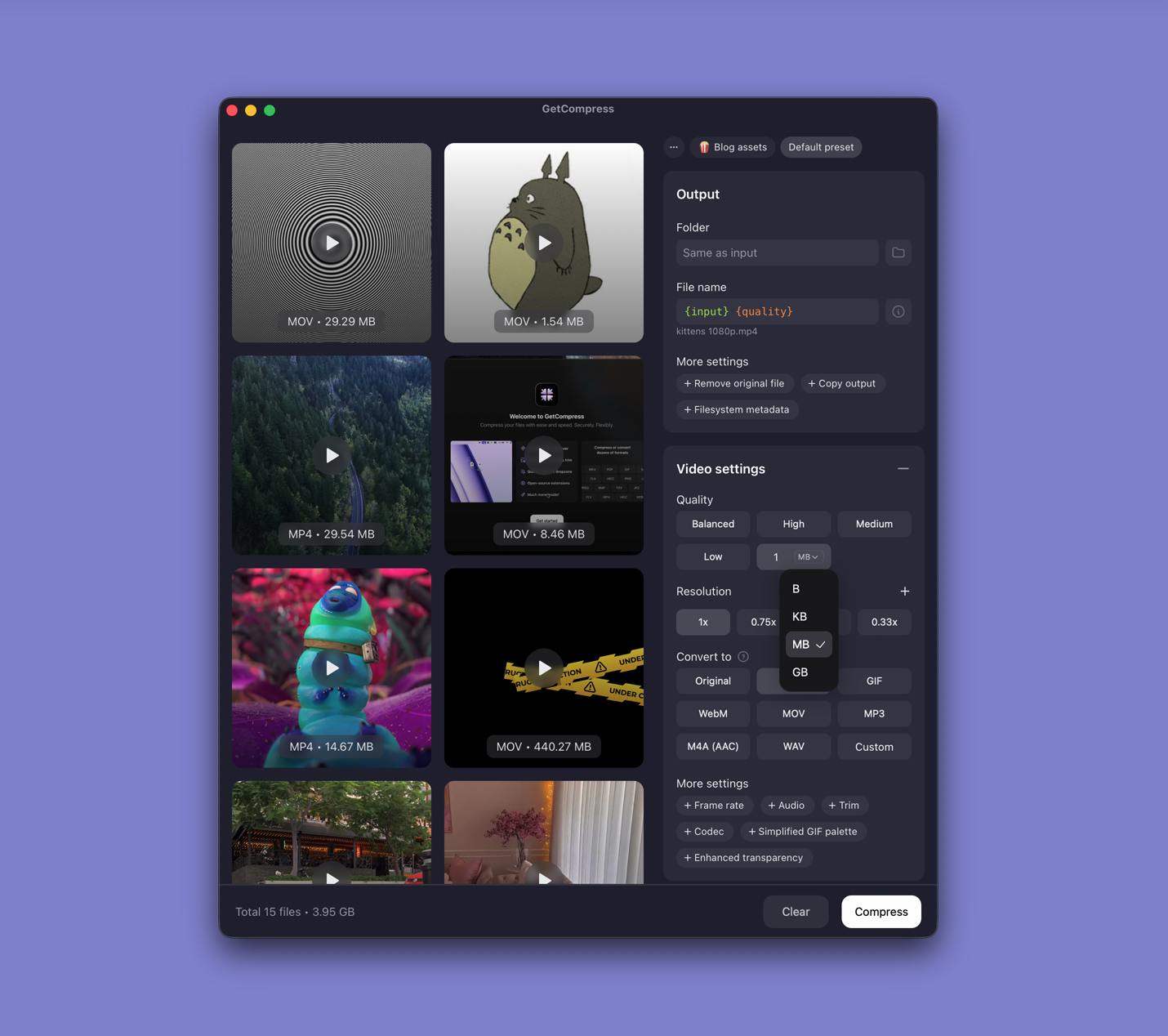
GetCompress also helps when you switch between H.264 and HEVC presets weekly, need preview and trim, batch mixed inputs, or set a video target file size for a hard megabyte limit. Processing stays on your machine. It does not replace an NLE or a broadcast packaging suite.
- Convert HEVC to H.264 on MacConvert HEVC to H.264 on Mac with GetCompress, QuickTime, or FFmpeg. H.264 MP4 for older devices, Windows teammates, and upload tools.
- Convert HEVC to H.264 on WindowsConvert HEVC to H.264 on Windows with GetCompress, Clipchamp, or FFmpeg. Get playable H.264 MP4 for older PCs and upload tools.
- Video bitrate explainedLearn what video bitrate means, how it affects MP4 and MOV file size, and practical bitrate ranges for email, web, and archive exports.
- MP4 vs MOVCompare MP4 and MOV containers for video: codecs inside, Apple vs Windows compatibility, editing workflows, and conversion tips.