How to Compress Images on Mac: 3 Methods
Compress images on Mac with GetCompress, Preview, or sips. Resize JPG and PNG, convert HEIC, and keep sharp UI for email or web.
Retina PNG exports and iPhone HEIC photos add up fast. Upload forms fail and shared folders swell with assets nobody views at full resolution. You usually need smaller dimensions, a better format match, or both.
Three solid routes cover most Mac jobs: GetCompress for mixed folders and presets, Preview or Photos for a few shots, and Terminal tools when you want scripts.
Method 1: GetCompress
Best for: Folders of PNG, JPEG, HEIC, and WebP with the same max width and quality every week.
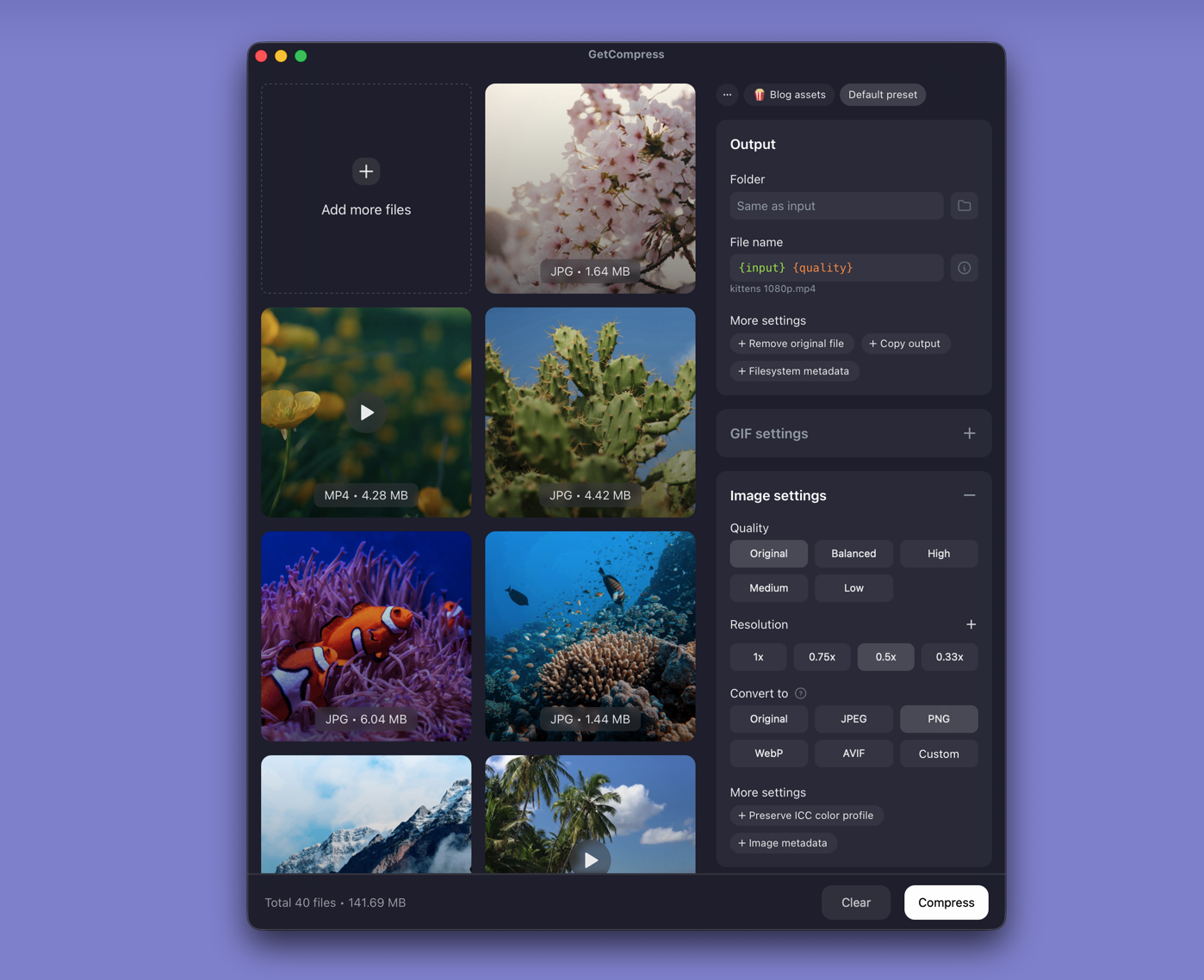
- Open GetCompress and drop images or a folder into the queue.
- Set max width (for example 1920 px for web images), output format, and quality (for example High or Medium).
- Preview a sharp UI screenshot if text must stay crisp.
- Export copies; keep the masters untouched.
Save a preset such as “web JPEG 1920px” so next time the same job takes a few clicks. Processing stays on your Mac. Image compression does not use an exact megabyte target file size; that control is video-only.
Method 2: Preview or Photos
Best for: One image or a small set when you do not need a saved preset.
Preview:
- Open the image.
- Tools → Adjust Size… and set width in pixels.
- File → Export… as JPEG with the quality slider, or keep PNG when you need transparency.
Photos: select images, then File → Export → Export N Photos and pick JPEG quality. Good for camera rolls and HEIC. See HEIC to JPG on Mac when a client cannot open Apple formats.
Limitation: Slow for thirty mockups. No reusable preset across mixed formats.
Method 3: sips and oxipng in Terminal
Best for: Simple batch resize when you already use Terminal.
for f in *.jpg; do sips -Z 1920 "$f" --out "out/$f"; doneConvert HEIC to JPEG:
sips -s format jpeg -s formatOptions 85 photo.heic --out photo.jpgFor PNG screenshots that must stay PNG, resize first, then optional lossless recompression with oxipng (Homebrew):
brew install oxipng
oxipng -o 4 --strip safe screenshot.png
Limitation: You maintain the commands. Mixed PNG, JPEG, and HEIC still need separate loops or an app.
Which method should you use
| Situation | Start here |
|---|---|
| Mixed folder, recurring preset, or preview | GetCompress |
| One or a few shots | Preview or Photos |
| Scripted resize you already own | sips / oxipng |
If the portal wants JPEG but you only have PNG mockups, convert before or while you resize: PNG to JPG on Mac .
Format and display-size basics
| Format | Good for | Watch out for |
|---|---|---|
| JPEG | Photos, email, uploads | No transparency; artifacts on sharp UI |
| PNG | Screenshots, UI, alpha | Large at full Retina size |
| HEIC | iPhone storage | Not every client opens it |
| WebP | Websites (with a fallback) | Design tools often export PNG first |
Export at the pixel width the image will actually show, not the size your monitor captured. A 4000 px PNG in an 800 px column still downloads like a poster. Resize first, then tune quality. For email, 600 to 800 px wide is often enough; for a 960 px CSS hero, about 1920 px wide covers 2x Retina.
When Preview is enough
Preview or Photos can finish one file when resize and export clear the limit.
GetCompress also works well for that job. It also covers mixed formats, the same width often, folder monitoring on an export directory, or batches you do not want to open one by one. It does not replace a design tool. For disk cleanup across photos, video, and PDF, see reduce file size on Mac .
- Convert PNG to JPG on MacConvert PNG to JPG on Mac with GetCompress, Preview, or sips. Keep PNG when you need transparency; flatten first when you do not.
- Convert HEIC to JPG on MacConvert HEIC to JPG on Mac with GetCompress, Photos, or sips in Terminal. Batch HEIC to JPEG for MLS, email, and uploads without uploading iPhone photos.
- Compress JPG on MacCompress JPG on Mac with GetCompress, Preview, or sips. Resize first, then lower quality for email and upload limits without heavy artifacts.
- How to Compress Images on WindowsCompress images on Windows with GetCompress, Photos, or FFmpeg. Resize JPG and PNG, convert WebP, and keep sharp UI for email or web.