Features
GetCompress compresses images, videos, GIFs, and PDFs locally, aiming for the best result with the least of your time. Every feature explained on one page.
Significant compression for images, videos, GIFs, and PDFs
Files are often too big for where they need to go: an email attachment limit, an upload form, a chat, a web page that should load fast. Making them smaller usually means losing quality or jumping between several tools.
GetCompress is built for significant compression with minimal quality loss, both lossy and lossless. It also converts between 107+ formats, including JPEG, PNG, WebP, AVIF, HEIC, SVG, MP4, MOV, WebM, MKV, GIF, and PDF, so everyday jobs like HEIC to JPG or MOV to MP4 and rare one-off conversions run in the same app.
Everything happens locally, with no network access: nothing is uploaded, no server limits your file size, and confidential files never leave your machine. The app takes little disk space and memory, and stays fast even with many files added at once.
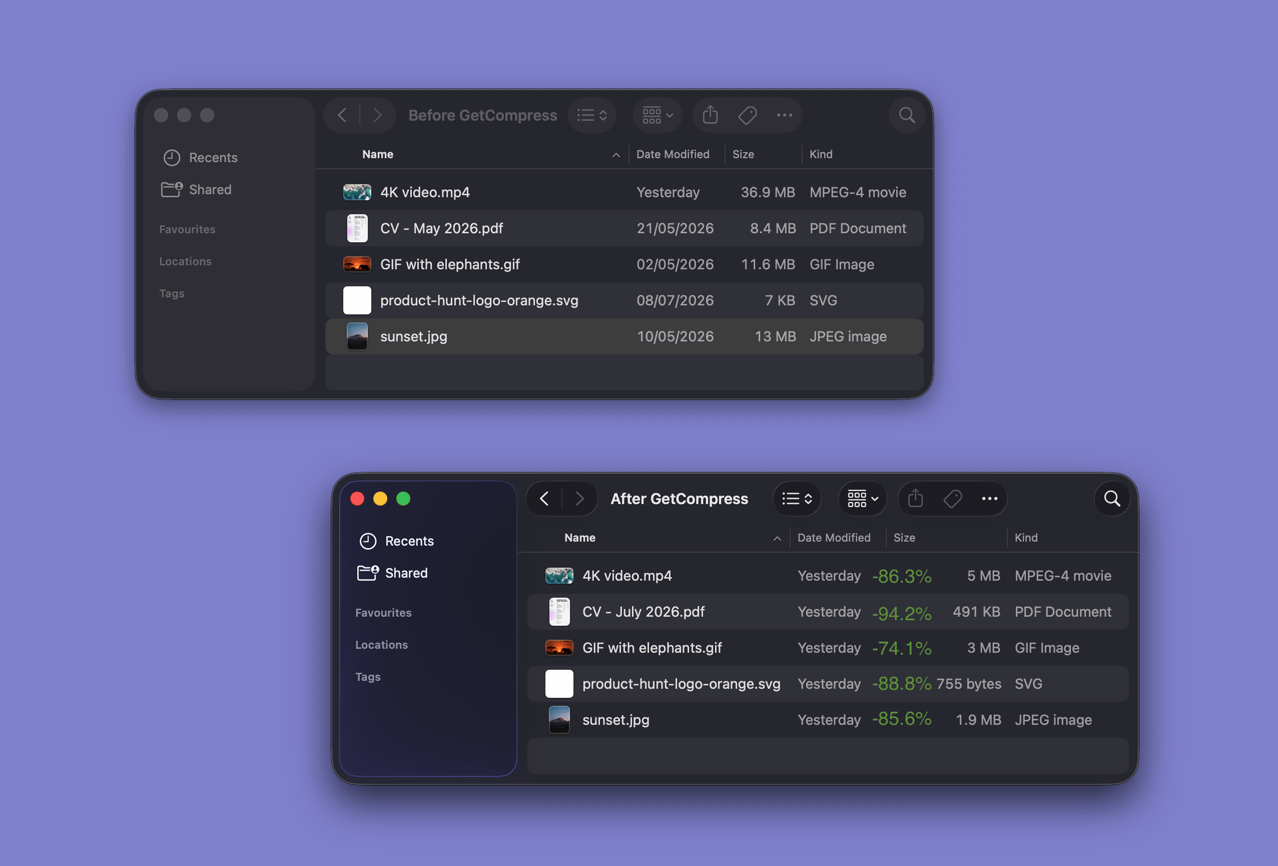
Mini drop zone
Compressing one file often takes more time in switching between windows than in the compression itself.
With the mini drop zone, a small drop area appears as soon as you start dragging a file. Drop the file there, then drag the result straight into Slack, a browser upload, an email, or Finder. You never really leave what you were doing.
Reusable presets
Email wants one size, YouTube another, a client handoff a third. Setting the same options again every time wastes work you already did once.
A preset saves the whole configuration, so the next time takes one click. Keep a list of reusable presets, change settings per file for one-off jobs, give each watched folder its own preset, and set a separate one for the mini drop zone.
Batch processing
Compressing one file is easy. Dozens of screenshots, client videos, or scans is where it becomes real work: open, export, wait, repeat.
With GetCompress you drop the whole set at once, including folders with subfolders, which are processed recursively. Images, videos, GIFs, and PDFs go into one queue, jobs run in parallel, and adjustable limits per media type keep a large batch from freezing the rest of your work.
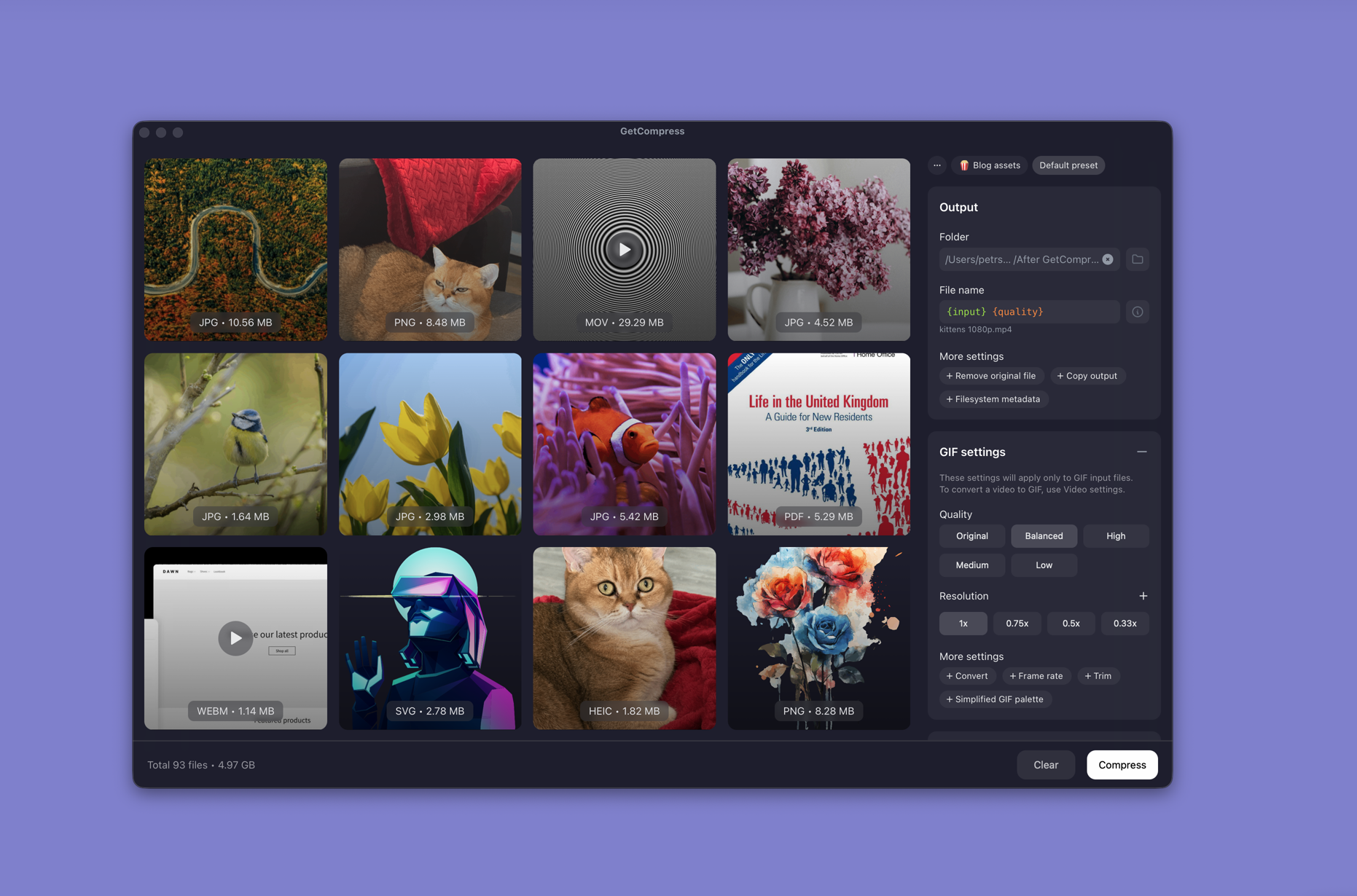
Trim and preview
Exporting a whole clip when you only need a short part wastes time and file size, and guessing the cut points without a preview often ends with exporting the same video several times.
GetCompress lets you preview any media before compressing. You can trim videos with exact timestamps and trim GIFs by frame or by timestamp, so the exported file contains exactly the part you need. For GIFs there is a frame-by-frame player, which macOS itself does not really offer.
Advanced settings with useful defaults
Simple tools give you one button and no way to meet a real requirement, while professional tools show every option before you get the first result. GetCompress starts with defaults that work for most jobs, and the same panel opens into full control when a job has a strict requirement.
Every option, by media type:
Video settings
- Quality: the balance between size and how the video looks, including an exact target file size when a platform has a hard upload limit.
- Resolution: keep the original, scale down to a common maximum like 720p or 1080p, or set exact custom dimensions.
- Format: keep the container, or convert to MP4, MOV, WebM, GIF, or audio-only outputs like MP3, M4A, and WAV.
- Frame rate: keep the original, or drop to 60, 30, 24, 10, or a custom FPS to cut size or match a platform requirement.
- Audio: pick an encode automatically, re-encode to AAC or Opus, keep the original stream, or remove the track for silent clips.
- Trim: export only the range between two timestamps.
- Codec: a strong default, or force H.264 for compatibility, H.265 or AV1 for smaller files, VP9/VP8 for WebM, or a custom encoder.
- GIF palette: when exporting to GIF, an enhanced palette for better color, or a simplified one for smaller files.
- Transparency: enhanced transparency, so alpha survives in formats that support it.
Image settings
- Quality: from visually identical to aggressive compression, lossless or lossy.
- Resolution: full size, scaling by percentage, or exact custom dimensions.
- Format: optimize in place, or convert to JPG, PNG, WebP, AVIF, or another supported format.
- Color profile: preserve the ICC profile when print or design work cannot tolerate a color shift.
- Metadata: strip EXIF, GPS, and similar data by default for privacy and size, or keep it when it matters.
GIF settings
These apply when the input is already a GIF. Converting video to GIF uses the video settings.
- Quality: file size versus banding and artifacts in the animation.
- Resolution: shrink oversized GIFs for Slack, email, or embeds.
- Format: stay GIF, or convert to MP4, WebP, or WebM when a lighter format plays better.
- Frame rate: keep the original timing, or slow it down to cut size.
- Trim: keep only the useful part of the loop, by frame number or by timestamp.
- GIF palette: enhanced color by default, simplified when the file has to get smaller.
PDF settings
- Quality: how strongly embedded images are recompressed and the document structure is cleaned up.
- Images format: automatic, compatible for older readers, untouched, or forced JPEG / JPEG 2000.
- Compatibility: automatic, or force a PDF version like 1.4, 1.5, or 2.0 for a strict reader, printer, or portal.
- Images resize: rescale embedded images as a last resort. It rarely helps much and can hurt readability.
- Metadata: remove document info by default, or keep it when the file still needs it.
- Images color mode: keep original color, or force grayscale or black-and-white for scans and archives.
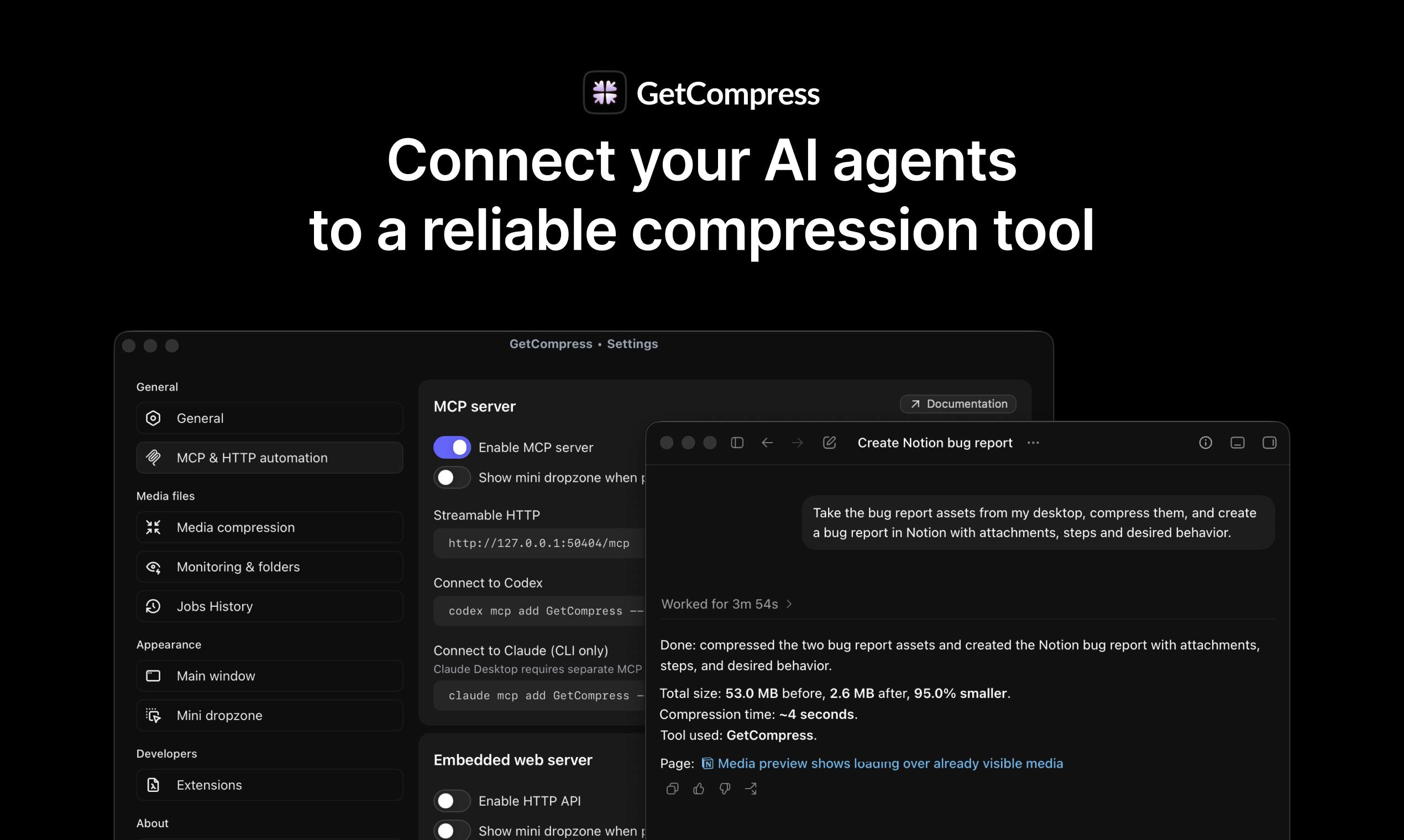
MCP server for AI assistants
Asking an AI assistant to compress a file sounds simple until it becomes a project: the agent installs FFmpeg, guesses flags, hits a sandbox limit, and fails in the middle of a batch.
GetCompress includes a local MCP server, so assistants like Claude Desktop or Cursor can call compression that already works. The tools are installed once, run locally on your files, and stay available for the next request. You describe the result in plain language, and the app handles formats, presets, and quality tradeoffs.
Clipboard monitoring
You copy a screenshot or a file, and it turns out to be too big for the chat, the ticket, or the email you were writing.
Clipboard monitoring can compress copied media automatically and put the result back on the clipboard: copy as usual, paste a smaller file. Filters let you choose which media types are compressed this way.
Folder monitoring
Some folders fill up on their own: screen recordings, downloads, a shared drop folder. Every new file there is one more reminder to compress things by hand.
Point GetCompress at a folder once, and new files in it are compressed automatically. Each watched folder can have its own preset, and background jobs can show the mini drop zone so you see the progress.
Raycast extension
If Raycast is where your work starts, opening a separate app to shrink one file breaks the flow and takes your hands off the keyboard.
The GetCompress extension compresses files selected in Finder directly from Raycast: type “compress”, pick a preset, quality, or output format if needed, and continue without touching the mouse.
Quality of life details
Most daily friction comes from small things around the compression itself: the Mac sleeps in the middle of an export, a finished job goes unnoticed, a drop does the wrong thing. GetCompress pays attention to these details:
Works with your system
- Finder context menu: compress files directly from Finder, via macOS Services.
- Customizable keyboard shortcuts: assign your own shortcuts to the actions you use.
- Launch at login: keep the app ready for clipboard, drop zone, and folder workflows.
- 29 languages: the app UI is fully translated.
Jobs that finish reliably
- Prevent sleep while compressing: long jobs do not stop when the Mac goes to sleep. The display can still turn off.
- Completion notifications: know when a job finishes without watching the window.
- Retry when output is larger: if the result comes out larger than the original, the app lowers the quality and tries again automatically.
- Hardware acceleration: Apple VideoToolbox and AudioToolbox, or FFmpeg hardware acceleration.
- Parallel job limits: choose how many videos, images, GIFs, and PDFs run at once, so big batches do not freeze your machine.
Window behavior
- Dock icon: show it, or hide it for a quieter setup.
- Main window on startup: open it at launch, or keep the app in the background and open it with a shortcut.
- Always on top: pin the window above other apps while dropping files repeatedly.
- Drop behavior: dropped files either join the list or start immediately, and Alt/Option inverts that for a single drop.
- Mini drop zone options: auto-show, auto-hide, a dedicated keyboard shortcut, and its own preset.
Automation options
- Folder drops: drop whole folders, control recursion depth, and filter which media types are accepted.
- Siri Shortcuts: run compression from your macOS automations, described in the Siri Shortcuts documentation .
- Deeplinks: trigger compression from other apps and scripts through deeplinks, with an option to show the mini drop zone so those jobs stay visible.
- Clipboard automation: choose which media types are auto-compressed from the clipboard, and whether the mini drop zone appears for those jobs.
Built for power users
Built-in options cover a lot, but power users eventually hit a job that needs one extra flag, a different encoder, or a command-line tool they already trust.
GetCompress runs customizable open-source JavaScript extensions in a safe local Rust in-memory runtime: write your own logic, bring your own tools, publish extensions for others, and keep the same presets, queue, and previews on top. And if MCP is not enough, an embedded local HTTP automation server lets any script or app run compression programmatically.