How to Compress PDF on Mac: 3 Methods
Compress PDF on Mac with GetCompress, Preview Reduce File Size, or a Keynote re-export. Shrink decks and scans for email and portals.
A 40-slide deck can be 30 MB even when the text is light. Embedded images carry the weight. Email bounces and portals reject uploads long before anyone reads the content.
Three solid routes cover most Mac jobs: GetCompress for batches and presets, Preview for one file, and a fresh export from Keynote or PowerPoint when you still have the deck.
Method 1: GetCompress
Best for: Folders of decks, scans, and reports that share the same optimization every week. Local processing matters for contracts and unreleased materials.
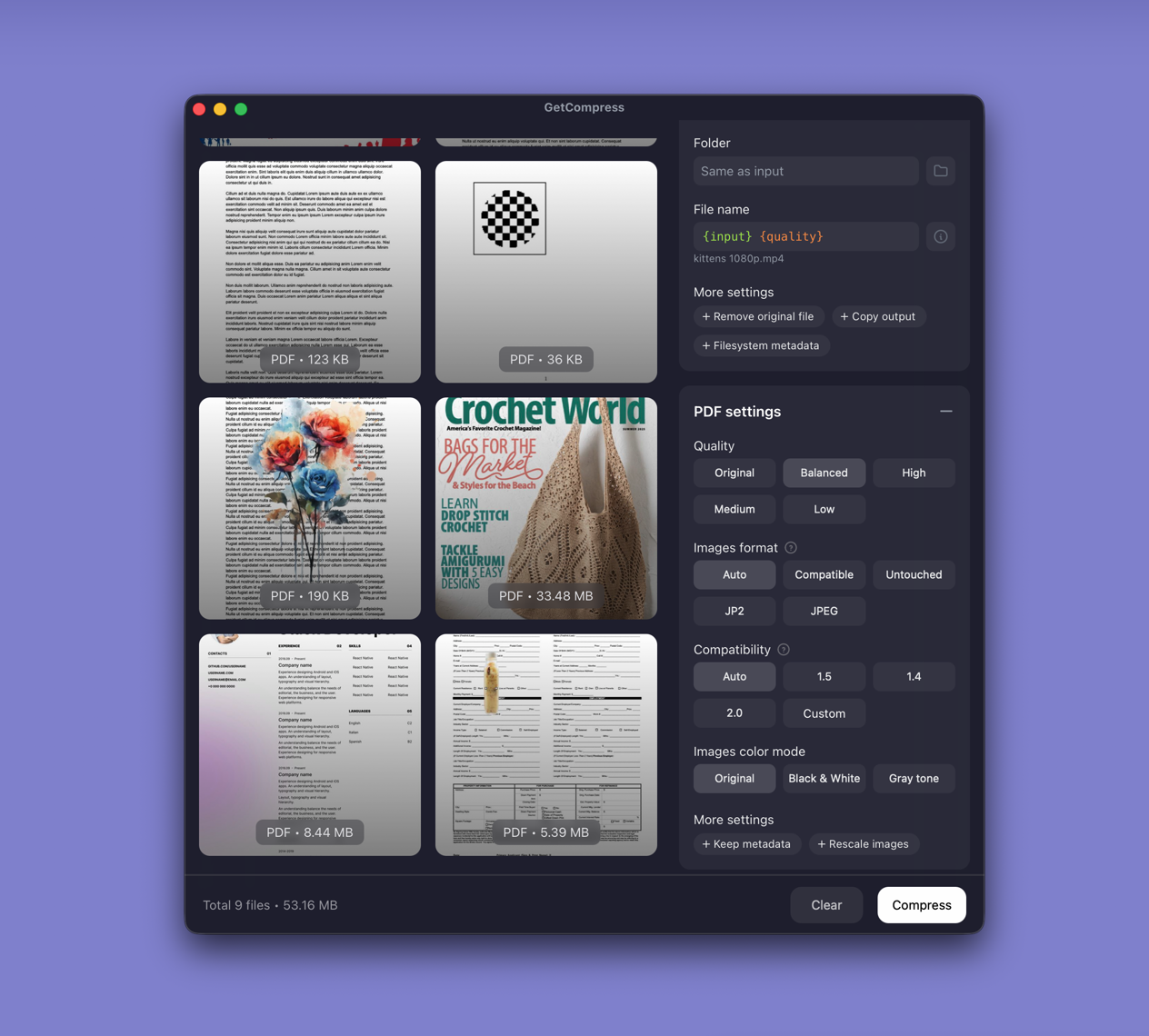
- Open GetCompress and drop one PDF or a folder into the queue.
- Pick a PDF compression preset. GetCompress optimizes embedded images inside the file.
- Preview a chart-heavy or signature page when small type matters.
- Export a new copy; keep the master.
Save the preset so the next compress pass is one click. PDF compression does not use an exact megabyte target file size. That control is video-only. Use quality and image optimization, then check Finder size against your email or portal limit.
Method 2: Preview Reduce File Size
Best for: One PDF without extra installs.
- Open the PDF in Preview.
- File → Export…
- Set Quartz Filter → Reduce File Size.
- Save as a new file and zoom charts, small type, and signature lines.
If text looks muddy, stop and re-export from the source deck instead of filtering harder.
Optional Ghostscript via Homebrew when you want an /ebook profile:
brew install ghostscript
gs -sDEVICE=pdfwrite -dCompatibilityLevel=1.4 -dPDFSETTINGS=/ebook \
 -dNOPAUSE -dQUIET -dBATCH -sOutputFile=compressed.pdf input.pdf
Limitation: One file at a time. Aggressive filters can soften type that was already borderline.
Method 3: Re-export from Keynote or PowerPoint
Best for: Decks you still have as KEY or PPTX.
- Open the source in Keynote or PowerPoint.
- Export PDF at screen image quality, not print.
- Compare one chart-heavy slide before you send the full deck.
Exporting near 1280 or 1920 px wide is usually enough for laptops and projectors. Keep a print-quality archive separate from the email copy.
When the PDF came from scans rather than slides, merge carefully first: JPG to PDF on Mac . For page images instead of one document, see PDF to images on Mac .
Limitation: Needs the editable source. Vendor PDFs without a deck skip this method.
Which method should you use
| Situation | Start here |
|---|---|
| Folder of PDFs, recurring preset, local-only | GetCompress |
| One contract or invoice | Preview |
| You still have the Keynote or PowerPoint file | Re-export |
| Destination | Typical limit | Practical starting point |
|---|---|---|
| Corporate email | 10 to 25 MB | Aim under 8 MB for headroom |
| Web portals | 5 to 20 MB | Compress before upload; keep a master |
| Print shops | Often no strict cap | Send the uncompressed master |
Limits change by plan. Treat the table as planning ranges.
Why PDFs get large
Most bloat is raster images saved at print resolution inside a file meant for screens. Text and vectors stay small; photos, slide bitmaps, and scans dominate.
| PDF type | Usual cause | Try first |
|---|---|---|
| Exported slides | Full-size image per slide | Re-export at screen quality |
| Scans | High DPI on every page | Re-scan at 150 to 200 DPI, or compress |
| Photo inserts | Large JPEG embedded | Optimize images, then check charts |
If you merge many JPEG scans, compress after merge. Each photo can look fine alone and still blow the attachment limit together.
When Preview is enough
Preview can finish one file when Reduce File Size clears the limit and text stays sharp.
GetCompress also works well for that job. It also covers quarterly report folders, scan batches, the same preset, or sensitive files you will not upload to a browser tool. It does not replace Keynote. For broader cleanup, see reduce file size on Mac .
- Convert JPG to PDF on MacCombine JPG images into one PDF on Mac with Preview, set page order, then shrink the file if email or a portal rejects it.
- Export PDF to Images on MacTurn PDF pages into PNG or JPEG on Mac with Preview, pdftoppm, or a resize pass in GetCompress. Batch slide decks without online splitters.
- How to Compress PDF on WindowsCompress PDF on Windows with GetCompress, PowerPoint re-export, or Ghostscript. Shrink decks and scans for Outlook and portals.
- Reduce File Size on MacReduce file size on Mac for video, photos, PDF, and GIF with GetCompress, Preview or QuickTime, and FFmpeg. Free space without deleting project masters.