How to Compress Video on Windows: 3 Methods
Compress video on Windows with GetCompress, Clipchamp, or FFmpeg. Trim first, pick 720p or 1080p, and clear email or upload size limits.
A five-minute screen recording can land near 500 MB at 1080p. Email and upload forms fail long before anyone watches it. You usually need a shorter clip, a lower resolution, or a tighter encode, and you should keep the master file untouched.
Three solid routes cover most Windows jobs: GetCompress for a quick local result with size control, Clipchamp for a single export, and FFmpeg when you want exact flags or a folder script.
Method 1: GetCompress
Best for: A smaller video for email, Teams, tickets, or portals, especially when the form lists a hard megabyte cap or you compress the same kind of clip often.
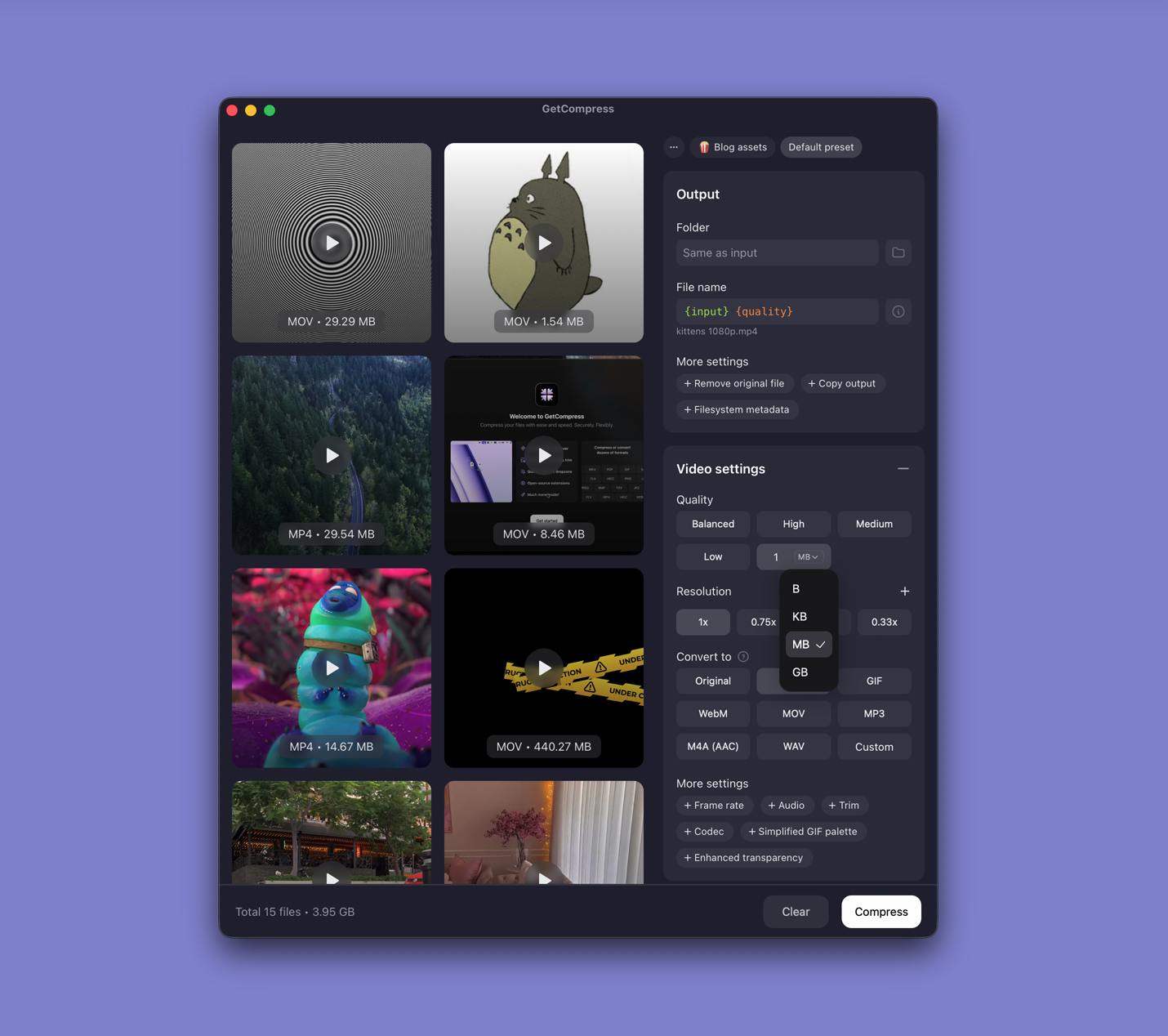
- Open GetCompress and drop one video or a folder into the queue.
- Trim start and end in the preview if the recording has dead air.
- Pick a quality level (Original, High, Medium, Balanced, or Low) and resolution, or set an exact target file size when the form states a megabyte limit (video only).
- Export, then drag the result into Outlook, Teams, or the upload field.
Processing stays on your PC. Save a preset (for example 720p email or 1080p review) so you can reuse it next time. For the numeric-cap workflow in more detail, see compress video to a target size on Windows .
Method 2: Clipchamp
Best for: One clip when you do not need a megabyte target or a batch queue.
Clipchamp is built into many Windows 11 installs, or you can get it from the Microsoft Store.
- Open the video in Clipchamp.
- Trim the timeline to the part you need.
- Export at 1080p or 720p.
Trim first. Cutting unused minutes often clears an email limit before you touch quality. Clipchamp cannot set an exact megabyte cap or queue twenty mixed files the way a dedicated compressor can.
Limitation: Export tiers are coarse. If the file is still too large, shorten the clip again or move to Method 1 or 3.
Method 3: FFmpeg in PowerShell
Best for: Repeatable settings, folder batches, and CRF-style quality control.
Install FFmpeg with winget:
winget install --id Gyan.FFmpeg -eThen:
ffmpeg -i input.mov -c:v libx264 -crf 23 -preset medium `
-c:a aac -b:a 128k -movflags +faststart output.mp4| Flag | Plain meaning |
|---|---|
-crf 23 | Quality (lower number = better, bigger file; try 20 to 26) |
-preset medium | Speed versus compression tradeoff |
-movflags +faststart | Better for web playback |
To downscale and compress in one pass:
ffmpeg -i input.mov -vf scale=-2:1080 -c:v libx264 -crf 23 `
 -c:a aac -b:a 128k -movflags +faststart output-1080p.mp4
Limitation: You maintain the commands yourself. VLC can convert too (Media → Convert / Save), but profiles are easy to mis-pick if you rarely use them.
Which method should you use
| Situation | Start here |
|---|---|
| Hard MB cap, recurring sends, or a batch | GetCompress |
| One Clipchamp-friendly clip | Clipchamp |
| Scripts, CI, or exact encoder flags | FFmpeg |
If the real problem is format (upload accepts MP4 only), convert first: MOV to MP4 on Windows or convert video to MP4 on Windows .
Settings that shrink files first
| Lever | Practical tip |
|---|---|
| Trim | Remove setup time and silence before you lower quality |
| Resolution | Share 4K as 1080p for most laptop reviews |
| Bitrate / CRF | Lower only after trim and resolution are sensible |
| Frame rate | Screen recordings rarely need 60 fps for Teams or email |
| Destination | Typical limit | Starting point |
|---|---|---|
| 10 to 25 MB | Trim + 720p | |
| Slack, Teams, or Drive | Often generous | 1080p |
| Issue trackers | 10 to 50 MB | Short clip, 720p |
| Client portals | 25 to 100 MB | Check the form; use target size when listed |
Limits change by plan and product. Treat the table as planning ranges, not guarantees.
Check the result before you send
Watch the export at 100% zoom on a laptop, especially UI text and thin lines. Soft or blocky edges mean you pushed too hard: raise quality one step, keep 1080p, or trim more instead of crushing bitrate again.
Keep the master. Compress a copy. Re-encoding the same lossy file over and over adds generation loss. For a side-by-side check, use the video comparison tool .
More detail on preserving a sharp review copy: compress video on Windows without losing quality .
When a built-in export is enough
Clipchamp can finish one file when the file lands under the limit after a trim and a 720p or 1080p export.
GetCompress also works well for that job. It also covers mixed folders, the same preset every week, preview and trim in one place, or an exact video target file size that export tiers cannot type. It does not replace Premiere, DaVinci Resolve, or a broadcast packaging suite. For broader cleanup across photos and PDFs as well, see reduce file size on Windows .
- Video quality on WindowsKeep a sharp review copy on Windows: trim first, downscale 4K to 1080p, use sensible CRF or presets, and check UI text before you send.
- Target Video Size on WindowsHit an exact MB cap for email or uploads on Windows. Use GetCompress target file size, or FFmpeg two-pass encoding when you want manual bitrate control.
- Convert MOV to MP4 on WindowsConvert MOV to MP4 on Windows with GetCompress, Clipchamp, or FFmpeg. Get H.264 MP4 for uploads, Teams, and size-limited portals.
- How to Compress Video on MacCompress video on Mac with GetCompress, QuickTime, or FFmpeg. Trim first, pick 720p or 1080p, and hit email or upload size limits without guessing.