Best ImageOptim Alternative
Looking for an ImageOptim alternative? GetCompress compresses and converts images locally with resize, quality, and formats including HEIC and SVG, plus video and PDF.
ImageOptim is a free Mac app known for shrinking images, often losslessly, and stripping metadata. If you also need resize, format conversion, clearer quality control, or the same app for video and PDF, GetCompress is the better ImageOptim alternative.
GetCompress vs ImageOptim at a glance
| GetCompress | ImageOptim | |
|---|---|---|
| Best for | Compress, resize, and convert with clear quality controls | Free Mac optimize, especially lossless-first |
| Platforms | macOS, Windows, Linux | Mac app (official product is macOS-focused) |
| Formats | JPEG, PNG, WebP, HEIC, SVG, and more | Strong on common web formats; combines tools like MozJPEG and pngquant |
| Resize and convert | Same step as compress | Optimize-focused; not a full prepare-for-upload converter |
| Beyond images | Video, GIF, PDF | Images (and related still formats) |
| Processing | Local only | Local only |
| Cost model | Free, open source |
What ImageOptim is good at
ImageOptim runs several open-source optimizers and can remove EXIF and other metadata. By default it is cautious about quality; optional lossy settings exist in preferences. Files are optimized in place (with originals sent to Trash as a safety net per its howto). Official overview: imageoptim.com/mac .
Weak spots for delivery work: it is Mac-first, it does not replace a compressor that also resizes and converts in one pass, and it does not handle video or PDF. In-place overwrite is also a workflow you must understand before dropping masters.
Why GetCompress is the better alternative
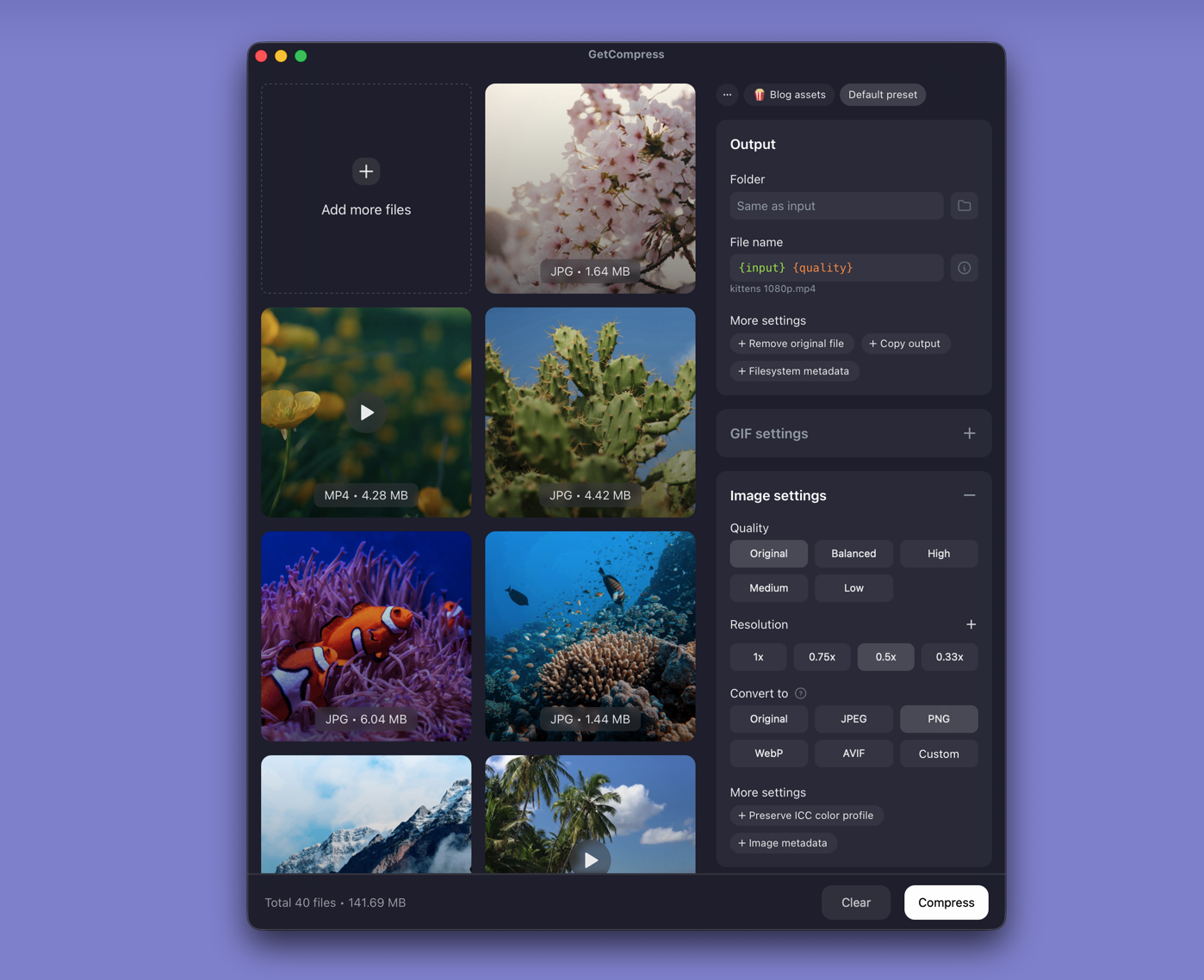
GetCompress compresses and converts images locally with quality, resolution, and format controls in one panel. Defaults aim for significant size reduction with minimal quality loss. It compresses SVG as well as raster formats, can strip metadata by default (or keep color profiles when print work needs them), and supports batch and presets.
- Resize and format change (including HEIC and WebP paths) without a second tool.
- Lossless and lossy options with explicit quality, not only automatic optimize.
- Preview before you commit to an aggressive setting.
- Windows and Linux as well as Mac.
- Video, GIF, and PDF when the folder is mixed.
- Mini drop zone and clipboard monitoring for the “this screenshot is too big for chat” case.
ImageOptim remains excellent free Mac optimization. GetCompress wins when the job is a ready-to-upload image (or a mixed media set) with less fiddling.
ImageOptim or GetCompress
| Situation | Better pick |
|---|---|
| Prepare images for email, CMS, or chat with resize or convert | GetCompress |
| HEIC or SVG in the same queue as JPG/PNG | GetCompress |
| Mixed images plus video or PDF | GetCompress |
| Free Mac lossless-first optimize of existing web exports | ImageOptim still fits; GetCompress covers more of the prepare path |
See best image compressors and how to compress images on Mac .
Using GetCompress instead of ImageOptim
- Drop images (or a folder) into GetCompress.
- Set quality, resolution, and output format as needed.
- Preview important files, then export to new files so masters stay safe.
- Reuse a preset for the same destination next time.
ImageOptim stays a fine free Mac specialist. For compress plus resize and convert with clearer controls, and for work beyond still images, GetCompress is the better alternative.
- Best Image CompressorsCompare 6 image compressors for smaller JPG, PNG, WebP, SVG, and HEIC files: GetCompress, Squoosh, jpegoptim, Preview, GIMP, and oxipng.
- Best Image ConvertersCompare 8 image converters for HEIC, WebP, AVIF, SVG, and PNG paths: GetCompress, ImageMagick, Inkscape, sips, IrfanView, GIMP, FFmpeg, and XnConvert.
- How to Compress Images on MacCompress images on Mac with GetCompress, Preview, or sips. Resize JPG and PNG, convert HEIC, and keep sharp UI for email or web.
- Compress PNG on MacCompress PNG on Mac with GetCompress, Preview, or oxipng. Resize first, then lossless recompress screenshots without losing transparency.