8 Best Image Converters (2026)
Compare 8 image converters for HEIC, WebP, AVIF, SVG, and PNG paths: GetCompress, ImageMagick, Inkscape, sips, IrfanView, GIMP, FFmpeg, and XnConvert.
Phones save HEIC, design tools export PNG, and the CMS wants WebP or JPEG. Conversion changes the container and often the pixel format. Compression makes a file smaller inside a format you already have. People search both queries, but the job is different: first make the file open where it needs to go, then shrink it if a size limit remains.
This guide compares the 8 best image converters of 2026. It deliberately uses a different tool mix from our image compressors list so the advice stays useful for format changes, not only optimize passes.
Conversion is not the same as compression
| Job | What you need | Typical tools on this page |
|---|---|---|
| Convert | New format or color mode so the destination accepts the file | GetCompress, ImageMagick, Inkscape, sips, IrfanView |
| Compress | Smaller bytes in a format you already use | Dedicated compressors, quality settings after convert |
| Convert and prepare | New format plus resize or quality for upload | GetCompress, XnConvert, GIMP export |
HEIC to JPEG is conversion. JPEG quality 80 on an already-JPEG photo is compression. Many real uploads need both, in that order.
How we ranked these image converters
Inclusion required a desktop or local tool that can change image formats without forcing an untrusted upload for the core job.
Evaluation criteria, applied to every option:
| Criterion | What we looked for |
|---|---|
| Format usefulness | HEIC, JPEG, PNG, WebP, AVIF, SVG, TIFF, and related paths |
| Ease and speed | Defaults, batch, and steps non-specialists can finish |
| Conversion accuracy | Transparency, color, and SVG rasterization caveats |
| Local processing | Files stay on the machine |
| Platforms | macOS, Windows, and Linux where relevant |
GetCompress ranks first for convert-and-prepare work: change format, optionally resize and set quality, preview, and batch locally, in the least time. ImageMagick remains the tool for obscure formats and scripting, and Inkscape is a dedicated editor for detailed SVG work.
Quick comparison
| Tool | Best for | Platforms |
|---|---|---|
| GetCompress | Local convert with optional resize and quality in one step | macOS, Windows, Linux |
| ImageMagick | Free scripts and broad format coverage | macOS, Windows, Linux |
| Inkscape | Free SVG edit and PNG export | macOS, Windows, Linux |
| sips | Built-in Mac Terminal conversion | macOS |
| IrfanView | Fast Windows GUI conversion (free for private use) | Windows |
| GIMP | Free convert after edits | macOS, Windows, Linux |
| FFmpeg | Free pipeline conversion for many still formats | macOS, Windows, Linux |
| XnConvert | Free batch GUI across many formats | macOS, Windows, Linux |
1. GetCompress
Best for: Converting images so they open and upload, with resize and quality available in the same step.
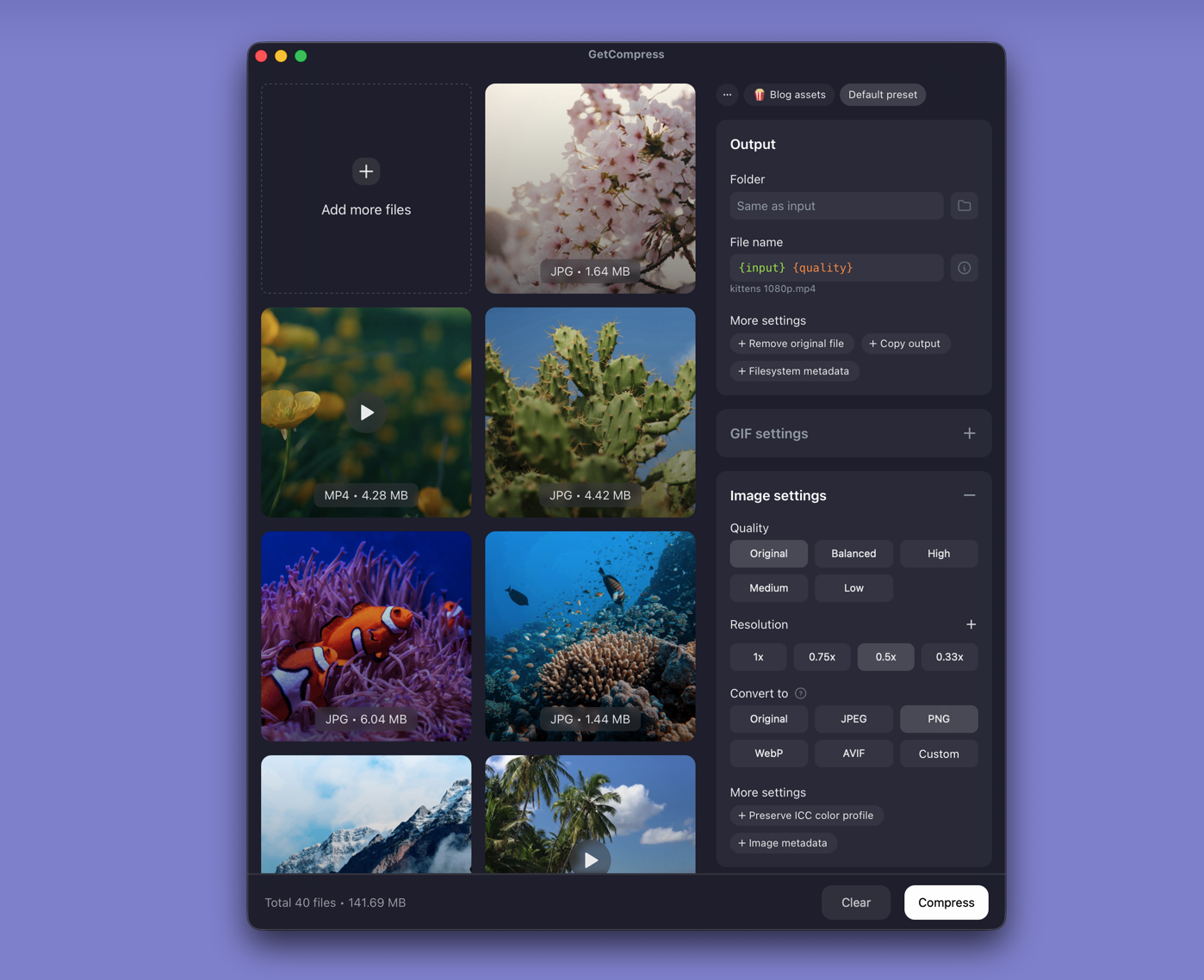
GetCompress converts images locally on macOS, Windows, and Linux across common formats such as JPEG, PNG, WebP, AVIF, HEIC, and SVG. Drop files, pick the output format, and, if the file also has to be smaller, set quality and resolution in the same step. Preview, batch, and presets keep the job short. Everything happens on your computer, so nothing is uploaded and private images stay private.
Strengths
- Converts to common web and sharing formats
- Optional resize and quality in the same step, so the file is ready to upload
- Batch a whole folder, even when it mixes formats
- Reusable presets for settings you use often
- Also compresses videos, GIFs, and PDFs in the same app
- Runs on your computer, so images are never uploaded
Limitations
- Not a full vector illustration suite
- Complex SVG artwork may need a dedicated vector editor to set an exact output size
Who should pick it: Anyone converting phone photos, mockups, or web assets so they open in a CMS, email, or client app. Related guides: HEIC to JPG on Mac , PNG to WebP on Mac , SVG and PNG conversion on Mac .
2. ImageMagick
Best for: Free scriptable conversion across a huge format set.
ImageMagick is a free suite for creating, editing, and converting images from the command line and libraries. It is the default choice for folders, CI, and unusual format pairs.
Strengths
- Broad format coverage
- Excellent for automation
- Free and open source
Limitations
- Command-line learning curve
- SVG and HEIC behavior can depend on delegates
- Easy to destroy masters with in-place commands
Who should pick it: Developers and technical teams. Docs: imagemagick.org .
3. Inkscape
Best for: SVG inspection and high-quality raster export.
Inkscape is a free vector editor. Use it when the source is SVG and you need control over export size, backgrounds, and objects before PNG or PDF output.
Strengths
- Best free GUI for SVG-centric work
- Precise export controls
- Local and open source
Limitations
- Heavy if you only needed HEIC to JPEG
- Not the fastest path for phone photo batches
- Raster photo conversion is outside its sweet spot
Who should pick it: Design and web work that starts from SVG. Site: inkscape.org .
4. sips on Mac
Best for: Built-in Mac Terminal conversion and resize for common formats.
sips ships with macOS and can convert and resample many image types without installing ImageMagick.
Strengths
- Already on Mac
- Fine for small scripts and one-off Terminal jobs
- Local
Limitations
- macOS only
- Format coverage is narrower than ImageMagick
- No friendly GUI
Who should pick it: Mac users who want a free built-in CLI for simple JPG/PNG work.
5. IrfanView
Best for: Fast free Windows GUI conversion and basic batch.
IrfanView is a long-standing Windows viewer with conversion and batch tools. Official licensing is free for private use; check current terms for commercial use.
Strengths
- Lightweight Windows GUI
- Batch conversion features
- Local
Limitations
- Windows focused
- Plugin packs may be required for some formats
- UI patterns feel older than modern compressor apps
Who should pick it: Windows users who want a free local converter without ImageMagick. Site: irfanview.com .
6. GIMP
Best for: Converting after crop, flatten, or color edits.
GIMP exports to many formats after you edit. Flatten transparency before JPEG. Convert color modes when a print or web pipeline requires it.
Strengths
- Free editor plus export on major systems
- Useful when conversion is not the only step
- Local
Limitations
- Slow if conversion is the only need
- Batch export takes setup
- Overkill for HEIC phone dumps
Who should pick it: People already finishing artwork in GIMP.
7. FFmpeg
Best for: Pipeline conversion when images sit next to video jobs you already automate.
FFmpeg can read and write many image sequences and still formats. It is not the friendliest stills GUI, but it fits teams that already standardize on FFmpeg.
Strengths
- Scriptable and broad
- Useful for sequences and mixed media pipelines
- Free and open source
Limitations
- Overview: ffmpeg.org/about.html .
8. XnConvert
Best for: Free multi-platform batch conversion with a graphical interface.
XnConvert is a free batch image converter with a GUI, wide format support, and optional transform steps such as resize during convert.
Strengths
- Free batch GUI on major desktop systems
- Convert plus simple transform chains
- Local processing
Limitations
- Interface density is higher than a preset-first compressor
- Advanced users may still prefer ImageMagick scripts for CI
- Confirm current license terms for your use case on the vendor site
Who should pick it: Free folder conversion without building a shell script. Site: xnview.com/en/xnconvert .
Which image converter should you use
| Your situation | Start with |
|---|---|
| Common HEIC, PNG, WebP, or AVIF convert with optional resize | GetCompress |
| Scripts and unusual formats | ImageMagick |
| SVG to PNG with export control | Inkscape |
| Quick Mac Terminal convert | sips |
| Free Windows GUI | IrfanView |
| Edit, then export | GIMP |
| Media pipelines that already use FFmpeg | FFmpeg |
| Free batch GUI on any major desktop OS | XnConvert |
If you mainly need smaller files in the same format, read best image compressors .
Common conversion paths
| Source | Goal | Practical approach |
|---|---|---|
| iPhone HEIC | JPEG for clients | Convert, then resize if needed ( HEIC to JPG ) |
| Design PNG | WebP for the web | Convert and keep a JPEG/PNG fallback ( PNG to WebP ) |
| SVG logo | PNG at exact pixel size | Inkscape or GetCompress; set width first ( SVG and PNG ) |
| WebP asset | JPEG for older tools | Convert and flatten alpha if required ( WebP to JPG ) |
| Folder of HEIC | JPEG for a shared drive | Batch convert, then compress only if still too large |
Always keep originals until you verify transparency, color, and sharpness on a second device.
When a free converter is enough
- Scripts: ImageMagick or FFmpeg
- SVG work: Inkscape
- Mac built-in: sips
- Windows GUI: IrfanView
- Free batch GUI: XnConvert
Choose GetCompress when conversion is part of getting files ready to send: change format, resize if needed, keep quality usable, and stay local across a whole folder in one pass.
- XnConvert AlternativeLooking for an XnConvert alternative? GetCompress combines batch convert with strong compression defaults, resize, preview, and video, GIF, and PDF in one local app.
- Best Image CompressorsCompare 6 image compressors for smaller JPG, PNG, WebP, SVG, and HEIC files: GetCompress, Squoosh, jpegoptim, Preview, GIMP, and oxipng.
- Convert HEIC to JPG on MacConvert HEIC to JPG on Mac with GetCompress, Photos, or sips in Terminal. Batch HEIC to JPEG for MLS, email, and uploads without uploading iPhone photos.
- Convert PNG to WebP on MacConvert PNG to WebP on Mac with GetCompress, cwebp, or a Preview resize first. Keep a JPEG or PNG fallback for older browsers.