Convert SVG to PNG on Mac: 4 Methods
Convert SVG to PNG on Mac with GetCompress, Inkscape, Safari and Preview, or rsvg-convert. Set exact dimensions and keep transparency.
An SVG scales without one fixed pixel size. A PNG cannot, so decide the required width or height before converting. A website upload, presentation, app asset, and email signature may all need different PNG dimensions from the same SVG.
Method 1: GetCompress
Best for: One file or batches, recurring website or documentation exports, and mixed image folders.
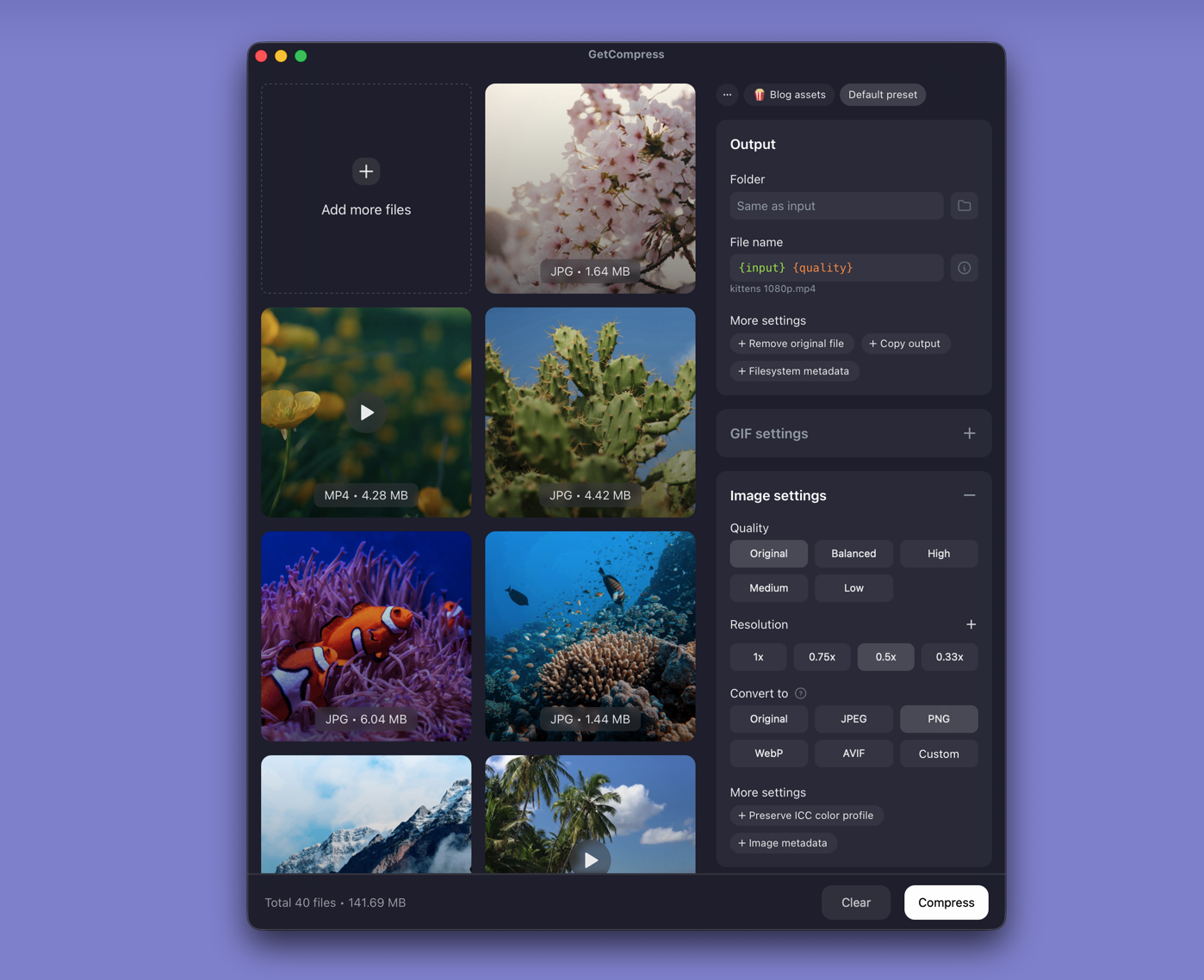
- Drop the SVG file or folder into GetCompress .
- Select PNG as the output format.
- Set the width or height the destination requires. Preserve aspect ratio unless the spec says otherwise.
- Check the preview, then export to a separate folder.
For high-density screens, start near twice the rendered width. When a portal lists exact dimensions, follow that instead.
Method 2: Export a PNG from Inkscape
Best for: SVG files with text, masks, gradients, filters, or canvas bounds that need inspection.
- Open the SVG in Inkscape .
- File → Export.
- Select page, visible drawing, or current selection as the export area.
- Enter the required pixel width or height.
- Confirm the background and export as PNG.
Page keeps intentional padding. Drawing crops to visible artwork. If an icon arrives with empty space, compare both before exporting.
Limitation: Adds a full editor when you may only need conversion.
Method 3: Safari and Preview for one file
Best for: An occasional illustration where exact canvas bounds and transparency are not critical.
macOS does not provide a dependable one-step SVG to PNG command in Preview:
- Open the SVG in Safari and confirm it renders correctly.
- File → Print and disable headers and footers.
- Use the PDF menu to save the page as a PDF.
- Open the PDF in Preview.
- File → Export, then select PNG.
Apple documents Preview export controls , but SVG is not a normal Preview input. The Safari step makes the workaround possible.
Limitation: Printing can introduce a page-sized canvas, margins, or an opaque background. Skip this for app icons and transparent logos.
Method 4: Batch convert in Terminal
Best for: Documentation builds, release scripts, and reproducible asset generation.
brew install librsvg
rsvg-convert --width 1200 --keep-aspect-ratio \
 --output diagram.png diagram.svg
Folder batch:
mkdir -p png-out
for file in *.svg; do
 rsvg-convert --width 1200 --keep-aspect-ratio \
 --output "png-out/${file%.svg}.png" "$file"
done
See rsvg-convert for flags.
Limitation: A valid PNG can still hide a missing font or wrong crop. Inspect representative output before a large directory.
Check the PNG before using it
Open the result at 100% and test it in the real destination:
- Exact pixel width and height
- Transparency on light and dark backgrounds
- Accidental empty space or clipped edges
- Fonts, linked images, filters, and masks
- File size (a very large PNG may need smaller dimensions)
For website delivery after conversion, see the image optimization guide for Mac .
When a simpler tool is enough
| What you need | Start here |
|---|---|
| Several SVG files or reusable settings | GetCompress |
| Inspect or edit the vector first | Inkscape |
| One non-critical image | Safari and Preview |
| Scripted folder conversion | rsvg-convert |
Safari and Preview are enough for a disposable slide image. Keep the SVG as the source master. Re-exporting from it is safer than enlarging an old PNG later.
- Optimize Images for Web on MacOptimize images for the web on Mac with a resize-first workflow, format comparisons, responsive variants, visual checks, and measured production delivery.
- Convert PNG to JPG on MacConvert PNG to JPG on Mac with GetCompress, Preview, or sips. Keep PNG when you need transparency; flatten first when you do not.
- Batch Compress and Convert on MacBatch compress and convert on Mac with GetCompress, Shortcuts or Automator, or a Terminal script. Local presets for JPEG, MP4, and PDF folders.
- Convert SVG to PNG on WindowsConvert SVG to PNG on Windows with GetCompress, Inkscape, Microsoft 365, or ImageMagick. Control pixel size, transparency, and batches.