Compress GIFs on Mac: 3 Methods
Compress GIFs on Mac with GetCompress, QuickTime MP4 export, or FFmpeg. Trim, shrink width, or switch to MP4 when the tool allows video.
A 15-second UI demo as GIF can hit 20 MB. The same clip as MP4 is often 1 to 2 MB. Design critiques and bug tickets still ask for GIF sometimes, but many tools now accept video. When GIF is mandatory, shorten the loop, reduce width and fps, and use a proper palette encode. Keep unreleased product UI off random upload sites.
Three solid routes cover most Mac jobs: GetCompress for local GIF work with preview, QuickTime when MP4 is allowed, and FFmpeg when you need palette flags or a folder script.
Method 1: GetCompress
Best for: Shrinking an existing GIF, or making a GIF from MOV or MP4, with trim and frame preview before you attach it to a ticket.
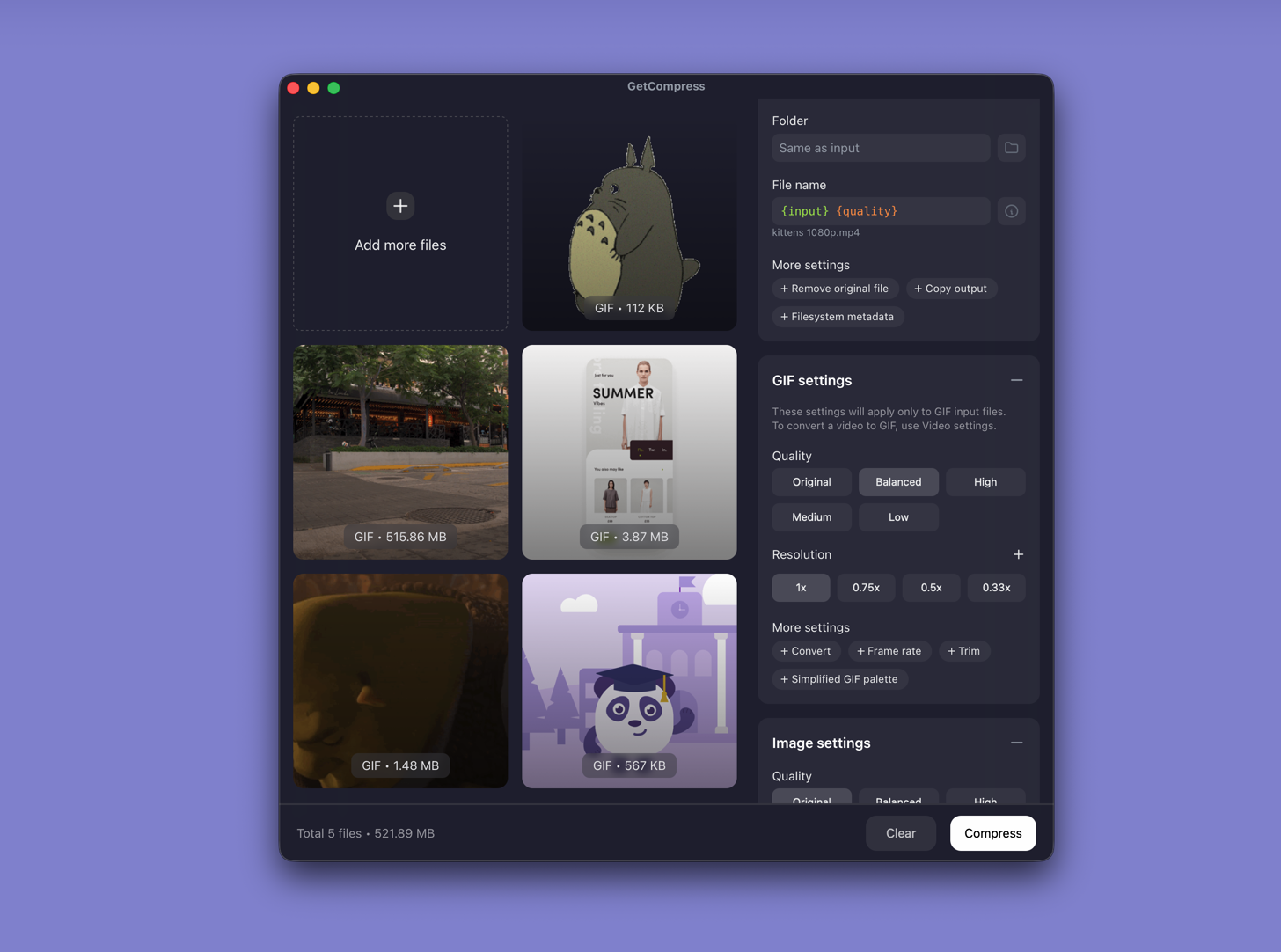
- Open GetCompress and drop a GIF, or drop video to create a GIF from source.
- Trim idle frames in the preview.
- Set width (640 or 800 px covers most forms) and frame rate, then export.
- If the thread allows video, export MP4 instead and skip GIF entirely.
Processing stays on your Mac. Save a preset such as “bug GIF 640w 10fps” so you can reuse it next time. Frame-by-frame preview catches muddy text before the ticket leaves your desk. When video is allowed, see convert GIF to MP4 on Mac .
Method 2: Export MP4 in QuickTime
Best for: One screen recording when Slack, Notion, GitHub, or your docs tool accepts video.
- Open the recording in QuickTime Player.
- Edit → Trim (⌘T) to the action only.
- File → Export As… → 720p.
Upload MP4. File size drops with full color and smooth motion. Reserve GIF for tools that still block video.
Limitation: QuickTime does not re-palette an existing GIF with fine control. If GIF is mandatory, use Method 1 or 3.
Method 3: FFmpeg palette pipeline
Best for: Exact fps and width flags, and batch re-encode of oversized GIF files.
Install FFmpeg with Homebrew:
brew install ffmpegFrom MP4:
ffmpeg -i clip.mp4 -vf "fps=10,scale=640:-1:flags=lanczos,split[s0][s1];[s0]palettegen[p];[s1][p]paletteuse" -loop 0 clip.gifRe-compress an existing GIF:
ffmpeg -i big.gif -vf "fps=10,scale=640:-1:flags=lanczos,split[s0][s1];[s0]palettegen[p];[s1][p]paletteuse" -loop 0 clip-small.gif| Parameter | Smaller file | Better quality |
|---|---|---|
fps | 8 | 12 to 15 |
scale width | 480 to 640 | 800 to 960 |
| Source trim | Shortest usable clip | Full interaction |
Trim in QuickTime before FFmpeg so you are not encoding idle frames. Re-encoding the same GIF many times increases banding; keep an MP4 master when possible.
Limitation: You maintain the commands. VLC can export GIF, but palette control is easy to get wrong.
Which method should you use
| Situation | Start here |
|---|---|
| Recurring bug GIFs, preview, or video-to-GIF | GetCompress |
| One clip and video is allowed | QuickTime MP4 |
| Scripts or exact palette flags | FFmpeg |
Creating GIF from video: video to GIF on Mac . Still images: how to compress images on Mac .
Why GIF files get large
GIF stores a full raster per frame and caps at 256 colors. Screen recordings with gradients and anti-aliased text punish GIF hard.
| Factor | Effect on size |
|---|---|
| Duration | Longer loop ≈ larger file |
| Width | Wider canvas hurts fast |
| Frame rate | More frames = more data |
| Color complexity | Banding unless the palette is tuned |
| Upload cap | Typical fix order |
|---|---|
| 5 MB | Trim to 3 s, 640 px, 8 fps |
| 10 MB | 800 px, 10 fps, under 8 s |
| No cap | Prefer MP4 when allowed |
When QuickTime or FFmpeg is enough
QuickTime can work when one MP4 export is ready to send. FFmpeg is enough when you already keep a palette recipe in a team README.
GetCompress also helps when QA files the same kind of clip every week, when you need frame preview before attach, or when design drops an oversized GIF from Principle or After Effects and you only need a smaller attachment. Prefer MP4 or a static PNG sequence when quality stays poor at small GIF size. It does not replace a motion tool for authoring loops from scratch.
- Convert GIF to MP4 on MacConvert GIF to MP4 on Mac with GetCompress, QuickTime when you still have video, or FFmpeg. Smaller files and smoother motion with full color.
- Convert Video to GIF on MacConvert MOV or MP4 to GIF on Mac with GetCompress, QuickTime (for MP4), or FFmpeg. Trim first, keep width low, and ask if video is allowed.
- How to Compress Images on MacCompress images on Mac with GetCompress, Preview, or sips. Resize JPG and PNG, convert HEIC, and keep sharp UI for email or web.
- Compress GIFs on WindowsCompress GIFs on Windows with GetCompress, Clipchamp MP4 export, or FFmpeg. Trim, shrink width, or switch to MP4 when the tool allows video.