Best FFmpeg Alternative with a GUI
Need an FFmpeg alternative with a GUI? GetCompress wraps FFmpeg-style compress and convert behind defaults, target size, preview, and local processing.
FFmpeg is the open-source engine behind much of the industry’s conversion tooling. People searching for an FFmpeg GUI, a graphical FFmpeg front-end, or an FFmpeg alternative usually want the same result without memorizing flags. GetCompress is that alternative: a desktop GUI that wraps FFmpeg-powered compress and convert behind defaults, preview, and an exact target size when you need one.
GetCompress vs FFmpeg at a glance
| GetCompress | FFmpeg | |
|---|---|---|
| Best for | Compress and convert with a GUI, without flags | Scripts, remux or re-encode control, obscure formats |
| Interface | Desktop app with presets and defaults | Command-line ffmpeg / ffprobe |
| Target file size | Exact target size for video | You calculate bitrate and duration yourself |
| Preview and trim | Built-in preview and trim | No built-in visual delivery workflow |
| Beyond video | Images, GIFs, and PDFs in the same app | Broad media toolkit, but you assemble each path |
| Processing | Local only | Local only |
| Cost model | Free, open source |
What FFmpeg is good at
FFmpeg can remux, re-encode, filter, and probe almost any practical format. Official overview: About FFmpeg . Many graphical tools (and GetCompress’s media pipeline) sit on top of the same class of open-source encode stack. If you already maintain team scripts, CI jobs, or exact flag lists, the CLI remains unmatched for reproducibility.
The weak spot for most people is the interface itself: wrong flags produce a file that fails playback, audio, or platform checks, and there is no built-in preview for “is this small enough and still clear?” before you re-run the command.
Why GetCompress is the better FFmpeg GUI alternative
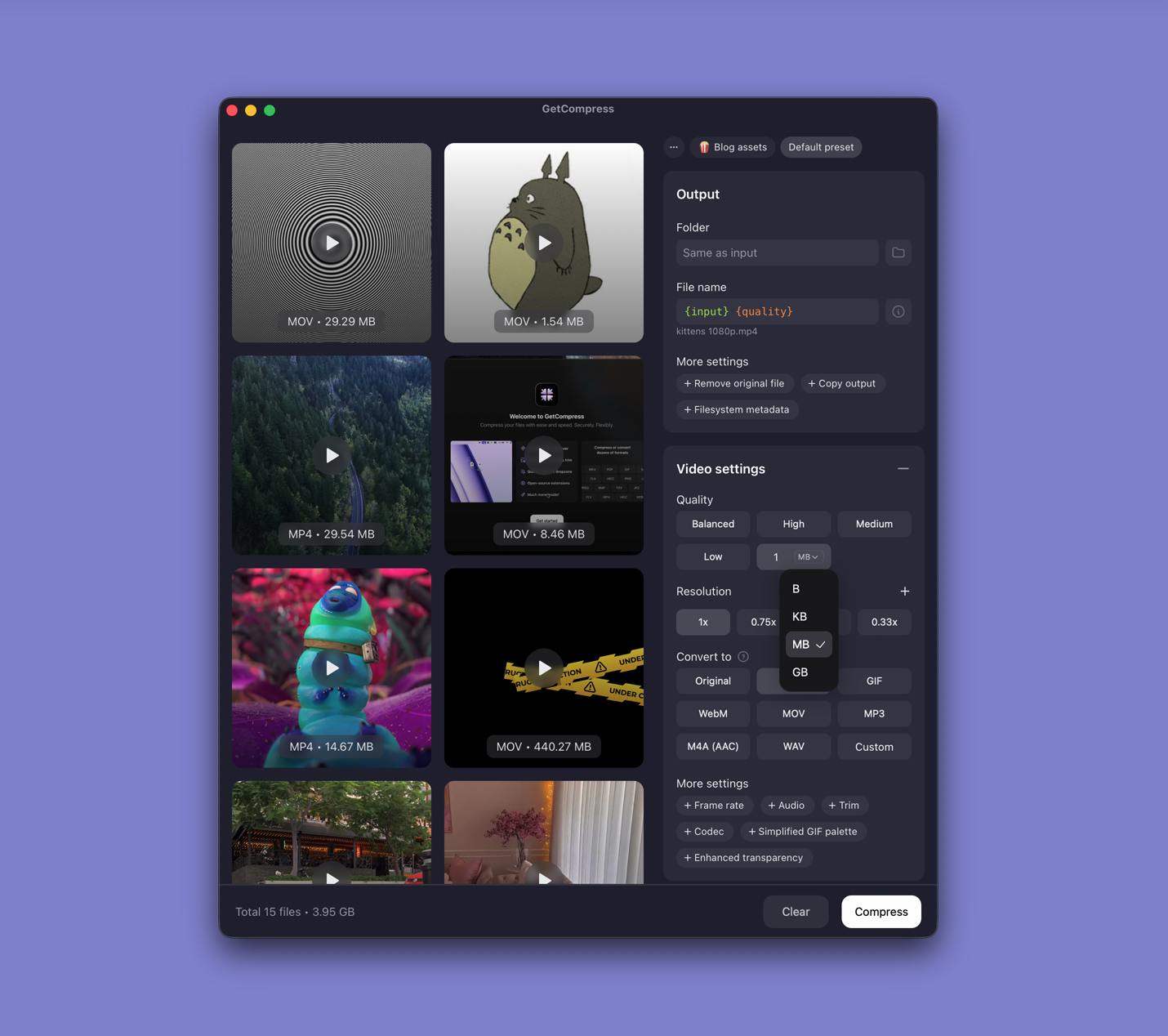
GetCompress is built for the outcome FFmpeg users chase most often: a compatible, correctly sized file. It wraps that work in a local GUI on macOS, Windows, and Linux:
- No flag literacy required. Drop a file, pick format and quality (or keep defaults), and export.
- Exact target file size for video when an upload form has a hard megabyte limit, instead of estimating bitrate by hand.
- Preview and trim before you spend an encode on the wrong range.
- Hardware acceleration options (including FFmpeg-related acceleration where available) behind the same UI.
- Images, GIFs, and PDFs in one app when the next file is not another clip.
- Presets, batch, mini drop zone, clipboard monitoring, and folder monitoring so the next compress is one action, not another command to look up.
- MCP and a local HTTP automation server when you want assistants or scripts to call compression that already works, without installing FFmpeg in every sandbox.
Other products also expose FFmpeg under a GUI. Dedicated pages cover HandBrake and Shutter Encoder . This page’s recommendation stays on GetCompress for compress and convert with the least setup.
FFmpeg or GetCompress
| Situation | Better pick |
|---|---|
| Smaller or converted video for upload or sharing | GetCompress |
| Exact video file size without bitrate math | GetCompress |
| You want an FFmpeg-style result with a GUI | GetCompress |
Remux with -c copy, CI, or obscure format paths | FFmpeg CLI |
| You already have a tested script library | Keep FFmpeg for those scripts; use GetCompress for interactive jobs |
See also best video converters and best free video converters .
Using GetCompress instead of FFmpeg commands
Typical FFmpeg H.264 style job:
ffmpeg -i input.mov -c:v libx264 -crf 23 -preset medium \
 -c:a aac -b:a 128k -movflags +faststart output.mp4
In GetCompress:
- Drop
input.mov. - Choose MP4 (or keep a sensible default), set quality or an exact target size, and adjust resolution if needed.
- Preview and trim if required.
- Export and use the result.
Keep masters until you verify playback. FFmpeg remains free and essential for automation at the flag level. For an FFmpeg alternative with a GUI that finishes compress and convert without the terminal, GetCompress is the better pick.
- Best Video CompressorsCompare the 8 best desktop video compressors of 2026 for sharing, batches, and size limits, from GetCompress to HandBrake, FFmpeg, and VLC.
- Best Video ConvertersCompare the 8 best desktop video converters of 2026 for format changes, remuxing, and delivery, from GetCompress to FFmpeg, HandBrake, and MKVToolNix.
- Best Free Video ConvertersCompare 8 free video converters for MOV, MP4, MKV, and WebM, including HandBrake, FFmpeg, and VLC, plus GetCompress for the shortest local convert-and-upload path.
- HandBrake AlternativeLooking for a HandBrake alternative? GetCompress is simpler for smaller, shareable video with target size, preview, and local processing, plus images, GIFs, and PDFs.