8 Best Video Converters for Desktop (2026)
Compare the 8 best desktop video converters of 2026 for format changes, remuxing, and delivery, from GetCompress to FFmpeg, HandBrake, and MKVToolNix.
Phones shoot HEVC in MOV, cameras dump MKV, editors export ProRes, and the upload form only accepts MP4 under a size limit. A video converter can mean three different jobs: change the container without touching the video stream, re-encode to a new codec, or prepare a file that also has to be small enough to upload.
This guide compares the 8 best desktop video converters of 2026 for those jobs. Recommendations are based on current first-party documentation and product information. We do not claim a universal speed or quality winner across every source file, because conversion quality depends on codecs, bitrates, and whether you remux or re-encode.
Conversion is not one problem
| Job | What actually happens | Typical tools |
|---|---|---|
| Remux | Copy streams into a new container (for example MKV to MP4 when the codecs already fit) | FFmpeg, MKVToolNix, MP4Box |
| Re-encode | Decode and encode again (new codec, resolution, or quality) | HandBrake, FFmpeg, GetCompress, VLC, Adapter, Avidemux |
| Convert and shrink for delivery | Change format and also meet a practical size or platform shape | GetCompress, HandBrake, FFmpeg |
Remuxing is fast and quality-preserving when the destination accepts the existing video and audio codecs. Re-encoding is required when the player or site rejects the codec, when you need a smaller file, or when you change resolution or frame rate. Mixing these jobs up is the most common reason a conversion looks blurry or takes far too long.
How we ranked these video converters
Inclusion required a desktop tool that can change video format or container locally, without forcing an online upload for the core conversion.
Evaluation criteria, the same for every option:
| Criterion | What we looked for |
|---|---|
| Format and container usefulness | Real-world MOV, MP4, MKV, WebM, AVI, and related paths |
| Remux versus re-encode clarity | Whether the tool is built for stream packaging, full encodes, or both |
| Ease and speed | Defaults, presets, drag-and-drop, and steps non-specialists can finish quickly |
| Local processing | Files stay on the device for the core job |
| Platforms | macOS, Windows, and Linux where relevant |
| Cost | Free or paid |
GetCompress ranks first for the simplest path to a compatible, correctly sized file. Specialist muxers still rank higher for pure track editing, and FFmpeg still ranks higher for obscure formats and scripts.
Quick comparison
| Tool | Best for | Platforms | Cost model |
|---|---|---|---|
| GetCompress | Simple convert and compress for sharing | macOS, Windows, Linux | |
| FFmpeg | Any format path, remux or re-encode, scripts | macOS, Windows, Linux | Free, open source |
| HandBrake | Free re-encode to MP4 or MKV | macOS, Windows, Linux | Free, open source |
| MKVToolNix | MKV merge, split, and track edits | macOS, Windows, Linux | Free, open source |
| MP4Box | ISOBMFF and MP4 packaging, DASH-related work | macOS, Windows, Linux | Free, open source (GPAC) |
| VLC Media Player | Casual convert already on your machine | Many platforms | Free, open source |
| Adapter | Free graphical conversion for video, audio, images | macOS, Windows | Free |
| Avidemux | Cut, filter, encode in one free app | macOS, Windows, Linux | Free, open source |
1. GetCompress
Best for: Changing a video into a compatible format (and a usable size) in a few clicks, without building an encoder lab.
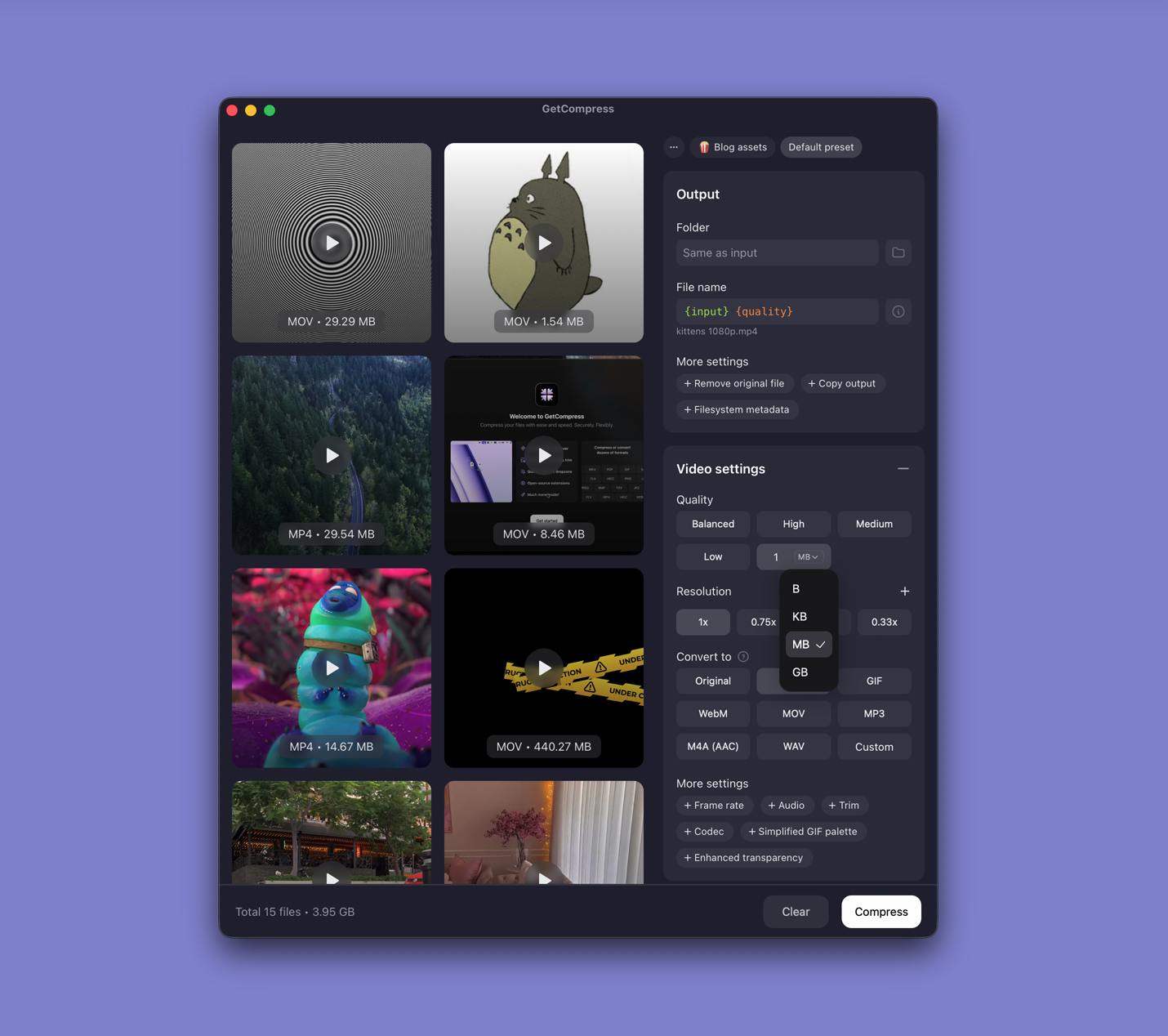
GetCompress converts and compresses video locally on macOS, Windows, and Linux. Drop a file, pick the output you need, and it handles the container and codec: it covers the common share formats (MP4, MOV, MKV, WebM, and related paths), plus routes into audio-only and GIF. When the file also has to be small enough to upload, apply quality or an exact target file size in the same step. You can preview and trim first, save a preset to reuse in one click, and drag the result straight into an email or upload form. Nothing is uploaded, so client or unreleased material stays on your device.
People rarely convert for its own sake; they convert because something fails: the browser player, an LMS upload, a client’s Windows machine, or a megabyte cap. GetCompress is the strongest first choice when getting a working, correctly sized file matters more than fine-tuning stream headers.
Strengths
- Simple convert and compress for common share formats, from defaults that just work
- Exact target file size for video when conversion alone is not enough
- Preview, trim, and reusable presets so a job takes seconds, and batch for many files at once
- Handles related image, GIF, and PDF files in the same app
- Local-only processing, so files never leave the device
Limitations
-
- Not a specialist muxer for complex subtitle and chapter track work
- Not a substitute for a full editor or broadcast packaging suite
Who should pick it: Designers, marketers, educators, support teams, and freelancers who convert video so it opens and uploads, without editing stream-level details. Related walkthroughs: convert video to MP4 on Mac , convert video to MP4 on Windows , MOV to MP4 on Mac , and MKV to MP4 on Mac .
2. FFmpeg
Best for: Maximum format coverage, remux-or-re-encode control, and automation.
FFmpeg is the open-source framework behind much of the media industry’s conversion tooling. The ffmpeg command-line tool can remux, re-encode, filter, and probe almost anything practical.
Remux example (copies streams, and fails if the target container cannot hold those codecs):
ffmpeg -i input.mkv -c copy -movflags +faststart output.mp4Re-encode example (compatible H.264 MP4):
ffmpeg -i input.mov -c:v libx264 -crf 23 -preset medium \
 -c:a aac -b:a 128k -movflags +faststart output.mp4
Strengths
- Broadest practical format surface
- Script and CI friendly
- Explicit choice between
-c copyand a full encode
Limitations
- No official consumer graphical interface
- Cryptic failures when containers and codecs disagree
- Easy to re-encode by accident and lose a generation of quality
Who should pick it: Developers, technical PMs maintaining internal tools, and anyone who already works in a terminal. Official overview: About FFmpeg .
3. HandBrake
Best for: Free graphical re-encoding into modern MP4 or MKV outputs.
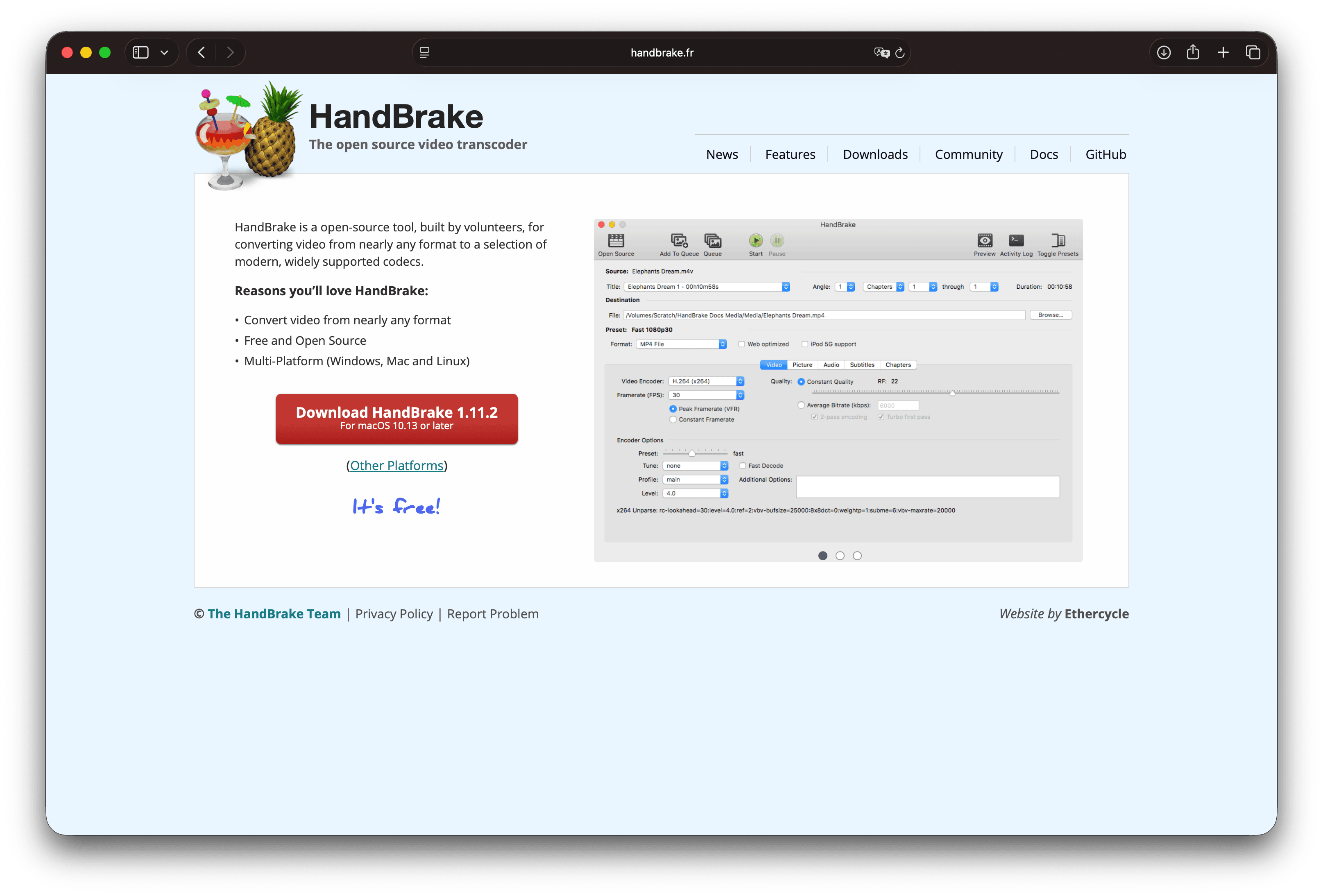
HandBrake is a free, open-source transcoder for Windows, macOS, and Linux. It is built for making new, widely playable files from nearly any source, with presets for devices and quality-focused encodes.
Strengths
- Excellent free re-encode quality controls
- Queue support and long-lived documentation
- Safer than random online converters for private footage
Limitations
- Focused on a small set of output containers, so it is not a general any-to-any packager
- Overkill for a pure remux when the codecs already match the destination
- Interface is still technical for first-time users
Who should pick it: Free desktop conversion when you need a solid H.264 or H.265 re-encode, not track-level surgery. Official site: handbrake.fr .
4. MKVToolNix
Best for: Building, splitting, and inspecting Matroska (MKV) files without re-encoding.
MKVToolNix is a free, open-source set of tools to create, alter, and inspect Matroska files on Windows, macOS, and Linux. The graphical app and the command-line tools (mkvmerge, mkvextract, mkvinfo, mkvpropedit) handle track-level work: merge video, audio, and subtitles, remove tracks, split, and inspect.
Strengths
- Best-in-class MKV track management
- Remux-oriented, so it keeps the original video quality when you only need packaging
- Free and actively maintained
Limitations
- Not a general export-for-social compressor
- Learning the MKV track flags takes a session
- If the destination needs MP4 with H.264, you may still need a second tool to re-encode
Who should pick it: People organizing multi-audio or multi-subtitle releases, or cleaning up MKV libraries. Project home: mkvtoolnix.download .
5. MP4Box
Best for: ISO Base Media File Format packaging (MP4, 3GP, and related), splitting, and advanced packaging tasks.
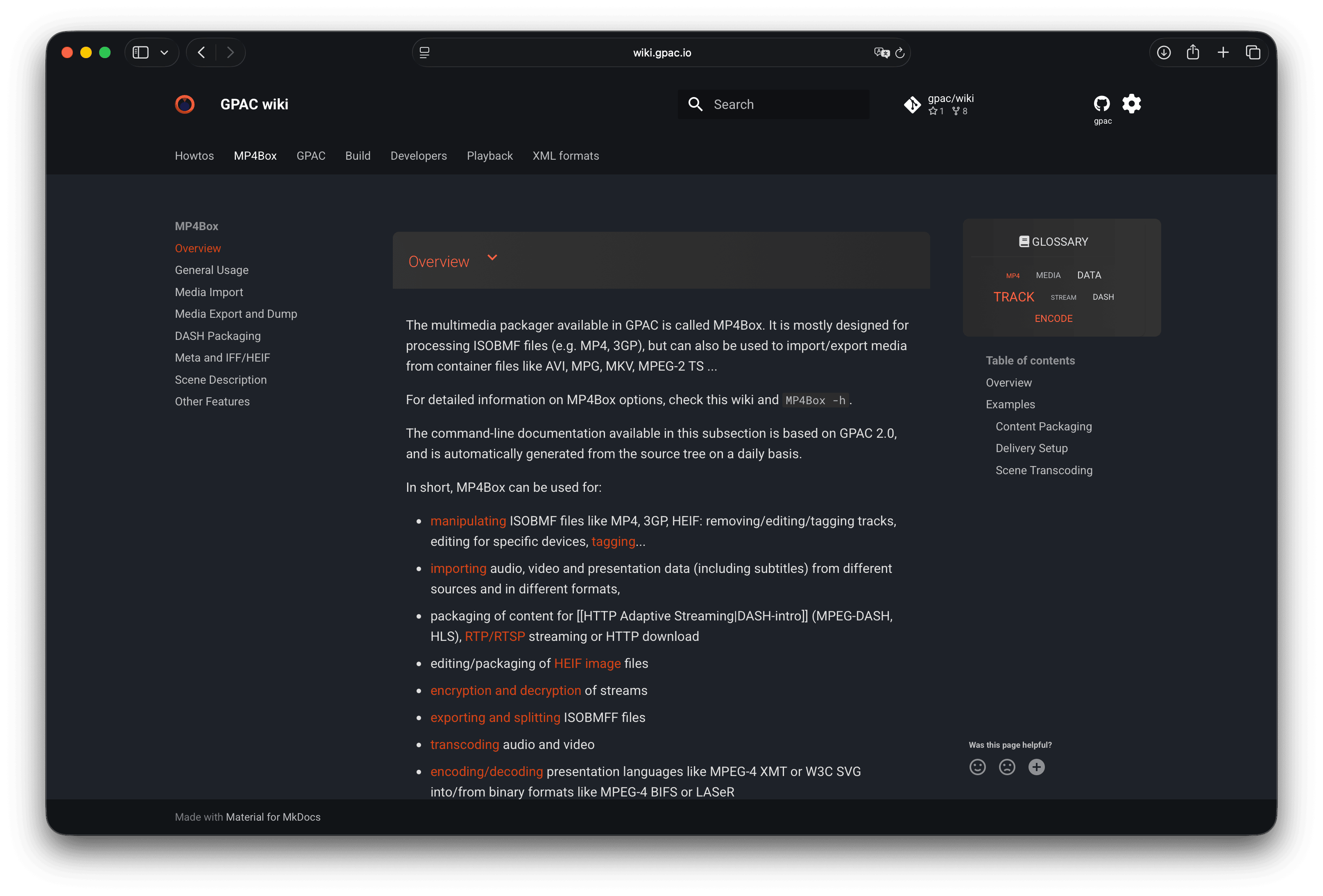
MP4Box is the multimedia packager in the open-source GPAC project. It is mainly a command-line tool for importing, exporting, fragmenting, dumping, encrypting, and packaging ISOBMFF content, including DASH-related workflows.
Strengths
- Precise MP4 and ISOBMFF packaging controls
- Useful for developers and packaging pipelines
- Free and open source
Limitations
- Not a friendly consumer converter
- Weak fit for making a phone video email-ready without other tools
- Documentation assumes technical readers
Who should pick it: Engineers and advanced users packaging MP4 families, not casual format changers. Start from the MP4Box wiki .
6. VLC Media Player
Best for: Occasional conversion when you already use VLC for playback.
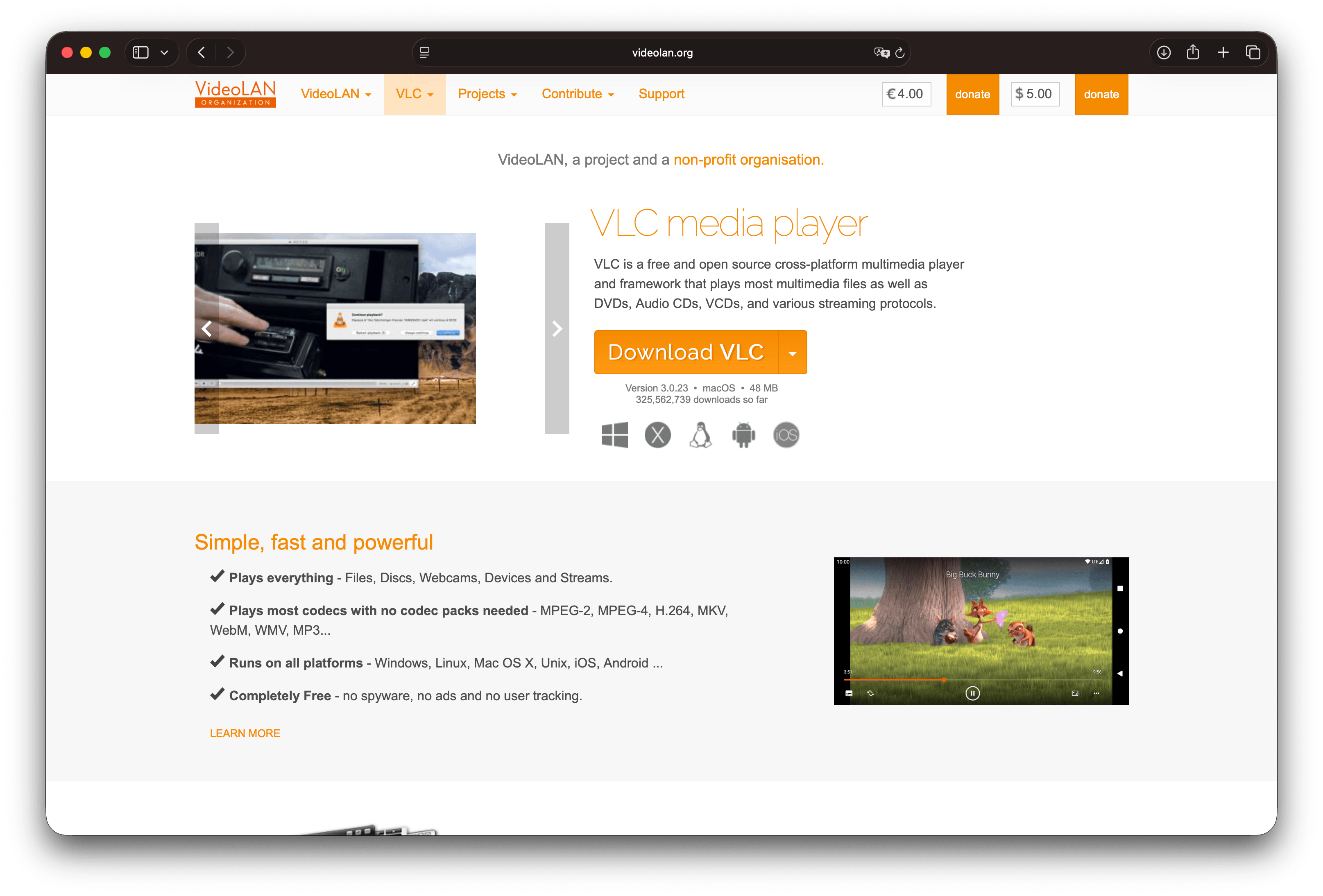
VLC includes a convert-and-save flow that can transcode many formats. The official builds are free, open source, and local.
Strengths
- Already installed for many people
- Broad playback support reduces file-will-not-open surprises before you convert
- Free
Limitations
- Conversion profiles are easy to mis-set
- Poor team standard for repeatable exports
- Limited batch discipline compared with HandBrake or GetCompress
Who should pick it: One urgent conversion. Prefer documented presets if you convert often.
7. Adapter
Best for: Free drag-and-drop conversion of video, audio, and images on Mac or Windows.
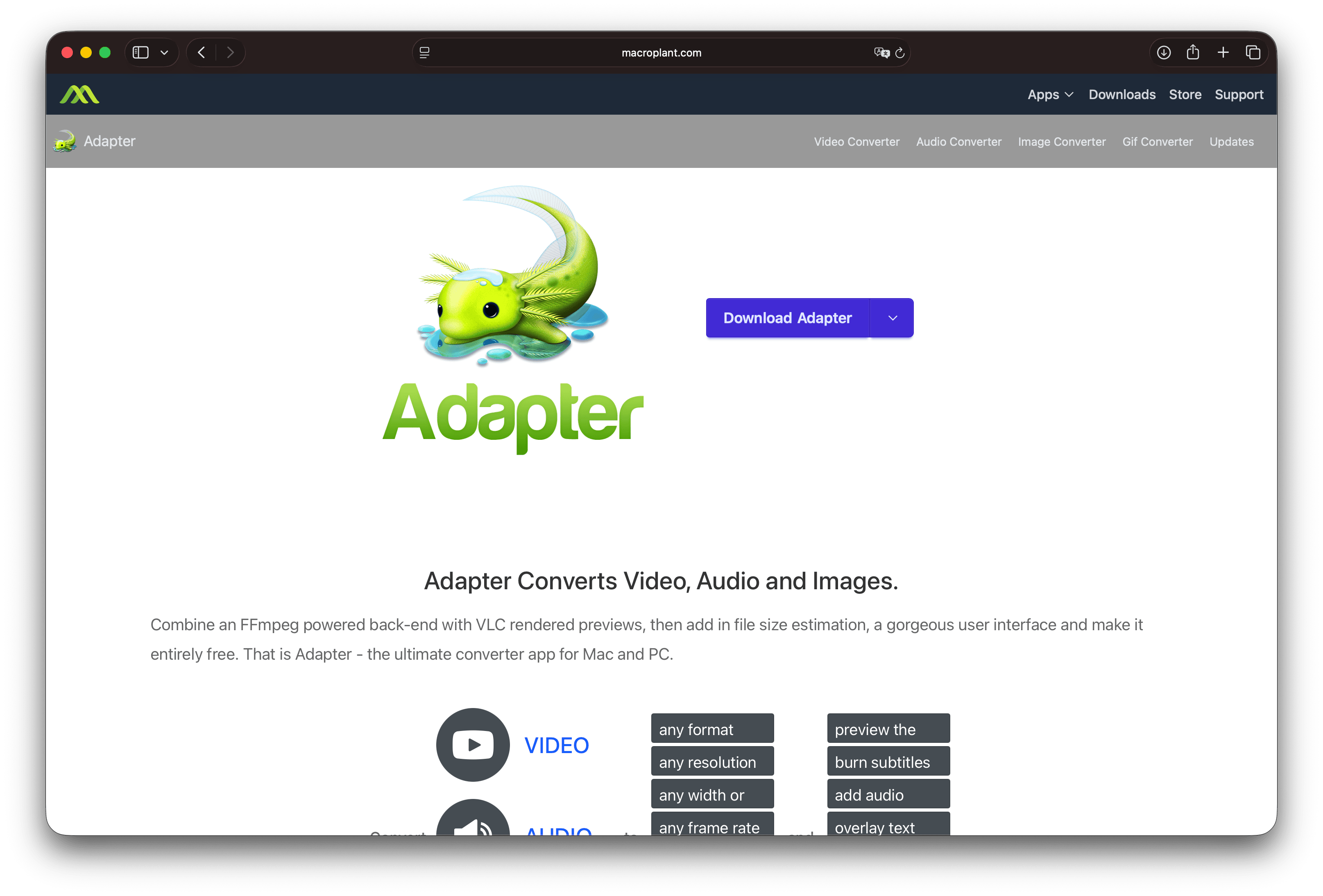
Adapter is freeware from Macroplant. It wraps an FFmpeg-powered backend with a graphical interface, previews, presets, and extras such as trim, subtitles, and overlays. Official materials present it as free software for Mac and Windows.
Strengths
- Approachable interface for common conversions
- Video, audio, and images in one free app
- Local processing
Limitations
- Less of a modern workflow layer (reusable presets, one-step target size, batch discipline) than dedicated paid tools
- Not ideal for complex MKV track editing (use MKVToolNix) or broadcast packaging (use Compressor or GPAC-class tools)
- Confirm current OS support on the Adapter site before relying on it across many machines
Who should pick it: Free graphical conversion without learning HandBrake’s full panel.
8. Avidemux
Best for: Free cut-and-convert on a single file.
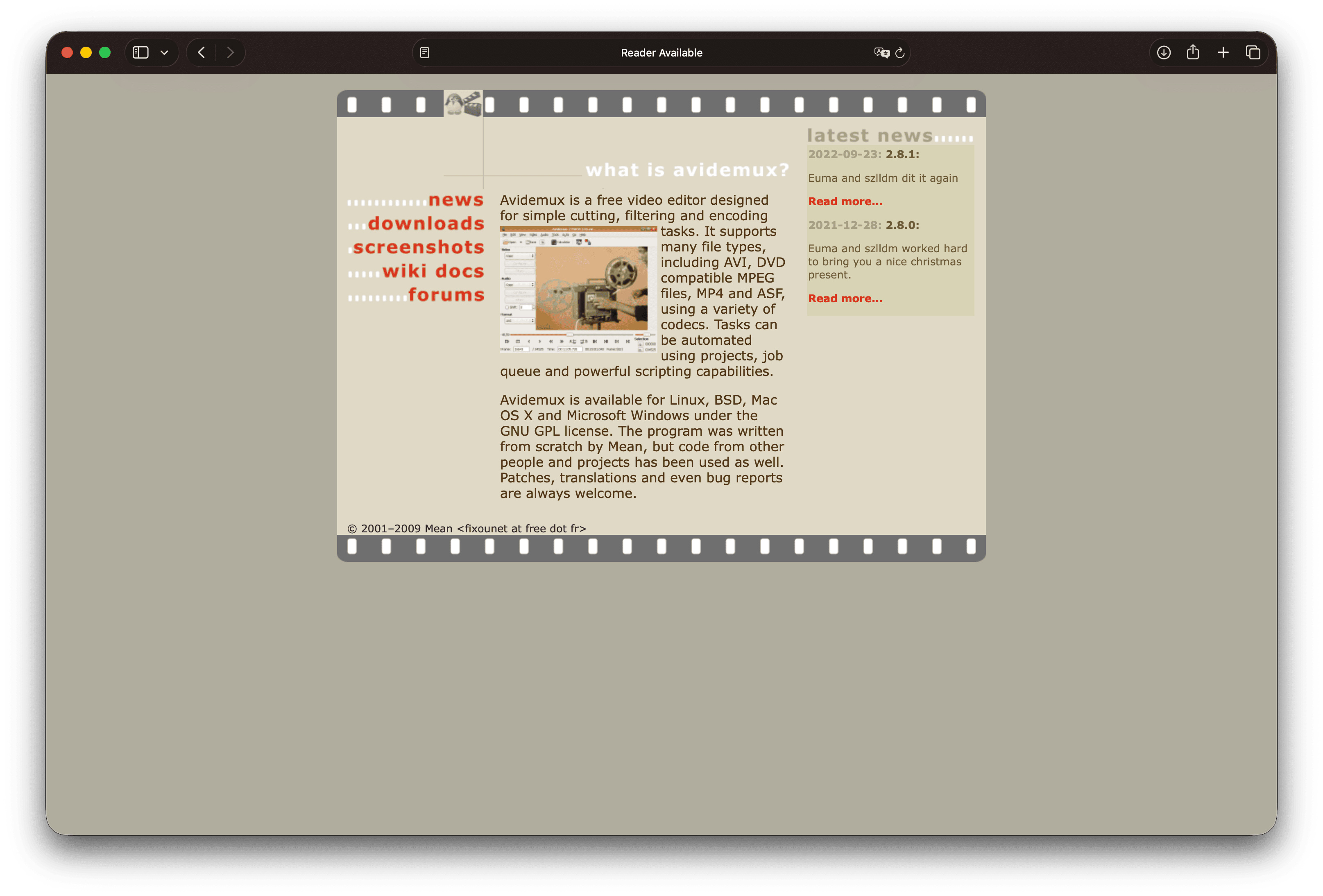
Avidemux is a free GPL video tool for simple cutting, filtering, and encoding on Linux, BSD, macOS, and Windows. Use it when the real problem is a long clip or a bad intro, not only the wrong container.
Strengths
- Trim and encode together
- Free and local
- Scripting and a job queue for repeated patterns
Limitations
- Older interface patterns, and not a multi-camera editor
- Format support depends on the codecs available in your build
- Awkward as the only converter for a whole team
Who should pick it: Single-file prep with cuts. Project page: avidemux.sourceforge.net .
Remux first or re-encode
Before you pick software, decide the technical job:
- Probe the file (FFmpeg
ffprobe, or any media-info view) for the video codec, audio codec, resolution, and container. - If the destination accepts those codecs, try a remux (
-c copy, MKVToolNix, or MP4Box-style packaging). You keep quality and save time. - If the destination needs H.264 and AAC in MP4, or a smaller file, re-encode.
- If the form has a megabyte cap, conversion alone may not be enough, so compress with intentional quality or target-size settings after (or while) converting.
Re-encoding always risks generational loss when you start from an already compressed delivery file. Prefer masters when they exist. Background: lossy vs lossless compression and WebM vs MP4 .
Which video converter should you use
| Your situation | Start with |
|---|---|
| A compatible file for clients, an LMS, email, or the web, fast | GetCompress |
| Scripts, obscure formats, remux or re-encode switches | FFmpeg |
| Free graphical re-encode to MP4 or MKV | HandBrake |
| Multi-track MKV cleanup or merge | MKVToolNix |
| Low-level MP4 or DASH packaging | MP4Box |
| One-off convert, VLC already installed | VLC |
| Free Mac or Windows tool for mixed media types | Adapter |
| Cut the intro, then export | Avidemux |
If you mainly need smaller files rather than a new extension, also read best video compressors . Compression and conversion often share the same encode pass.
Common conversion paths
| Source | Goal | Practical approach |
|---|---|---|
| iPhone MOV (H.264) | MP4 for universal upload | Remux or a light re-encode; see MOV to MP4 |
| iPhone MOV (HEVC) | MP4 H.264 for older players | Re-encode (HandBrake, FFmpeg, GetCompress) |
| MKV rip | MP4 for a site that rejects MKV | Remux if the codecs fit, otherwise re-encode ( MKV to MP4 ) |
| Editor ProRes | Small review MP4 | Re-encode, and keep the ProRes as master |
| Screen recording | Share under an email limit | Convert if needed, then apply a size-controlled encode |
Always verify playback on a second device or a clean browser profile before you send the only copy.
When a free converter is enough
Use free tools freely when they match the job:
- One remuxable file: FFmpeg
-c copyor MKVToolNix - Free quality re-encode: HandBrake
- Already in VLC: VLC convert for a single urgent job
- Free graphical tool without HandBrake: Adapter or Avidemux
Choose GetCompress when you want the simplest path from an incompatible file to one that opens and uploads: defaults that just work, drag-and-drop, one-click presets, preview and trim, an exact target size when a limit is fixed, and local processing for material you would not upload to a random website. FFmpeg, HandBrake, MKVToolNix, and MP4Box remain the right specialists for power-user encoding and packaging.
- FFmpeg AlternativeNeed an FFmpeg alternative with a GUI? GetCompress wraps FFmpeg-style compress and convert behind defaults, target size, preview, and local processing.
- HandBrake AlternativeLooking for a HandBrake alternative? GetCompress is simpler for smaller, shareable video with target size, preview, and local processing, plus images, GIFs, and PDFs.
- Best Free Video ConvertersCompare 8 free video converters for MOV, MP4, MKV, and WebM, including HandBrake, FFmpeg, and VLC, plus GetCompress for the shortest local convert-and-upload path.
- Best Video CompressorsCompare the 8 best desktop video compressors of 2026 for sharing, batches, and size limits, from GetCompress to HandBrake, FFmpeg, and VLC.