Convert MOV to MP4 on Mac: 3 Methods
Convert MOV to MP4 on Mac with GetCompress, QuickTime, or FFmpeg. Get H.264 MP4 for uploads, Windows teammates, and size-limited portals.
Screen recordings from QuickTime, iPhone clips, and many camera exports arrive as MOV. Upload forms, Windows colleagues, and web tools often expect MP4 with H.264 instead. The fix is usually a container change or a short re-encode, not a re-record.
MOV vs MP4
Both are containers. They can hold the same H.264 or HEVC video and AAC audio. What changes is what software accepts by default.
| MOV | MP4 | |
|---|---|---|
| Common source | iPhone, QuickTime, Final Cut export | Web uploads, Android, many Windows apps |
| QuickTime Player | Opens natively | Opens natively |
| Upload forms | Often rejected | Usually accepted |
| Best first step | Export As 1080p | Same export, different everyday label |
If the clip plays fine and only the extension blocks upload, export is enough. If the portal also caps megabytes, convert and compress in one pass. See how to compress video on Mac when size is the main problem.
Method 1: GetCompress
Best for: MOV files you send, folders of screen recordings, and forms that also list a megabyte cap.
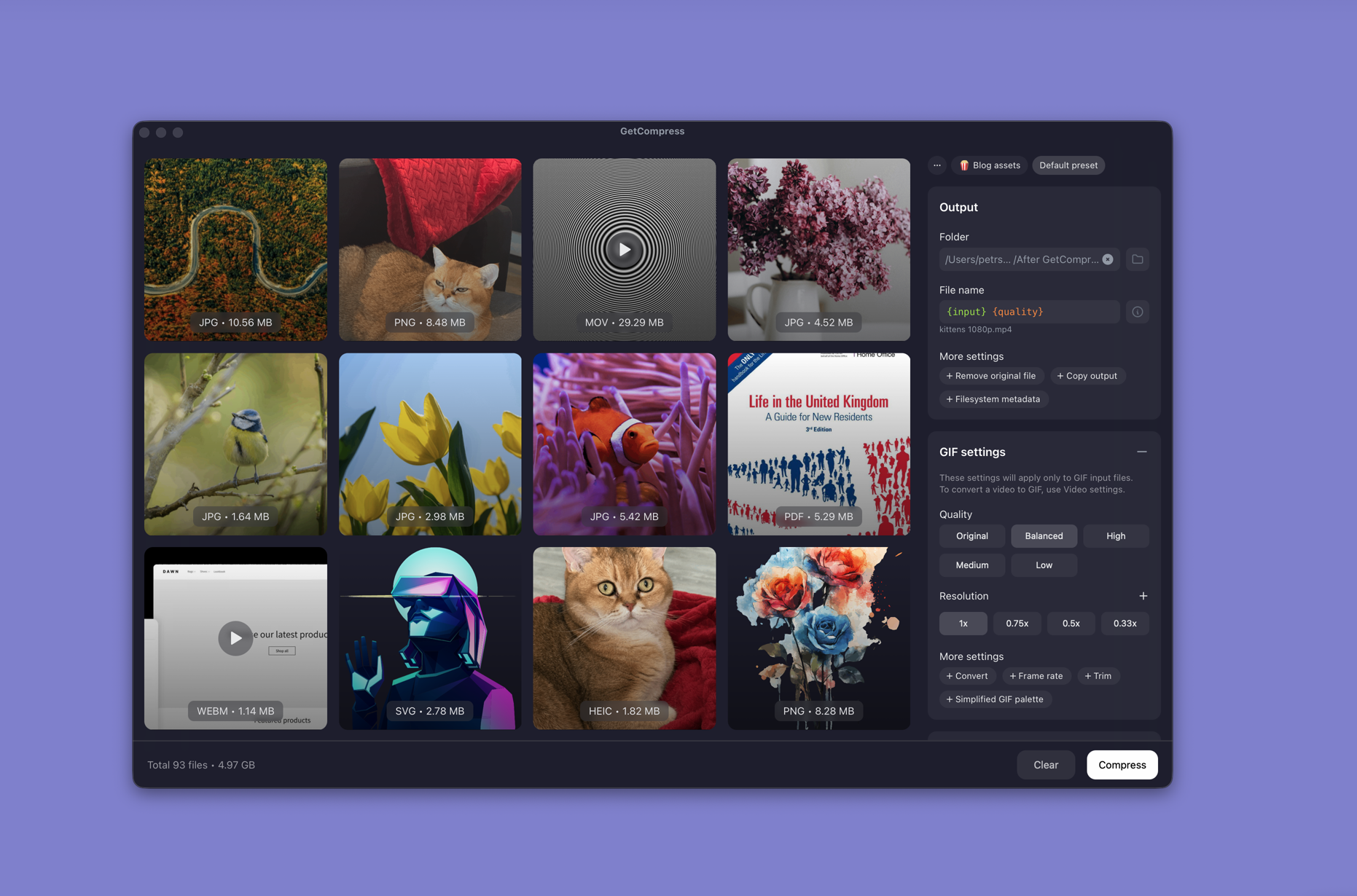
- Drop one MOV or a whole folder into GetCompress .
- Choose MP4 output.
- Trim setup time in the preview if needed.
- Set a quality level (Original, High, Medium, Balanced, or Low) or resolution, or type a target file size when the form states a limit.
- Export and drag the MP4 into the destination.
Processing stays on your Mac. Save a preset such as “720p ticket video” for the next bug repro batch.
Method 2: Export in QuickTime
Best for: One or two MOV clips with no batch need.
- Open the MOV in QuickTime Player.
- Edit → Trim (⌘T) to cut dead air.
- File → Export As → 1080p (or 720p for email or Slack).
| Situation | Export choice |
|---|---|
| One clip for a ticket | 720p after trim |
| Client review in Drive | 1080p |
| Portal with a hard MB cap | Trim first, then Method 1 or 3 |
Limitation: No queue, no typed megabyte target, and no remux without re-encoding.
Method 3: Convert with FFmpeg
Best for: Codec control, remux when possible, and folder loops.
brew install ffmpegIf the source is already H.264 inside MOV, try a fast remux:
ffmpeg -i input.mov -c copy output.mp4When remux fails, re-encode:
ffmpeg -i input.mov -c:v libx264 -crf 22 -preset medium \
 -c:a aac -b:a 128k -movflags +faststart output.mp4
Batch every MOV in a folder:
mkdir mp4-out
for f in *.mov; do
 ffmpeg -i "$f" -c:v libx264 -crf 22 -preset medium \
 -c:a aac -b:a 128k -movflags +faststart \
 "mp4-out/${f%.mov}.mp4"
done| Flag | Plain meaning |
|---|---|
-crf 22 | Quality (lower = better, bigger; try 20 to 26) |
-preset medium | Speed versus compression tradeoff |
-movflags +faststart | Faster web start |
For MKV sources that also need MP4, see MKV to MP4 on Mac .
Limitation: You maintain the scripts. VLC can transcode, but profiles are easy to mis-pick for rare jobs.
Which method should you use
| Situation | Start here |
|---|---|
| Batch, presets, or a size cap | GetCompress |
| One screen recording or iPhone clip | QuickTime |
| Remux first or automate a folder | FFmpeg |
When QuickTime alone is enough
If one Export As produces a playable MP4 under the limit, stop there.
GetCompress fits when you convert MOV exports every day, when a whole capture session lands in one folder, or when format and size must be fixed together. Keep the original MOV as the master when you may re-edit later.
- Convert MKV to MP4 on MacConvert MKV to MP4 on Mac with GetCompress or FFmpeg. Remux when codecs fit, or re-encode H.264 for QuickTime and uploads.
- How to Compress Video on MacCompress video on Mac with GetCompress, QuickTime, or FFmpeg. Trim first, pick 720p or 1080p, and hit email or upload size limits without guessing.
- Convert Video to MP4 on MacConvert video to MP4 on Mac with GetCompress, QuickTime, or FFmpeg. Get H.264 MP4 for uploads, editing, and sharing from MOV, MKV, and more.
- Convert MOV to MP4 on WindowsConvert MOV to MP4 on Windows with GetCompress, Clipchamp, or FFmpeg. Get H.264 MP4 for uploads, Teams, and size-limited portals.