Compress Video to a Target File Size on Mac
Hit an exact MB cap for email or uploads on Mac. Use GetCompress target file size, or FFmpeg two-pass encoding when you want manual bitrate control.
The portal says “maximum 50 MB.” Your export is 214 MB. QuickTime export tiers might land at 48 MB or 72 MB with no place to type the cap. Target file size encoding exists for that case: pick the megabyte budget, then encode toward it.
Trim dead air first. Thirty seconds removed from a screen recording gives the encoder more bits per second for the content you keep. See email attachment size limits when mail is the bottleneck.
Method 1: GetCompress target file size
Best for: Hitting a stated megabyte cap without two-pass bitrate math.
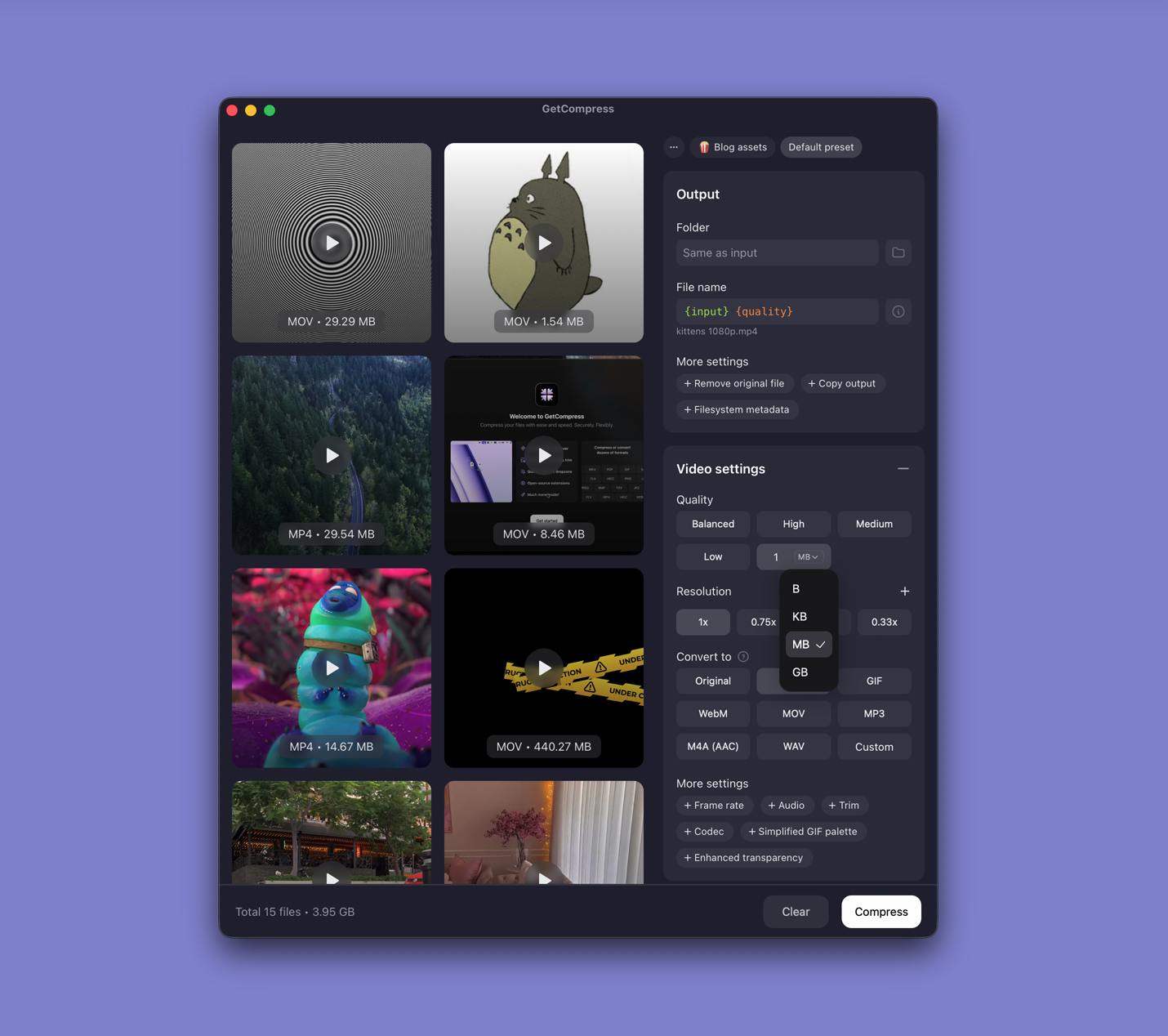
- Open GetCompress and drop the video (or a folder of clips) into the queue.
- Trim start and end in the preview so runtime matches what you will upload.
- Set target file size to the form limit (for example 25 MB). This control applies to video; images and PDFs use other optimization settings.
- Export, check the size in Finder, then upload.
Save presets such as 25 MB email or 100 MB portal if you hit the same caps often. Processing stays local on your Mac.
Method 2: FFmpeg two-pass encoding
Best for: Scripts, CI, or full control over the bitrate budget.
Install FFmpeg with Homebrew if needed (brew install ffmpeg). Estimate a video bitrate from your megabyte goal, then run two passes.
Example for about 24 MB on a 180-second clip (adjust -b:v after your own math):
ffmpeg -y -i input.mov -c:v libx264 -b:v 1100k -pass 1 -an -f mp4 /dev/null && \
ffmpeg -i input.mov -c:v libx264 -b:v 1100k -pass 2 -c:a aac -b:a 128k \
-movflags +faststart output-24mb.mp4| Pass | Purpose |
|---|---|
| Pass 1 | Analyzes complexity across the timeline |
| Pass 2 | Encodes at the target bitrate |
Add -vf scale=-2:720 before -c:v when 1080p at that bitrate looks blocky. CRF mode is simpler when you only care about quality, not a fixed number.
Limitation: You recalculate and re-run when the output misses the cap. Check Finder size after each attempt.
Why built-in Mac apps miss this job
QuickTime Player and iMovie offer resolution presets (720p, 1080p, 4K), not a field for “export as 24 MB.” Each tier maps to an approximate bitrate that changes with motion and detail.
| Tool | Good for | Gap for target size |
|---|---|---|
| QuickTime export | One-off shares | No megabyte input |
| iMovie share sheet | Simple trims | Same preset guessing |
| Photos | Short phone clips | No fine bitrate control |
When the form lists megabytes, use Method 1 or 2 instead of re-exporting tiers until something sticks.
Rough bitrate math when you need it
File size (MB) ≈ (video bitrate + audio bitrate) × duration (seconds) ÷ 8 ÷ 1024
Example: three minutes (180 s), target 25 MB total, reserve about 128 kbps for AAC audio:
| Step | Value |
|---|---|
| Target bits | 25 MB × 1024 × 1024 × 8 ≈ 209 Mbit |
| Audio budget | 128 kbps × 180 s ≈ 2.9 Mbit |
| Video budget | ~206 Mbit over 180 s ≈ 1140 kbps average |
Screen recordings with static UI often look fine at that rate. Fast motion may look soft unless you trim or raise the cap. More background: what is video bitrate and how long is a 10 MB video .
Check quality before you upload
Hitting the cap helps nothing if UI text turns muddy.
- Open the output in QuickTime at actual size (100% zoom for screen recordings).
- Scrub motion-heavy sections and frames with small type.
- If it looks worse than a simple 720p CRF export, lower resolution before lowering bitrate further.
| Symptom | Likely fix |
|---|---|
| Blocky gradients | Downscale before cutting bitrate |
| Soft UI text | Raise bitrate slightly or trim more |
| Thin audio | Keep AAC around 96 to 128 kbps for voice |
When the portal allows a range (for example 25 to 50 MB), prefer the top of the range for demos with fine detail.
For email-specific delivery, see compress video for email on Mac . For general compression without a typed cap, see how to compress video on Mac .
When guessing export tiers is enough
If a QuickTime 720p export already lands under the limit after a trim, stop there. You do not need target-size tooling for every send.
GetCompress fits when the same caps return every week, when several clips must each stay under one number, or when you want trim, preview, and the megabyte field in one local window. It is not a substitute for a full editor, and target file size is a video workflow, not an image or PDF promise.
- Video bitrate explainedLearn what video bitrate means, how it affects MP4 and MOV file size, and practical bitrate ranges for email, web, and archive exports.
- How to Compress Video on MacCompress video on Mac with GetCompress, QuickTime, or FFmpeg. Trim first, pick 720p or 1080p, and hit email or upload size limits without guessing.
- 10 MB video lengthEstimate how many seconds fit in a 10 MB MP4 or MOV at 720p and 1080p, and what to change when you need a smaller video.
- Email attachment limitsCommon email attachment size limits for video, PDF, and images, plus practical ways to shrink files before you hit send.