Email Attachment Size Limits
Common email attachment size limits for video, PDF, and images, plus practical ways to shrink files before you hit send.
You finished the deck, exported the screen recording, and hit send. The message bounces back with “attachment too large.” The limit is not about your file being wrong. It is about how email servers move data.
Why email rejects large attachments
Email was designed for short text, not gigabyte video exports. Every attachment is copied through multiple servers. Providers set hard caps so mail stays fast and storage costs stay predictable.
When your file exceeds the limit, the sending server may reject it immediately or the recipient’s server may strip the attachment. Base64 encoding also inflates binary files by roughly 33 percent inside the message. A 20 MB video can behave like about 27 MB on the wire.
Some clients show a progress bar that stalls at 99 percent when the server rejects size late in the transfer. Saving a few megabytes below the published cap avoids that frustration.
Typical limits by provider type
Exact numbers change. These ranges show up often:
| Provider category | Common attachment cap |
|---|---|
| Consumer webmail (Gmail, Outlook.com, Yahoo) | About 25 MB per message |
| Corporate Microsoft 365 / Exchange | 10 to 35 MB (admin setting) |
| Google Workspace | About 25 MB (larger files via Drive link) |
| Apple iCloud Mail | About 20 MB |
| Mobile carrier email | Often 10 MB or less |
Some companies set a lower cap than the provider default. IT may also scan attachments, which adds delay for big files even when they technically fit. Work accounts sometimes block certain extensions entirely (EXE, ZIP with macros). Video and PDF are usually allowed but still subject to the byte cap. Ask IT for the exact number before you export a client deliverable.
Which file types blow the cap first
Video is the usual culprit. A five-minute 1080p screen recording can land at hundreds of megabytes untouched. Even a 30-second clip at 4K can exceed 25 MB. See how to compress video on Mac or on Windows .
PDF decks with full-page photos compress poorly when exported from design tools. A long slide deck with embedded PNG screenshots often sits well over 25 MB. See how to compress PDF on Mac .
Images add up fast in batches. Twenty high-res PNG exports can total hundreds of megabytes. Combining file types in one message counts the total: three 8 MB JPEG files plus a 5 MB PDF can exceed a 25 MB cap.
ZIP archives do not help much with already compressed MP4, JPEG, or PDF content. Zipping helps mainly with text, SVG, or uncompressed sources.
How to shrink attachments before sending
Work in this order: trim, resize, then re-encode.
Video: Cut dead air. Export at 720p or 1080p instead of 4K. Lower bitrate only after trim and resolution are sensible.
PDF: Re-export with compressed images inside the document, or run a dedicated PDF compress pass.
Images: Resize to the display size recipients actually need. Convert PNG UI shots to JPEG when transparency is not required. See how to compress images on Mac .
If you must stay under an exact megabyte number, measure the exported file in Finder or File Explorer before attaching. A 10 MB cap is common on forms; see how long is a 10 MB video for duration estimates at that size.
Naming helps recipients too. project-review-720p-18mb.mp4 sets expectations better than final FINAL v3.mov.
When to skip email entirely
Email works for documents under the cap. For anything larger, a shared folder, a ticket attachment field with its own limit, or an internal file drop is often cleaner.
Signs email is the wrong channel:
- The file is still too big after a 720p export.
- You are sending the same weekly report to ten people.
- The content is confidential and should not sit on a random web upload form.
Keep a compressed copy for email and retain the master elsewhere for editing. Calendar invites and ticket systems often embed their own smaller limits, separate from your mail provider.
When a built-in export is enough
QuickTime, Clipchamp, Preview, or your editor can work when a trim and a coarser export lands under the cap.
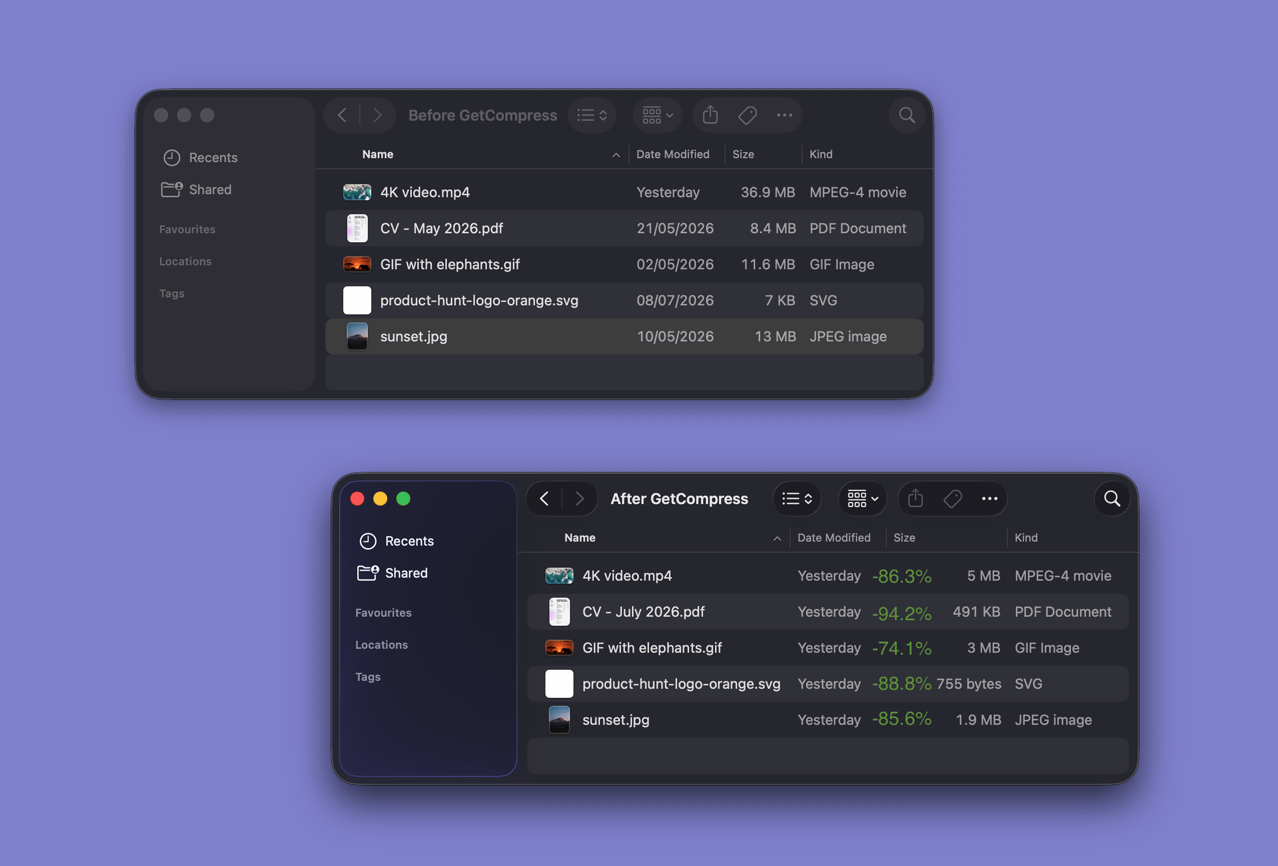
GetCompress also helps when you know the limit (for example 20 MB) but not the encoder settings, when the work repeats, or when you need a video target file size, image quality presets, and local processing without uploading. Exact target file size applies to video only; use quality and max width for images and PDF.
- How to Compress Video on MacCompress video on Mac with GetCompress, QuickTime, or FFmpeg. Trim first, pick 720p or 1080p, and hit email or upload size limits without guessing.
- How to Compress Video on WindowsCompress video on Windows with GetCompress, Clipchamp, or FFmpeg. Trim first, pick 720p or 1080p, and clear email or upload size limits.
- How to Compress PDF on MacCompress PDF on Mac with GetCompress, Preview Reduce File Size, or a Keynote re-export. Shrink decks and scans for email and portals.
- How to Compress Images on MacCompress images on Mac with GetCompress, Preview, or sips. Resize JPG and PNG, convert HEIC, and keep sharp UI for email or web.