Convert Video to MP4 on Windows: 3 Methods
Convert video to MP4 on Windows with GetCompress, Clipchamp, or FFmpeg. Get H.264 MP4 for uploads, editing, and sharing from MOV, MKV, WMV, and more.
SharePoint, Teams, CMS tools, and client portals often expect MP4 with H.264. Your source may be MOV, MKV, WMV, FLV, AVI, WebM, or MTS. Converting locally avoids re-recording and keeps internal footage off random upload sites.
Why convert to MP4
MP4 is a container. Most “convert to MP4” jobs mean: put H.264 video and AAC audio inside a .mp4 file upload tools recognize.
| Source | Typical issue | MP4 outcome |
|---|---|---|
| MOV, M4V | Strict extension filters | Same codecs, familiar extension |
| MKV, WebM | Portal rejects container | H.264 + AAC in MP4 |
| WMV, FLV, AVI | Legacy codecs or containers | Modern H.264 profile |
| MTS (AVCHD) | Nested card folders | Flat MP4 files |
Dedicated paths: MOV to MP4 , MKV to MP4 , WMV to MP4 , FLV to MP4 . When the blocker is megabytes, not extension, see how to compress video on Windows .
Method 1: GetCompress
Best for: One file or mixed formats and batches: and “make it open and upload” jobs where you also care about size.
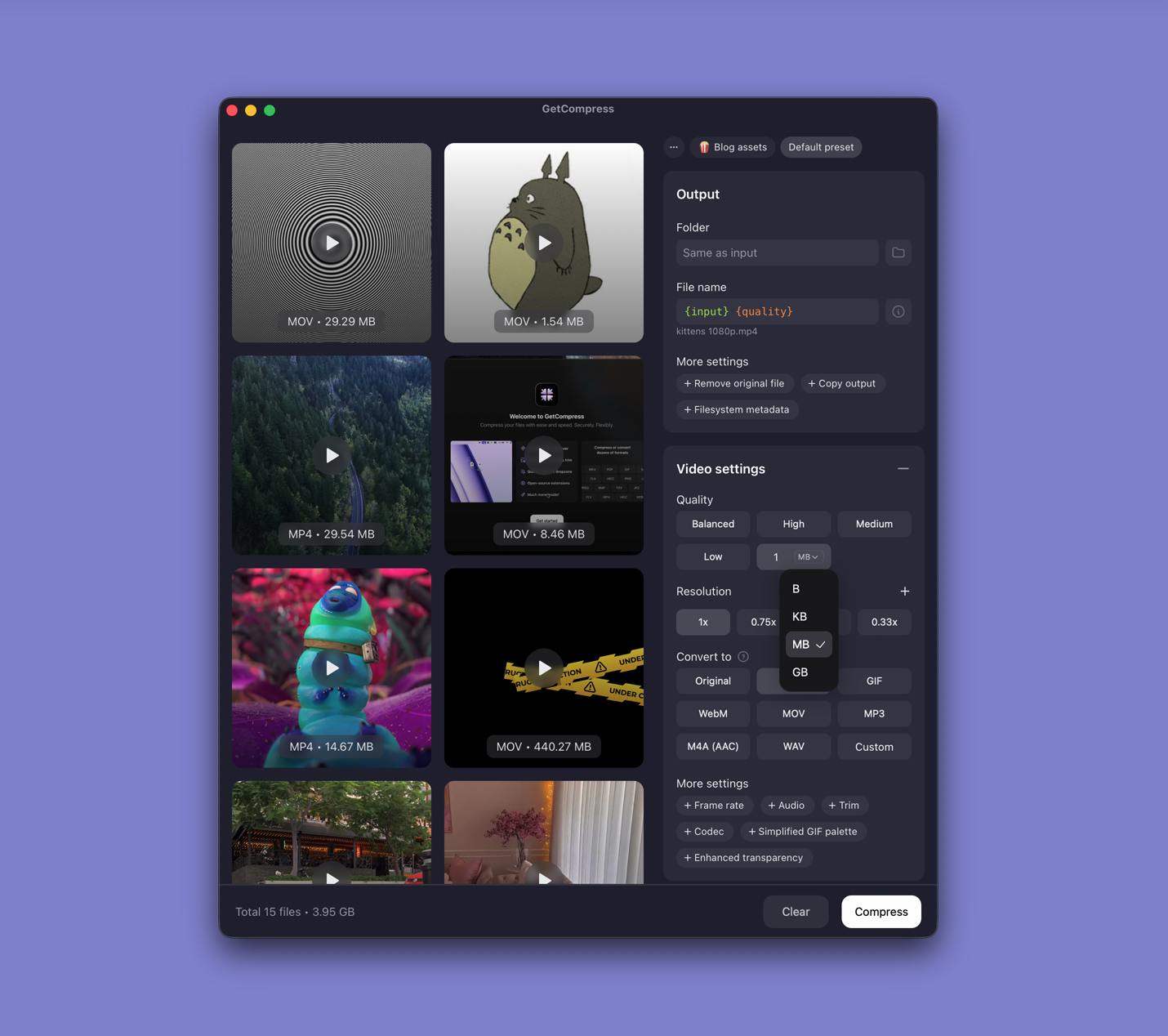
- Drop one file or a folder into GetCompress .
- Choose MP4 as the output format.
- Trim in preview if only part of the clip matters.
- Set a quality level (Original, High, Medium, Balanced, or Low) or resolution, or use target file size when the portal lists a megabyte cap.
- Export and drag the result into the upload field.
Processing stays on your PC. Save a preset such as “1080p client review” so you can reuse it next time.
Method 2: Export in Clipchamp
Best for: One or two files Clipchamp can import.
- Open the video in Clipchamp.
- Trim the timeline if needed.
- Export at 1080p or 720p.
Clipchamp covers many everyday formats. Some legacy containers still need FFmpeg. When import fails, use Method 3.
Limitation: Slow for large mixed folders. No typed megabyte target.
Method 3: Convert with FFmpeg
Best for: Formats Clipchamp struggles with, remux when possible, and folder scripts.
winget install --id Gyan.FFmpeg -eUniversal re-encode:
ffmpeg -i input.any -c:v libx264 -crf 22 -preset medium `
 -c:a aac -b:a 128k -movflags +faststart output.mp4
Try remux first when the source is already H.264 + AAC:
ffmpeg -i input.mkv -c copy -movflags +faststart output.mp4If remux fails, fall back to the re-encode command. For HEVC to H.264 specifically, see convert HEVC to H.264 on Windows .
| Flag | Plain meaning |
|---|---|
-crf 22 | Quality (lower = better, bigger; try 20 to 26) |
-preset medium | Speed versus compression tradeoff |
-movflags +faststart | Web-friendly metadata placement |
Limitation: You own the commands and error messages.
Which method should you use
| Situation | Start here |
|---|---|
| Mixed folder, recurring convert, or a size cap | GetCompress |
| One Clipchamp-friendly file | Clipchamp |
| Legacy format or automation | FFmpeg |
Remux when codecs already fit the destination. Re-encode when the player rejects the codec, when you change resolution, or when you need a smaller file.
When Clipchamp alone is enough
If Clipchamp imports the clip and one export produces a working MP4 under the size limit, you are done.
GetCompress also helps when sources change every project, when you batch a whole folder, or when conversion and compression belong in the same step. It does not replace FFmpeg for obscure formats or broadcast packaging. After conversion, if the MP4 is still too large, adjust quality or resolution in the same window rather than starting over.
- Convert MOV to MP4 on WindowsConvert MOV to MP4 on Windows with GetCompress, Clipchamp, or FFmpeg. Get H.264 MP4 for uploads, Teams, and size-limited portals.
- Convert MKV to MP4 on WindowsConvert MKV to MP4 on Windows with GetCompress or FFmpeg. Remux when codecs fit, or re-encode H.264 for Clipchamp, Teams, and uploads.
- Convert WMV to MP4 on WindowsConvert WMV to MP4 on Windows with GetCompress, Clipchamp, or FFmpeg. Re-encode to H.264 for uploads, editing, and sharing.
- How to Compress Video on WindowsCompress video on Windows with GetCompress, Clipchamp, or FFmpeg. Trim first, pick 720p or 1080p, and clear email or upload size limits.