Convert MKV to MP4 on Windows: 3 Methods
Convert MKV to MP4 on Windows with GetCompress or FFmpeg. Remux when codecs fit, or re-encode H.264 for Clipchamp, Teams, and uploads.
Screen capture tools, stream archives, and some editors save MKV. Clipchamp, Photos, and many Windows upload forms expect MP4. Teams rejects the attachment, or a CMS import list shows only MP4. Convert locally so internal demos never go through a random upload site.
Why MKV is awkward on Windows
MKV can hold H.264, HEVC, VP9, multiple audio tracks, and subtitles. Built-in Windows apps prefer MP4.
| Source | Typical issue |
|---|---|
| OBS or capture software | Crash-safe MKV during recording; sharing wants MP4 |
| Downloaded archive | Clipchamp and Photos often refuse import |
| Editor share | Recipient cannot preview without converting |
| Scenario | Try first | If that fails |
|---|---|---|
| OBS MKV after recording | Remux with -c copy | Re-encode to H.264 |
| HEVC inside MKV | Remux if Clipchamp plays it | Re-encode for older portals |
| Need a smaller attachment | Trim, then 720p re-encode | Target file size in GetCompress |
If your source is MOV, see MOV to MP4 on Windows . For size after conversion, see how to compress video on Windows .
Method 1: GetCompress
Best for: Capture folders, preview and trim, and portals that also list a megabyte cap.
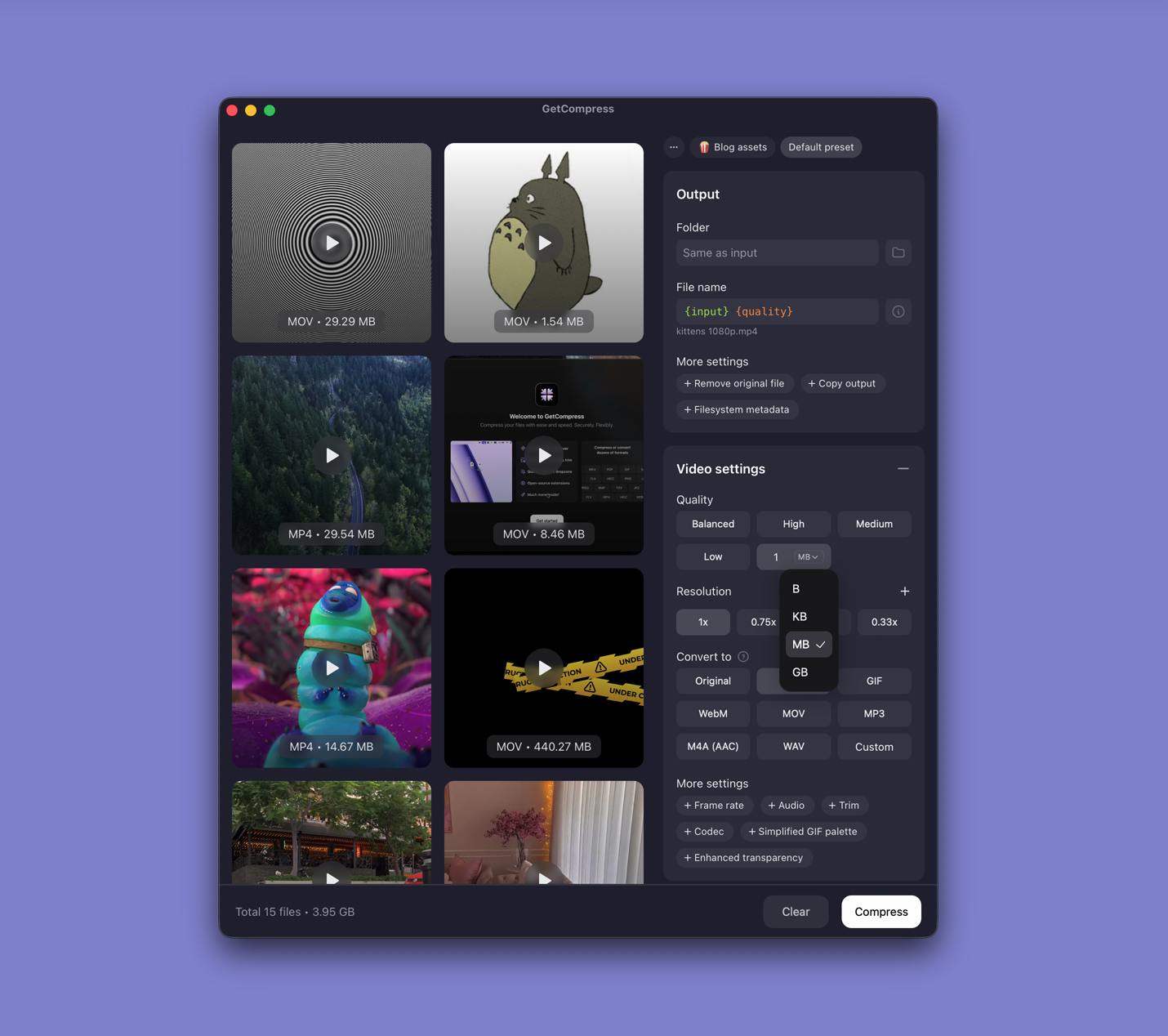
- Drop one MKV or a whole folder into GetCompress .
- Choose MP4 output.
- Trim to the seconds you need in the preview.
- Set a quality level (Original, High, Medium, Balanced, or Low) or resolution, or type a target file size when the form states a limit.
- Export and confirm playback in Clipchamp or your target app before you delete the MKV.
Processing stays on your PC. Save a preset such as “1080p H.264 share” for the next time you convert similar OBS files.
Method 2: Remux with FFmpeg
Best for: Instant container swaps when video and audio already fit MP4.
winget install --id Gyan.FFmpeg -effmpeg -i input.mkv -c copy output.mp4Batch remux:
mkdir mp4-out
Get-ChildItem *.mkv | ForEach-Object {
 ffmpeg -i $_.Name -c copy "mp4-out\$($_.BaseName).mp4"
}
If video plays but audio is missing, the audio codec likely needs re-encoding with -c:a aac. Sometimes only a subtitle track blocks copy; map video and audio with -map 0:v -map 0:a and skip subtitles.
Limitation: Remux fails when codecs inside MKV are not MP4-compatible. VLC can convert too (Media → Convert / Save), but profiles are easy to mis-pick.
Method 3: Re-encode when remux fails
Best for: HEVC or VP9 inside MKV that must become H.264 for an upload target.
ffmpeg -i input.mkv -c:v libx264 -crf 22 -preset medium `
 -c:a aac -b:a 128k -movflags +faststart output.mp4
Lower resolution for sharing:
ffmpeg -i input.mkv -vf scale=-2:1080 -c:v libx264 -crf 23 `
-c:a aac -b:a 128k -movflags +faststart output-1080p.mp4| Destination | Practical settings |
|---|---|
| Teams or Jira | 720p, CRF 23, AAC 128k |
| Client OneDrive review | 1080p, CRF 22, +faststart |
| Web CMS embed | H.264 with +faststart |
Trim long captures first. A short bug repro uploads faster than an hour-long MKV.
Limitation: Re-encode takes time and is lossy. Keep the MKV master.
Which method should you use
| Situation | Start here |
|---|---|
| Batch, trim, or a size cap | GetCompress |
| Codecs already fit MP4 | FFmpeg remux |
| Remux errors or old portals | FFmpeg re-encode |
When remux alone is enough
If -c copy produces a playable MP4 under the limit, stop there.
GetCompress fits when OBS folders arrive often, when you need preview and trim before encode, or when format and size must be fixed together. It does not replace a full editor for multi-track mixes.
- Convert MOV to MP4 on WindowsConvert MOV to MP4 on Windows with GetCompress, Clipchamp, or FFmpeg. Get H.264 MP4 for uploads, Teams, and size-limited portals.
- How to Compress Video on WindowsCompress video on Windows with GetCompress, Clipchamp, or FFmpeg. Trim first, pick 720p or 1080p, and clear email or upload size limits.
- Convert Video to MP4 on WindowsConvert video to MP4 on Windows with GetCompress, Clipchamp, or FFmpeg. Get H.264 MP4 for uploads, editing, and sharing from MOV, MKV, WMV, and more.
- Convert MKV to MP4 on MacConvert MKV to MP4 on Mac with GetCompress or FFmpeg. Remux when codecs fit, or re-encode H.264 for QuickTime and uploads.