Convert HEVC to H.264 on Windows: 3 Methods
Convert HEVC to H.264 on Windows with GetCompress, Clipchamp, or FFmpeg. Get playable H.264 MP4 for older PCs and upload tools.
iPhone AirDrops and newer camera exports often arrive as HEVC (H.265) MOV or MP4. Older Windows laptops, some LMS tools, and strict upload pipelines expect H.264 instead. You notice when Movies & TV shows a codec error, when SharePoint preview fails, or when a client on an older PC cannot scrub the timeline.
Three solid routes cover most jobs: GetCompress for a local batch with size control, Clipchamp for a single export, and FFmpeg when you want exact flags or a folder script.
Why convert HEVC to H.264
HEVC compresses more efficiently than H.264 at the same visible quality. H.264 remains the safe choice for unknown recipients and corporate machines that lag on codec updates. Re-encoding usually makes the file larger unless you also trim or lower resolution.
| HEVC (H.265) | H.264 (AVC) | |
|---|---|---|
| Common source | iPhone HEVC, newer cameras | Web uploads, broad Windows playback |
| File size at same quality | Usually smaller | Usually larger |
| Compatibility | Good on recent devices | Universal on Windows apps |
See H.264 vs H.265 codecs for when keeping HEVC still makes sense. For container changes without a codec swap, see MOV to MP4 on Windows .
Method 1: GetCompress
Best for: iPhone or camera HEVC folders, mixed formats, and portals that list a hard megabyte cap.
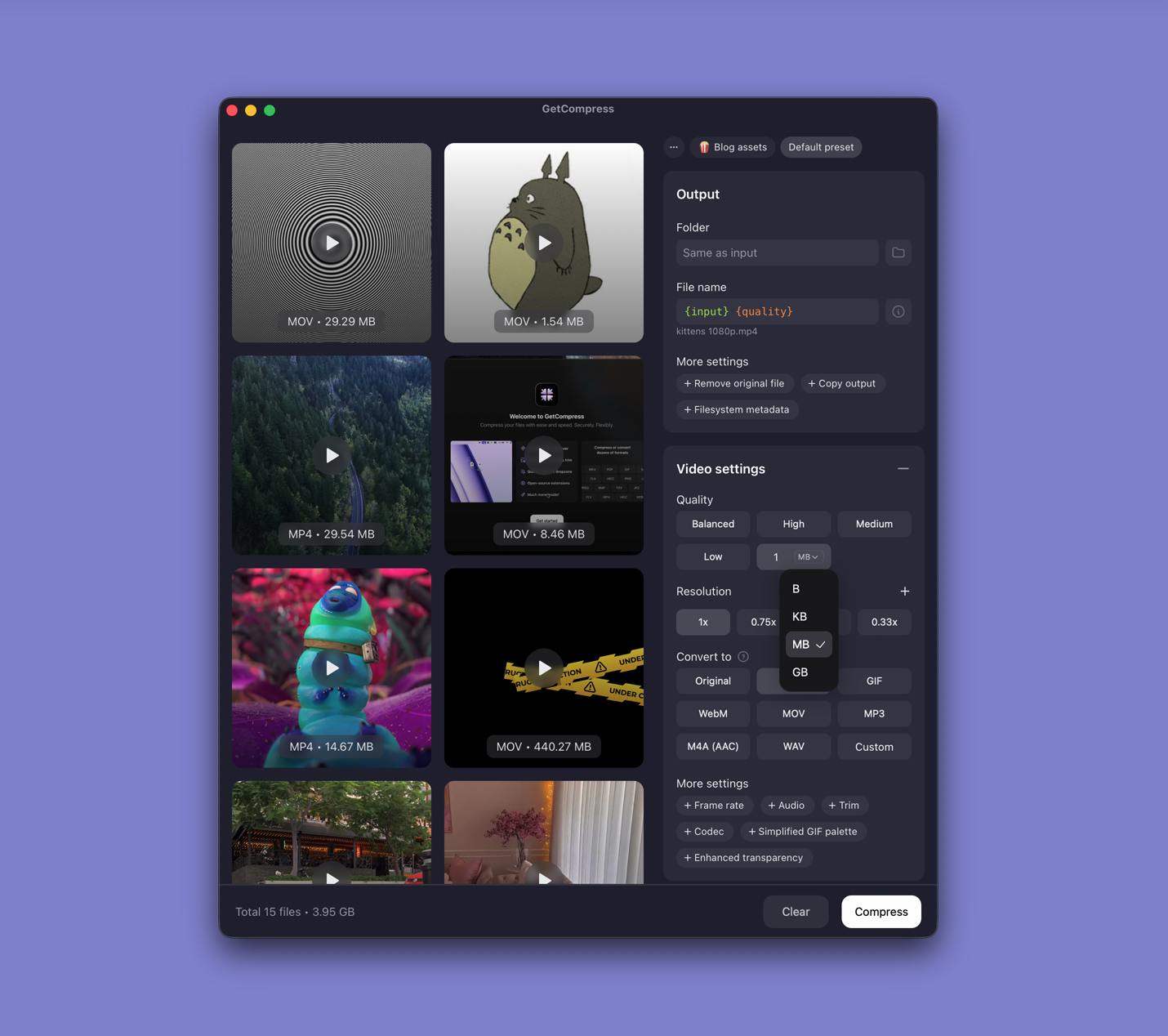
- Open GetCompress and drop one HEVC file or a folder into the queue.
- Choose MP4 with H.264 (or H.264 output) so older Windows players can open it.
- Trim start and end in the preview if the recording has dead air.
- Pick a quality level (Original, High, Medium, Balanced, or Low) and resolution, or set an exact target file size when SharePoint or a form states a megabyte limit (video only).
- Export and drag the result into Teams, Mail, or the upload field.
Processing stays on your PC. Save a preset such as “1080p H.264 client” or “720p H.264 Teams” so next time the same job takes a few clicks.
Method 2: Export in Clipchamp
Best for: One or two HEVC clips Clipchamp can import.
- Open the file in Clipchamp (built into Windows 11).
- Trim the timeline if needed.
- Export at 1080p (or 720p for chat attachments).
Export produces H.264 video. Expect a larger file than the HEVC original unless you choose 720p.
Limitation: No folder batch with CRF control. If the export is still too large, trim more or move to Method 1 or 3.
Method 3: Convert with FFmpeg
Best for: Repeatable settings, folder batches, and CRF-style quality control.
Install FFmpeg with winget if needed:
winget install --id Gyan.FFmpeg -eThen:
ffmpeg -i input.mov -c:v libx264 -crf 22 -preset medium `
 -c:a aac -b:a 128k -movflags +faststart output.mp4
Check the source codec:
ffprobe -v error -select_streams v:0 -show_entries stream=codec_name -of csv=p=0 input.movBatch MOV files in a folder:
mkdir h264-out
Get-ChildItem *.mov | ForEach-Object {
 ffmpeg -i $_.Name -c:v libx264 -crf 22 -preset medium `
 -c:a aac -b:a 128k -movflags +faststart `
 "h264-out\$($_.BaseName).mp4"
}| Flag | Plain meaning |
|---|---|
-crf 22 | Quality (lower number = better, bigger file; try 20 to 26) |
-preset medium | Speed versus compression tradeoff |
-movflags +faststart | Better for web playback |
Limitation: You maintain the commands yourself. Slow encodes on older laptops are normal with software libx264; use -preset veryfast for drafts.
Which method should you use
| Situation | Start here |
|---|---|
| Hard MB cap, recurring sends, or a batch | GetCompress |
| One Clipchamp-friendly clip | Clipchamp |
| Scripts, CI, or exact encoder flags | FFmpeg |
If the blocker is megabytes after conversion, see how to compress video on Windows .
When Clipchamp alone is enough
Clipchamp can finish one file when a trim and a 720p or 1080p export lands under the limit and plays on the recipient’s PC.
GetCompress also works well for that job. It also covers AirDrop folders of HEVC phone clips, the same H.264 preset every week, preview and trim in one place, or an exact video target file size that Clipchamp export tiers cannot type. It does not replace Premiere or a broadcast packaging suite. For the Mac path, see convert HEVC to H.264 on Mac .
- H.264 vs H.265Compare H.264 (AVC) and H.265 (HEVC) for file size, quality, compatibility, and when to pick each codec for sharing video.
- Convert MOV to MP4 on WindowsConvert MOV to MP4 on Windows with GetCompress, Clipchamp, or FFmpeg. Get H.264 MP4 for uploads, Teams, and size-limited portals.
- How to Compress Video on WindowsCompress video on Windows with GetCompress, Clipchamp, or FFmpeg. Trim first, pick 720p or 1080p, and clear email or upload size limits.
- Convert HEVC to H.264 on MacConvert HEVC to H.264 on Mac with GetCompress, QuickTime, or FFmpeg. H.264 MP4 for older devices, Windows teammates, and upload tools.