Convert FLV to MP4 on Windows: 3 Methods
Convert FLV to MP4 on Windows with GetCompress, Clipchamp when it imports, or FFmpeg. Get H.264 MP4 for uploads and modern playback.
FLV files from Flash-era screen recorders, old webinar exports, and archived training libraries fail on modern Windows workflows. Clipchamp may not import them, SharePoint lists MP4 only, or you need to edit the clip in a current NLE. Converting locally keeps internal footage off third-party upload sites.
Three solid routes cover most Windows jobs: GetCompress for archive folders, Clipchamp when import works, and FFmpeg as the reliable convert path.
Method 1: GetCompress
Best for: Migrating a Flash-era library when upload forms enforce modern formats and megabyte caps.
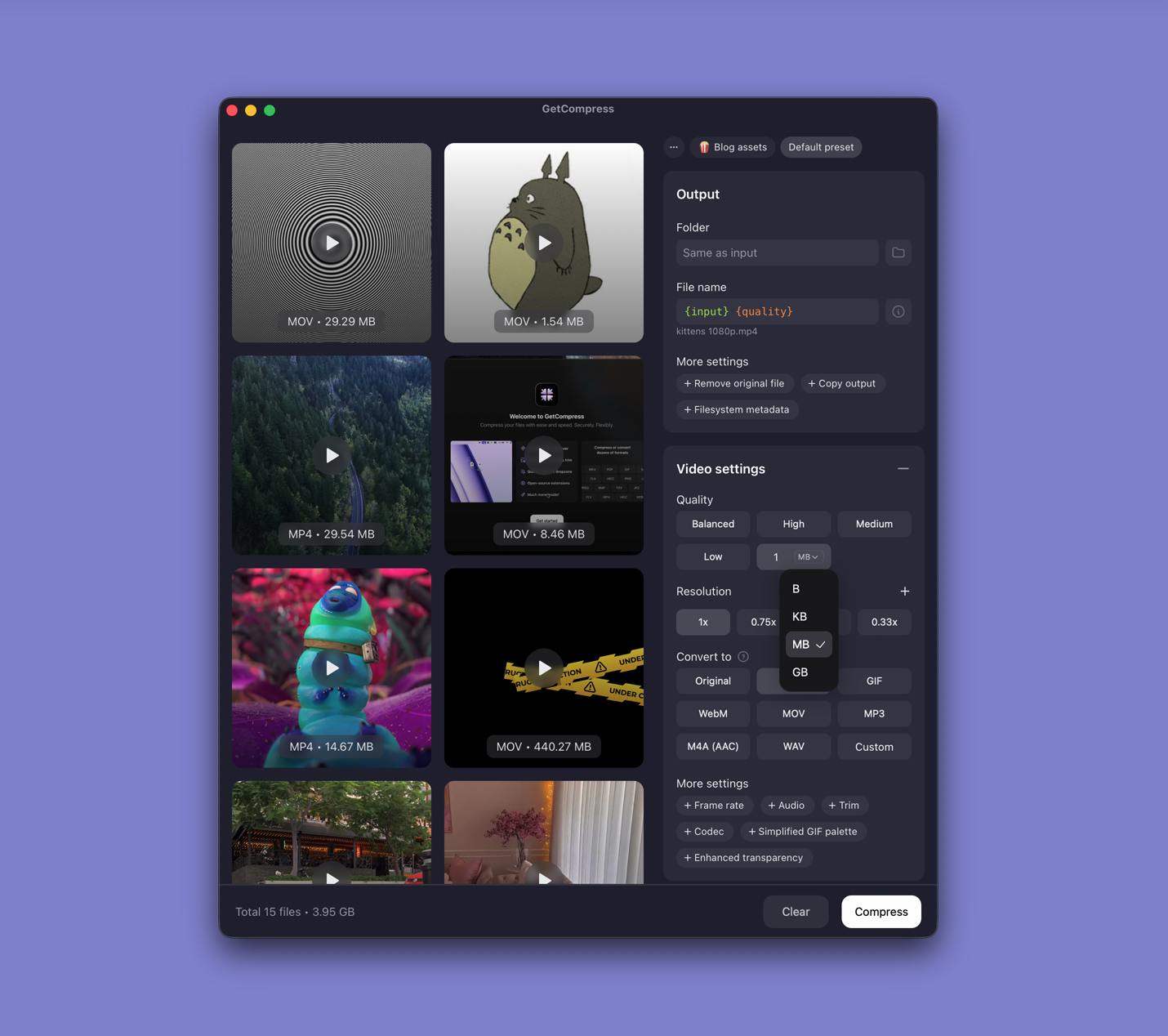
- Drop FLV tutorials, screen captures, or a whole folder into GetCompress .
- Choose MP4 output.
- Trim long intro screens in preview.
- Set a quality level (Original, High, Medium, Balanced, or Low) or resolution, or use target file size when the portal lists a megabyte cap (video only).
- Export and keep the masters.
Processing stays on your PC. Save a preset such as “1080p LMS re-upload” for the rest of the archive.
Method 2: Export in Clipchamp
Best for: The FLV files Clipchamp can import, when you only need one or two clips.
- Open the FLV in Clipchamp if the app accepts it.
- Trim the timeline to remove intro slates or dead air.
- Export at 1080p (or 720p for chat attachments).
When Clipchamp refuses the file (common for older VP6 sources), use Method 3.
| Situation | Export choice |
|---|---|
| One short tutorial clip | 720p after trim |
| Full-screen UI demo | 1080p |
| Hard MB cap | Trim first, then compress further |
Limitation: No batch for a full FLV archive. Import support is incomplete.
Method 3: Convert with FFmpeg
Best for: Reliable FLV batches, remux when possible, and PowerShell scripts.
winget install --id Gyan.FFmpeg -effmpeg -i input.flv -c:v libx264 -crf 22 -preset medium `
-c:a aac -b:a 128k -movflags +faststart output.mp4Try remux when the source already contains H.264 and AAC:
ffmpeg -i input.flv -c copy output.mp4Batch:
mkdir mp4-out
Get-ChildItem *.flv | ForEach-Object {
 ffmpeg -i $_.Name -c:v libx264 -crf 22 -preset medium `
 -c:a aac -b:a 128k -movflags +faststart `
 "mp4-out\$($_.BaseName).mp4"
}| Symptom after conversion | Likely cause | Fix |
|---|---|---|
| Video plays, no audio | MP3 in FLV edge case | Re-encode with -c:a aac |
| Blocky output | Old VP6 source | Accept quality or use lower CRF |
| Upload still rejects | Missing faststart | Add -movflags +faststart |
For WMV on the same archive drive: WMV to MP4 on Windows .
Limitation: You own the commands and error messages.
Which method should you use
| Situation | Start here |
|---|---|
| Archive folder, recurring convert, or size cap | GetCompress |
| One file Clipchamp imports | Clipchamp |
| Most FLV sources and automation | FFmpeg |
Other containers: convert video to MP4 on Windows . Size limits: how to compress video on Windows .
FLV vs MP4 in plain terms
| FLV | MP4 | |
|---|---|---|
| Common source | Flash recorders, old streaming exports, legacy LMS | Web, phones, modern editors |
| Built-in Windows apps | Flash Player is gone; playback fails | Widely accepted |
| Upload forms | Rejected | Usually accepted |
| Best first step | Re-encode to H.264 MP4 | Already compatible |
Re-encoding fixes compatibility when the visual content is still valuable.
When FFmpeg alone is enough
FFmpeg can work when you already maintain PowerShell convert scripts and the archive is uniform.
GetCompress also helps when teammates revive tutorials without scripting, when you batch a mixed legacy folder, or when conversion and a typed megabyte target belong in one step. It does not replace FFmpeg for obscure remux edge cases. After conversion, if the MP4 is still too large, adjust quality or resolution in the same window rather than starting over.
- Convert Video to MP4 on WindowsConvert video to MP4 on Windows with GetCompress, Clipchamp, or FFmpeg. Get H.264 MP4 for uploads, editing, and sharing from MOV, MKV, WMV, and more.
- Convert WMV to MP4 on WindowsConvert WMV to MP4 on Windows with GetCompress, Clipchamp, or FFmpeg. Re-encode to H.264 for uploads, editing, and sharing.
- How to Compress Video on WindowsCompress video on Windows with GetCompress, Clipchamp, or FFmpeg. Trim first, pick 720p or 1080p, and clear email or upload size limits.
- Convert FLV to MP4 on MacConvert FLV to MP4 on Mac with GetCompress, QuickTime when it opens, or FFmpeg. Get H.264 MP4 for uploads and modern playback.