8 Best Free Video Converters (2026)
Compare 8 free video converters for MOV, MP4, MKV, and WebM, including HandBrake, FFmpeg, and VLC, plus GetCompress for the shortest local convert-and-upload path.
Phones shoot HEVC in MOV, editors export ProRes, and the upload form wants MP4. Free converters can remux streams into a new container, re-encode to a compatible codec, or do both. The catch is that “free” often means dense encoder panels, command lines, or an upload.
A simpler local path before the free list
If your real goal is a file that just opens and uploads, with as little setup as possible, look at GetCompress first. It converts and compresses video locally on macOS, Windows, and Linux, with presets, preview, trim, and an exact target file size when a form has a hard megabyte cap, so an incompatible clip becomes an upload-ready file in a few clicks. The rest of this guide compares 8 free converters you can use on their own or alongside it.
This guide covers the 8 best free video converters of 2026: six local options and two online ones. Recommendations are based on current first-party documentation and product information.
How we ranked these free video converters
Inclusion required a free tool that can change video format or container. Local tools are preferred for private footage. Online tools are included because many people search for them, with privacy limits stated clearly.
Evaluation criteria, applied to every option:
| Criterion | What we looked for |
|---|---|
| Format usefulness | MOV, MP4, MKV, WebM, and related everyday paths |
| Remux versus re-encode | Whether you can copy streams or must fully encode |
| Ease | Defaults and steps non-specialists can finish |
| Local processing | Upload required or not |
| Platforms | Desktop systems or browser |
| Cost | Free for the core conversion job |
Quick comparison
| Tool | Best for | Local or online | Cost model |
|---|---|---|---|
| HandBrake | Free GUI re-encode to MP4 or MKV | Local | Free, open source |
| FFmpeg | Scripts, remux, and exact control | Local | Free, open source |
| VLC Media Player | Occasional convert you already have | Local | Free, open source |
| Shutter Encoder | FFmpeg features with a GUI | Local | Free, open source |
| Adapter | Free drag-and-drop on Mac or Windows | Local | Free |
| Avidemux | Cut, then convert one file | Local | Free, open source |
| CloudConvert | Browser convert with many formats | Online | Free tier with limits |
| FreeConvert | Browser convert and compress extras | Online | Free tier with limits |
1. HandBrake
Best for: Free desktop re-encoding into widely playable MP4 or MKV files.
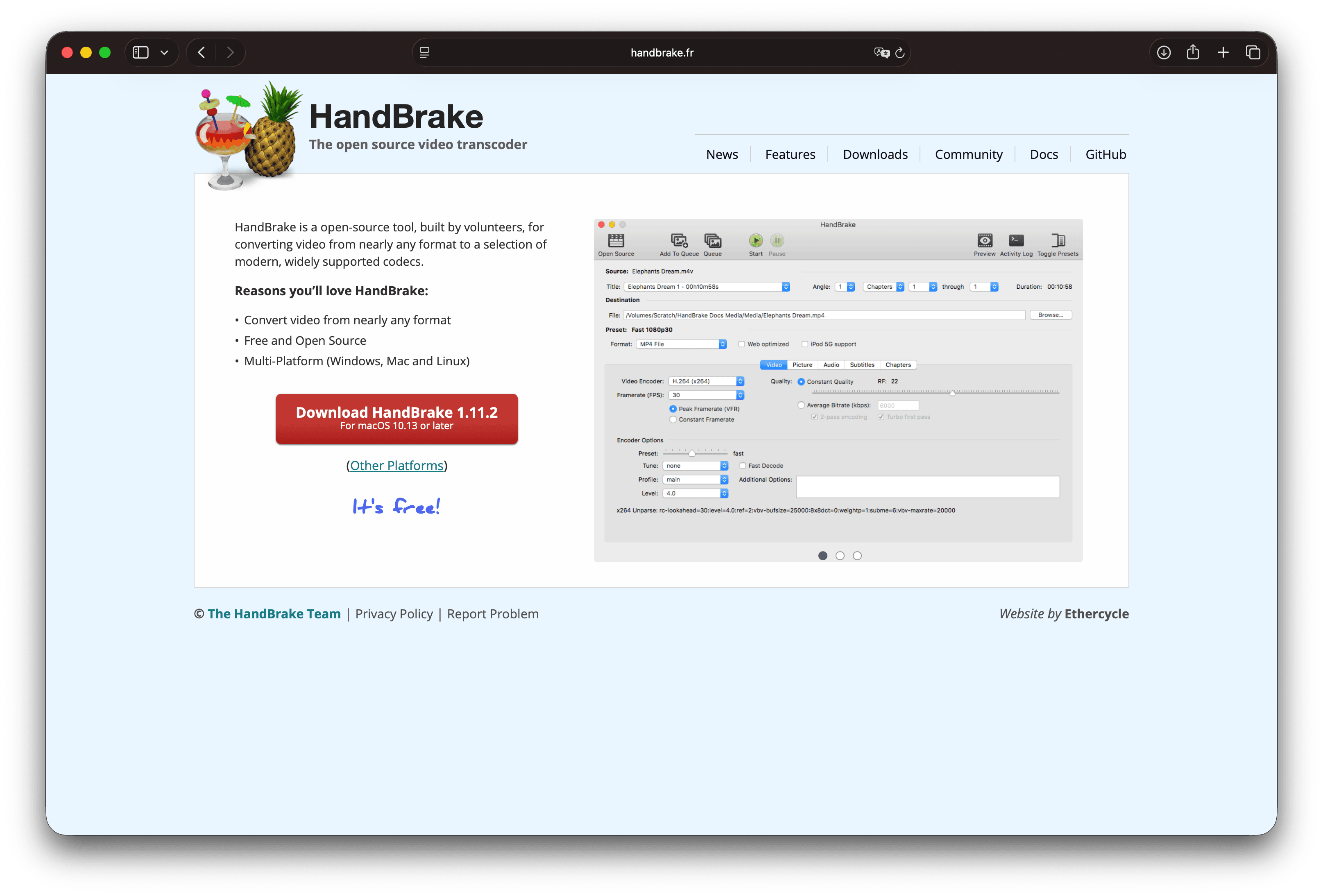
HandBrake is a free, open-source transcoder for Windows, macOS, and Linux. It is built for making new, widely playable files from nearly any source, with presets and deep quality controls.
Strengths
- Excellent free re-encode quality controls
- Queue support and strong documentation
- Local processing for private footage
Limitations
- Focused on a small set of output containers
- Interface is technical for first-time users
- Overkill for a pure remux when codecs already match
Who should pick it: Free GUI conversion when you need a solid H.264 or H.265 re-encode. Download only from handbrake.fr .
2. FFmpeg
Best for: Free scripts, remux-or-re-encode switches, and maximum format coverage.
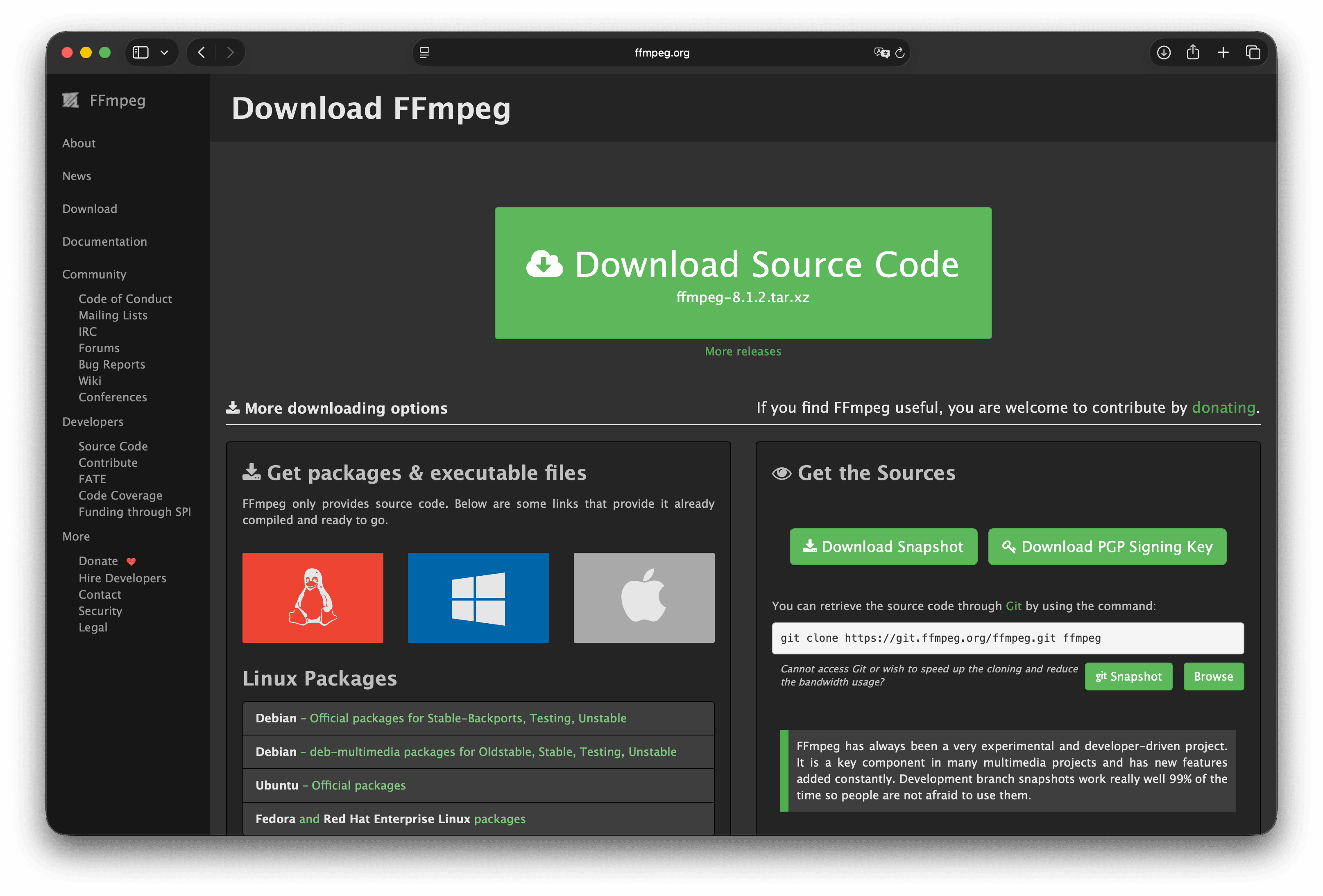
FFmpeg is the open-source framework behind much of the industry’s conversion tooling. The ffmpeg CLI can remux with -c copy or fully re-encode when compatibility requires it.
Strengths
- Broadest practical format surface
- Explicit remux versus re-encode control
- Ideal for automation
Limitations
- No official consumer GUI
- Cryptic failures when containers and codecs disagree
- Easy to re-encode by accident and lose quality
Who should pick it: Developers and anyone already comfortable in a terminal. Overview: About FFmpeg .
3. VLC Media Player
Best for: Occasional free conversion when VLC is already installed.
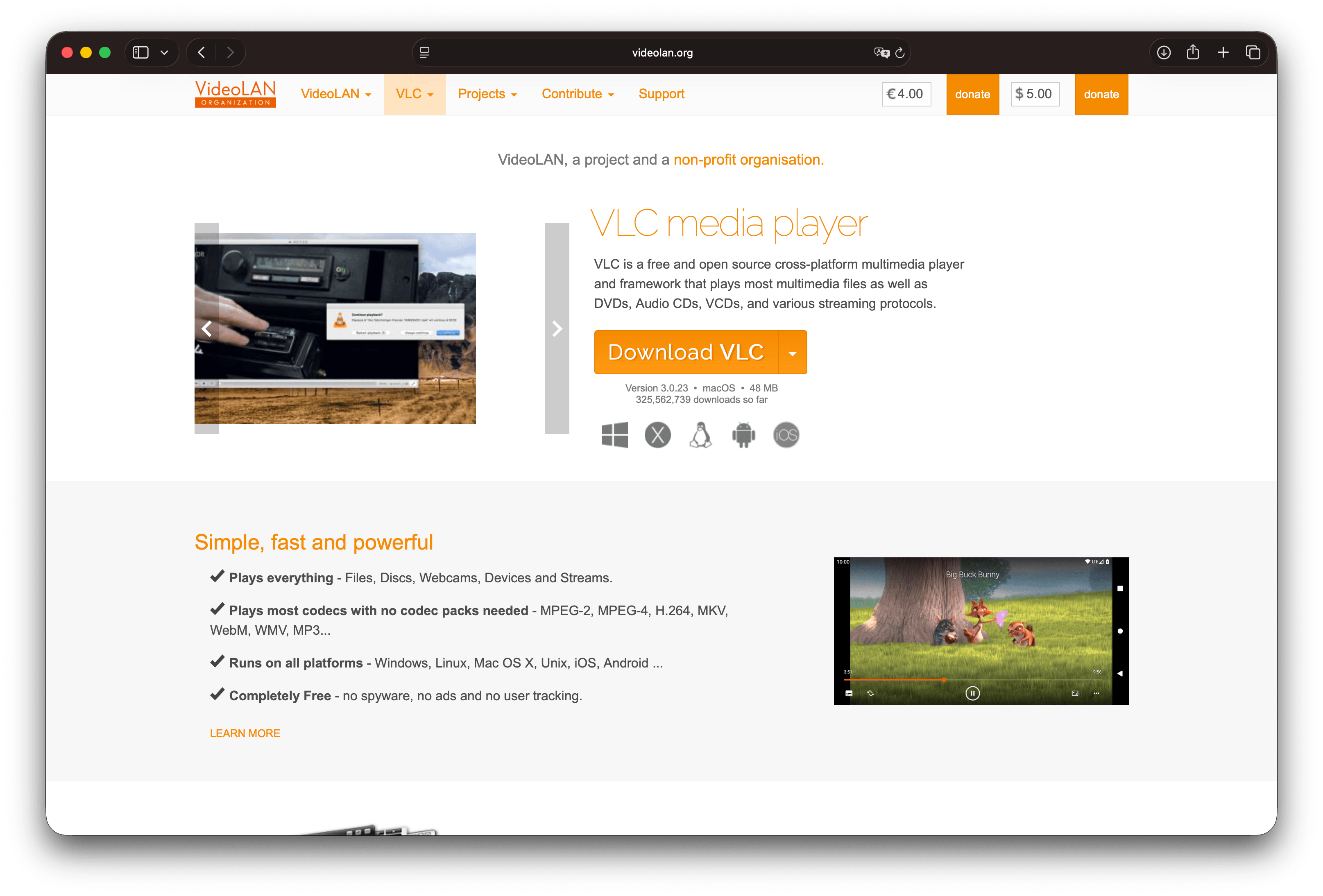
VLC includes a convert-and-save flow that can transcode many formats. Official builds are free, open source, and local.
Strengths
- Already installed for many people
- Broad playback support before you convert
- Free
Limitations
- Profiles are easy to mis-set
- Weak batch discipline for team standards
- Not ideal as the only converter for recurring delivery
Who should pick it: One emergency conversion. Official site: videolan.org/vlc .
4. Shutter Encoder
Best for: Free FFmpeg-level features without living in a terminal.
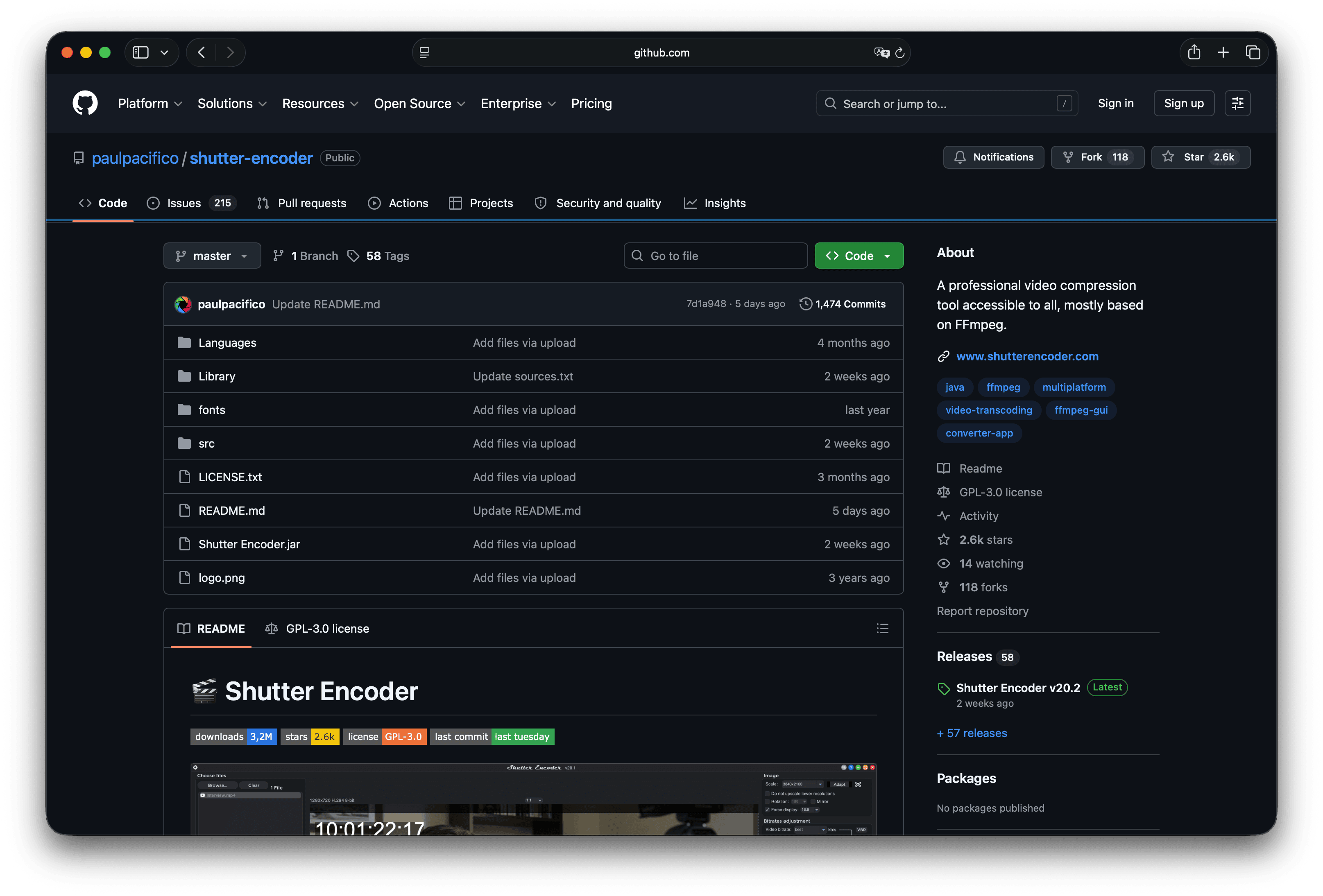
Shutter Encoder is a free, open-source media converter with a graphical interface built around FFmpeg.
Strengths
- Wide function surface beyond a simple export
- Free on macOS, Windows, and Linux
- Local
Limitations
- Dense interface
- Easy to re-encode when a remux would have been enough
Who should pick it: People who want HandBrake-class power with an FFmpeg-oriented layout. Site: shutterencoder.com .
5. Adapter
Best for: Free drag-and-drop conversion of video, audio, and images on Mac or Windows.
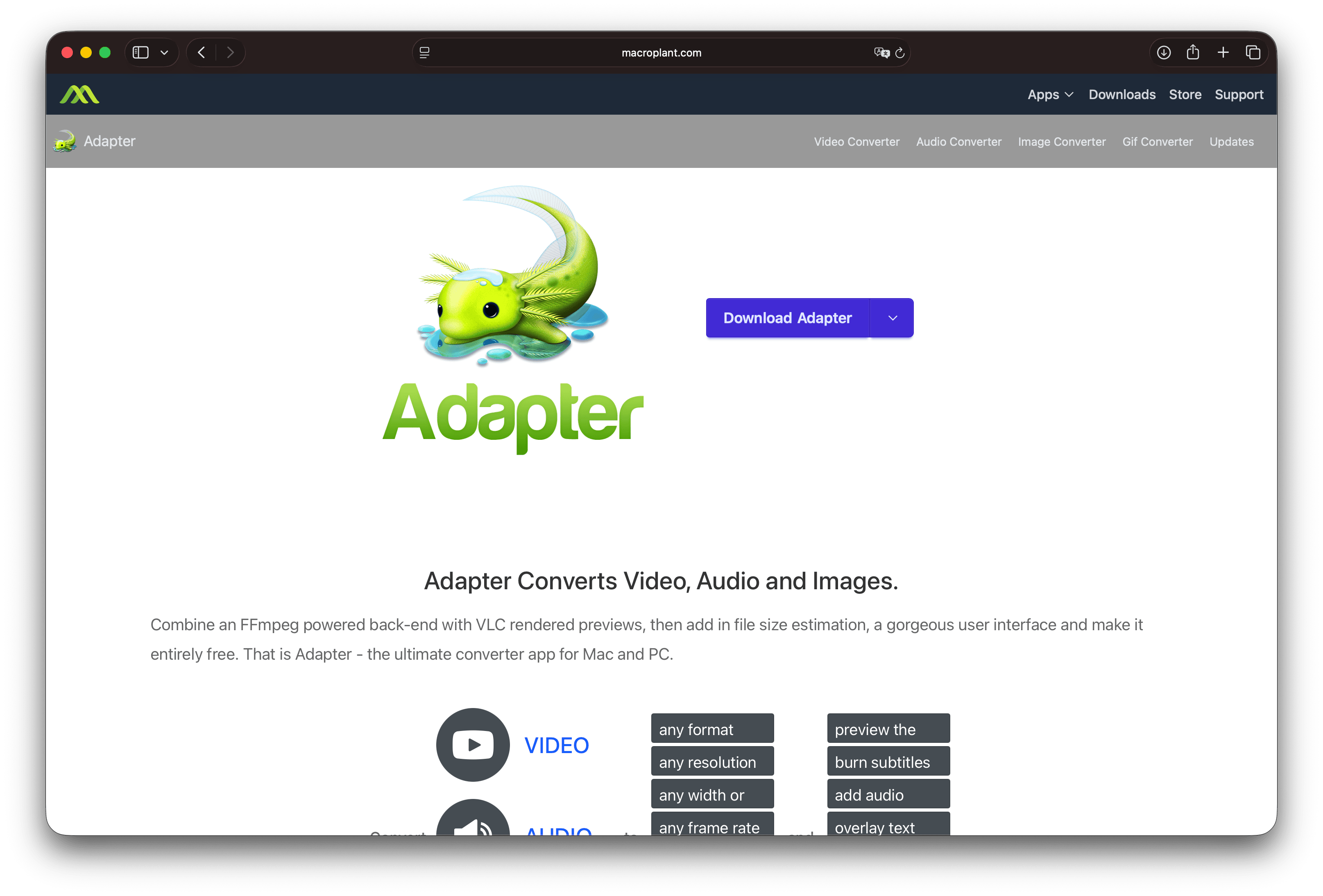
Adapter is freeware from Macroplant with an FFmpeg-powered backend, presets, and previews.
Strengths
- Approachable free GUI
- Video, audio, and images in one app
- Local processing
Limitations
- Less modern workflow polish than dedicated paid tools
- Confirm current OS support before a team rollout
Who should pick it: Free GUI conversion without learning HandBrake’s full panel. Site: macroplant.com/adapter .
6. Avidemux
Best for: Free cut-and-convert on a single file.
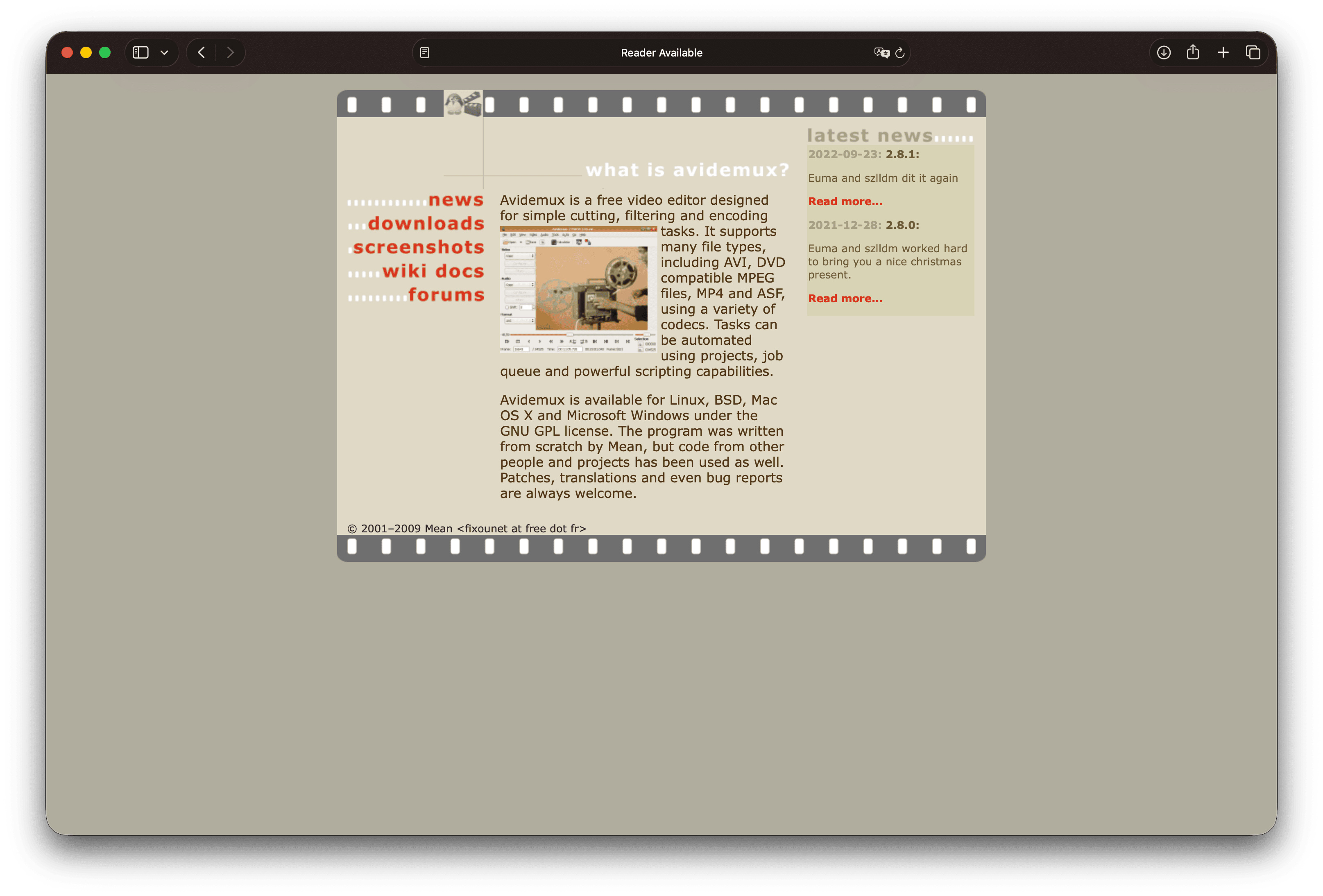
Avidemux is a free GPL tool for simple cutting, filtering, and encoding on Linux, BSD, macOS, and Windows.
Strengths
- Trim and convert together
- Free and local
- Useful when the intro is the real size problem
Limitations
- Older interface patterns
- Format support depends on your build
- Awkward as a whole-team standard
Who should pick it: Single-file prep with cuts. Project page: avidemux.sourceforge.net .
7. CloudConvert
Best for: Free-tier browser conversion across many formats when the file is not sensitive.
CloudConvert is an online converter with a wide format list and a free tier subject to current limits and account rules. Use it only for material you are willing to upload.
Strengths
- No desktop install
- Broad format matrix
- Useful on a locked-down machine
Limitations
- Requires upload
- Free quotas and watermarks or limits can apply; check current terms
- Poor fit for unreleased or client footage
Who should pick it: Occasional public or low-risk files. Site: cloudconvert.com . See also are online file compressors safe .
8. FreeConvert
Best for: Another free-tier online convert option with extra compress-oriented tools.
FreeConvert offers browser conversion and related media tools with a free tier and paid upgrades. Treat it like any upload service: fine for non-sensitive clips, wrong for confidential work.
Strengths
- Convenient browser UI
- Convert plus related compress helpers on one site
- No local install
Limitations
- Upload required
- Limits and quality ceilings on free plans can change
- Not a private local workflow
Who should pick it: One non-sensitive conversion in a browser. Site: freeconvert.com .
Remux first or re-encode
- Probe the file for video codec, audio codec, and container.
- If the destination accepts those codecs, remux (
ffmpeg -c copy, or a muxer GUI). You keep quality and save time. - If you need H.264 and AAC in MP4, or a smaller file, re-encode.
- If a form has a megabyte cap, conversion alone may not be enough.
Which free video converter should you use
| Your situation | Start with |
|---|---|
| Free GUI re-encode to MP4 or MKV | HandBrake |
| Scripts, remux, or unusual formats | FFmpeg |
| Already have VLC, one file | VLC |
| FFmpeg power with a GUI | Shutter Encoder |
| Free Mac or Windows drag-and-drop | Adapter |
| Cut the intro, then export | Avidemux |
| Non-sensitive browser convert | CloudConvert or FreeConvert |
For a broader desktop list that includes paid local apps, see best video converters .
When free is enough, and when a simpler app fits better
Free tools are enough when you already know HandBrake or FFmpeg, when the job is a single remux, or when the file is public enough to upload.
If you keep bouncing between encoder panels, size limits, and preview players just to send one clip, GetCompress folds that into a few clicks: convert and compress locally, preview and trim, reuse a preset next time, and set an exact target size when an upload has a hard cap. Every free tool above is a solid choice for the job it was built for. GetCompress is the shorter route when you want the finished file with the least back-and-forth.
- HandBrake AlternativeLooking for a HandBrake alternative? GetCompress is simpler for smaller, shareable video with target size, preview, and local processing, plus images, GIFs, and PDFs.
- FFmpeg AlternativeNeed an FFmpeg alternative with a GUI? GetCompress wraps FFmpeg-style compress and convert behind defaults, target size, preview, and local processing.
- CloudConvert AlternativeLooking for a CloudConvert alternative? GetCompress converts and compresses video, images, GIFs, and PDFs locally with no upload limits or API credits.
- FreeConvert AlternativeLooking for a FreeConvert alternative? GetCompress converts and compresses media locally with quality controls and no free-tier upload caps.