Convert SVG to PNG on Windows: 4 Methods
Convert SVG to PNG on Windows with GetCompress, Inkscape, Microsoft 365, or ImageMagick. Control pixel size, transparency, and batches.
To convert SVG to PNG on Windows, choose the final pixel dimensions first. SVG stores vector shapes. PNG stores a fixed grid of pixels, so a logo for a slide, a software asset, and a vendor upload should not automatically share the same export size.
Method 1: GetCompress
Best for: Repeated conversions, icon folders, and consistent output settings.
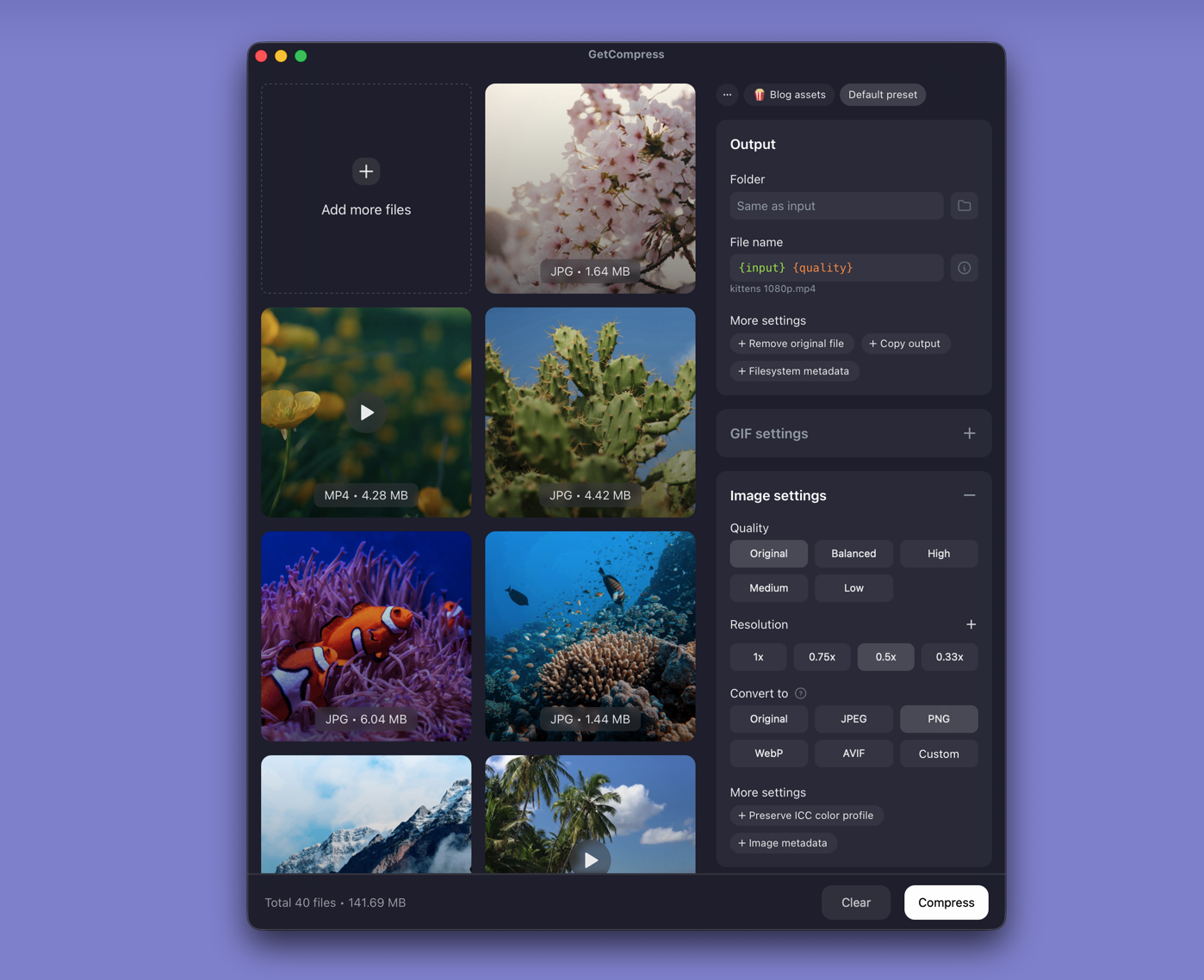
- Drop one or more SVG files into GetCompress .
- Choose PNG as the output format.
- Enter the dimensions required by the website, app, document, or upload form.
- Preview the result and export beside, not over, the SVG source.
Follow exact portal dimensions when provided. For high-density displays, test around twice the rendered width.
Method 2: Export in Inkscape
Best for: Brand graphics, diagrams, and SVG files with text, clipping, filters, or complex bounds.
- Open the SVG in Inkscape for Windows.
- File → Export.
- Choose page, visible drawing, or a selected object.
- Set the PNG width or height in pixels.
- Review the background, then export.
Use Page for deliberate canvas padding, Drawing to crop around visible shapes, or Selection to isolate one asset.
Limitation: Slower than a converter when the SVG is already final and you only need many PNG copies.
Method 3: Save as PNG through Microsoft 365
Best for: Slides, reports, worksheets, and a quick PNG for another Office document.
- Insert the SVG into PowerPoint, Word, or Excel.
- Resize it to the approximate size needed in the document.
- Right-click the graphic and choose Save as Picture.
- Select PNG and save a new copy.
Microsoft documents SVG support and Save as Picture . Availability depends on the Office version.
Limitation: Office does not provide the same explicit pixel and canvas controls as a dedicated converter. Skip this for app assets and exact upload specs without checking dimensions.
Method 4: Automate with ImageMagick
Best for: Migrations, scheduled jobs, and repeatable PowerShell conversion.
ImageMagick can rasterize SVG files. Format support can depend on installed delegates ( format notes ).
magick -background none -density 300 input.svg -resize 1200x output.pngFolder batch:
New-Item -ItemType Directory -Force png-out | Out-Null
Get-ChildItem -Filter *.svg | ForEach-Object {
 magick -background none -density 300 $_.FullName `
 -resize 1200x "png-out\$($_.BaseName).png"
}
Higher input density supplies detail before resizing. It does not justify an unnecessarily large final PNG.
Limitation: Rendering can vary with fonts and delegates. Test gradients, text, masks, and transparency before a large unattended batch.
Check the PNG before using it
Inspect the result where it will be used, not only in File Explorer:
- Exact pixel dimensions in file properties
- Transparent logos on dark and light backgrounds
- Text, strokes, gradients, and shadows vs the SVG
- Accidental whitespace or clipped edges
If a finished PNG is still too heavy, resize before reducing quality. See how to compress images on Windows .
When a simpler tool is enough
| Windows workflow | Start here |
|---|---|
| Folder with consistent settings | GetCompress |
| Inspect or adjust vector artwork | Inkscape |
| Reuse a graphic in an Office document | Microsoft 365 |
| PowerShell or build job | ImageMagick |
Microsoft 365 is enough for an occasional document graphic. Keep the SVG even after the PNG is accepted. The fixed-size PNG is a delivery copy; the SVG remains the source for future dimensions.
- Convert PNG to JPG on WindowsConvert PNG to JPG on Windows with GetCompress, Paint, or FFmpeg. Keep PNG when you need transparency; flatten first when you do not.
- How to Compress Images on WindowsCompress images on Windows with GetCompress, Photos, or FFmpeg. Resize JPG and PNG, convert WebP, and keep sharp UI for email or web.
- Batch Compress and Convert on WindowsBatch compress and convert on Windows with GetCompress, Task Scheduler, or PowerShell. Local presets for JPEG, MP4, and PDF folders.
- Convert SVG to PNG on MacConvert SVG to PNG on Mac with GetCompress, Inkscape, Safari and Preview, or rsvg-convert. Set exact dimensions and keep transparency.