Batch Compress and Convert on Windows: 3 Methods
Batch compress and convert on Windows with GetCompress, Task Scheduler, or PowerShell. Local presets for JPEG, MP4, and PDF folders.
Same export folder every Friday? Automation saves clicks. One random file once a month? Just use Photos. Batch compress and convert on Windows makes sense when settings repeat and file counts climb past what manual export tolerates.
You spend time once on presets, Task Scheduler jobs, or scripts so every future Friday is one step instead of thirty. Stop automating when the settings change every job.
When automation is worth it
| Signal | Example |
|---|---|
| Same settings weekly | Render output folder |
| Many files at once | Whole photo shoot |
| Shared PC | Same steps for everyone |
| Upload cap every send | Email or portal limit |
If the pain is occasional email bounces, read the email attachment size limits guide first. You may only need a one-time batch, not a permanent watch folder.
Common patterns:
| Workflow | Input | Output |
|---|---|---|
| Website files | PNG UI shots | JPEG max 1920 px |
| Bug clips | MOV screen capture | MP4 720p under 20 MB |
| Scan archive | Large PDF | Compressed PDF |
| Social stills | HEIC from phone | JPEG for CMS |
Write down max width, codec, and target folder before you automate. For video-heavy batches, see the video compression guide for Windows . Sensitive client work should stay local; see are online file compressors safe on Windows .
Method 1: GetCompress
Best for: Mixed PNG, MP4, and PDF folders, reusable presets, and “new file landed” watches.
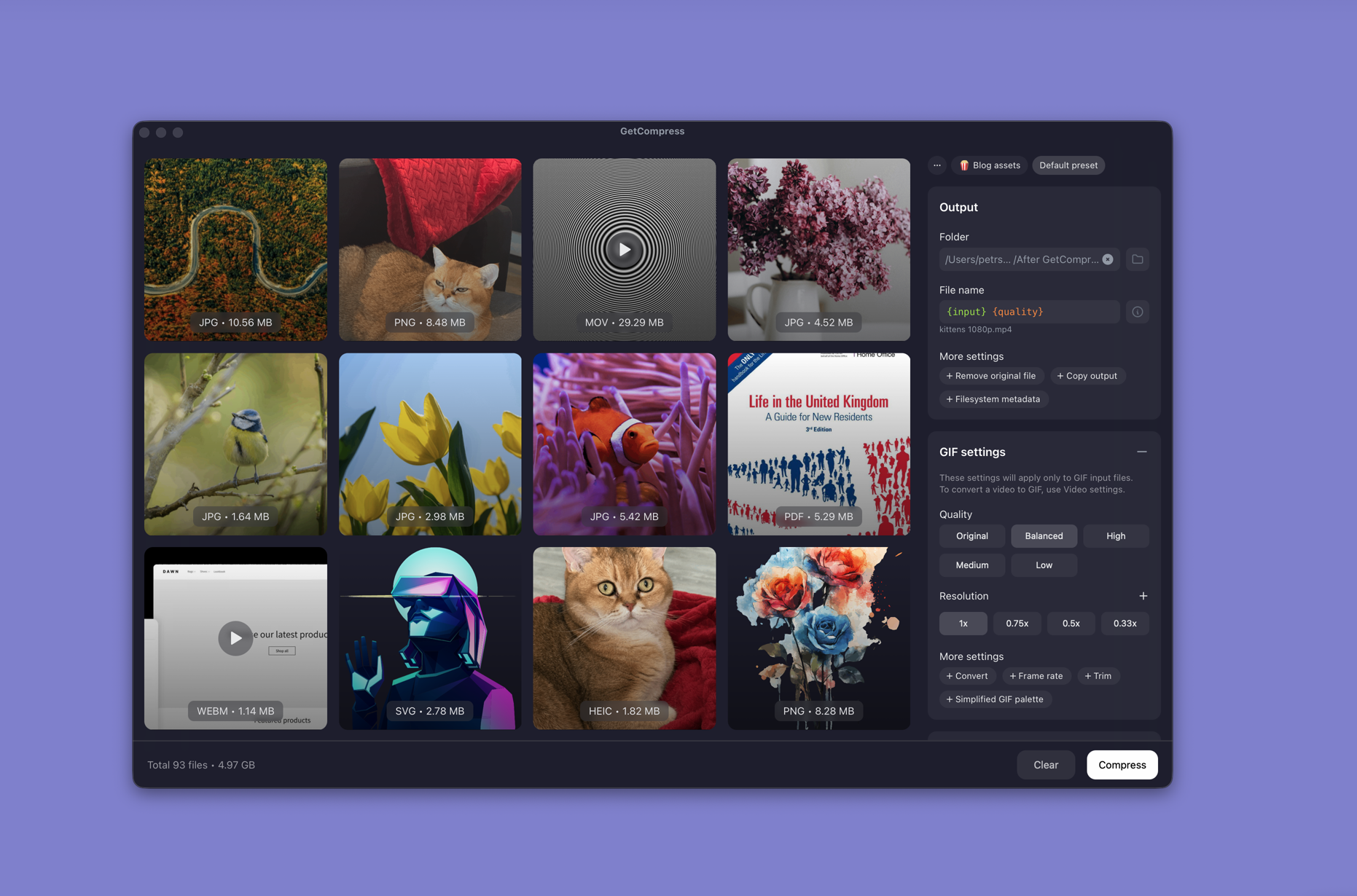
- Open GetCompress and drop an entire folder into the queue.
- Pick output format and quality per media type, or load a saved preset.
- For video with a hard megabyte cap, set target file size (video only).
- Preview one file, then export the batch to a folder you choose.
- Optional: turn on folder monitoring so the same preset runs when new files appear.
Processing stays on your PC. Pair monitoring with MCP when you also want Cursor to trigger presets on demand.
Method 2: Task Scheduler
Best for: Clock-based or logon jobs IT can audit.
- Save your script as
compress.ps1. - Open Task Scheduler (search in Start) → Create Task.
- Add a Trigger (weekly, or at logon).
- Actions → Start a program →
powershell.exewith argument-File C:\path\compress.ps1.
Test the task on a copy folder first. Log output when debugging (>> C:\Logs\compress.log 2>&1). Silent failures on Friday night exports are worse than a loud error on a test folder.
Limitation: Paths break when projects move. For “new file appeared” triggers, folder monitoring is usually simpler than wiring file watchers yourself.
Method 3: PowerShell and FFmpeg
Best for: Teams that already maintain FFmpeg scripts.
Install FFmpeg with winget:
winget install --id Gyan.FFmpeg -eExample loop:
cd C:\Exports\in
Get-ChildItem *.jpg | ForEach-Object {
 ffmpeg -i $_.Name -vf scale=1920:-2 -q:v 3 "C:\Exports\out\$($_.Name)"
}
Get-ChildItem *.mov | ForEach-Object {
 ffmpeg -i $_.Name -vf scale=-2:1080 -c:v libx264 -crf 23 `
 -c:a aac -b:a 128k "C:\Exports\out\$($_.BaseName).mp4"
}
Document input folder, output folder, and codec flags in your team wiki. The next person should not reverse-engineer CRF values from a scheduled task description.
Limitation: Someone technical must maintain the script. No preview, trim, or mixed PDF plus video in one queue unless you write that logic yourself.
Which method should you use
| Situation | Start here |
|---|---|
| Mixed media, presets, or watch folders | GetCompress |
| Auditable weekly or logon jobs | Task Scheduler |
| Existing FFmpeg scripts | PowerShell |
For deeper watch-folder setup, see automatic folder compression on Windows .
When a one-off export is enough
Photos, Clipchamp, or a single drag into GetCompress can work when the job is one folder once.
GetCompress also helps when Friday exports repeat, presets need names the team can share, or folder monitoring should run without scripts. Processing stays local. It does not replace Task Scheduler for IT-mandated clock jobs, and it does not replace a full design or video suite. For the Mac workflow, see batch compress and convert on Mac .
- Reduce File Size on WindowsReduce file size on Windows for video, photos, PDF, and GIF with GetCompress, Photos or Clipchamp, and FFmpeg. Free space without deleting project masters.
- MCP automation on WindowsLet Cursor or Claude Desktop run local compress tools on Windows through MCP, including GetCompress.
- Automatic Folder Compression on WindowsSet up automatic folder compression on Windows so new JPEG, MP4, and PDF files compress when they land in a watch folder. Local presets, no upload step.
- Batch Compress and Convert on MacBatch compress and convert on Mac with GetCompress, Shortcuts or Automator, or a Terminal script. Local presets for JPEG, MP4, and PDF folders.