Are Online File Compressors Safe on Windows
What happens when you upload files to online compressors, and what to use on Windows instead with Photos, Clipchamp, and GetCompress.
“Free online PDF compressor.” You upload a contract. You get a smaller file back. Security reviews, client NDAs, and IT policies often treat upload compressors as a hard no. The safer path is local tools you already own.
The question is not whether the site looks trustworthy. It is whether you are allowed to copy the file to hardware you do not manage. For many teams the answer is no, even when the asset is “just” a marketing PDF or a screen recording MP4.
What upload actually means
Your file is copied to their server, processed there, and stored for some amount of time. “We delete after an hour” still means an hour on hardware you do not control. Backups, logs, and staff access are governed by their policy, not yours.
Upload also sends file names, sizes, and your IP address in server logs. That is normal web traffic, but it matters when the file name includes a client code or patient ID. The compressor privacy risks guide for Windows covers trackers and retention in more detail.
| Step | What happens |
|---|---|
| You pick a file | Browser reads it from disk |
| Upload | A copy travels to their server |
| Processing | Their software encodes or re-saves it |
| Download | You get a new file; the original may remain on their side |
Treat every upload as giving a copy to a third party.
Some sites offer client-side processing in the browser. That can reduce server retention, but you still load their JavaScript and trust their implementation. For regulated work, “maybe local in the browser” is still harder to defend than Photos or GetCompress on disk.
How sensitive is your file
Use this rough guide before you paste a link into the browser:
| Type | Online OK? |
|---|---|
| Contracts, medical, unreleased product shots | No. Use local apps only. |
| Internal deck | Prefer local apps |
| Public blog image already on the site | Maybe, if IT allows it |
When unsure, keep it local. Email limits push people toward online tools, but a 25 MB cap is a sizing problem, not a reason to upload confidential PDF or MP4 files. The email attachment size limits guide lists typical caps so you can compress locally first.
Metadata you may expose when you upload
Files carry more than pixels or audio samples. Photos may include EXIF location and camera data. PDF documents can embed author names and revision history. Video MP4 and MOV files may include creation dates and device tags.
Online compressors receive the full file, metadata included. Some strip metadata on output; many do not mention it at all. You cannot audit what their pipeline keeps in logs or training sets.
Local apps like Photos, Clipchamp, and GetCompress let you control what leaves your PC. Process on disk, review output in File Explorer, and share only the copy you intend.
Free tools already on Windows
| File type | App | Good for |
|---|---|---|
| PowerPoint re-export, Print to PDF | One deck | |
| Photos | Photos resize, Paint export | Single image |
| Video | Clipchamp trim and export | One clip |
| Audio | FFmpeg extract from video | M4A from MP4 |
You do not need an account for those.
Optional PowerShell for batch jobs: FFmpeg for video and images. Same machine, files never leave your PC. Task Scheduler can run a script on a schedule when you outgrow one-file workflows. For mixed folders of PNG, MP4, and PDF, built-in apps mean switching tools per file type.
Print to PDF from PowerPoint reduces size but may flatten editable layers. That is fine for email attachments but not for decks the client still edits. Label outputs clearly so the team knows which file is the share copy.
Questions to ask before you upload
Before you upload anything important:
- How long do they keep files?
- Do they use files for ads or AI training?
- Where are servers located?
- Do they strip metadata on output?
- Does your employer or client contract allow third-party upload at all?
No clear answers? Treat as a no. IT security forms often ask exactly these questions. Local compression gives you a simple answer: the file never left your PC.
Keep a short note in your project wiki: which local tool you used (Photos, Clipchamp, GetCompress) and that no third-party upload occurred. That satisfies many vendor security questionnaires without a long investigation.
When GetCompress fits
Photos or Clipchamp is enough for one file when you already know which app to open.
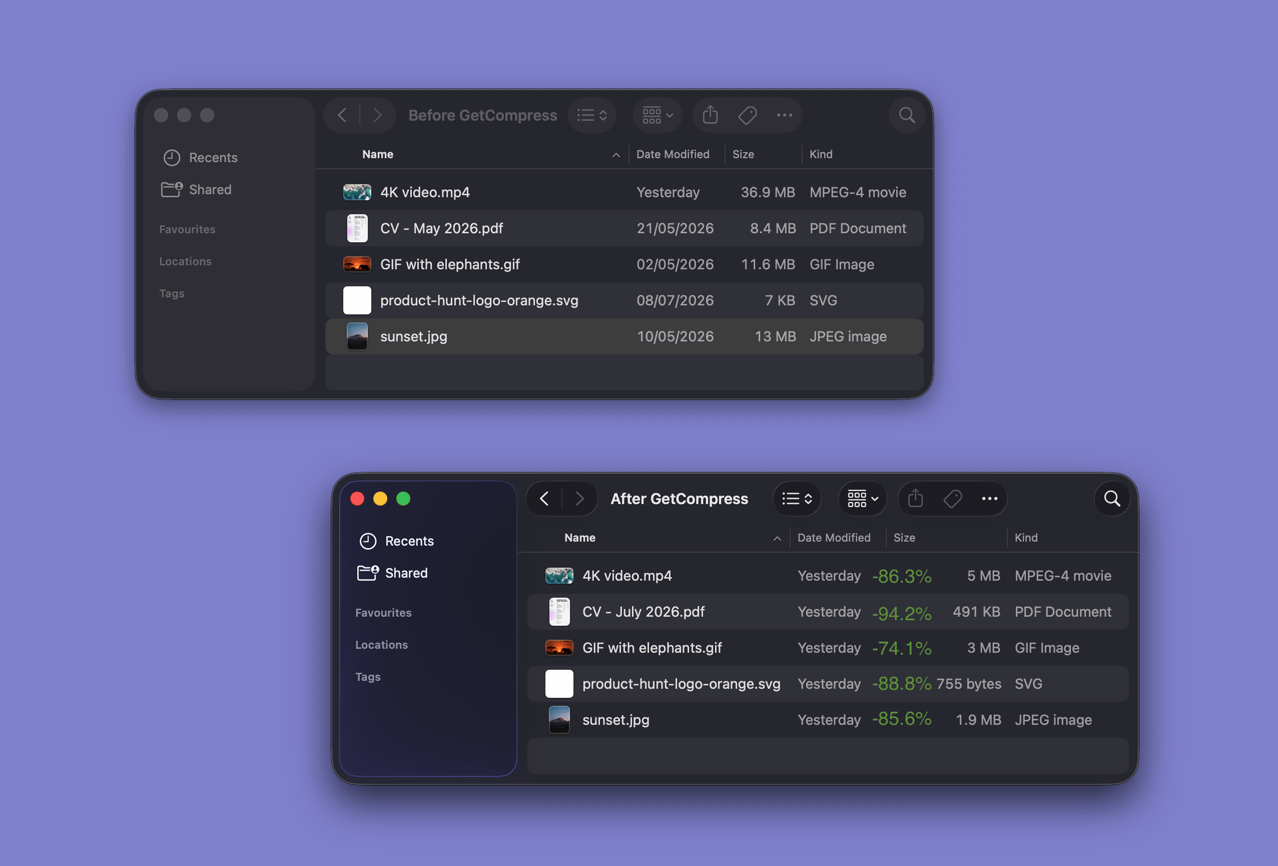
GetCompress fits when online tools are not allowed and built-in apps are too slow for mixed folders:
- Drag PDF files, images, or video into one queue instead of opening three different apps.
- Pick a preset or quality setting, then export to a folder you choose on disk.
- Set target file size on video (MP4, MOV) when an upload page caps megabytes. Exact target size is video only.
- Save presets for repeat jobs (web JPEG, email PDF, Teams MP4).
- Run folder monitoring so new files in a watch folder compress automatically with the same preset.
Files stay on your PC during processing. Nothing is uploaded to a compressor website. That matches what security reviews expect for unreleased product shots, legal PDF, and internal screen recordings. For the Mac side of the same decision, see are online file compressors safe .
- Online File Compressors Privacy Risks on WindowsWhy free compressor websites show ads and log uploads, and what to use on Windows instead of browser upload tools.
- GetCompress Privacy on WindowsHow GetCompress processes files on Windows, when it uses the network, and how that compares to built-in tools and online compressors.
- Online compressor safetyWhat happens when you upload files to online compressors, and what to use on Mac instead with Preview, QuickTime, and GetCompress.
- Offline Media Compression on WindowsCompress images, video, and PDF on Windows without uploading. Local JPEG, MP4, and PDF processing for NDA work, air-gapped PCs, and slow Wi-Fi.