How GetCompress Stays Private and Secure on Windows
How GetCompress processes files on Windows, when it uses the network, and how that compares to built-in tools and online compressors.
Security reviews often start with one question: where does the file go? For GetCompress on Windows, the short answer is that it stays on your PC while it is compressed. There is no step where your PDF, photo, or MP4 uploads to GetCompress servers for encoding.
That matters for NDAs, client media, and unreleased product footage. The flow is simple: pick input on disk, encode locally, save to a folder you choose.
Where files go during compression
- You select files from File Explorer or drag them into the queue.
- GetCompress encodes on your PC with the local engine.
- You choose the output folder.
There is no “upload and we compress in the cloud” product. The MCP server and the embedded local HTTP automation server call the same on-device engine. Scripts and assistants send paths and settings; the media bytes stay on your machine during encode.
| Stage | Location of your file |
|---|---|
| Input | Folder you selected |
| Processing | Memory and temp files on your PC |
| Output | Destination folder you choose |
With an active license, compression itself does not need a network connection. Temp files usually sit on the same volume as the output. On shared PCs, clear old outputs after large video batches.
What may use the internet
Separate from compressing:
- Software updates, if you enable them
- License checks for the paid app
Details live in the Privacy Policy . Those calls do not include your media files. You can compress offline once the license is active.
Clipboard compression and the quick dropzone also run locally. They use the same engine as drag-and-drop; nothing in those flows uploads media for encoding.
Metadata and local processing
Photos may include EXIF location and camera tags. PDFs can embed author names. MP4 and MOV files may carry creation dates and device info. GetCompress reads that metadata as part of normal local file handling.
Because files never upload to a third-party compressor site, you avoid that site’s server logs and retention policy. If you need tags stripped before share, review the output yourself. For the broader upload risk, see are online file compressors safe on Windows .
When email caps force a smaller file, compress locally first. Email attachment size limits lists typical provider caps so you can plan without opening a browser upload form.
Compared to built-in tools and upload sites
| Online compressor | Photos / Clipchamp | GetCompress | |
|---|---|---|---|
| Upload your media | Yes | No | No |
| Batch many files | Sometimes | Manual | Built for it |
| Mixed types in one queue | Rare | One app per type | Yes |
| Folder monitoring | No | No | Yes |
Photos is fine for one image. Clipchamp covers a single video export. GetCompress helps when you also need PDF, images, and video in one local queue without switching apps.
Online tools sometimes watermark free tiers or cap batch size. Local tools avoid that path, but you still choose quality yourself. Exact target file size applies to video only; image and PDF presets use quality and optimization controls, not a typed megabyte cap.
Folder monitoring on Windows
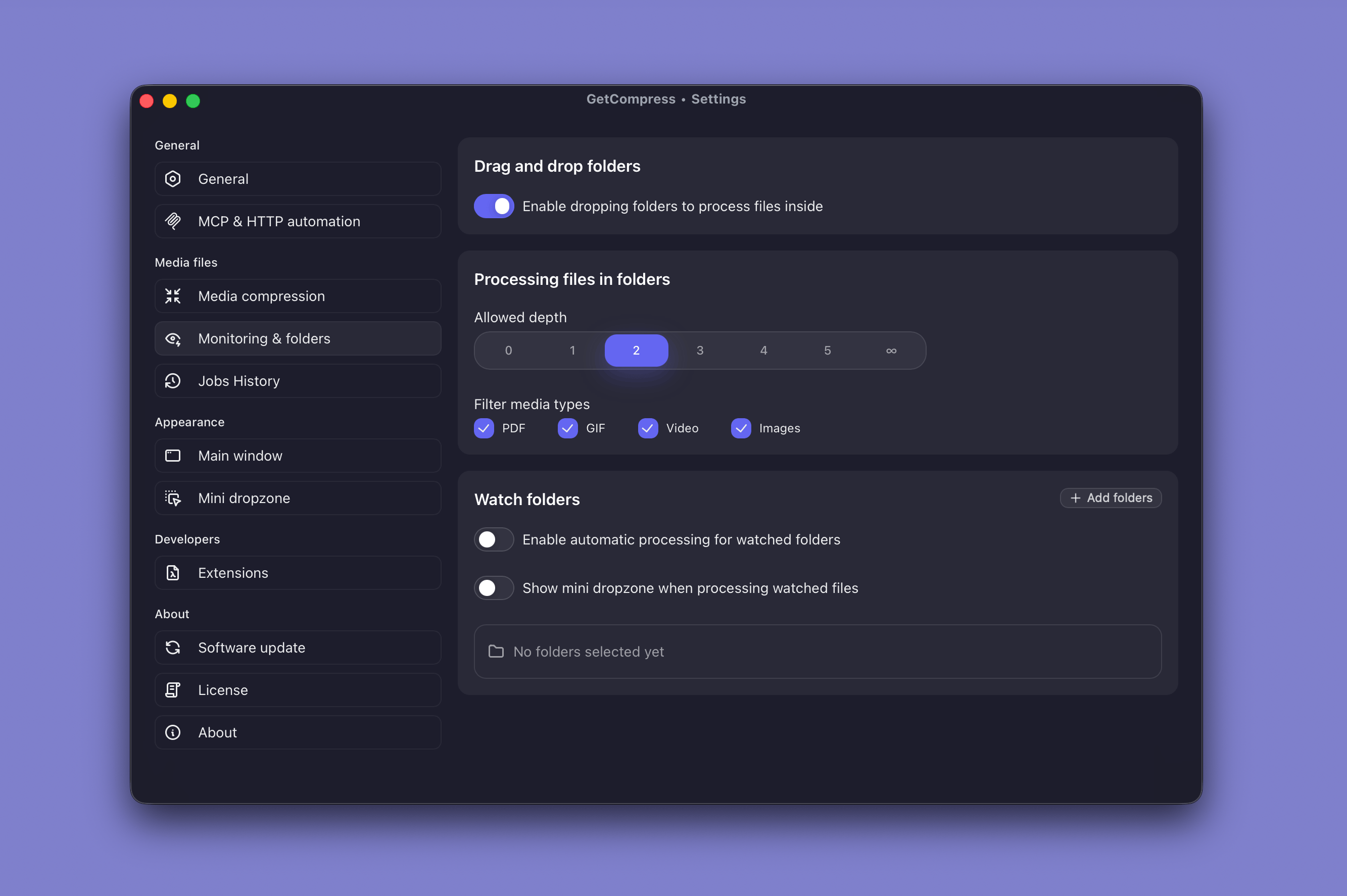
Turn on folder monitoring when the same export directory fills up on a schedule. Pick a watch folder, attach a saved preset, and new JPEG, MP4, or PDF files compress when they appear.
| Use case | Watch folder example | Preset idea |
|---|---|---|
| Design exports | C:\Exports\web | JPEG max 1920 px |
| Screen recordings | C:\Videos\Captures | MP4 1080p |
| Scan inbox | C:\Documents\Scans | PDF image optimization |
Task Scheduler can run PowerShell scripts for custom pipelines, but someone must maintain those scripts when tools or Windows updates change. Folder monitoring covers the common case without a separate scheduled task. Files still never leave your PC during encode.
If a watch folder lives inside OneDrive, output may sync afterward. That is your sync client, not GetCompress uploading media. Point watch folders at local project paths when policy requires it.
What we do not claim
We are not a HIPAA compliance package or legal advice. We do not stop you from syncing output to OneDrive if you turn that on yourself. We do not replace Lightroom for RAW editing. GetCompress focuses on compress, convert, and batch workflows on your PC.
When local compression is enough
Photos or Clipchamp is enough for a one-off resize or export when the file is not sensitive beyond your normal Windows account model.
GetCompress fits when you need the same local privacy story plus mixed formats, reusable presets, folder monitoring, or batches. Download from getcompress.com , process on your PC, and keep masters untouched. For the Mac twin of this page, see how GetCompress stays private and secure .
- Are Online File Compressors Safe on WindowsWhat happens when you upload files to online compressors, and what to use on Windows instead with Photos, Clipchamp, and GetCompress.
- Online File Compressors Privacy Risks on WindowsWhy free compressor websites show ads and log uploads, and what to use on Windows instead of browser upload tools.
- Offline Media Compression on WindowsCompress images, video, and PDF on Windows without uploading. Local JPEG, MP4, and PDF processing for NDA work, air-gapped PCs, and slow Wi-Fi.
- GetCompress privacyHow GetCompress processes files on your Mac with local-only encoding, when the app may use the network, and how that compares to Preview and online tools.