How GetCompress Stays Private and Secure
How GetCompress processes files on your Mac with local-only encoding, when the app may use the network, and how that compares to Preview and online tools.
Security forms ask: “Where does the file go?” For GetCompress the short answer is: it stays on your Mac while it is compressed. There is no step where your PDF, photo, or MOV uploads to our servers for encoding.
That answer matters for NDAs, healthcare-adjacent workflows, and unreleased product media. Input folder on disk, encode locally, output folder you choose.
Where files go during compression
- You pick files from your disk.
- GetCompress encodes on your Mac using the local engine.
- You pick where to save the result.
We do not operate an “upload your file and we compress it in our cloud” product. MCP and the embedded local HTTP automation server call the same on-Mac engine. The model or script sends instructions and paths; the bytes stay on your machine during encode.
| Stage | Location of your file |
|---|---|
| Input | Folder you selected |
| Processing | In memory and temp files on your Mac |
| Output | Destination folder you choose |
If you work offline with an active license, compression itself does not require a network connection. Temp files during encode live on the same volume you chose for output unless you redirect them.
What may use the internet
Separate from compressing:
- Software updates (if you turn them on)
- License checks for the paid app
Details are in our Privacy Policy . You can compress with the app installed while offline if your license is already active. Those calls do not include your media files.
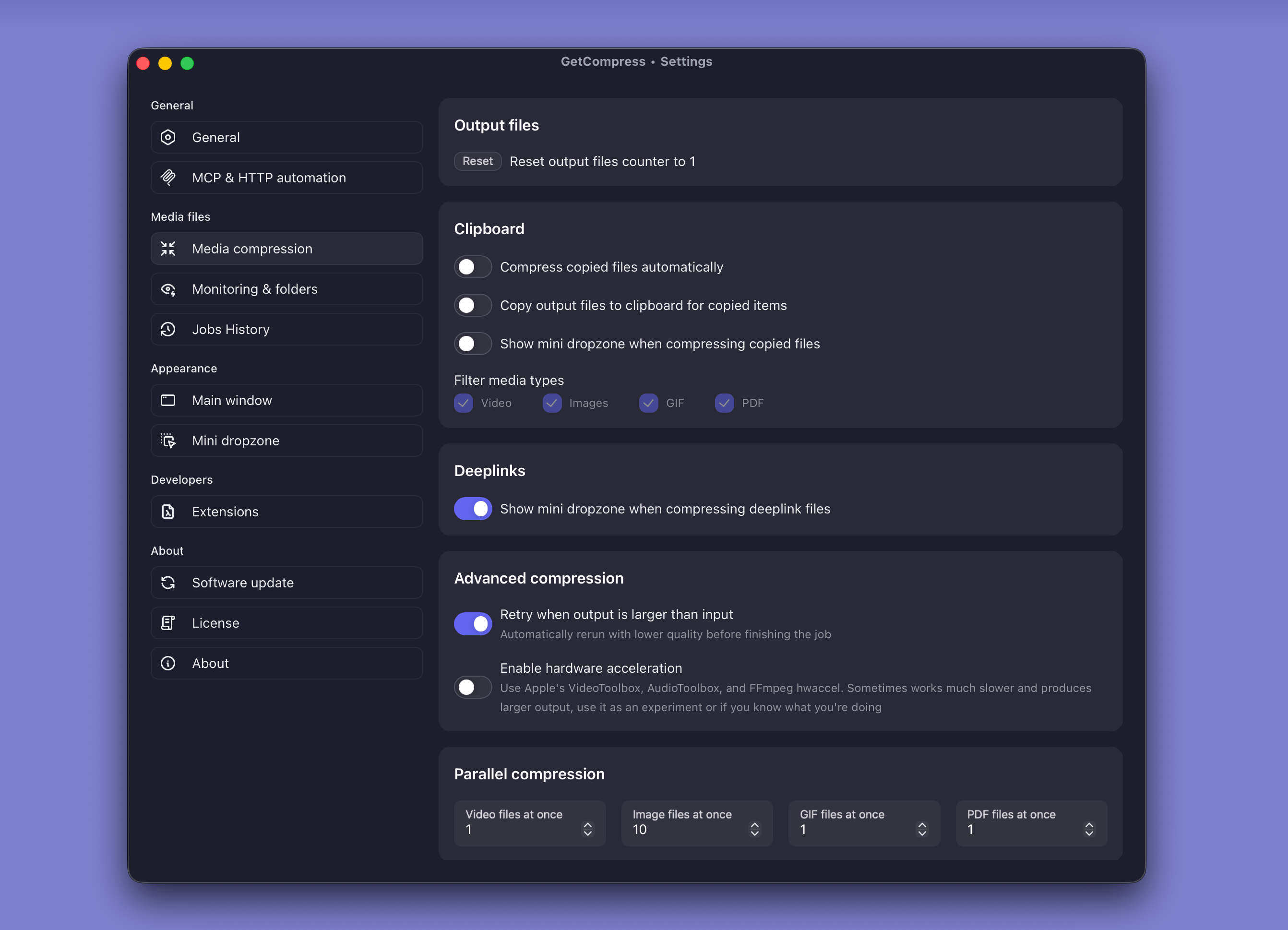
Clipboard compress and quick dropzone features also run locally. They use the same engine as drag-and-drop; nothing in those flows uploads media for encoding.
Metadata and local processing
Photos may include EXIF location and camera tags. PDF files can embed author names. Video MP4 and MOV files may carry creation dates and device info. GetCompress reads that metadata as part of normal file handling on your Mac.
Because files never upload to a third-party compressor site, you avoid the extra server logs and retention policies that come with browser tools. Review output before share if you need to strip sensitive metadata manually. The online compressor safety guide contrasts local apps with upload services for the same reason.
When email caps force smaller files, compress locally first. The email attachment size limits guide lists typical provider caps so you can hit a size limit without opening a browser upload form.
Compared to Preview and upload sites
| Online compressor | Preview / QuickTime | GetCompress | |
|---|---|---|---|
| Upload your media | Yes | No | No |
| Batch many files | Sometimes | Manual | Built for it |
| Mixed types in one queue | Rare | One app per type | Yes |
| Folder monitoring | No | No | Yes |
Preview is fine for one PDF. GetCompress helps when you also need to batch PDF, images, and video in one queue without switching apps. Exact target file size applies to video only.
Folder monitoring for automatic jobs
Turn on folder monitoring in GetCompress settings when the same export directory fills up on a schedule. Pick a watch folder, attach a saved preset, and new JPEG, MP4, or PDF files compress when they appear.
| Use case | Watch folder | Preset example |
|---|---|---|
| Design exports | ~/Exports/web | JPEG max 1920 px |
| Screen recordings | ~/Movies/Captures | MP4 1080p |
| Scan inbox | ~/Documents/Scans | PDF image compression |
Files still never leave your Mac. Monitoring only automates the same local encode you would run manually. If a watch folder lives inside iCloud Drive or Dropbox, output may sync automatically. That is your sync client, not GetCompress uploading media.
What we do not claim
We are not a HIPAA compliance package or legal advice. We do not stop you from syncing output to iCloud or Dropbox if you turn that on yourself. We do not replace Lightroom for RAW editing. GetCompress focuses on compress, convert, and batch workflows on your Mac.
When Preview alone is enough
Preview or QuickTime can finish a single local export when you do not need batches, presets, or automation.
GetCompress fits the same local-only trust model with batch queues, mixed formats, reusable presets, folder monitoring, and MCP or the local HTTP server when scripts should call those presets. Download from getcompress.com , drag files in, choose output format and quality, and export to a folder you pick. Your files stay on your Mac during processing.
- Online compressor safetyWhat happens when you upload files to online compressors, and what to use on Mac instead with Preview, QuickTime, and GetCompress.
- Compressor privacyWhy free compressor websites show ads and log uploads, and what to use on your Mac instead of browser upload tools.
- Email attachment limitsCommon email attachment size limits for video, PDF, and images, plus practical ways to shrink files before you hit send.
- GetCompress public releaseGetCompress is now publicly available. Read the public launch notes and the 1.0.x updates that followed.