Online File Compressors Privacy Risks
Why free compressor websites show ads and log uploads, and what to use on your Mac instead of browser upload tools.
The compressor was free. The page loaded ad scripts. The upload finished before you read the privacy link. Free tools are not free to run: someone pays for storage, bandwidth, and encoding. That cost shows up in ads, upsells, and data about what people upload.
This page covers what happens in practice on free upload compressors, and what to use on a Mac instead. For the safety checklist (malware, retention claims, NDA fit), see are online file compressors safe .
How free sites make money
Ads, upsells, and aggregate upload stats (formats, sizes, countries) fund most free compressor sites. A smaller PDF or JPEG is the hook. The business model is traffic and conversion.
| Revenue source | What it means for you |
|---|---|
| Display ads | Third parties see you visited a compress page |
| Premium tier | Same upload path, faster queue or larger cap |
| Analytics | They learn which formats people upload most |
A “pro” tier that promises a faster queue still sends your file through their infrastructure. Enterprise DPAs are a contract review, not a default on the free button.
Trackers on the page vs the upload
Browser blockers help on the page. They do not remove server logs of your upload.
Consent banners may pause some ad networks until you click. That changes what the ad network sees, not whether the compress server receives your PDF bytes. Treat page privacy and upload privacy as two questions.
Typical page-side data: referrer, browser type, session ID, time on page. That still ties your visit to a compress action even when the file bytes sit elsewhere.
What servers typically log
| Log field | Why it matters |
|---|---|
| File name | May include client or project codes |
| File size | Hints at document type (deck vs icon) |
| IP address | Rough location and network identity |
| Timestamp | Ties the upload to your work hours |
“We delete after 24 hours” is better than indefinite storage. It is still a day on disks you do not control. Legal and healthcare workflows often need zero third-party copies.
A PDF named Acme-Contract-vFinal.pdf tells a story in logs even after bytes are gone. Local compress avoids that leak.
Metadata rides along
Uploads are more than visible pixels. JPEG and HEIC may carry EXIF GPS and camera serials. PDF files embed author names. MP4 can include device and creation metadata.
Compressors may keep that metadata in the output. They may also retain originals in logs or crash dumps. Local processing on your Mac keeps metadata under your control until you strip or edit it.
Redaction and compression are different jobs. Uploading to “strip metadata” still copies the full file first. Compress locally using email attachment size limits as a planning range, then attach from Finder.
Mac options without an upload form
| Task | Try first | Batch option |
|---|---|---|
| Preview (Export… / Quartz filters) | Local queue app | |
| Image | Preview, Photos | sips in Terminal |
| Video | QuickTime | FFmpeg or a local app |
| Mixed folder | Dedicated local app | Folder monitoring |
Desktop apps do not show ad banners while they work. You pay with money or setup time. The privacy win is simple: no upload form, no third-party server log for your MOV or contract PDF.
Built-in Mac tools cover one file type at a time. Mixed PNG mockups, MP4 demos, and PDF contracts push people back to upload sites when switching apps three times feels slower.
When GetCompress fits
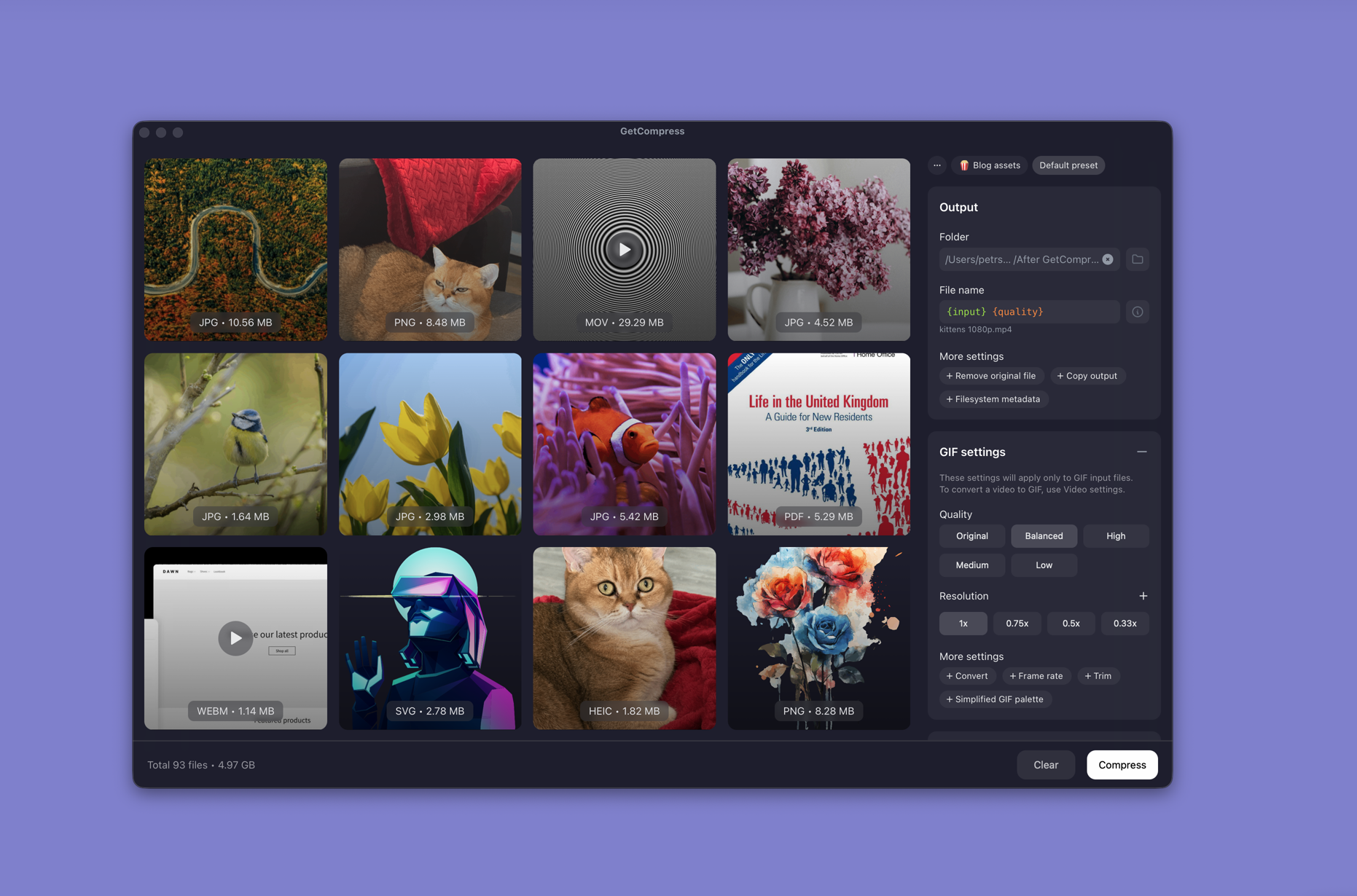
GetCompress compresses images, video, and PDF on your Mac without a browser upload step:
- Queue mixed PNG, MP4, and PDF in one run
- Save presets so repeat jobs do not tempt a free upload tool
- Folder monitoring when exports land in the same directory every day
- Local processing for NDA or embargoed assets
Details on what stays on disk: how GetCompress stays private and secure . Broader offline workflow: offline media compression on Mac .
When a built-in Mac tool is enough
Preview or QuickTime can finish a single public file with no confidentiality need.
GetCompress fits when mixed batches, presets, or watch folders make online compressors a habit. It does not replace a redaction tool, a records system, or legal review of a third-party DPA. For Windows-specific alternatives, see online file compressors privacy risks on Windows .
- Online compressor safetyWhat happens when you upload files to online compressors, and what to use on Mac instead with Preview, QuickTime, and GetCompress.
- GetCompress privacyHow GetCompress processes files on your Mac with local-only encoding, when the app may use the network, and how that compares to Preview and online tools.
- Offline Media Compression on MacCompress images, video, and PDF on Mac without uploading to online tools. Local JPEG, MP4, and PDF processing for NDA work and slow connections.
- Online File Compressors Privacy Risks on WindowsWhy free compressor websites show ads and log uploads, and what to use on Windows instead of browser upload tools.