Convert PNG to JPG on Windows: 3 Methods
Convert PNG to JPG on Windows with GetCompress, Paint, or FFmpeg. Keep PNG when you need transparency; flatten first when you do not.
The CMS wants JPEG. The portal rejects PNG. You have Figma mockups or full-resolution screenshots. JPEG is smaller and opens everywhere, but you lose transparency. Flatten on a solid background in your design tool first when alpha mattered in the layout.
PNG vs JPEG
| PNG | JPEG | |
|---|---|---|
| Transparency | Yes | No (flat background) |
| File size at same dimensions | Often larger | Often smaller |
| Sharp UI and text | Excellent | Good at high quality |
| Best for | UI with alpha, logos | Photos, uploads, email |
Keep PNG for logos on varied backgrounds, soft shadows on non-white pages, and icons on photos. Convert when the layout already has a solid fill, the image is photo-heavy, or upload limits force a smaller file.
Conversion is lossy even at high quality. Do not convert the same file to JPEG repeatedly. For modern sites, see PNG to WebP on Windows .
Method 1: GetCompress
Best for: Whole folders with max width and quality in one pass.
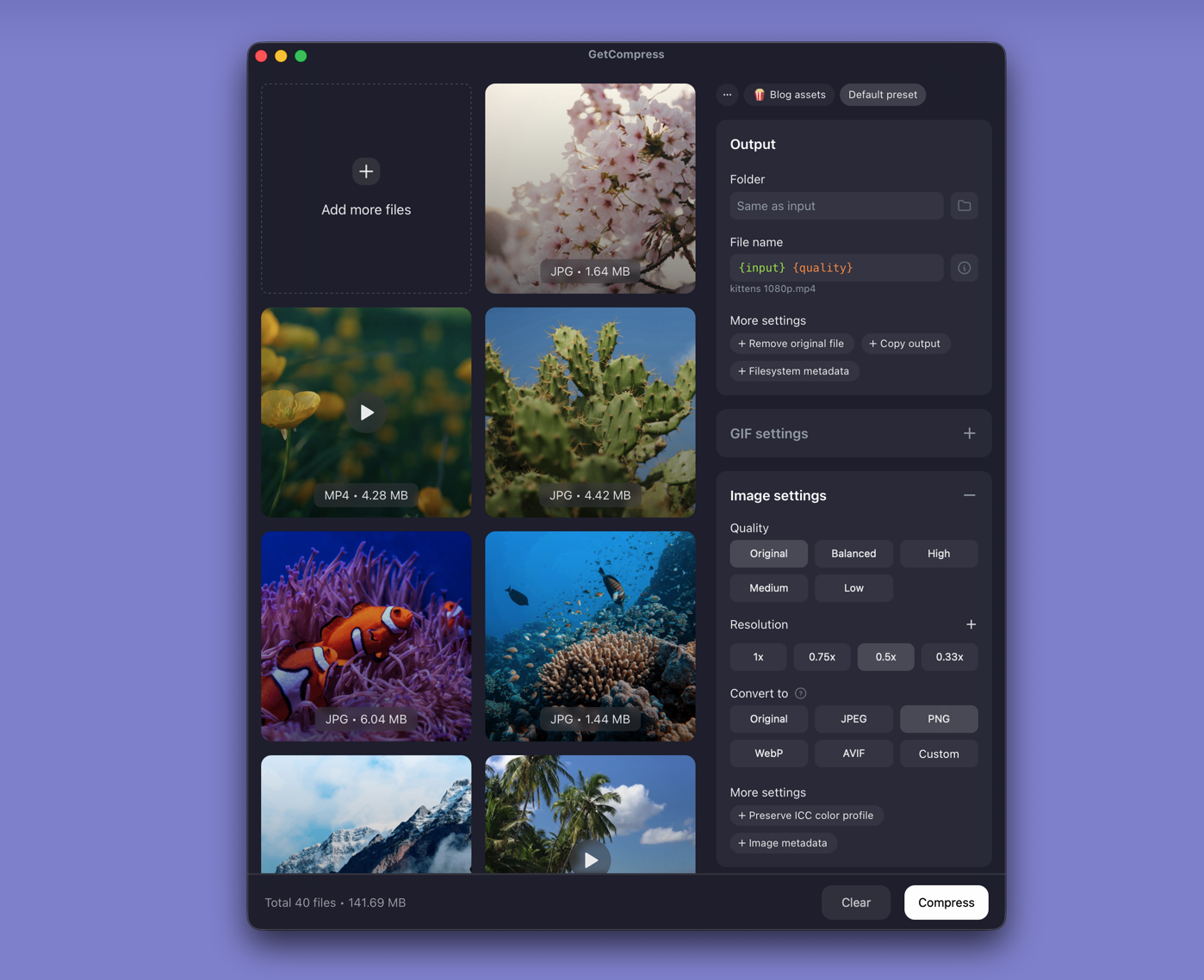
- Drop a folder of PNG mockups into GetCompress .
- Choose JPEG output.
- Set max width (often 1920 px) and quality (for example High or Medium).
- Preview a UI screenshot with small text, then export.
- Save a preset such as “client JPEG 1920 high” so you can reuse it next time.
Processing stays on your PC. Image compression uses quality and dimensions, not an exact target file size.
Method 2: Paint
Best for: One file.
- Open the PNG in Paint.
- Optional: Resize to display width.
- File → Save as → JPEG picture, save with a new name.
Photos can crop first when the source is a messy screenshot. Paint does not batch a folder.
Limitation: Slow for fifty mockups.
Method 3: FFmpeg in PowerShell
Best for: Scripted folders.
winget install --id Gyan.FFmpeg -e
mkdir jpg-out
Get-ChildItem *.png | ForEach-Object {
 ffmpeg -i $_.Name -q:v 3 "jpg-out\$($_.BaseName).jpg"
}
Resize and convert:
ffmpeg -i myfile.png -vf scale=1920:-2 -q:v 3 myfile.jpg-q:v 3 is a good starting quality. Spot-check one output before a full batch.
Limitation: No preview UI or saved presets.
Which method should you use
| Situation | Start here |
|---|---|
| Folder, presets, preview | GetCompress |
| One file | Paint |
| Scripts | FFmpeg |
More image workflows: how to compress images on Windows .
Check before you upload
Zoom to 100% on small text and gradients. Keep masters in png-src\ and write JPEG to jpg-out\. Soft text usually means quality is too low or the source was already lossy.
When Paint alone is enough
Paint can finish a single opaque PNG that already sits near the right width.
GetCompress fits when you often get a folder of mockups that need the same width and quality. It does not replace Figma or Photoshop. Prefer PNG to WebP on Windows when the CMS already serves WebP.
- Convert JPG to PNG on WindowsConvert JPG to PNG on Windows with GetCompress, Paint, or FFmpeg. JPEG artifacts do not disappear after conversion.
- Convert PNG to WebP on WindowsConvert PNG to WebP on Windows with GetCompress, cwebp, or a Photos resize first. Keep a JPEG or PNG fallback for older browsers.
- How to Compress Images on WindowsCompress images on Windows with GetCompress, Photos, or FFmpeg. Resize JPG and PNG, convert WebP, and keep sharp UI for email or web.
- Convert PNG to JPG on MacConvert PNG to JPG on Mac with GetCompress, Preview, or sips. Keep PNG when you need transparency; flatten first when you do not.