Convert PNG to WebP on Windows: 3 Methods
Convert PNG to WebP on Windows with GetCompress, cwebp, or a Photos resize first. Keep a JPEG or PNG fallback for older browsers.
That hero PNG is 1.8 MB but displays at 960 px wide. WebP often cuts weight when you resize first and pick a sensible quality. Modern browsers load WebP well; older ones still need a JPEG or PNG fallback in HTML. Treat WebP as the optimized primary asset, not the only file you ship.
Why WebP for websites
| Format | Role on the site |
|---|---|
| WebP | Primary delivery for supporting browsers |
| JPEG or PNG | Fallback in <picture> or server rules |
| AVIF | Optional next step for even smaller heroes |
Lossy WebP at quality 80 to 85 is usually enough for marketing heroes. Paint does not export WebP, so conversion happens in an app or PowerShell. Match export width to CSS layout (often 2x the display width for high-DPI). A 4000 px PNG converted without resize still hurts mobile scores.
Method 1: GetCompress
Best for: Design file folders and repeat releases without maintaining PowerShell loops.
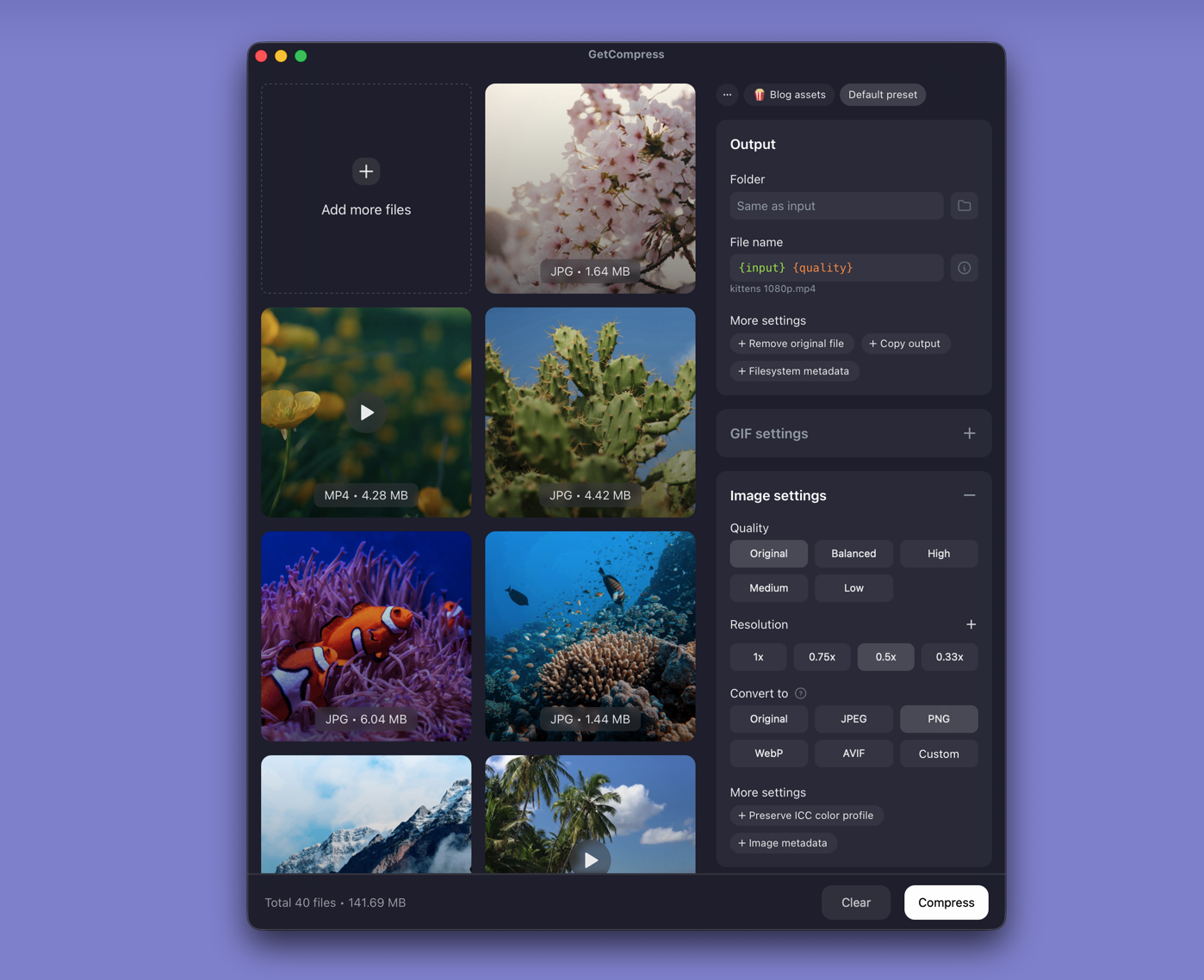
- Drop PNG exports into GetCompress .
- Choose WebP output.
- Set quality (for example High or Medium) and max width (often 1920 px).
- Preview a dark-gradient hero for banding, then export.
- Save a preset per site, for example “marketing WebP 1920 high”.
Processing stays on your PC. Image jobs use quality and dimensions, not an exact target file size. GetCompress produces the WebP files; your <picture> markup still needs the fallback.
Method 2: cwebp in PowerShell
Best for: Scripts and CI.
winget install webp
cwebp -q 85 -resize 1920 0 hero.png -o hero-1920.webp
Batch:
Get-ChildItem *.png | ForEach-Object {
 cwebp -q 85 $_.Name -o "$($_.BaseName).webp"
}| Flag | Plain meaning |
|---|---|
-q 85 | Quality (try 80 to 90 for heroes) |
-resize 1920 0 | Max width 1920 px, height scales |
-lossless | Larger; use only for flat UI |
Limitation: No preview UI or project presets across repos.
Method 3: Resize in Photos or Paint first
Best for: One oversized canvas when you will run cwebp next.
- Open the PNG in Photos (… → Resize image) or Paint (Resize).
- Save a copy to
resized\. - Run Method 2 on the resized file.
Resize before lossy conversion. Re-running cwebp at lower quality on an oversized source wastes visual budget on pixels nobody sees.
Limitation: Neither Photos nor Paint writes WebP.
Which method should you use
| Situation | Start here |
|---|---|
| Folder + presets + preview | GetCompress |
| CI / scripts | cwebp |
| One canvas, then PowerShell | Photos or Paint resize, then cwebp |
Non-WebP path: PNG to JPG on Windows . Reverse: WebP to JPG on Windows . Mixed folders: how to compress images on Windows .
Check before you deploy
Compare WebP and fallback JPEG sizes in the network panel. If savings are under about 15%, revisit resize width before you lower quality. Regenerate WebP when the source PNG changes. Clear CDN cache after you replace assets.
When cwebp alone is enough
cwebp in CI can work when designers already drop correctly sized PNG files into assets\src\ and nobody needs a GUI.
GetCompress fits when marketing dumps twenty full-canvas PNG figures and you want one preset with preview. It does not replace your <picture> element or CDN workflow.
- Convert WebP to JPG on WindowsConvert WebP to JPG on Windows with GetCompress, Paint, or PowerShell. Flatten transparency first for email, slides, and apps that only accept JPEG.
- Convert PNG to JPG on WindowsConvert PNG to JPG on Windows with GetCompress, Paint, or FFmpeg. Keep PNG when you need transparency; flatten first when you do not.
- How to Compress Images on WindowsCompress images on Windows with GetCompress, Photos, or FFmpeg. Resize JPG and PNG, convert WebP, and keep sharp UI for email or web.
- Convert PNG to WebP on MacConvert PNG to WebP on Mac with GetCompress, cwebp, or a Preview resize first. Keep a JPEG or PNG fallback for older browsers.