Convert WebP to JPG on Windows: 3 Methods
Convert WebP to JPG on Windows with GetCompress, Paint, or PowerShell. Flatten transparency first for email, slides, and apps that only accept JPEG.
A project folder lands with WebP exports from the web team. A colleague opens them in Outlook or PowerPoint and gets blank placeholders. Many CRM uploads, print vendors, and older Windows apps still expect JPEG.
Convert locally, keep the WebP masters for production, and flatten transparency before JPEG export when the asset had an alpha channel.
WebP vs JPEG
WebP saves bytes on the web. JPEG still wins for compatibility in email, slides, and legacy systems.
| WebP | JPEG | |
|---|---|---|
| Modern browsers | Native | Native |
| Email attachments | Often fails | Opens widely |
| PowerPoint / Word | Hit or miss | Reliable |
| Transparency | Yes | No (flatten first) |
| Typical file size | Smaller at similar look | Larger but universal |
| Workflow | Recommendation |
|---|---|
| Production website | Keep WebP, add JPEG fallback if needed |
| Client email bundle | Convert to JPEG |
| Design review in slides | JPEG, or PNG if you need transparency |
| File use | JPEG quality hint in GetCompress |
|---|---|
| Email bundle | High or Medium, max 1920 px wide |
| Print vendor | High or Original; ask for color profile needs |
| CRM thumbnail | Medium or Low; cap width per portal rules |
For broader image compression, see how to compress images on Windows . For exporting WebP from PNG, see PNG to WebP on Windows .
Animated WebP is out of scope here. Use a video or GIF workflow for motion assets.
Method 1: GetCompress
Best for: Asset drops, consistent max width, and reusable sales JPEG presets.
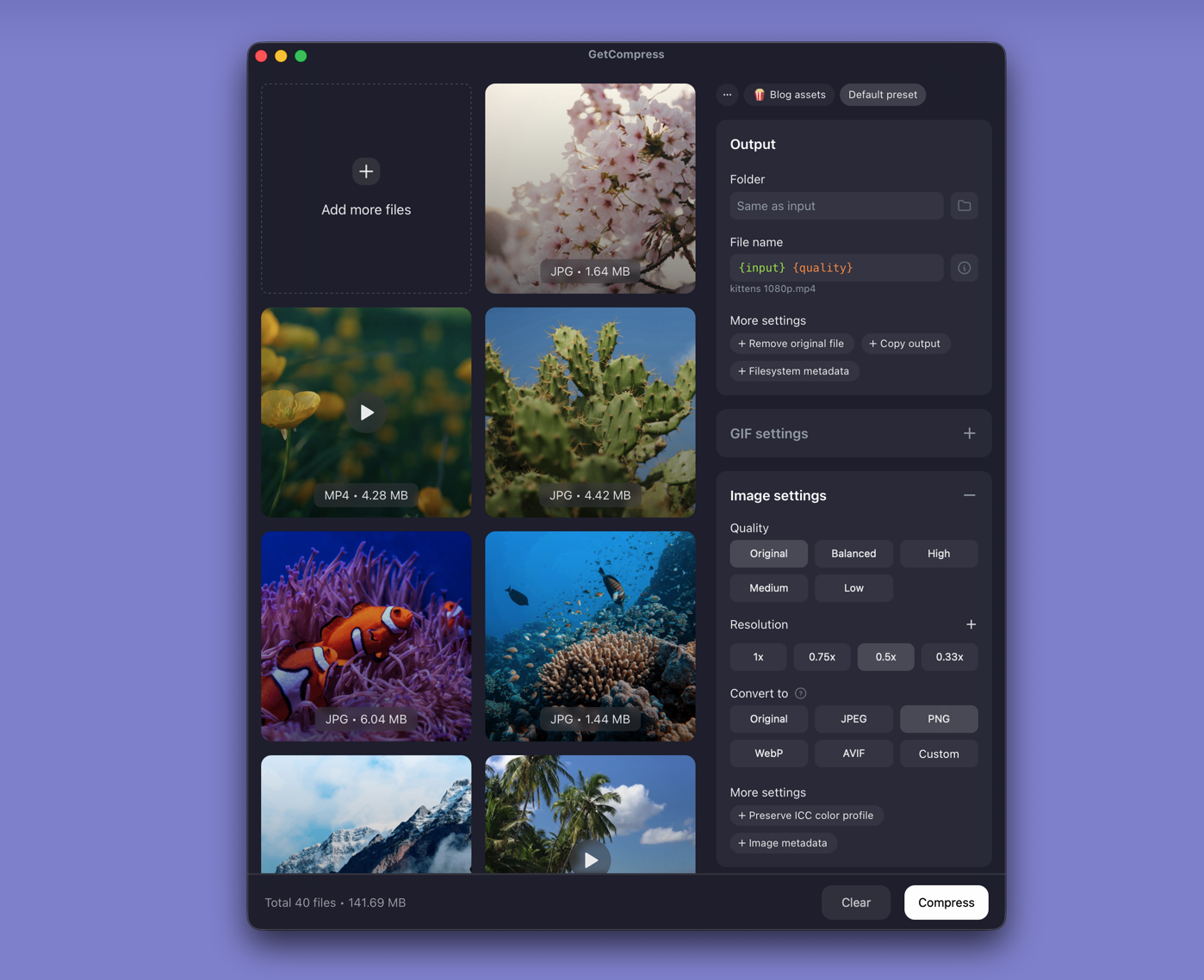
- Open GetCompress and drop WebP files or a folder into the queue.
- Choose JPEG output. Set quality and an optional max width.
- Export to a new folder. Keep the WebP originals.
Processing stays on your PC. Save a preset such as “client JPEG 85%” so you can reuse it next time. Folder monitoring can watch an incoming folder when web CI drops WebP assets for sales enablement. Exact target file size is a video workflow only; for images, use quality and dimensions.
Method 2: Convert one file in Paint
Best for: A handful of files on Windows 11.
- Open the file in Paint.
- File → Save as → JPEG picture.
If Paint shows a blank canvas, the WebP may use features Paint does not render. Use Method 1 or 3 instead. Spot-check one conversion before batching an entire design drop.
Limitation: Tedious for dozens of files. Colors can look off on brand-critical assets; verify against the design source.
Method 3: Convert many files in PowerShell
Best for: Scripted folders when you already use winget tools.
winget install webp
winget install --id Gyan.FFmpeg -e
Open a new terminal after install, then confirm dwebp -version once.
dwebp plus FFmpeg:
mkdir jpeg-out
Get-ChildItem *.webp | ForEach-Object {
 dwebp $_.Name -o "$env:TEMP\t.png"
 ffmpeg -y -i "$env:TEMP\t.png" -q:v 3 "jpeg-out\$($_.BaseName).jpg"
}
FFmpeg only (when decode works directly):
mkdir jpeg-out
Get-ChildItem *.webp | ForEach-Object {
 ffmpeg -i $_.Name -q:v 3 "jpeg-out\$($_.BaseName).jpg"
}| Method | Best for |
|---|---|
| dwebp + FFmpeg | Tricky WebP, including alpha |
| FFmpeg only | Simple photo WebP batches |
Save to a new folder. Adjust -q:v 3 for quality versus size.
Limitation: PATH and install friction. Silent loop failures are common if dwebp is missing after winget install.
Which method should you use
| Situation | Start here |
|---|---|
| Files you send often, width + quality presets | GetCompress |
| Under about 10 files | Paint |
| Scripted folders | PowerShell |
Outlook inline images still prefer JPEG on many corporate tenants. Convert before dropping assets into HTML mail templates.
When Paint is enough
Paint is enough for a few JPEG attachments when the preview looks correct.
GetCompress also helps when you often get a folder of WebP assets for sales or support: one preset, local processing, optional resize, and optional folder monitoring. Keep production WebP on the CDN. Convert delivery copies only.
- Convert PNG to WebP on WindowsConvert PNG to WebP on Windows with GetCompress, cwebp, or a Photos resize first. Keep a JPEG or PNG fallback for older browsers.
- How to Compress Images on WindowsCompress images on Windows with GetCompress, Photos, or FFmpeg. Resize JPG and PNG, convert WebP, and keep sharp UI for email or web.
- Convert WebP to JPG on MacConvert WebP to JPG on Mac with GetCompress, Preview, or Terminal. Flatten transparency first for email, slides, and apps that only accept JPEG.
- Compress WebP on WindowsCompress WebP on Windows with FFmpeg quality flags, Photos resize first, and GetCompress batch presets. Shrink web images locally without upload.