Convert JPG to PNG on Windows: 3 Methods
Convert JPG to PNG on Windows with GetCompress, Paint, or FFmpeg. JPEG artifacts do not disappear after conversion.
Your editor asks for PNG. The client sent JPEG exports. You need a lossless container for masking or a tool that rejects JPEG. Converting copies the same pixels into PNG. It does not remove compression artifacts from a weak source. Ask for a better master when quality matters; convert anyway when the pipeline requires PNG entry.
Method 1: GetCompress
Best for: One file or client folders that need JPG to PNG with an optional max width.
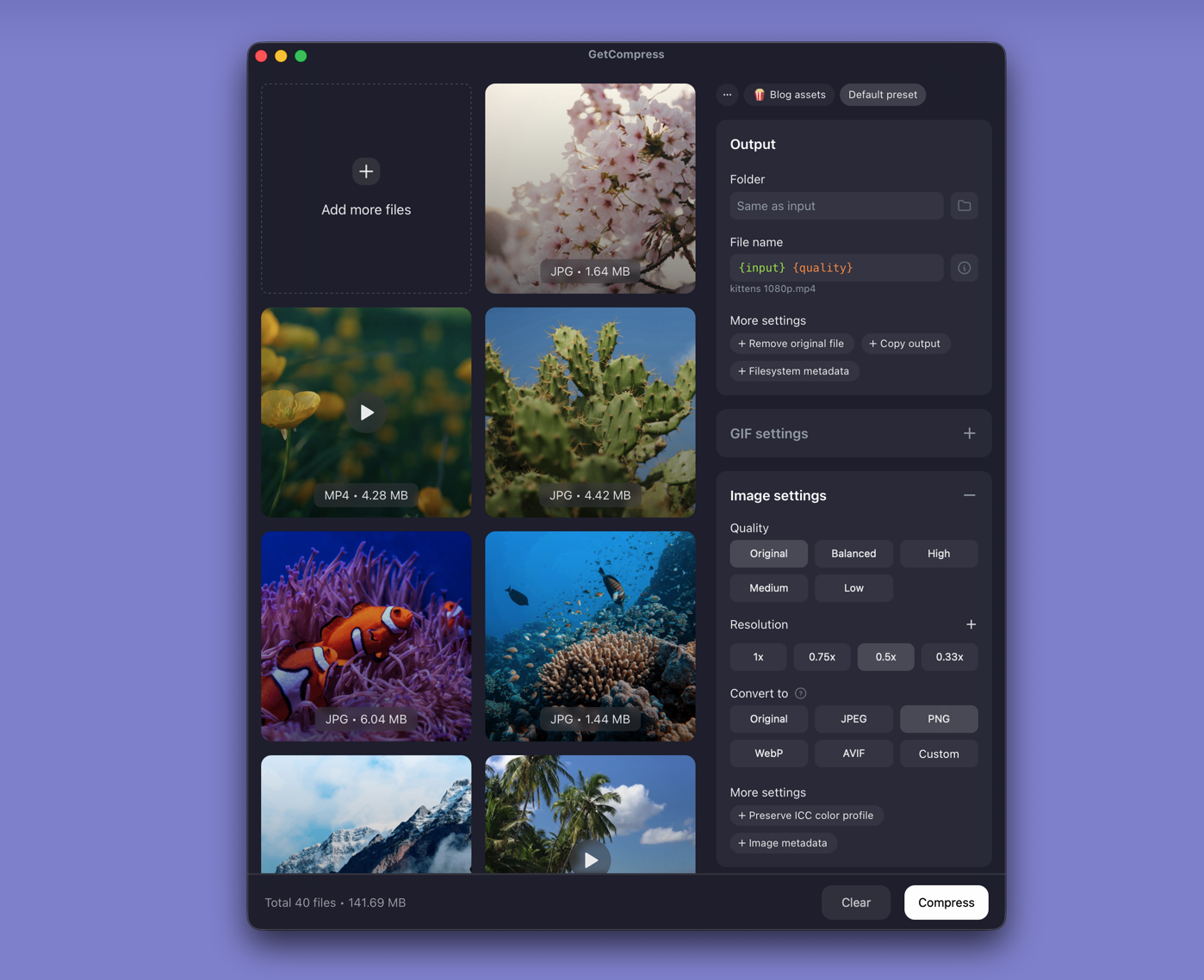
- Open GetCompress and drop JPEG files or a folder into the queue.
- Set output to PNG and optional max width (for example 2048 px for web proofs, higher for retouch).
- Export copies to a dedicated folder so client originals stay untouched.
Save presets for retouch versus web proof. Processing stays on your PC.
Method 2: Paint
Best for: One file on any Windows PC.
- Open the JPEG in Paint.
- File → Save as → PNG picture.
Write outputs to png-out\ so originals stay untouched.
Limitation: Slow for fifty product shots from a client zip.
Method 3: FFmpeg in PowerShell
Best for: Scripted batches when you already use winget.
winget install --id Gyan.FFmpeg -e
mkdir png-out
Get-ChildItem *.jpg, *.jpeg | ForEach-Object {
 ffmpeg -i $_.Name "png-out\$($_.BaseName).png"
}
Optional resize for web (not print):
ffmpeg -i photo.jpg -vf scale=2048:-2 photo-2048.pngPNG from a 24 MP phone JPEG can exceed 25 MB. Resize in the same pass when the next hop is email.
Limitation: No visual preview before a large batch. Spot-check skin tones on a few SKUs if color management matters.
Which method should you use
| Situation | Start here |
|---|---|
| Bulk convert, width cap, local preview | GetCompress |
| One file | Paint |
| Scripted batch | FFmpeg |
If you need smaller uploads instead of PNG, stay on JPEG: compress images on Windows . To deliver JPEG again after editing, see PNG to JPG on Windows .
What this conversion does
| JPEG | PNG | |
|---|---|---|
| Compression | Lossy | Lossless |
| Transparency | No | Yes, but not created from flat JPEG |
| Typical size | Smaller | Larger |
| Best source | Camera, web export | Screenshots, UI, masks |
Print vendors sometimes accept PNG but reject huge dimensions. Ask for max width before you convert two hundred catalog JPEGs. Cap width at the channel spec when the listing displays at 1200 px anyway.
When JPEG is the better stay
Stay on JPEG for email, CMS uploads, and client proofs when the workflow does not require PNG.
GetCompress fits when retouch handoffs need a lossless batch every week and you want consistent width without repeating Save as dialogs. Sort JPEGs into one folder, convert to PNG, then open only the PNG batch in your editor so accidental Save does not overwrite supplier originals. It does not restore detail that was never in the JPEG.
- Convert PNG to JPG on WindowsConvert PNG to JPG on Windows with GetCompress, Paint, or FFmpeg. Keep PNG when you need transparency; flatten first when you do not.
- How to Compress Images on WindowsCompress images on Windows with GetCompress, Photos, or FFmpeg. Resize JPG and PNG, convert WebP, and keep sharp UI for email or web.
- Convert JPG to PNG on MacConvert JPG to PNG on Mac with GetCompress, Preview, or sips. JPEG artifacts do not disappear after conversion.
- Convert CR2 to JPG on WindowsConvert Canon CR2 to JPEG on Windows with Photos, Lightroom, or delivery sizing in GetCompress. Keep RAW masters; export JPG for clients.