6 Best Image Compressors (2026)
Compare 6 image compressors for smaller JPG, PNG, WebP, SVG, and HEIC files: GetCompress, Squoosh, jpegoptim, Preview, GIMP, and oxipng.
Retina screenshots, HEIC phone photos, and PNG mockups add up until an upload form fails. Image compression is usually a mix of three moves: resize to the display size, pick a suitable format, and apply lossy or lossless optimize. The best tool depends on whether you want a simple local app, a quick in-browser pass, or a command-line specialist.
This guide compares the 6 best image compressors of 2026. The list favors local and free tools you can run without sending client photos to a random website. It is based on current first-party documentation and product information, not a universal quality score across every photo.
How we ranked these image compressors
We included tools commonly used to reduce still-image file size on a desktop or in a local browser tool. The ranking focuses on quality, resize, format coverage, and speed, the levers that actually make images smaller without wrecking them.
Evaluation criteria, applied to every option:
| Criterion | What we looked for |
|---|---|
| Ease and speed | Defaults, drag-and-drop, and steps a non-expert can finish quickly |
| Format coverage | JPEG, PNG, WebP, HEIC, SVG, and related paths |
| Quality control | Lossy and lossless options without destroying UI text or logos |
| Batch | Folders and repeatable settings |
| Local processing | No required upload for the core job |
GetCompress ranks first for the simplest complete image path: resize, quality, format conversion (including SVG, which many optimizers skip), and batch in one local window. The free tools below stay handy for narrow or scripted jobs like lossless PNG optimize.
Quick comparison
| Tool | Best for | Platforms |
|---|---|---|
| GetCompress | Local compress, resize, format change, and SVG in one window | macOS, Windows, Linux |
| Squoosh | Free browser encode with live preview | Browser (local processing) |
| jpegoptim / MozJPEG | JPEG recompress and progressive options | Free CLI on major systems |
| Preview / Photos | Built-in resize and export | macOS (and similar Photos apps) |
| GIMP | Free editor export with fine control | macOS, Windows, Linux |
| oxipng | Lossless PNG optimize | Free CLI on major systems |
1. GetCompress
Best for: Smaller images with good quality in seconds, including resize, format change, and SVG, all in one local window.
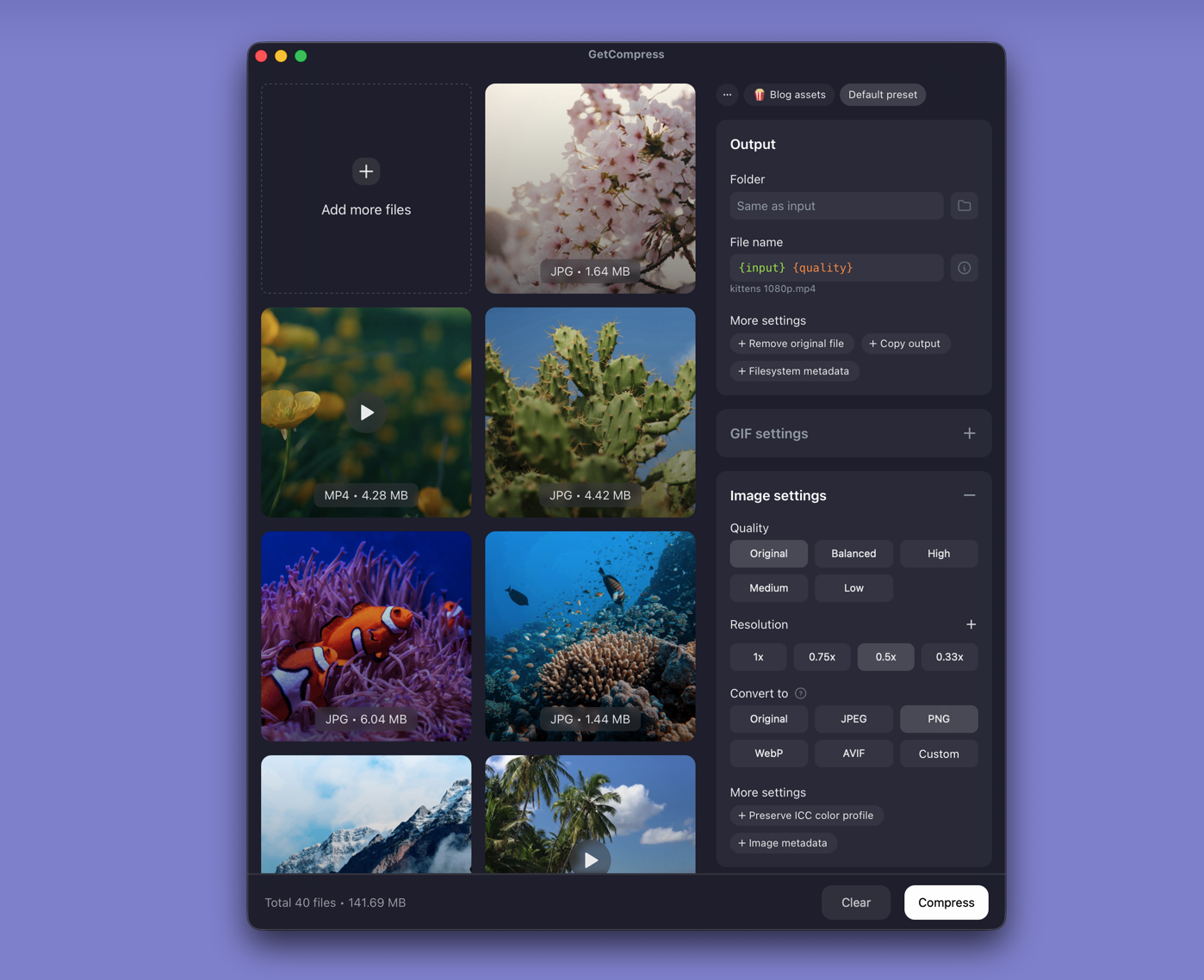
GetCompress compresses and converts images locally on macOS, Windows, and Linux. Drop JPG, PNG, HEIC, WebP, SVG, and other supported formats, then set quality, resolution, and output format. Defaults aim for significant size reduction with minimal quality loss. It also compresses SVG, which many image optimizers skip. You can strip metadata by default for privacy and size, keep color profiles when print work needs them, preview before export, and batch a folder in one queue. Everything happens on your computer, so nothing is uploaded and private photos stay private.
Strengths
- Local compress plus resize and format conversion in one UI
- Compresses SVG as well as raster formats like JPG, PNG, and WebP
- Sensible defaults for email, CMS, and chat uploads
- Batch and reusable presets
- Also compresses videos, GIFs, and PDFs in the same app
- Strips hidden metadata like location and camera details for smaller, more private files
Limitations
- Not a full photo editor or RAW catalog
- Very aggressive quality settings can soften fine detail, so check important images before sending
Who should pick it: Designers, marketers, and anyone preparing image folders for upload who wants one fast local pass. See how to compress images on Mac and how to compress images on Windows .
2. Squoosh
Best for: Free in-browser encode with an immediate before-and-after preview.
Squoosh is a free Google web app that compresses images in the browser. Processing stays local to the page session rather than a classic desktop install, which makes it useful for one-file experiments with WebP, AVIF, and MozJPEG-style options.
Strengths
- Side-by-side visual comparison while you tune quality
- Modern codec options in a free UI
- No desktop install
Limitations
- Awkward for large folders
- Browser limits and workflow differ from a desktop queue
- Easy to treat it like an upload site; still avoid sensitive files on shared machines
Who should pick it: One image when you want to compare codecs visually. App: squoosh.app .
3. jpegoptim and MozJPEG
Best for: Free JPEG recompression and progressive encoding in scripts.
jpegoptim and MozJPEG are free JPEG tools used to recompress and tune JPEG output. Teams often wire them into image pipelines after resize.
Strengths
- Fine JPEG control for free
- Good for CI and folders
- Local
Limitations
- Command-line focused
- Easy to over-compress portraits and gradients
- Separate from PNG and WebP tooling
Who should pick it: Technical workflows that already resize first, then recompress JPEG.
4. Preview and Photos
Best for: Built-in Mac resize and export when you only have a few images.
macOS Preview and Photos can resize and export JPEG or PNG without extra software. Similar built-in viewers on other systems cover the same light jobs.
Strengths
- Already installed
- Fine for one or two screenshots
- Local
Limitations
- Slow for folders
- Limited modern format export compared with dedicated tools
- Easy to forget to resize before quality export
Who should pick it: Occasional single-image prep on a Mac.
5. GIMP
Best for: Free editor export when you already need crop, flatten, or color work before compress.
GIMP is a free image editor. Export dialogs let you choose JPEG quality, PNG options, and other formats after you edit.
Strengths
- Free full editor on major desktop systems
- Useful when compression is the last step after edits
- Local
Limitations
- Heavy if you only needed a smaller file
- Batch export takes more setup than a compressor queue
- Learning curve for newcomers
Who should pick it: People already editing in GIMP. Site: gimp.org .
6. oxipng
Best for: Free lossless PNG optimize when you must keep every pixel’s color data.
oxipng is a free, multi-threaded PNG optimizer focused on lossless reduction. Use it when lossy palette reduction is not allowed.
Strengths
- Lossless PNG shrink
- Fast and scriptable
- Free and open source
Limitations
- Gains are smaller than lossy methods on photo-like PNGs
- CLI oriented
- Not a JPEG or WebP converter
Who should pick it: Pipelines that require lossless PNG. Repository: github.com/shssoichiro/oxipng .
Which image compressor should you use
| Your situation | Start with |
|---|---|
| Resize, quality, format, SVG, and batch in one local UI | GetCompress |
| Compare modern codecs on one image | Squoosh |
| JPEG recompress in scripts | jpegoptim / MozJPEG |
| A few Mac screenshots | Preview / Photos |
| Edit first, then export | GIMP |
| Lossless PNG only | oxipng |
Resize before you crush quality
- Match display width. A 4000 px PNG in an 800 px column wastes most of its bytes.
- Pick format on purpose. Photos favor JPEG or WebP; sharp UI with alpha favors PNG or WebP.
- Do not stack lossy saves on the same delivery file.
- Keep masters for anything you may reprint or re-export.
- Check UI text and logos at 100% zoom after compression.
When a free tool is enough
- One experimental encode: Squoosh
- Lossless PNG or scripted JPEG: oxipng, jpegoptim
- Edit, then export: GIMP
- Single screenshot: Preview
Choose GetCompress when you want the least-effort path to significantly smaller images: local processing; resize, format, and SVG beside quality; and batch across a whole folder in one pass.
- Squoosh AlternativeLooking for a Squoosh alternative? GetCompress handles folders of images locally with quality, resize, and format controls, plus video, GIF, and PDF in one app.
- TinyPNG AlternativeLooking for a TinyPNG alternative? GetCompress shrinks JPG, PNG, WebP, HEIC, and SVG locally with resize and convert, without uploading client photos.
- ImageOptim AlternativeLooking for an ImageOptim alternative? GetCompress compresses and converts images locally with resize, quality, and formats including HEIC and SVG, plus video and PDF.
- How to Compress Images on MacCompress images on Mac with GetCompress, Preview, or sips. Resize JPG and PNG, convert HEIC, and keep sharp UI for email or web.