Compress PNG on Mac: 3 Methods
Compress PNG on Mac with GetCompress, Preview, or oxipng. Resize first, then lossless recompress screenshots without losing transparency.
A Figma export at 2880 px wide lands in Slack as an 8 MB PNG. The message sends, but the thread crawls on mobile data and the next upload form rejects the same file. PNG is right for UI with transparency, yet full-monitor exports are almost never viewed at that size. Resize first, then lossless recompress, or change format when alpha is not required.
Three solid routes cover most Mac jobs: GetCompress for recurring batches, Preview for one or a few files, and sips plus oxipng in Terminal.
Method 1: GetCompress
Best for: One file or folders of PNG screenshots (often mixed with JPEG or HEIC) with a max-width preset you reuse often.
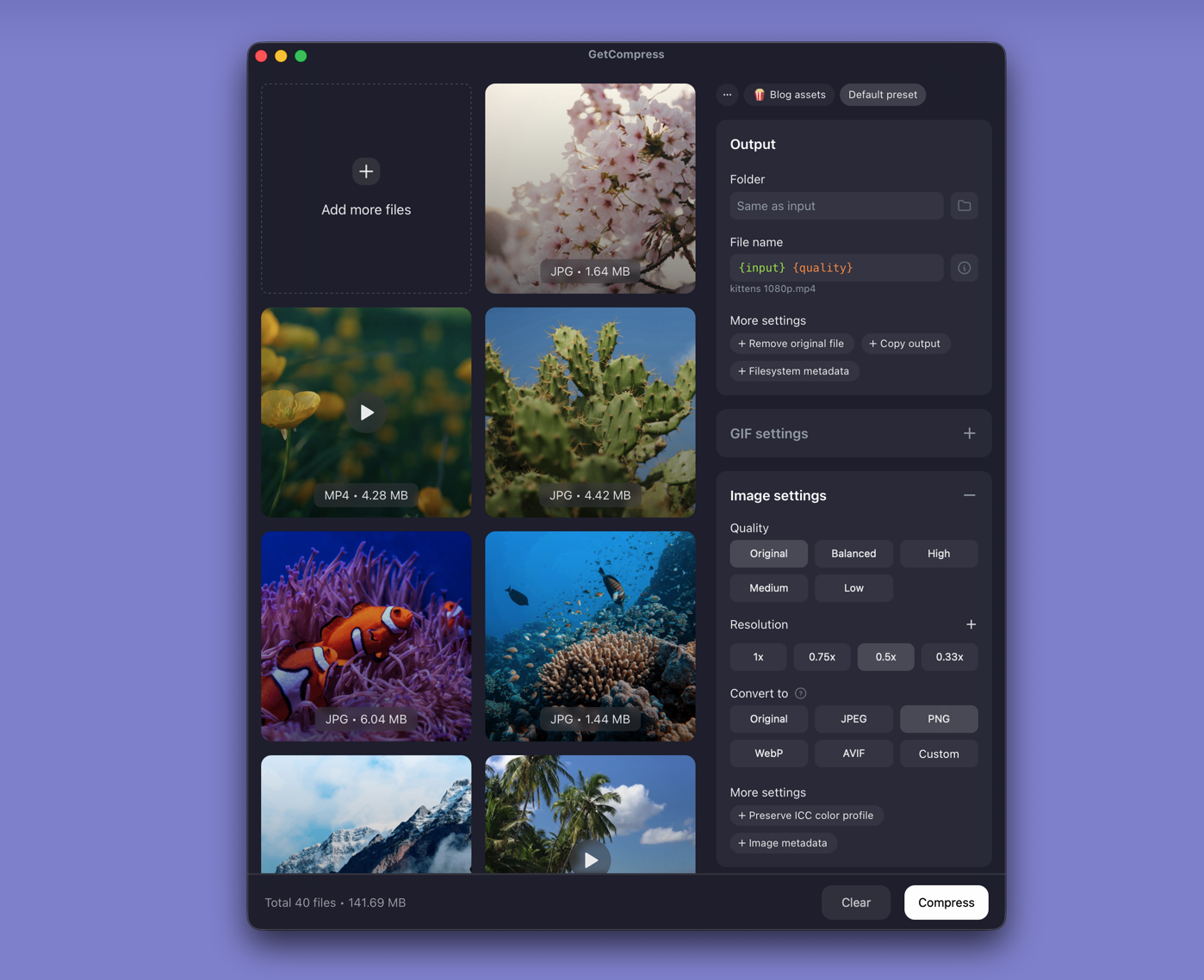
- Open GetCompress and drop PNG files or a folder into the queue.
- Set max width and keep PNG when transparency matters.
- Preview icon edges and small type, then export.
- Convert to WebP or JPEG in the same pass when alpha is no longer needed.
Processing stays on your Mac. Exact target file size applies to video only, not images.
Method 2: Resize in Preview
Best for: One or a few PNG files.
- Open the PNG in Preview.
- Tools → Adjust Size… and set width (for example 1920 for a hero, 1280 for a deck slide).
- File → Export… and keep PNG if transparency matters.
- Save as a new file and compare size in Finder.
Zoom on small type, icon edges, and semi-transparent overlays. If the image is a photo without alpha, export as JPEG at quality 85 instead and keep the original PNG archived.
Limitation: No reusable preset across a full mockup folder.
Method 3: sips and oxipng in Terminal
Best for: Same max width across a folder, plus lossless bitstream savings after resize.
brew install oxipng
mkdir out
for f in *.png; do sips -Z 1920 "$f" --out "out/$f"; done
cd out
for f in *.png; do oxipng -o 4 --strip safe "$f"; done
--strip safe removes non-critical metadata while keeping useful color profiles. Run oxipng on the resized file, not on a 4000 px original you plan to shrink later. Feeding a photo PNG through oxipng alone rarely fixes bloat when dimensions stay oversized.
Limitation: No saved presets. Mixed formats still need separate steps or a dedicated app.
Which method should you use
| Situation | Start here |
|---|---|
| Recurring design file folders, mixed formats, presets | GetCompress |
| One screenshot | Preview |
| Scripted resize plus lossless pass | sips + oxipng |
Broader advice: how to compress images on Mac . Web delivery: PNG to WebP on Mac . Keep client mockups local ( are online file compressors safe ).
Lossless vs lossy choices
PNG compression is lossless by default: every pixel survives re-save. You still shrink files by resizing, rewriting the bitstream, or converting when transparency does not matter.
| Approach | Best when |
|---|---|
| Resize pixels | Image displays smaller on screen |
| Lossless PNG tools | Transparency must stay; UI stays sharp |
| WebP or JPEG | No alpha; photos and heroes for web |
| Lower color depth | Flat UI with few distinct colors |
Read lossy vs lossless compression before you convert a screenshot to JPEG and lose crisp edges. Compare one representative file with the image comparison tool .
When Preview or Terminal is enough
Preview can finish a single resize. Terminal can work when the folder is uniform and your README already documents width and oxipng flags.
GetCompress also helps when the same max width returns every week, when PNG and JPEG arrive together, or when folder monitoring should catch new Figma drops. It does not replace a design tool. Write max width in the project README so you do not put back 2880 px files.
- How to Compress Images on MacCompress images on Mac with GetCompress, Preview, or sips. Resize JPG and PNG, convert HEIC, and keep sharp UI for email or web.
- Convert PNG to WebP on MacConvert PNG to WebP on Mac with GetCompress, cwebp, or a Preview resize first. Keep a JPEG or PNG fallback for older browsers.
- Convert PNG to JPG on MacConvert PNG to JPG on Mac with GetCompress, Preview, or sips. Keep PNG when you need transparency; flatten first when you do not.
- Compress PNG on WindowsCompress PNG on Windows with GetCompress, Photos or Paint, or FFmpeg plus oxipng. Resize first, then lossless recompress screenshots without losing transparency.