Convert JPG to PDF on Mac
Combine JPG images into one PDF on Mac with Preview, set page order, then shrink the file if email or a portal rejects it.
Insurance forms, signed scans, expense receipts, and photo proofs are easier as one PDF than twelve separate JPEGs. Reviewers scroll one document, portals accept a single upload, and print shops expect a multi-page file. Build the PDF once, verify page order, then compress only if the attachment still fails a limit.
Combine images in Preview
Preview is the built-in way to convert JPG to PDF on Mac:
- Open the first JPEG in Preview.
- View → Thumbnails so the sidebar shows pages.
- Drag other JPEG files into the sidebar. Each image becomes one page.
- File → Export as PDF… and save.
Drag thumbnails to reorder before export. Rotate individual pages with Tools → Rotate when orientations mix. Faster batch tip: select multiple JPEGs in Finder and open them together so they load as pages in one window.
Merging does not shrink files. A dozen phone photos can still produce a 25 MB PDF that email rejects. Plan a size check after export.
If you need pages back as images later, see PDF to images on Mac .
Order, size, and orientation
| Goal | Preview step |
|---|---|
| Uniform page width | Tools → Adjust Size on each image before merge |
| Correct orientation | Tools → Rotate per thumbnail |
| Blank separator | Edit → Insert → Blank Page between sections |
For ID scans and receipts, a consistent width around 1500 px keeps pages similar inside the PDF. Resize before merge rather than relying on print scaling later.
When sources are already compressed JPEG scans, merge once. Avoid repeated lossy re-saves of each photo before the PDF step.
| Scenario | Why one PDF helps |
|---|---|
| Email submission | One attachment under the size limit |
| Client portal | Single file field, not a zip of photos |
| Legal or HR packet | Signatures stay on the correct page |
Shrink the PDF after merge
If Finder shows the file over your email or portal cap:
- Open the new PDF in Preview.
- File → Export…
- Quartz Filter → Reduce File Size
- Save a new file and check signatures at 100% zoom.
If quality drops too much, resize the original JPEGs to about 1500 to 2000 px wide and merge again instead of crushing the PDF harder. Full compression options: how to compress PDF on Mac . Resize sources first with how to compress images on Mac .
When Preview is enough
Preview can work when you merge a few scans once and Reduce File Size clears the limit.
GetCompress does not merge images into a PDF. Use Preview for that step. After the merge, GetCompress fits when the file is still too large, you repeat the same optimization on many packets, or the documents should stay local.
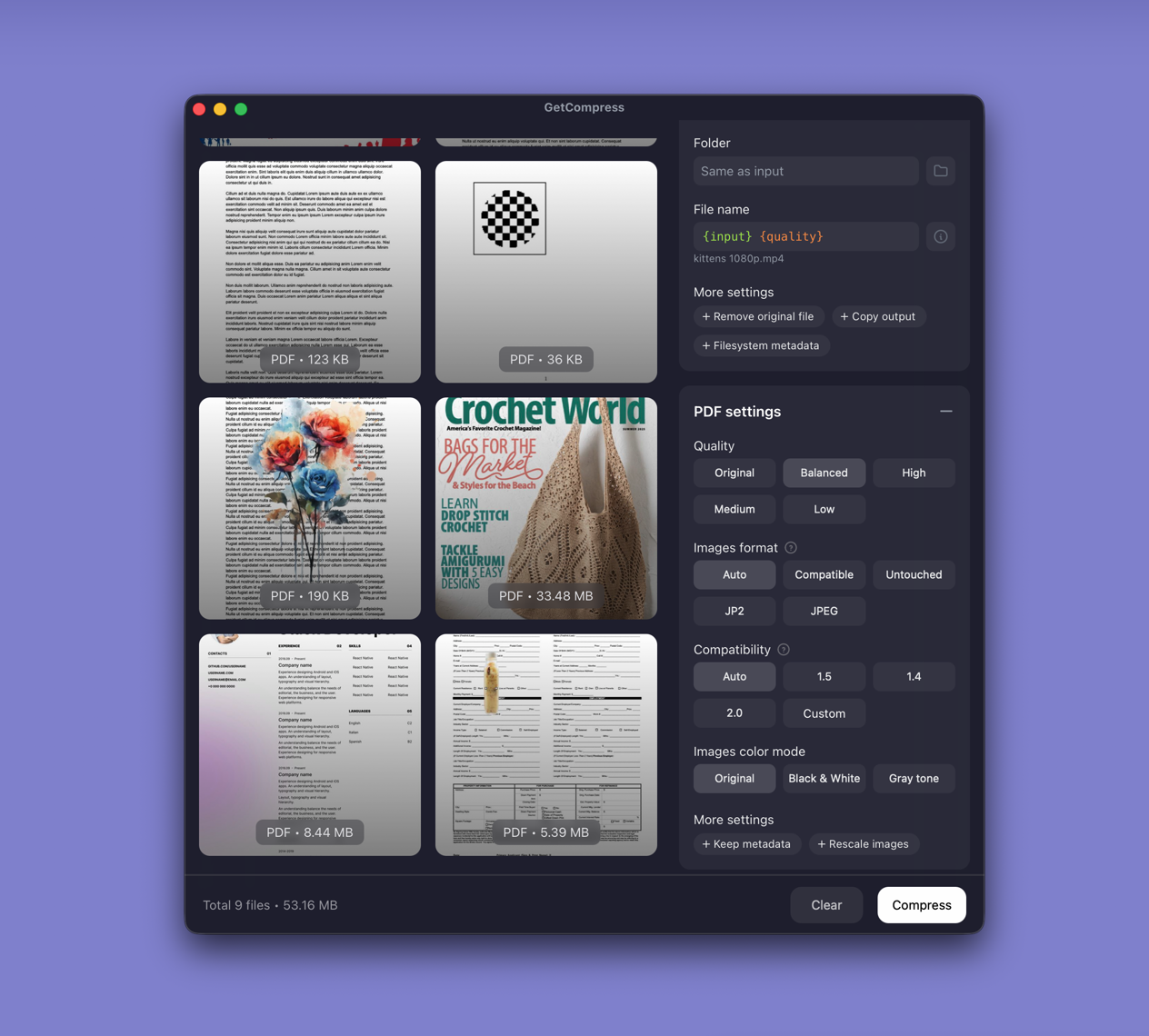
Drop the merged PDF in, pick a PDF compression preset, preview signature pages, and export a copy. There is no exact megabyte target file size for PDF; that control is video-only. Check the result against your limit in Finder. Label files with date and recipient so you do not resend an older master by mistake.
- How to Compress PDF on MacCompress PDF on Mac with GetCompress, Preview Reduce File Size, or a Keynote re-export. Shrink decks and scans for email and portals.
- Export PDF to Images on MacTurn PDF pages into PNG or JPEG on Mac with Preview, pdftoppm, or a resize pass in GetCompress. Batch slide decks without online splitters.
- How to Compress Images on MacCompress images on Mac with GetCompress, Preview, or sips. Resize JPG and PNG, convert HEIC, and keep sharp UI for email or web.
- Convert JPG to PDF on WindowsCombine JPG images into one PDF on Windows with Microsoft Print to PDF, set page order, then shrink the file if Outlook or a portal rejects it.