Export PDF to Images on Mac: 3 Methods
Turn PDF pages into PNG or JPEG on Mac with Preview, pdftoppm, or a resize pass in GetCompress. Batch slide decks without online splitters.
You need slide images for design review, a blog figure from a report, or PNG thumbnails for a CMS. The full PDF is the wrong shape for those workflows. Export pages as PNG or JPEG, then resize for screen width. Raw page files are often 2000 to 4000 px wide and too heavy for Slack or email.
When pages as images help
| Use case | Typical output |
|---|---|
| Slide review in Figma or Slack | PNG per slide, about 1920 px wide |
| Blog figure from a report page | JPEG at display width |
| LMS thumbnail grid | Smaller JPEG |
| Signed scan archive | Keep the PDF; export only if required |
Exporting pages does not replace a compressed PDF for email. It creates many image files. Prefer PNG for thin charts and UI text. Prefer JPEG for photo-heavy slides. Dedicated paths: PDF to JPG on Mac , PDF to PNG on Mac . Reverse merge: JPG to PDF on Mac .
Method 1: Export one page in Preview
Best for: One to three pages without installing tools.
- Open the PDF in Preview.
- Select a page in the sidebar.
- File → Export…
- Pick PNG or JPEG, then save.
Check one export at 100% zoom before you repeat. Preview uses the embedded page resolution, which is often larger than web needs.
Limitation: One page at a time. Slow for a forty-slide deck.
Method 2: Batch with pdftoppm
Best for: Whole decks and predictable filenames for scripts.
Install Poppler with Homebrew, then:
brew install poppler
pdftoppm -png deck.pdf deck-page
That creates deck-page-1.png, deck-page-2.png, and so on. For JPEG:
pdftoppm -jpeg -jpegopt quality=85 deck.pdf deck-pageExport pages 3 through 5 only with -f 3 -l 5. Unlock password-protected PDF files in Preview and re-save without security before pdftoppm.
Limitation: No GUI preview. You still need a resize pass for most uploads.
Method 3: Resize and compress in GetCompress
Best for: Making the exported image folder fit Slack, Notion, or a CMS after Method 1 or 2.
GetCompress does not split PDF pages. Export first, then:
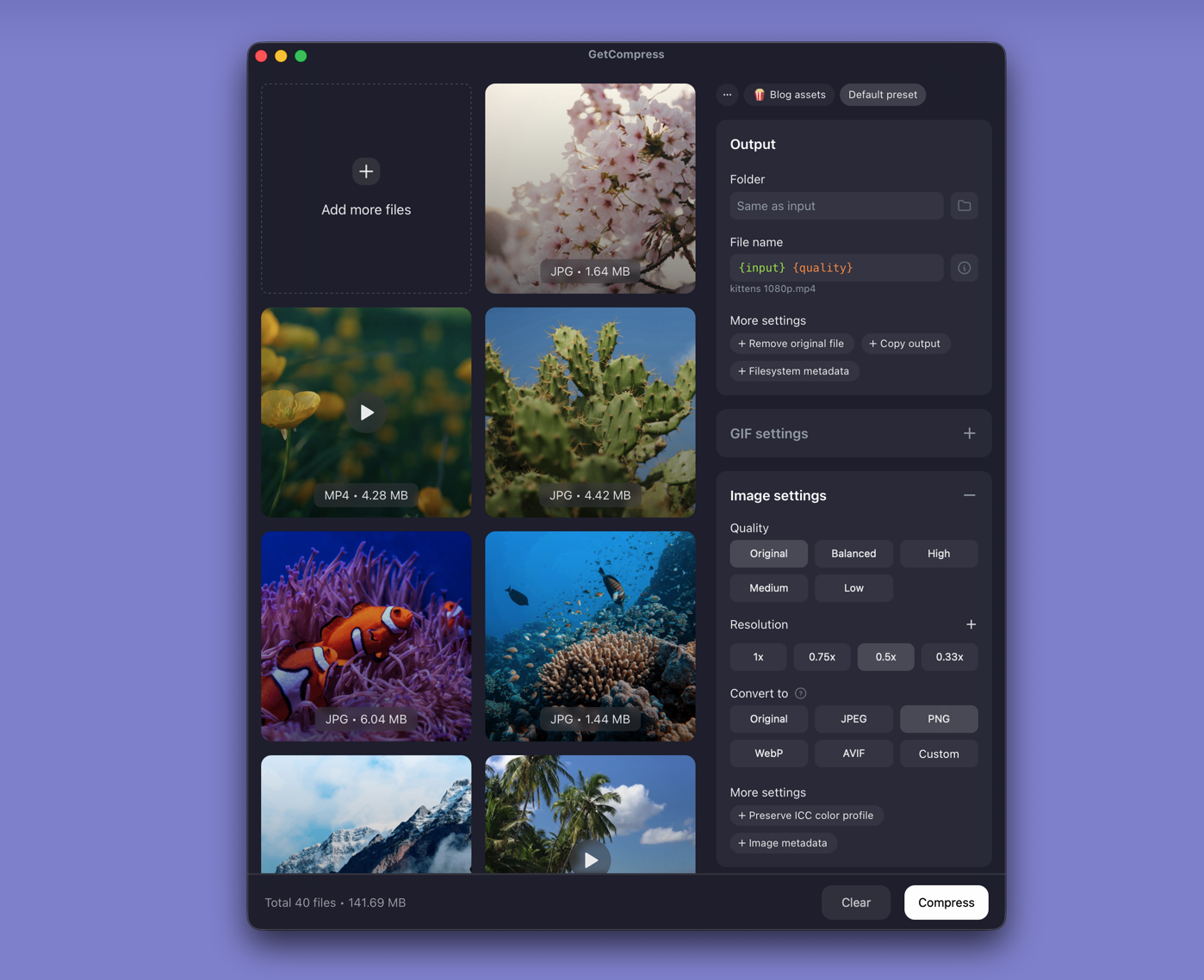
- Drop the exported PNG or JPEG folder into GetCompress .
- Set max width (often 1920 px) and output format.
- Preview a chart page and a photo page, then export.
- Save a preset if you export decks every week.
Processing stays on your Mac. Image compression uses quality and dimensions, not an exact target file size.
Which method should you use
| Situation | Start here |
|---|---|
| One chart or slide | Preview |
| Whole deck split | pdftoppm |
| Folder still too large after export | GetCompress |
Quick Terminal resize without GetCompress:
sips -Z 1920 deck-page-*.pngMore image options: how to compress images on Mac . To keep one file instead of many images: how to compress PDF on Mac .
Check before you upload
Spot-check one chart page and one photo page at 100% zoom. Move resized files to a web/ folder so full-resolution exports stay available. Keep the source PDF as the signed reference when text must stay editable elsewhere.
When Preview alone is enough
Preview can finish a single page send when the export already fits the destination.
GetCompress fits after pdftoppm when forty pages need the same width and format before upload. It does not replace a PDF editor or an online splitter you should avoid for confidential decks. Prefer local export for embargoed content.
- Convert PDF to JPG on MacExport PDF pages as JPEG on Mac with Preview, pdftoppm, or a GetCompress resize pass. Batch slide decks for CMS and email.
- Convert PDF to PNG on MacExport PDF pages as PNG on Mac with Preview, pdftoppm, or a GetCompress resize pass. Keep text and charts crisp for design review.
- Convert JPG to PDF on MacCombine JPG images into one PDF on Mac with Preview, set page order, then shrink the file if email or a portal rejects it.
- How to Compress PDF on MacCompress PDF on Mac with GetCompress, Preview Reduce File Size, or a Keynote re-export. Shrink decks and scans for email and portals.