Convert PDF to JPG on Mac: 3 Methods
Export PDF pages as JPEG on Mac with Preview, pdftoppm, or a GetCompress resize pass. Batch slide decks for CMS and email.
Marketing wants slide three as a JPEG for the CMS. Support wants one scan page for a ticket. The full PDF is the wrong shape. Export pages as JPEG at display width, not print resolution. A forty-slide deck at full resolution often exceeds email limits.
When JPEG beats keeping the PDF
| Use case | Typical JPEG output |
|---|---|
| Blog figure from one slide | 1200 to 1920 px wide, quality around 85 |
| Email preview of one chart | About 1600 px |
| LMS thumbnail | About 800 px |
| Signed scan archive | Keep the PDF; export only if required |
JPEG is lossy. Export once at the target quality. Do not re-save the same page as JPEG repeatedly.
Text-heavy slides may look sharper as PNG first: PDF to PNG on Mac . Overview: PDF to images on Mac . Merge back: JPG to PDF on Mac .
Method 1: Export one page in Preview
Best for: One chart or slide.
- Open the PDF in Preview.
- Select the page in the sidebar.
- File → Export…
- Format JPEG, set Quality, save.
Check at 100% zoom before you batch anything else.
Limitation: One page at a time.
Method 2: Batch with pdftoppm
Best for: Whole decks.
brew install poppler
pdftoppm -jpeg -jpegopt quality=85 deck.pdf deck-page
Creates deck-page-1.jpg, deck-page-2.jpg, and so on. Page range:
pdftoppm -jpeg -jpegopt quality=85 -f 3 -l 5 deck.pdf deck-pageUnlock password-protected PDF files in Preview before pdftoppm. Prefer exporting JPEG directly from the PDF instead of PNG then JPEG, to avoid an extra lossy step.
Limitation: No GUI. Raw exports are often still too wide for web.
Method 3: Resize JPEG pages in GetCompress
Best for: Consistent max width and quality across the exported folder.
GetCompress does not split PDF pages. Export first, then:
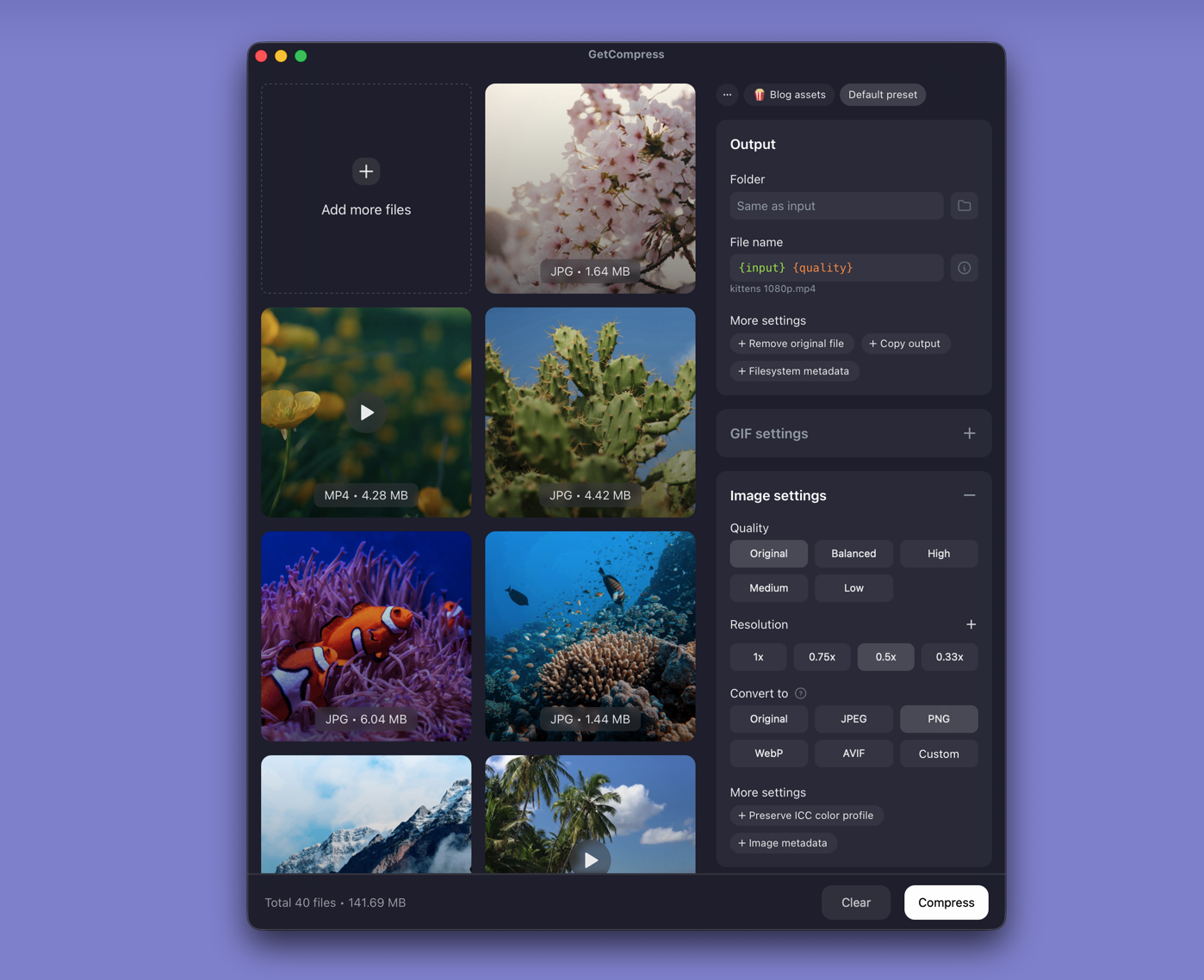
- Drop the JPEG folder into GetCompress .
- Set max width and JPEG quality (for example High or Medium).
- Preview a chart page, then export.
- Save a preset when portals reject raw exports every week.
Image jobs use quality and dimensions, not an exact target file size.
Which method should you use
| Situation | Start here |
|---|---|
| One page | Preview |
| Whole deck | pdftoppm |
| Folder still too large | GetCompress |
Terminal resize without GetCompress:
sips -Z 1920 deck-page-*.jpgIf thin lines look soft, use PDF to PNG on Mac for those pages.
Check before you upload
Watch text and gradients at 100% zoom. Keep full-resolution exports until reviewers approve. For general image cleanup: how to compress images on Mac .
When Preview alone is enough
Preview can finish a single JPEG send that already fits the destination.
GetCompress fits after batch export when many pages need the same delivery size. It does not replace a PDF editor. Prefer local export for confidential figures.
- Export PDF to Images on MacTurn PDF pages into PNG or JPEG on Mac with Preview, pdftoppm, or a resize pass in GetCompress. Batch slide decks without online splitters.
- Convert PDF to PNG on MacExport PDF pages as PNG on Mac with Preview, pdftoppm, or a GetCompress resize pass. Keep text and charts crisp for design review.
- Convert JPG to PDF on MacCombine JPG images into one PDF on Mac with Preview, set page order, then shrink the file if email or a portal rejects it.
- How to Compress Images on MacCompress images on Mac with GetCompress, Preview, or sips. Resize JPG and PNG, convert HEIC, and keep sharp UI for email or web.