Reduce File Size on Mac: 3 Practical Routes
Reduce file size on Mac for video, photos, PDF, and GIF with GetCompress, Preview or QuickTime, and FFmpeg. Free space without deleting project masters.
Storage warnings often point at Movies, Downloads, or project folders full of media. Much of it is work you still need: screen recordings, photo exports, slide PDF files, and large GIF loops. Shrinking copies frees space while masters stay archived.
See what is using space
System Settings → General → Storage shows which categories dominate. In Finder, open the heavy folders and sort by size.
| Folder | What piles up |
|---|---|
| Downloads | Installers, zip exports, one-off PDF decks |
| Movies | Screen recordings and camera imports |
| Desktop | Screenshot PNG files and quick exports |
| Project drives | Files you send to clients, bug videos, photo batches |
Delete installers you can re-download. Compress what you need to keep. Empty Trash after you confirm nothing still references those files.
Method 1: GetCompress for mixed folders
Best for: One local pass when a folder mixes video, images, PDF, and GIF.
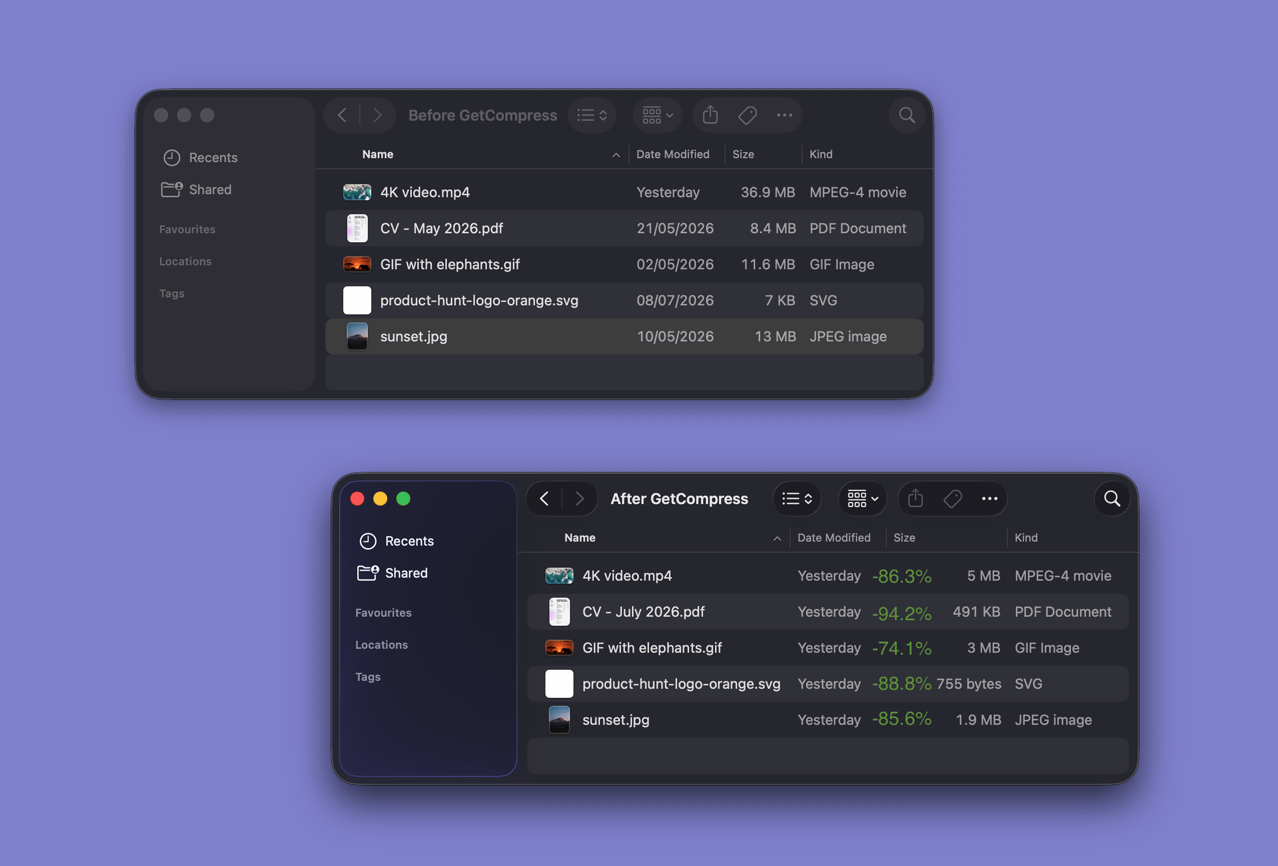
- Open GetCompress and drop the heavy folder into the queue.
- Review detected types and pick presets per media (for example 720p email video, image max width, PDF compression).
- Preview anything client-facing, then export smaller copies beside the originals.
- Archive masters and keep the lightweight copies for day-to-day use.
Processing stays on your Mac. Save presets so the next cleanup is a few clicks. For video megabyte caps, see compress video to a target size on Mac .
Method 2: Preview, QuickTime, and Photos
Best for: One or two files with built-in apps.
Video (QuickTime): open the clip → Edit → Trim → File → Export As → 720p or 1080p.
Photos: Preview → Tools → Adjust Size, then export JPEG. Or Photos → File → Export for camera rolls.
PDF: Preview → File → Export → Reduce File Size, or re-export slides from Keynote at lower quality.
Prefer a short MP4 over a huge GIF when the destination allows video.
Limitation: You open a different app per file type. No shared preset across a mixed Downloads folder.
Method 3: FFmpeg and Terminal
Best for: Scripts and CRF-style video control.
brew install ffmpeg
ffmpeg -i clip.mov -c:v libx264 -crf 23 -c:a aac -b:a 128k clip-small.mp4
For images, sips can resize a folder:
mkdir out
for f in *.jpg; do sips -Z 1920 -s formatOptions 85 "$f" --out "out/$f"; done
Limitation: You maintain commands. See how to compress video on Mac and how to compress images on Mac for deeper settings.
Which method should you use
| Situation | Start here |
|---|---|
| Mixed project or Downloads folder | GetCompress |
| One QuickTime clip or one PDF | QuickTime or Preview |
| Scripts and exact encoder flags | FFmpeg |
| Cleanup step | Safe when |
|---|---|
| Empty Trash and remove duplicate installers | Always, if you can re-download |
| Compress screen recordings you still reference | After you keep a master elsewhere |
| Convert huge GIF loops to short MP4 | Destination accepts video |
When a built-in export is enough
QuickTime or Preview can finish one file that already lands under the limit after trim or resize.
GetCompress also works well for that job. It also covers Storage points at a mixed folder and you want one local pass with reusable presets. It does not replace Time Machine, an archive drive, or deleting files you no longer need. For PDF-only work, see how to compress PDF on Mac .
- How to Compress Video on MacCompress video on Mac with GetCompress, QuickTime, or FFmpeg. Trim first, pick 720p or 1080p, and hit email or upload size limits without guessing.
- How to Compress Images on MacCompress images on Mac with GetCompress, Preview, or sips. Resize JPG and PNG, convert HEIC, and keep sharp UI for email or web.
- How to Compress PDF on MacCompress PDF on Mac with GetCompress, Preview Reduce File Size, or a Keynote re-export. Shrink decks and scans for email and portals.
- Reduce File Size on WindowsReduce file size on Windows for video, photos, PDF, and GIF with GetCompress, Photos or Clipchamp, and FFmpeg. Free space without deleting project masters.