8 Best PDF Compressors (2026)
Compare 8 PDF compressors for smaller decks and scans: GetCompress, Preview, Ghostscript, Stirling PDF, LibreOffice, Office export, MuPDF, and qpdf.
A 40-page deck can fail an email form even when the text is light. Most PDF weight sits in embedded photos, slide exports, and scans. The right compressor depends on whether you need a one-click local shrink, a free command-line pipeline, or a built-in export from the app that still has the source file.
This guide compares the 8 best PDF compressors of 2026. The list sticks to desktop apps, system tools, and open-source local software. Online upload compressors are omitted on purpose because contracts, resumes, and client decks are poor candidates for random websites. Recommendations are based on current first-party documentation and product information.
How we ranked these PDF compressors
Inclusion required a local or self-hosted tool that can reduce PDF size without forcing an untrusted upload for the core job.
Evaluation criteria, applied to every option:
| Criterion | What we looked for |
|---|---|
| Ease and speed | Defaults, presets, and steps a non-expert can finish quickly |
| Image-heavy PDF results | How well the tool shrinks embedded photos and scans while keeping text readable |
| Batch and reuse | Folders, queues, or repeatable settings |
| Local processing | Files stay on the machine or on infrastructure you control |
| Platforms | macOS, Windows, and Linux where relevant |
GetCompress ranks first for the simplest path to a smaller, still-readable PDF, especially image-heavy decks and scans: drop the file, pick a quality level, keep work local, and export in the least time, with a batch when a folder of decks arrives. Built-in Preview and Office exports remain enough for many one-offs. Ghostscript and the open-source tools below suit scripts or self-hosted setups.
Quick comparison
| Tool | Best for | Platforms |
|---|---|---|
| GetCompress | Local PDF compress with presets and batch | macOS, Windows, Linux |
| Preview | One Mac PDF with Reduce File Size (built in) | macOS |
| Ghostscript | Free scriptable recompress | macOS, Windows, Linux |
| Stirling PDF | Free self-hosted local PDF toolkit | Self-hosted / Docker |
| LibreOffice | Free re-export from an editable source | macOS, Windows, Linux |
| Word / PowerPoint | Compress pictures then export PDF on Windows | Windows (and Office elsewhere) |
| MuPDF | Free mutool CLI packaging and cleanup | macOS, Windows, Linux |
| qpdf | Free structure, linearization, and safe transforms | macOS, Windows, Linux |
1. GetCompress
Best for: A much smaller, still-readable PDF, especially image-heavy decks and scans.
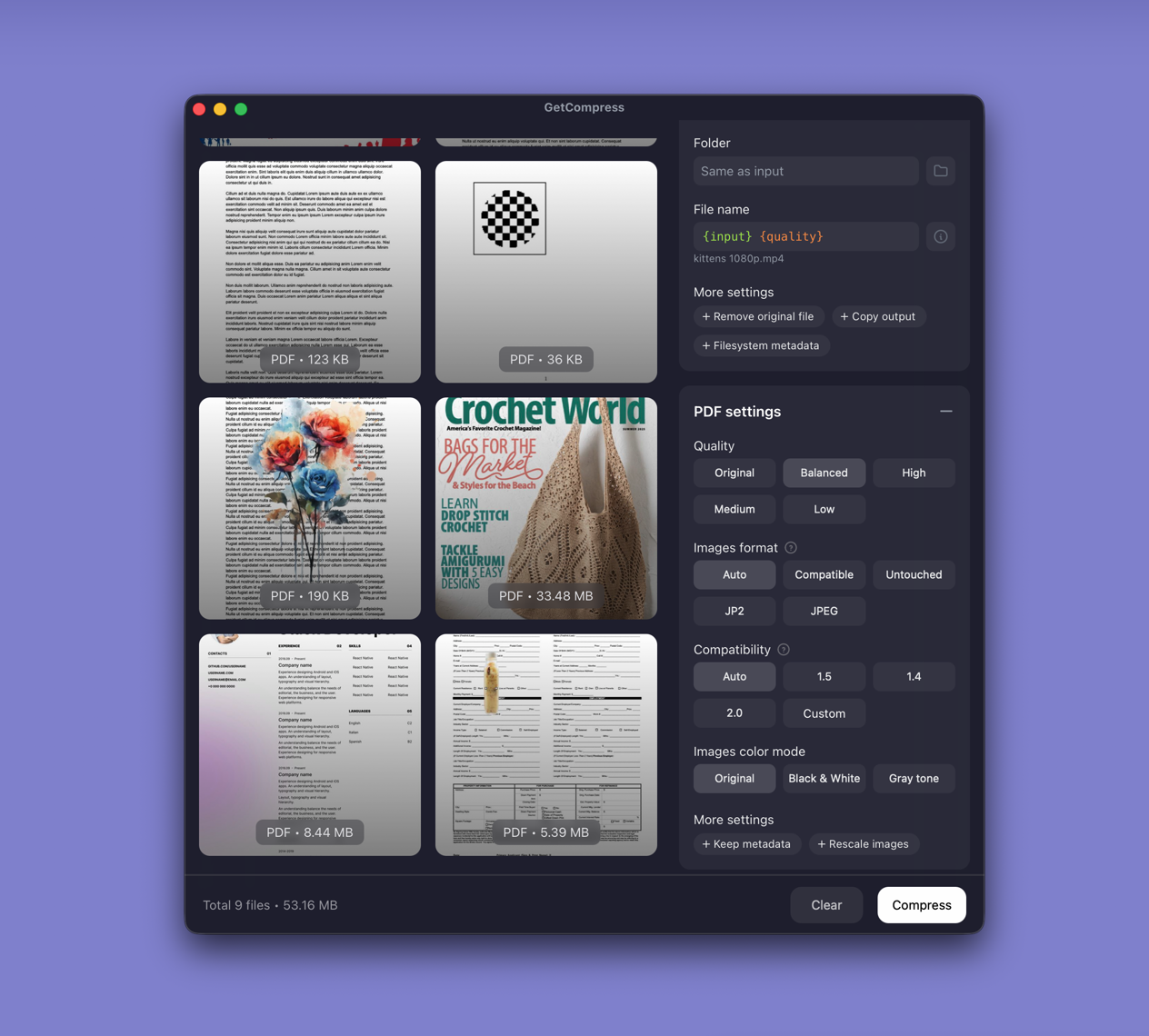
GetCompress compresses PDFs locally on macOS, Windows, and Linux with advanced image optimization inside the document. Image-heavy files, where photos, slide exports, and scans drive most of the weight, are where it makes the biggest difference. Drag files in, choose quality, decide how embedded images are handled, and export. Defaults aim for significant size reduction with minimal quality loss, and form fields and document structure typically stay intact, so compression is safer for contracts and forms. When a portal is strict, open more controls for image format, PDF compatibility, metadata, and color mode. Batch a folder of decks in one queue. Everything happens on your computer, so nothing is uploaded and your documents stay private.
Strengths
- Strong on image-heavy PDFs, where photos, slide exports, and scans dominate the size
- Typically keeps form fields and document structure intact, so it is safer for contracts and forms
- Quality presets that stay readable for most email and portal limits
- Batch and reusable settings for many files
- Also compresses images, GIFs, and videos in the same app
- Private documents never leave your computer
Limitations
- Not a full PDF editor, redaction suite, or OCR system
- Aggressive settings can still soften fine print; keep the master and check charts
Who should pick it: Anyone who needs smaller PDFs for email, portals, or shared drives and wants a simple local tool. See how to compress PDF on Mac and how to compress PDF on Windows .
2. Preview on Mac
Best for: One Mac PDF using the built-in Reduce File Size export.
macOS Preview can export a PDF with Quartz Filter → Reduce File Size. It is already installed and enough for a single invoice or short deck.
Strengths
- No extra install on Mac
- Fast for one file
- Local
Limitations
- One-file workflow; awkward for folders
- Filter can blur small type and charts if the PDF is already compressed
- macOS only
Who should pick it: A single non-critical Mac PDF when you only need a quick pass.
3. Ghostscript
Best for: Free, scriptable PDF recompression with explicit quality profiles.
Ghostscript is a free interpreter widely used to rewrite PDFs with settings such as /screen, /ebook, and /printer. It is the usual engine behind many “compress PDF” scripts.
Strengths
- Strong free control over output intent
- Ideal for servers and repeatable jobs
- Available on major desktop systems
Limitations
- Command-line oriented
- Wrong profile can hurt text sharpness
- Easy to overwrite a master if you are careless with output paths
Who should pick it: Developers and admins who want a free local pipeline. Confirm current install docs on the Ghostscript site .
4. Stirling PDF
Best for: A self-hosted, open-source PDF toolkit that stays on infrastructure you control.
Stirling PDF is an open-source PDF tools suite you can run locally or in Docker. Compression is one of many operations, useful when a team wants browser UI without sending files to a public online compressor.
Strengths
- Local or self-hosted control
- Broader PDF toolkit beyond compress alone
- Free and open source
Limitations
- Needs setup compared with a desktop dropzone app
- Feature surface is large; teams should standardize which tools they allow
- Not as lightweight as a single-purpose compressor for one person
Who should pick it: Teams that want an internal PDF workstation without public uploads. Project home: stirlingpdf.com .
5. LibreOffice
Best for: Re-exporting an editable document to a smaller PDF when you still have the source.
LibreOffice can open many office formats and export PDF with image compression options. When the PDF is a dead export and the .odt or .docx still exists, a fresh export often beats filtering the PDF again.
Strengths
- Free office suite on major desktop systems
- Good when source files still exist
- Local export
Limitations
- Weak if you only have a flattened PDF and no source
- Layout can shift versus the original authoring app
- Not a dedicated PDF optimizer for scans
Who should pick it: People who can go back to the editable file. Site: libreoffice.org .
6. Microsoft Word and PowerPoint export
Best for: Windows and Office users who compress pictures before exporting PDF.
In Microsoft Word or PowerPoint, Compress Pictures (and related export options) can shrink embedded images before you create a PDF. On Windows, Microsoft Print to PDF is also a common final step after you reduce image load in the deck.
Strengths
- Already available if you use Office
- Fixes size at the source images inside the document
- Local
Limitations
- Helps most when you still have the
.docxor.pptx - Settings differ by Office version
- Not ideal for a random scanned PDF with no Office source
Who should pick it: Office-heavy Windows workflows. Pair with how to compress PDF on Windows for step-by-step detail.
7. MuPDF
Best for: Free command-line PDF tools via mutool when you need cleanup and conversion locally.
MuPDF provides viewers and command-line tools, including mutool, used for PDF inspection, conversion, and related maintenance. It is a technical option for people who already live in CLI PDF tooling.
Strengths
- Free and open source
- Useful in scripts and technical pipelines
- Local
Limitations
- Not a friendly consumer compressor
- Learning curve
- Image-heavy “make this email-ready” jobs may still need Ghostscript-style recompress settings
Who should pick it: Technical users maintaining PDF pipelines. Site: mupdf.com .
8. qpdf
Best for: Structural PDF transforms, linearization, and safe rewriting rather than photo recompression alone.
qpdf is a free, open-source tool for transforming PDF structure. It is excellent for tasks like linearization and inspection. It is not a magic “make embedded photos tiny” button by itself, which is why it ranks last here for everyday email size problems.
Strengths
- Reliable structural toolkit
- Free, scriptable, local
- Useful alongside other compressors in a pipeline
Limitations
- Limited help when the only problem is huge embedded JPEGs
- CLI oriented
- Easy to expect image compression it is not primarily designed to do
Who should pick it: Technical PDF maintenance, or as a companion tool after an image recompress pass. Site: qpdf.sourceforge.io .
Which PDF compressor should you use
| Your situation | Start with |
|---|---|
| Local shrink of decks and scans with simple presets | GetCompress |
| One Mac PDF, no extra software | Preview |
| Free scripts and servers | Ghostscript |
| Self-hosted team toolkit | Stirling PDF |
| Editable source still available | LibreOffice or Word / PowerPoint |
| Technical PDF CLI maintenance | MuPDF or qpdf |
What actually makes PDFs large
- Embedded images dominate. Text and vectors stay small; photos and slide bitmaps do not.
- Re-export from the source when you still have Keynote, PowerPoint, or Word.
- Do not stack lossy passes on the same PDF without checking charts and signatures.
- Strip metadata only when policy allows. See remove metadata from PDF on Mac .
- Keep masters. Delivery copies are disposable; signed originals are not.
When a free tool is enough
- One Mac file: Preview Reduce File Size
- Office source on Windows: Compress Pictures, then export or print to PDF
- Scripts: Ghostscript
- Self-hosted team tools: Stirling PDF
Choose GetCompress when you want significant PDF compression with the least fuss: clear quality control over embedded images, form fields kept intact in most cases, batch for whole folders of decks, and everything on your computer so nothing is uploaded.
- Ghostscript AlternativeLooking for a Ghostscript alternative? GetCompress shrinks image-heavy PDFs with a simple local UI, quality presets, and batch, without writing PDF rewrite commands.
- Smallpdf AlternativeLooking for a Smallpdf alternative? GetCompress shrinks image-heavy PDFs locally with quality presets and batch, without uploading contracts or decks.
- iLovePDF AlternativeLooking for an iLovePDF alternative? GetCompress compresses image-heavy PDFs locally with quality presets and batch, without uploading sensitive documents.
- How to Compress PDF on MacCompress PDF on Mac with GetCompress, Preview Reduce File Size, or a Keynote re-export. Shrink decks and scans for email and portals.