5 Best GIF Compressors (2026)
Compare 5 GIF compressors for smaller loops with usable quality: GetCompress, Gifski, gifsicle, Ezgif, and GIPHY.
A short product demo as GIF can still land at 15 MB. Chat tools, ticket forms, and legacy docs often demand GIF even when MP4 would be smaller. The right compressor depends on whether you want a fast local shrink, manual palette control, or an online tool for clips that are safe to upload.
This guide compares the 5 best GIF compressors of 2026: three local options and two online ones. It is based on current first-party documentation and product information, not a single lab benchmark of every encoder. GIF results always depend on duration, width, frame rate, palette, and the source clip.
How we ranked these GIF compressors
We included tools people actually use to make GIFs smaller or to create a GIF from video. Local tools stay on the machine for the core job. Online tools are listed only where they are commonly used for quick one-offs, with privacy called out clearly.
Evaluation criteria, applied to every option:
| Criterion | What we looked for |
|---|---|
| Ease and speed | Defaults, preview, trim, and steps a non-expert can finish quickly |
| Quality versus size | How well the tool balances banding, dithering, and file size |
| GIF workflow fit | Existing GIF optimize, video-to-GIF, crop or trim, and batch |
| Local processing | Whether files must be uploaded for the core job |
| Platforms | macOS, Windows, Linux, or browser |
GetCompress ranks first for the simplest complete GIF path: compress an existing loop, convert from video, preview and trim, then drag the result into Slack or a ticket, all locally and in the least time. Gifski, gifsicle, and the online tools follow for more manual, scriptable, or occasional jobs.
Quick comparison
| Tool | Best for | Local or online |
|---|---|---|
| GetCompress | Local GIF compress, trim, and video-to-GIF | Local (macOS, Windows, Linux) |
| Gifski | Video-to-GIF with manual palette control | Local, free, open source |
| Gifsicle | CLI optimize of existing GIFs | Local, free, open source |
| Ezgif | Quick browser optimize and edit | Online, free with limits |
| GIPHY | Host and share GIFs in chat and social | Online, free with account |
1. GetCompress
Best for: A smaller GIF with usable quality in seconds, plus video-to-GIF, with preview and frame-accurate trim.
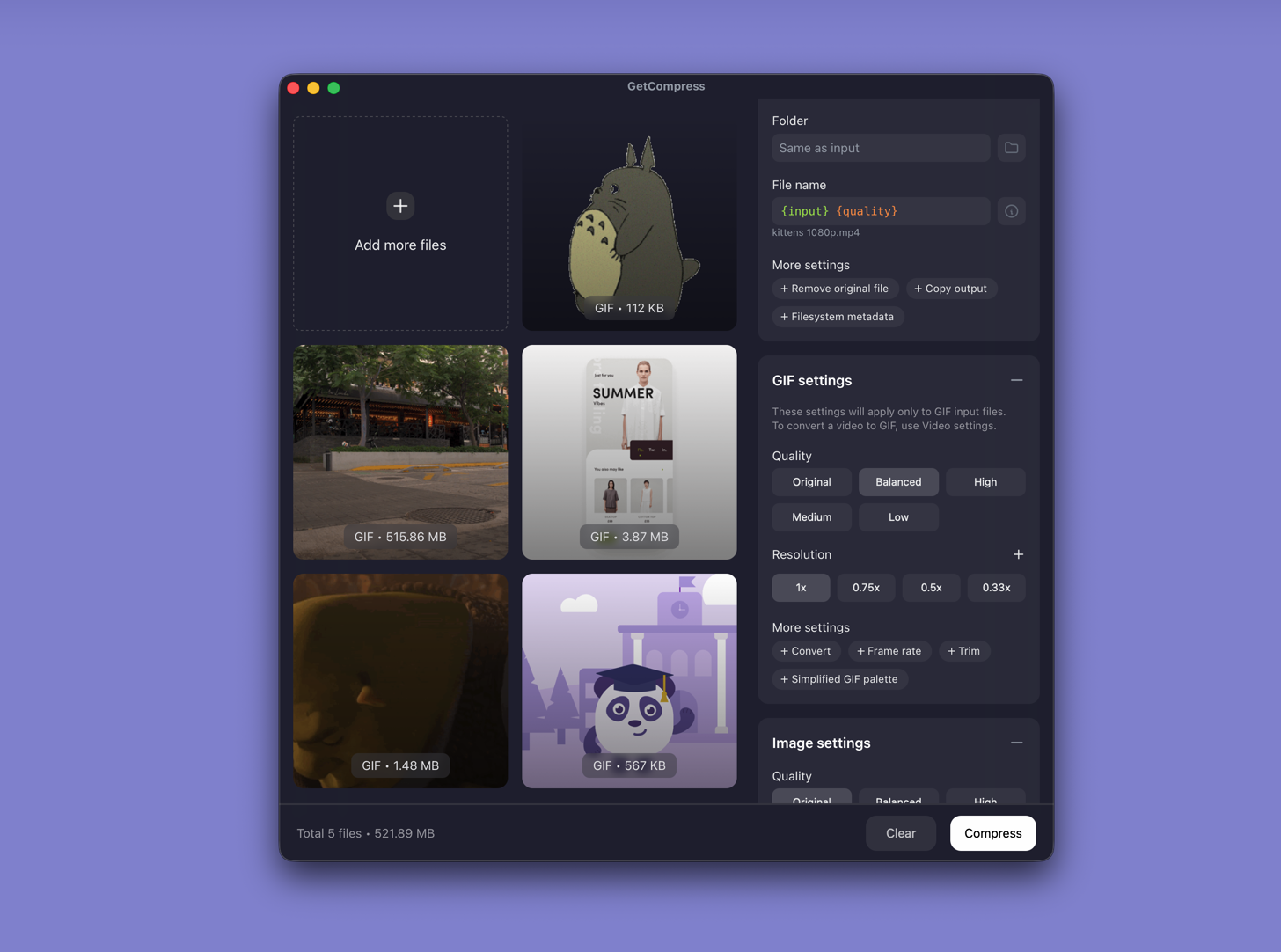
GetCompress compresses GIFs locally on macOS, Windows, and Linux. Drop a file, keep the defaults or adjust quality, resolution, frame rate, and palette, then export. You can preview the loop, trim by frame or timestamp (including a frame-by-frame GIF player), convert video to GIF when that is the destination, and save a preset for the same chat or ticket limit next time. Everything happens on your computer, so nothing is uploaded and private clips stay private.
For most people the real blocker is getting a watchable loop under a limit without a terminal, without an upload, and without redoing the cut three times. GetCompress aims for the best usable result in the least time, whether it is one loop or a whole folder.
Strengths
- Local GIF compress and video-to-GIF with sensible defaults
- Preview and frame-accurate trim before you export
- Quality, resolution, frame rate, and palette controls when defaults are not enough
- Batch and reusable presets for many loops at once
- Also compresses videos, images, and PDFs in the same app
Limitations
- Focused on a fast, usable result, not on exposing every low-level palette parameter
- Not a GIF hosting network
Who should pick it: Anyone who needs a smaller GIF for Slack, email, tickets, or docs and wants the job done locally with preview. See compress GIFs on Mac , compress GIFs on Windows , and video to GIF on Mac .
2. Gifski
Best for: Converting video to GIF with hands-on control over palette and dithering.
Gifski is a free, open-source encoder that turns video or frames into GIFs using palette and temporal dithering, with resize and quality controls so you can aim for upload limits.
Gifski leans on its palette handling for tricky clips. Default settings can produce large files, so width, frame rate, and quality flags usually matter as much as the tool itself.
Strengths
- Palette and temporal dithering controls for video-to-GIF
- Resize and quality controls for size limits
- Free and open source, local processing
Limitations
- Focused on creating GIFs from frames or video, not a full preview-and-trim product UI
- Large outputs if you leave quality high and dimensions large
- CLI or companion app workflows take more setup than a drag-and-drop compressor
Who should pick it: People converting video to GIF who want to tune width, fps, and palette by hand. Official site: gif.ski .
3. Gifsicle
Best for: Free command-line optimization of GIFs you already have.
Gifsicle is a free, open-source tool for creating, editing, and optimizing GIFs. It is widely used to shrink existing animations with optimization levels and optional lossy compression.
Strengths
- Scriptable free shrink pass on existing GIFs
- Fits folders and build pipelines
- Local and open source
Limitations
- Command-line oriented
- No friendly preview or trim UI of its own
- Easy to overshoot lossy settings and introduce banding
Who should pick it: Developers and anyone comfortable in a terminal who needs repeatable GIF optimize commands. Docs: lcdf.org/gifsicle .
4. Ezgif
Best for: Quick online GIF optimize, crop, and resize when the file is not sensitive.
Ezgif is a browser toolkit for GIF optimize, crop, resize, and related edits. It is useful when you cannot install software and the clip is already public or low risk.
Strengths
- No install
- Optimize plus common edit tools in one place
- Fast for a single non-sensitive file
Limitations
- Requires upload, so skip client UI, unreleased product footage, and private chats
- File size and feature limits can apply
- Weak as a team standard for repeatable local exports
Who should pick it: One public meme or marketing loop when privacy is not a concern. Start at ezgif.com/optimize . For upload risks, see are online file compressors safe .
5. GIPHY
Best for: Hosting and sharing GIFs inside chat and social products that embed GIPHY.
GIPHY is primarily a GIF search and hosting network, not a dedicated desktop compressor. People still use it when the real goal is a shareable hosted GIF rather than a file they keep offline.
Strengths
- Easy share links inside supported apps
- Huge public library when you need an existing reaction GIF
- Free tier for common sharing cases
Limitations
- Upload and account rules apply; not a private local optimizer
- Size, content, and platform policies can block work files
- Poor fit for confidential product demos
Who should pick it: Public social or chat sharing, not private compression. Site: giphy.com .
Which GIF compressor should you use
| Your situation | Start with |
|---|---|
| Local shrink or video-to-GIF with preview and trim | GetCompress |
| Video-to-GIF with manual palette tuning | Gifski |
| Scriptable optimize of existing GIFs | Gifsicle |
| One non-sensitive file in a browser | Ezgif |
| Public share or reaction GIF hosting | GIPHY |
If the destination accepts video, converting to MP4 often beats any GIF compressor. See convert GIF to MP4 on Mac .
Settings that shrink GIFs more than the tool
- Trim first. Dead frames at the start and end are free size.
- Reduce width before crushing the palette. 800 px shared in chat often looks fine.
- Lower frame rate when motion stays readable at 8 to 12 fps.
- Prefer MP4 when the app allows video.
- Keep a master. Lossy GIF passes stack poorly if you recompress the same file repeatedly ( lossy vs lossless ).
When a free or online tool is enough
- Video-to-GIF with manual palette control: Gifski
- Scriptable CLI optimize of existing GIFs: Gifsicle
- Non-sensitive one-off in a browser: Ezgif
Choose GetCompress when you want the whole GIF job in one place: a smaller loop with usable quality, preview and frame-accurate trim, video-to-GIF when needed, batch, and reusable presets, all on your computer so nothing is uploaded.
- Ezgif AlternativeLooking for an Ezgif alternative? GetCompress compresses GIFs locally with preview, frame-accurate trim, video-to-GIF, and batch, without uploading clips.
- Compress GIFs on MacCompress GIFs on Mac with GetCompress, QuickTime MP4 export, or FFmpeg. Trim, shrink width, or switch to MP4 when the tool allows video.
- Compress GIFs on WindowsCompress GIFs on Windows with GetCompress, Clipchamp MP4 export, or FFmpeg. Trim, shrink width, or switch to MP4 when the tool allows video.
- Convert Video to GIF on MacConvert MOV or MP4 to GIF on Mac with GetCompress, QuickTime (for MP4), or FFmpeg. Trim first, keep width low, and ask if video is allowed.