Compress WebP on Mac: 3 Methods
Compress WebP on Mac with GetCompress, Preview resize plus cwebp, or Terminal batches. Shrink web images locally without upload.
The deploy folder holds 120 WebP heroes exported at 3840 px wide. Lighthouse flags LCP because each file is still 900 KB despite the WebP label. WebP is efficient, but oversized sources and quality 95 exports behave like bloated PNG files with a different extension. Resize to layout width, then tune quality.
Three solid routes cover most Mac jobs: GetCompress for recurring asset prep, Preview plus cwebp for one-offs, and Terminal loops for deploy scripts.
Method 1: GetCompress
Best for: Mixed PNG and JPEG sources that must ship as WebP with a max-width preset marketers can reuse.
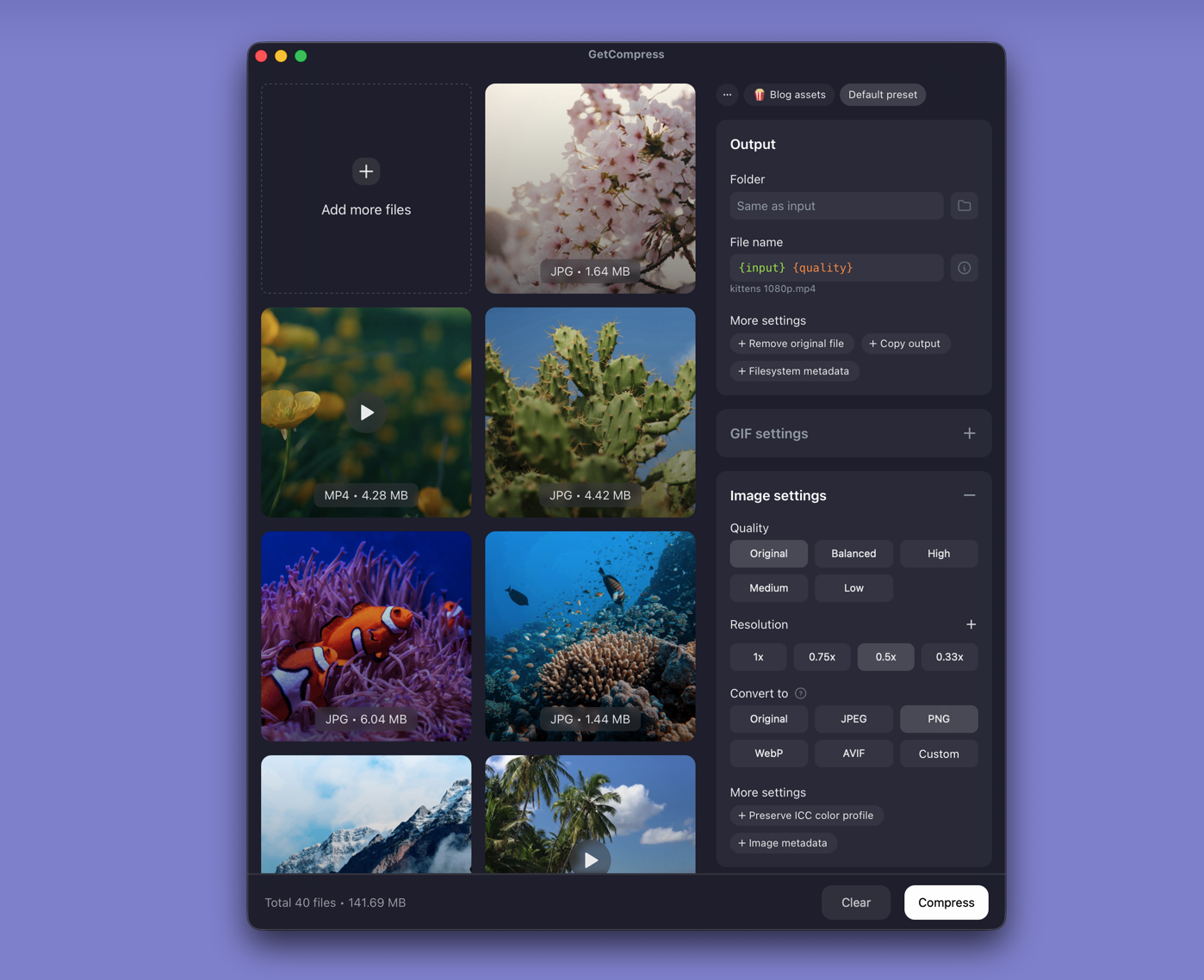
- Open GetCompress and drop sources or existing WebP files into the queue.
- Set max width, WebP quality (for example High or Medium), and output format.
- Preview text overlays and gradients, then export.
- Generate JPEG fallbacks in the same pass when
<picture>needs them.
Processing stays on your Mac. Exact target file size applies to video only, not images.
Method 2: Resize in Preview, encode with cwebp
Best for: One or a few assets when Preview can shrink the source before encoding.
Preview does not export WebP, but it resizes PNG or JPEG sources:
- Open the source in Preview.
- Tools → Adjust Size… to roughly 2x the CSS display width.
- Export as PNG or JPEG, then encode in Terminal:
brew install webp
cwebp -q 82 -m 6 input.png -o output.webp
For an existing WebP that is too large, decode, resize, then re-encode:
dwebp input.webp -o temp.png
# resize temp.png in Preview, then:
cwebp -q 80 -m 6 temp.png -o output.webp
A 3840 px PNG converted to WebP without resize stays heavy.
Limitation: Manual for large folders. Easy to skip resize when you are in a hurry.
Method 3: Batch WebP in Terminal
Best for: A folder of already-resized PNG files in a deploy pipeline.
mkdir webp-out
for f in *.png; do cwebp -q 82 -m 6 "$f" -o "webp-out/${f%.png}.webp"; done
Write quality and max width in your deploy README so you do not put back 3840 px sources. Name outputs with width suffixes (for example hero-1920.webp) so static site generators pick the correct variant.
Limitation: Mixed HEIC and JPEG sources still need separate prep steps or a dedicated app.
Which method should you use
| Situation | Start here |
|---|---|
| Design handoff before engineering, recurring presets | GetCompress |
| One hero asset | Preview + cwebp |
| Scripted deploy from resized PNG | Terminal batch |
Conversion from design exports: PNG to WebP on Mac . Broader format picture: how to compress images on Mac . Keep staging assets local ( are online file compressors safe ).
Quality settings that matter
| Content type | Quality starting point |
|---|---|
| Photo hero | 80 to 85 |
| Blog inline photo | 75 to 82 |
| Flat illustration | 85 to 90 or lossless |
| Screenshot with text | 82 to 88; verify edges |
Lossless WebP helps transparency and flat UI; photos usually benefit from lossy encoding at modest quality. Read lossy vs lossless compression . When a WebP already looks soft, return to the PNG or JPEG master rather than chaining lossy passes on the same WebP file.
When cwebp alone is enough
cwebp (with a Preview resize step) can finish a single asset or a scripted CI job that already enforces max width.
GetCompress also helps when marketers and designers compress locally before you send the files, when HEIC and PNG arrive together, or when folder monitoring should produce WebP as Figma drops land. Keep a JPEG fallback path for email and older browsers as discussed in PNG to WebP on Mac .
- Convert PNG to WebP on MacConvert PNG to WebP on Mac with GetCompress, cwebp, or a Preview resize first. Keep a JPEG or PNG fallback for older browsers.
- How to Compress Images on MacCompress images on Mac with GetCompress, Preview, or sips. Resize JPG and PNG, convert HEIC, and keep sharp UI for email or web.
- Convert WebP to JPG on MacConvert WebP to JPG on Mac with GetCompress, Preview, or Terminal. Flatten transparency first for email, slides, and apps that only accept JPEG.
- Compress WebP on WindowsCompress WebP on Windows with FFmpeg quality flags, Photos resize first, and GetCompress batch presets. Shrink web images locally without upload.