How to Compress Videos and Images on Windows
Compress a mixed Windows folder of PNG, MP4, and PDF with GetCompress in one queue, or use Photos, Clipchamp, and PowerPoint for a few files.
Hero PNG, teaser MP4, one-pager PDF. Three formats, three apps if you do it manually. Launch folders often mix them on purpose, then the zip hits 800 MB because one screen recording dwarfed everything else.
Method 1: GetCompress for mixed folders
Best for: Campaign or client folders with images, video, and PDF that need different presets in one pass.
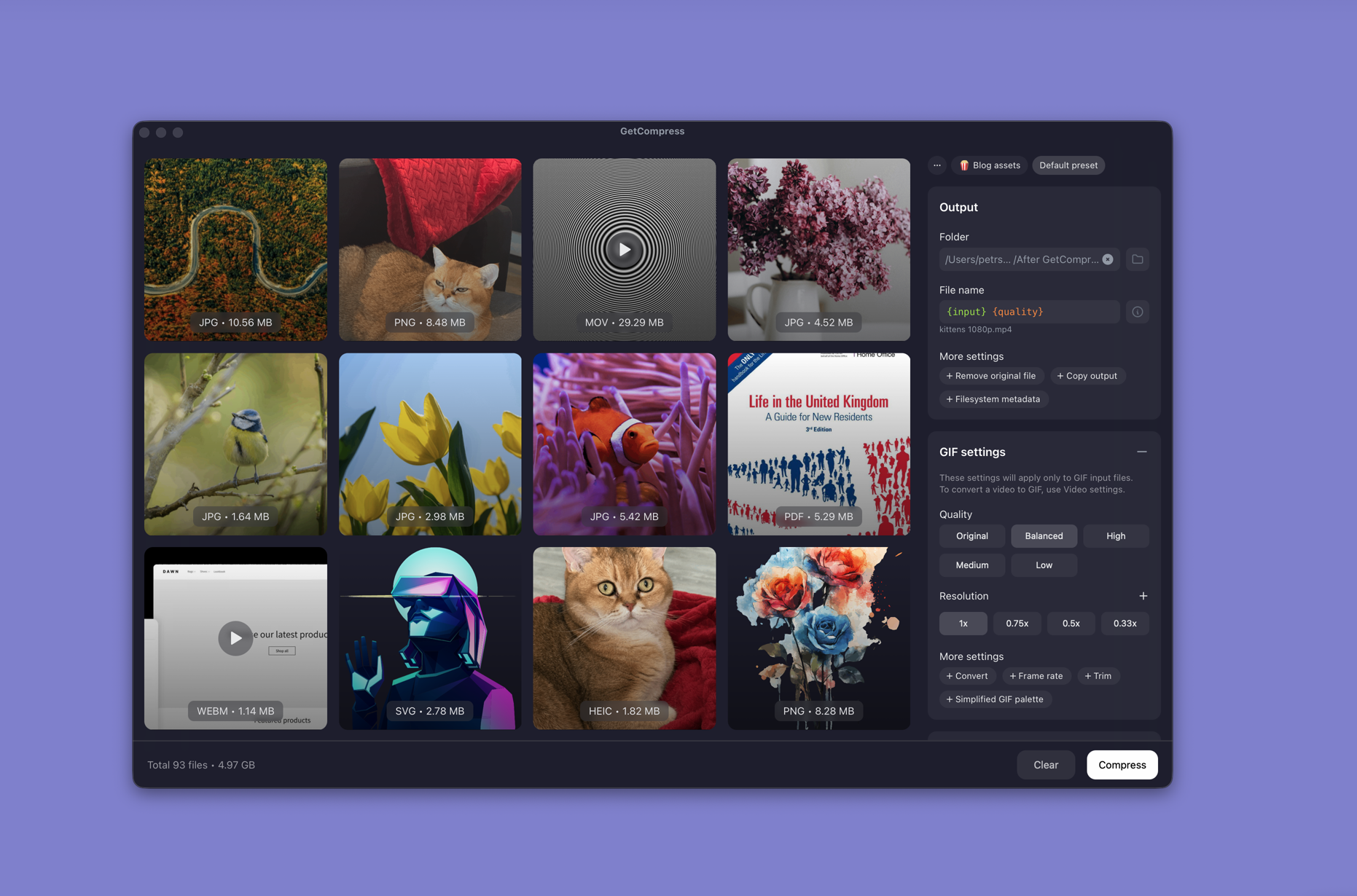
- Open GetCompress and drop the whole folder into the queue.
- Apply an image preset (max width and format), a video preset (resolution or target file size when a form lists a megabyte cap), and a PDF optimization preset.
- Preview anything with small UI text or charts.
- Export copies locally; keep masters untouched.
Exact target file size is video-only. Images and PDFs use their own quality and optimization controls. Processing stays on your PC, which matters for unreleased creative.
Method 2: Photos, Clipchamp, and PowerPoint
Best for: A handful of files when you do not need a shared queue.
| File | First app |
|---|---|
| PNG / JPEG | Photos: … → Resize image, save a copy |
| MOV / MP4 | Clipchamp: trim, export 1080p or 720p |
| PDF from a deck | PowerPoint: File → Export → Create PDF/XPS → Minimum size |
Detail guides: compress images on Windows , compress video on Windows , compress PDF on Windows . For MOV that must be MP4, see MOV to MP4 on Windows .
Optional image-only PowerShell resize (install FFmpeg with winget first):
ffmpeg -i input.jpg -vf scale=1920:-2 output.jpgThat does not handle MP4 or PDF in the same pass.
Limitation: Three apps, no shared presets, and Clipchamp does not queue twenty identical exports the way a batch compressor can.
Which method should you use
| Situation | Start here |
|---|---|
| Mixed folder, recurring launch pack, local-only | GetCompress |
| Three files once | Photos / Clipchamp / PowerPoint |
| Storage cleanup across the disk | Reduce file size on Windows |
Order of work when the zip is too big
| How you send | Typical limit | Tip |
|---|---|---|
| 10 to 25 MB total | Compress video first; it usually dominates | |
| Slack | Up to 1 GB per file | Still shrink images so previews load fast |
| Client portal | 25 to 100 MB per upload | Check whether the form accepts one file or many |
| Shared drive | Soft limits | Name outputs clearly: hero-1200w.jpg, teaser-720p.mp4 |
When everything must fit one zip under 25 MB: trim and export video (often 720p), then PDF, then resize images. Video almost always dominates the total.
| Media | Setting that matters most | Starting point |
|---|---|---|
| PNG / JPEG | Max width | ~1920 px for web heroes |
| MP4 / MOV | Resolution and runtime | 1080p for Drive, 720p for email |
| Embedded image quality | Minimum size export, then spot-check text |
When separate apps are enough
Photos, Clipchamp, and PowerPoint are enough when you have a few files and each export clears the limit.
GetCompress also helps when the same asset bundle ships every month: one queue, saved presets per type, preview in place, and no upload of draft creative. It does not replace Premiere, Figma, or PowerPoint. Use those for editing; compress delivery copies afterward.
- How to Compress Video on WindowsCompress video on Windows with GetCompress, Clipchamp, or FFmpeg. Trim first, pick 720p or 1080p, and clear email or upload size limits.
- How to Compress Images on WindowsCompress images on Windows with GetCompress, Photos, or FFmpeg. Resize JPG and PNG, convert WebP, and keep sharp UI for email or web.
- How to Compress PDF on WindowsCompress PDF on Windows with GetCompress, PowerPoint re-export, or Ghostscript. Shrink decks and scans for Outlook and portals.
- Reduce File Size on WindowsReduce file size on Windows for video, photos, PDF, and GIF with GetCompress, Photos or Clipchamp, and FFmpeg. Free space without deleting project masters.