Automate Compression with MCP
Let Cursor or Claude Desktop run local compress tools on your Mac through MCP, including GetCompress.
You might ask Cursor: “Resize every PNG in this folder to 1920 px wide.” MCP lets the assistant call a local tool instead of walking you through Preview export fifty times. The media bytes stay on your Mac; only paths and instructions cross into the chat.
MCP is optional. Shortcuts, Automator, Hazel, and GetCompress folder monitoring solve many repeat jobs without any AI client. Add MCP when you already live in Cursor or Claude Desktop and want compress presets callable from chat.
What MCP is
MCP (Model Context Protocol) links apps like Cursor or Claude Desktop to programs on your Mac. The AI suggests an action. A local server runs it on files you point at.
Your video does not get sent to the model for encoding. Only instructions and paths do. That matches the local-only promise in the GetCompress privacy guide . For manual batch workflows without AI, see the batch compress and convert guide for Mac .
Who this is for
Most people should use Preview, QuickTime, or GetCompress with a mouse.
MCP helps if you already live in an AI editor and want repeatable local tasks (“run my Web preset on this folder”). Developers compressing bug MP4 clips before Jira upload often fit this profile. Marketers batch-resizing campaign PNG files from a shared export folder are another common case.
Skip MCP if you only compress once a month. Folder monitoring inside GetCompress covers many repeat jobs without any chat integration. QA teams recording MOV repro steps may use MCP once per project; design teams exporting weekly PNG handoffs usually need monitoring, not chat commands.
Method 1: GetCompress MCP setup
Best for: Running the same GetCompress presets from Cursor or Claude Desktop on folders you control.
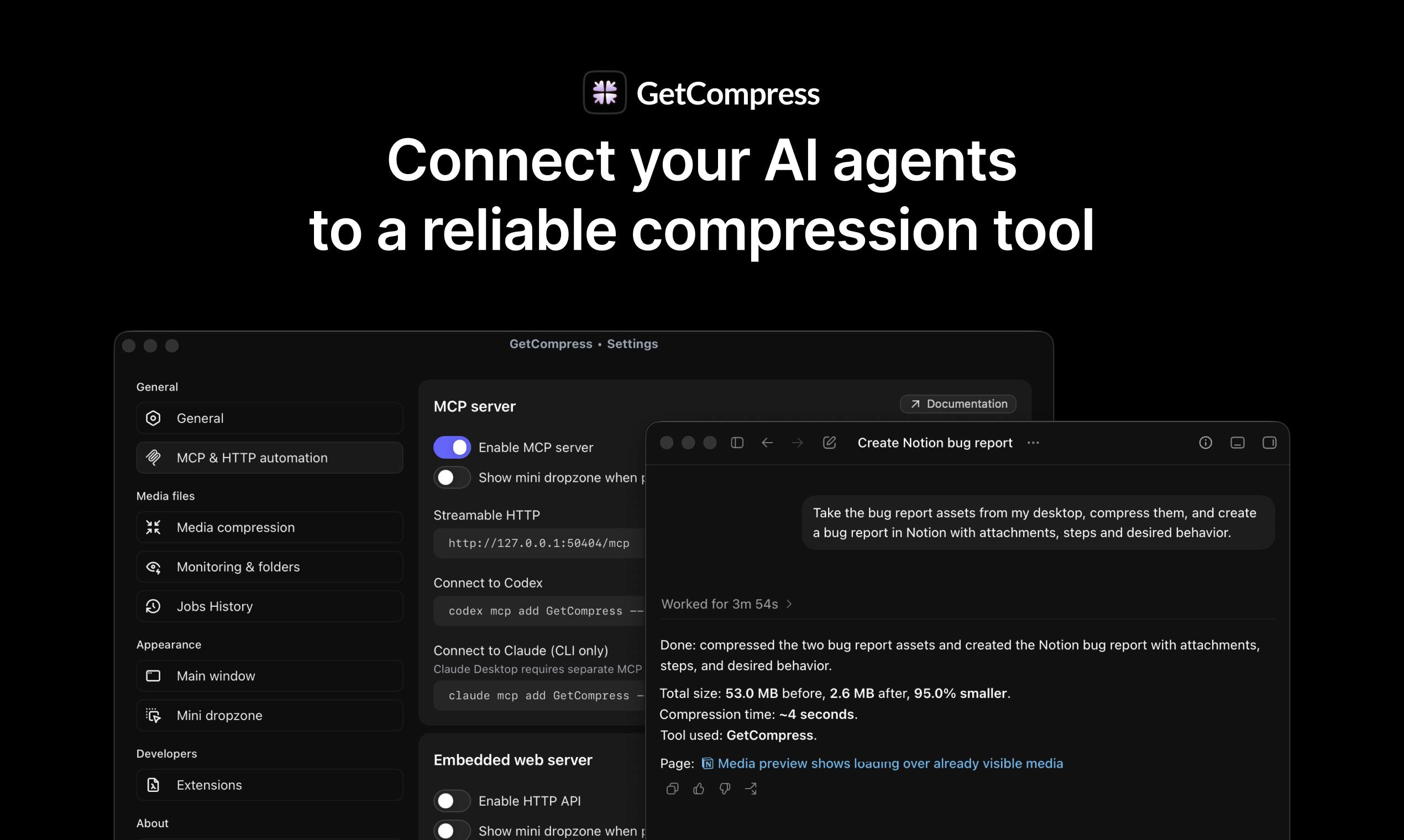
- Turn on MCP in GetCompress settings.
- Add the server in Cursor or Claude Desktop using the config shown in GetCompress for your version.
- Test on a copy of a folder first.
- Confirm the assistant lists GetCompress tools before you run on production assets.
Restart the AI client after you change MCP config. A failed first call is often a stale server entry, not a bad preset.
Test read-only prompts first (“list presets”, “what formats are supported”) before destructive batch commands. Confirm output paths end in a folder meant for exports, not Desktop mixed with unrelated files.
Example MCP requests
Natural language maps to the same presets you save in the app:
| You might ask | What happens locally |
|---|---|
”Convert HEIC in ~/incoming/ to JPEG max 3000 px” | Batch convert with width cap |
”Compress MP4 files in ~/clips/ under 20 MB” | Target file size encode (video only) |
“Run my Slack preset on everything in ~/Exports/review” | Saved preset by name |
”Convert PDF scans in ~/Scans with medium compression” | PDF image pass |
Example phrasing for a bug video workflow:
- “Compress all MOV files in
~/Desktop/bugs/to MP4 720p under 15 MB for email.”
Example phrasing for design file folders:
- “Resize PNG exports in
~/Projects/exports/to max width 2400 and save as JPEG with High quality.”
Review tool calls before they run if your client asks you to confirm. Point paths at folders you control, not system directories.
The embedded local HTTP automation server in GetCompress is another path for scripts that should not go through chat at all. MCP fits conversational triggers; HTTP fits CI-style hooks on the same machine.
Folder monitoring vs MCP
Both automate repeat work. They solve different triggers.
| Approach | Best when |
|---|---|
| Folder monitoring | Files appear on their own (exports, scans, downloads) |
| MCP | You want the assistant to run a preset on demand from chat |
| Shortcuts / Automator | You need macOS glue outside GetCompress |
Folder monitoring runs silently when new files land. MCP runs when you ask. You can use both: monitoring for daily exports, MCP for ad hoc “compress this project’s clips” requests. For watch-folder setup detail, see automatic folder compression on Mac .
Stay safe
Only allow folders you trust. Do not paste passwords into chat. Review tool calls before they run if your client asks you to confirm.
Keep unreleased assets on local paths, not cloud sync folders, if your policy requires it. MCP does not upload media, but the output folder you choose may sync if iCloud or Dropbox watches it.
Version-control repos are a common mistake. Do not point MCP at a git checkout with uncommitted PNG unless you intend to overwrite sources. Use a dedicated out/ or compressed/ subdirectory in the preset path.
When the app alone is enough
Drag-and-drop in GetCompress, Shortcuts, or a QuickTime export can work when you compress once a week and do not live in an AI editor.
GetCompress MCP fits when the same presets already exist in the app and you want Cursor or Claude Desktop to trigger them on named folders. Processing stays on your Mac. It does not replace folder monitoring for silent “file appeared” jobs, and it does not replace a full video editor. For the Windows setup, see automate compression with MCP on Windows .
- Batch Compress and Convert on MacBatch compress and convert on Mac with GetCompress, Shortcuts or Automator, or a Terminal script. Local presets for JPEG, MP4, and PDF folders.
- Automatic Folder Compression on MacSet up automatic folder compression on Mac so new JPEG, MP4, and PDF files compress when they land in a watch folder. Local presets, no upload step.
- GetCompress privacyHow GetCompress processes files on your Mac with local-only encoding, when the app may use the network, and how that compares to Preview and online tools.
- MCP automation on WindowsLet Cursor or Claude Desktop run local compress tools on Windows through MCP, including GetCompress.