Automatic Folder Compression on Mac
Set up automatic folder compression on Mac so new JPEG, MP4, and PDF files compress when they land in a watch folder. Local presets, no upload step.
The export finishes at 6 PM. By Monday the shared drive holds forty new PNG UI shots, six MOV bug clips, and three scan PDFs nobody resized. You could drag each batch into a compressor every morning, or you could point a watch folder at ~/Exports/web and let the same preset run while you make coffee.
Automatic folder compression on Mac makes sense when files land in the same directory on a predictable schedule and the output spec does not change job to job.
Method 1: GetCompress folder monitoring
Best for: “New file appeared” jobs with a stable preset (web JPEG, Slack MP4, email PDF).
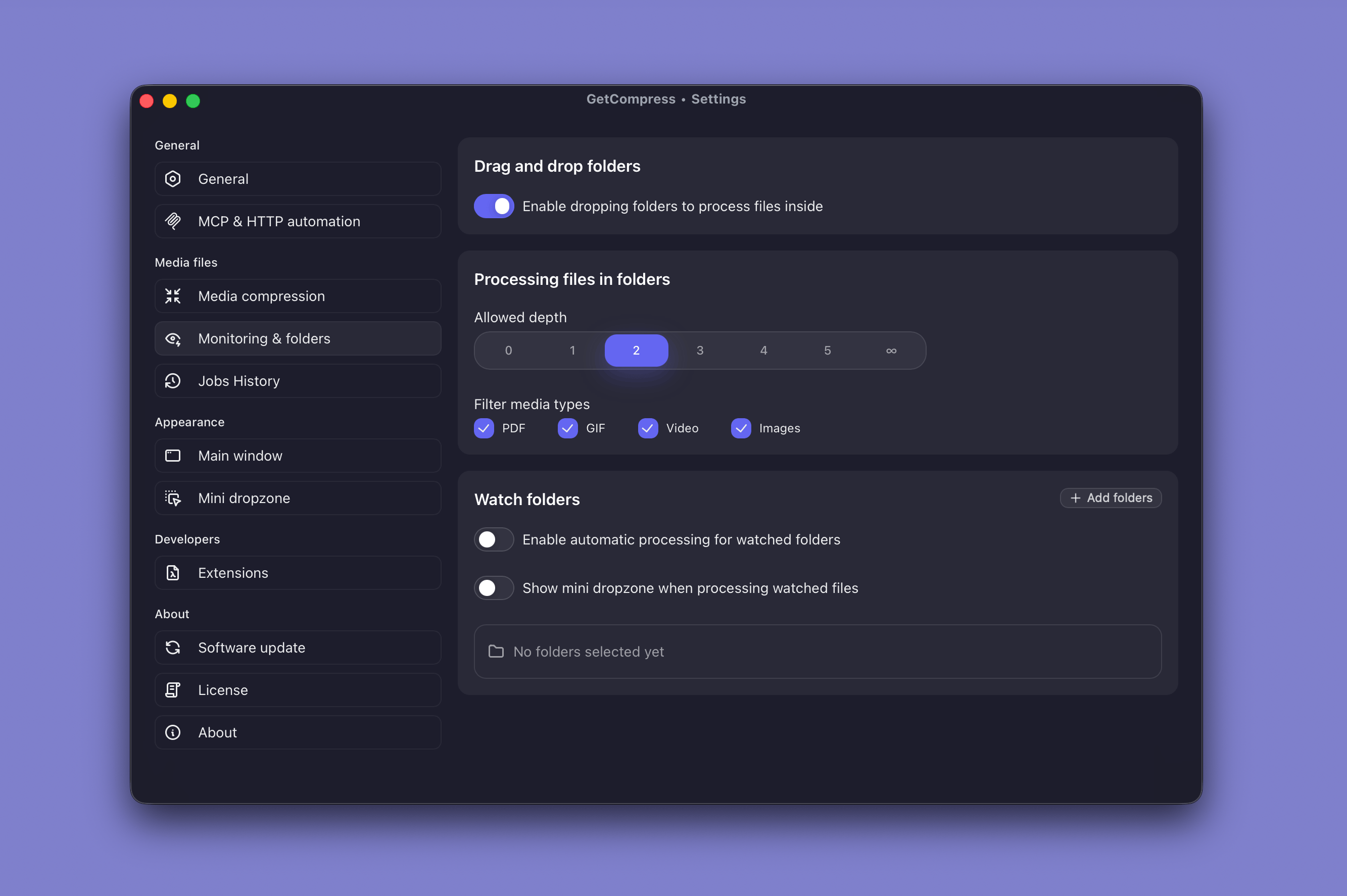
- Open GetCompress and save a preset for the destination (for example “Web JPEG 1920” or “Slack MP4 720p”).
- Turn on folder monitoring in settings.
- Pick a watch folder and attach that preset.
- Choose an output folder that is not the same as the watch path.
- Drop three test files, check size and quality, then point production exports at the watch folder.
Processing stays on your Mac. Use target file size on video when portals cap megabytes. Exact target size is video only.
When folder monitoring beats manual batch
| Signal | Example |
|---|---|
| Same folder every week | Render output directory |
| Trigger is “file appeared” | AirDrop ingest, screen capture folder |
| Settings stable for a month | Web JPEG 1920 px, Slack MP4 720p |
| Team shared Mac | One preset name everyone recognizes |
If the pain is a one-time email bounce, read the email attachment size limits guide first. You may only need a single batch run, not permanent monitoring.
Stop monitoring when every job needs different codecs. Automation fails when “smaller” is vague and the preset drifts. Write down max width, quality, codec, and output path before you enable the watch folder.
Common watch folder setups
| Watch folder | Preset | Result |
|---|---|---|
~/Exports/web | Web JPEG 1920 px | Ready for CMS upload |
~/Movies/Captures | MP4 1080p | Smaller bug repro clips |
~/Documents/Scans/in | PDF medium | Lighter attachments |
~/Downloads/heic-ingest | HEIC to JPEG 3000 px | Listing-ready stills |
Output goes to a sibling folder you pick (~/Exports/web/out, for example). Originals stay in the watch folder unless your workflow moves them after success.
For one-time folder batches without ongoing watches, see the batch compress and convert guide for Mac .
Presets that survive automation
| Preset field | Write it down |
|---|---|
| Max width / height | 1920 px long edge for web |
| Video resolution | 1080p vs 720p for ticket clips |
| Target file size (video) | 15 MB cap when email is the destination |
| Output format | JPEG, MP4, compressed PDF |
| Output directory | Avoid overwriting sources |
Name presets for the destination, not the mood: “Slack MP4 720p 15MB”, not “small video”. Start with one watch folder and one preset. Add a second path only when the first is stable for a month.
Method 2: Hazel, Automator, or FFmpeg
Mac teams already automate with Automator folder actions, Shortcuts, or Hazel rules that call shell scripts.
| Tool | Strength | Maintenance |
|---|---|---|
| Automator folder action | Built-in, no extra purchase | Breaks occasionally after macOS upgrades |
| Hazel | Rich conditions (size, weekday) | You maintain the script Hazel calls |
| Terminal + FFmpeg | Full control | Someone owns codec flags |
| GetCompress monitoring | Preset UI, preview, mixed media | Enable in app settings |
Hazel shines when you need conditions beyond “new file appeared” (only PNG over 5 MB, only on weekdays). GetCompress covers the simpler “compress everything new with preset X” case without extra software.
Keep a manual fallback (drag-and-drop into GetCompress) for deadline weeks when a folder action stops firing after an OS update.
Avoiding duplicate and failed runs
| Problem | Fix |
|---|---|
| Same file processed twice | Move outputs elsewhere; do not watch the output folder |
| Partial writes | Wait until the export app finishes before files appear in the watch folder |
| Locked files | Screen recorder still writing; exclude temp extensions if needed |
| Wrong preset on mixed folder | Split ingest folders by media type |
Test on a copy folder first. Drop three representative files (PNG, MP4, PDF) and confirm output size and quality before you point production exports at the watch path.
When a one-time batch is enough
Drag a folder into GetCompress, use Preview, or run a short sips / FFmpeg loop when the job is a one-off email bounce or a single shoot.
GetCompress folder monitoring also helps when the same export path fills every week and the preset is documented. Processing stays local. It does not replace Hazel for complex file rules, and it does not replace a full video editor. For the Windows watch-folder setup, see automatic folder compression on Windows .
- Batch Compress and Convert on MacBatch compress and convert on Mac with GetCompress, Shortcuts or Automator, or a Terminal script. Local presets for JPEG, MP4, and PDF folders.
- Reduce File Size on MacReduce file size on Mac for video, photos, PDF, and GIF with GetCompress, Preview or QuickTime, and FFmpeg. Free space without deleting project masters.
- MCP automationLet Cursor or Claude Desktop run local compress tools on your Mac through MCP, including GetCompress.
- Automatic Folder Compression on WindowsSet up automatic folder compression on Windows so new JPEG, MP4, and PDF files compress when they land in a watch folder. Local presets, no upload step.