Convert 3GP to MP4 on Mac: 3 Methods
Convert 3GP to MP4 on Mac with GetCompress, QuickTime, or FFmpeg. Get H.264 MP4 for uploads, editing, and old phone archives.
3GP clips from older Android phones, feature-phone backups, and MMS downloads often break modern workflows. Preview may show a postage-stamp frame, a CMS rejects the format, or an editor expects MP4. Converting locally fixes compatibility without uploading personal footage to a random converter.
Three solid routes cover most Mac jobs: GetCompress for folders and size caps, QuickTime for one or two clips, and FFmpeg for archive scripts.
Method 1: GetCompress
Best for: Migrating a phone backup folder, or hitting an upload form that wants MP4 and a megabyte limit.
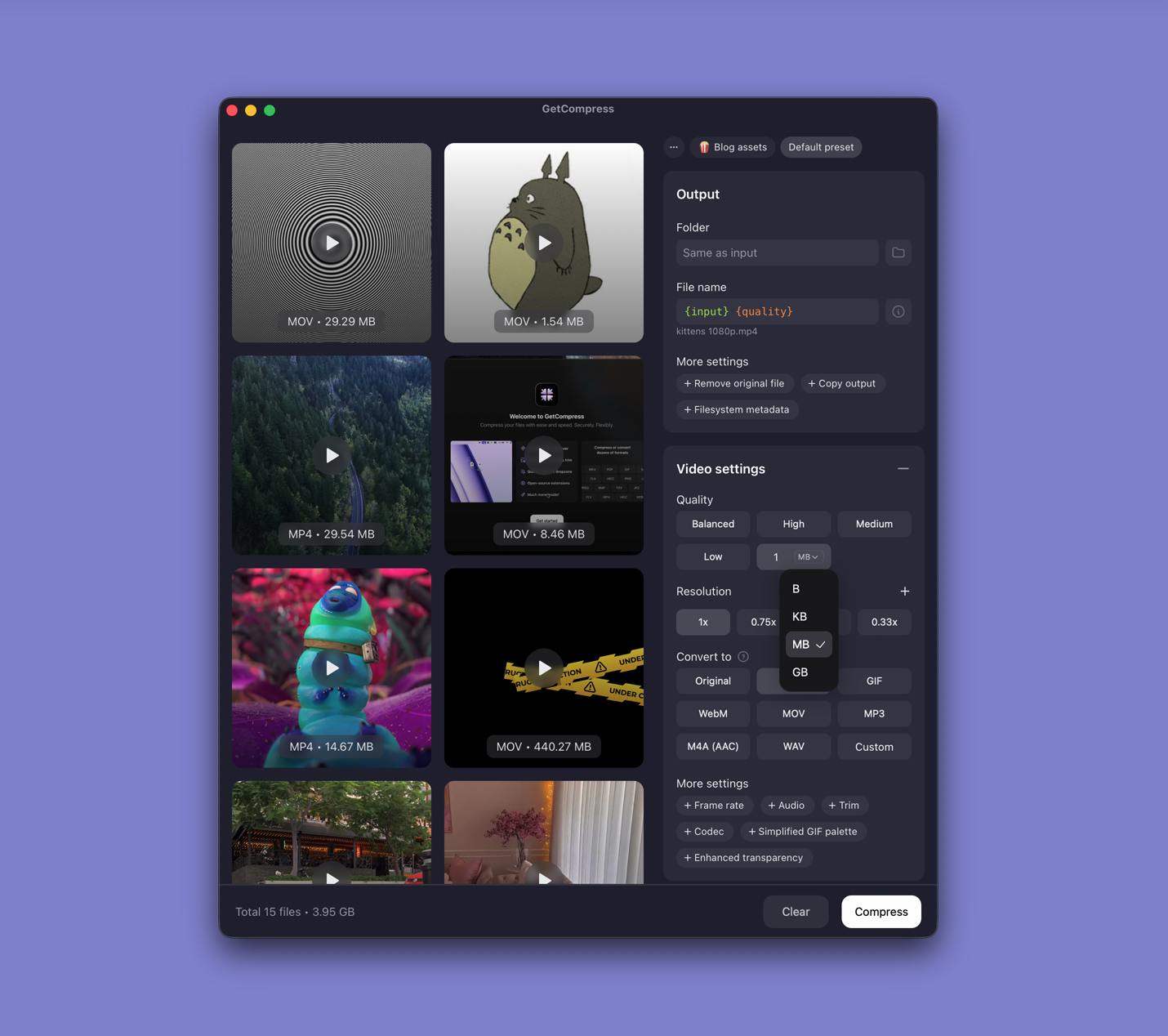
- Drop 3GP clips or a whole folder into GetCompress .
- Choose MP4 output.
- Trim in preview if only part of the clip matters.
- Set a quality level (Original, High, Medium, Balanced, or Low) or resolution, or use target file size when the portal lists a megabyte cap (video only).
- Export and keep the masters.
Processing stays on your Mac. Save a preset such as “archive 3GP” for the rest of the folder.
Method 2: Export in QuickTime
Best for: One or two 3GP files QuickTime opens, when the source is already low resolution.
- Open the 3GP in QuickTime Player.
- Edit → Trim (⌘T) to cut unusable sections.
- File → Export As… → 720p (or 480p when the source is tiny).
Exporting to 720p does not invent detail from a 176-pixel-wide source, but it produces a standard MP4 editors accept.
| Situation | Export choice |
|---|---|
| Tiny MMS clip | 480p after trim |
| Clearer phone video | 720p |
| Hard MB cap | Trim first, then compress further |
Limitation: No batch for a full phone backup. When open fails, use Method 3.
Method 3: Convert with FFmpeg
Best for: Batch phone archives and a scale filter that avoids blocky upscaling.
brew install ffmpegffmpeg -i input.3gp -c:v libx264 -crf 23 -preset medium \
-vf "scale='min(1280,iw)':-2" -c:a aac -b:a 128k \
-movflags +faststart output.mp4Batch every 3GP in a folder:
mkdir mp4-out
for f in *.3gp; do
 ffmpeg -i "$f" -c:v libx264 -crf 23 -preset medium \
 -vf "scale='min(1280,iw)':-2" -c:a aac -b:a 128k \
 -movflags +faststart "mp4-out/${f%.3gp}.mp4"
done| Flag | Plain meaning |
|---|---|
-crf 23 | Quality tuned for low-res sources |
scale='min(1280,iw)' | Never upscale beyond source width |
-movflags +faststart | Web-friendly metadata placement |
If audio is missing, the source may use AMR narrowband; the command above maps it to AAC. Newer iPhone MOV exports: MOV to MP4 on Mac .
Limitation: You own the commands and error messages.
Which method should you use
| Situation | Start here |
|---|---|
| Backup folder, recurring convert, or size cap | GetCompress |
| One clip QuickTime opens | QuickTime |
| Archive script or AMR edge cases | FFmpeg |
Other legacy formats: convert video to MP4 on Mac . Size limits after conversion: how to compress video on Mac .
3GP vs MP4 in plain terms
| 3GP | MP4 | |
|---|---|---|
| Common source | Old phone recordings, MMS saves | Web, modern phones, editors |
| Resolution | Often 176x144 to 640x480 | Usually 720p or 1080p today |
| Upload forms | Often rejected | Usually accepted |
| Best first step | Re-encode to H.264 MP4 | Already compatible |
You cannot recover detail that was never recorded. Conversion fixes compatibility and lets you trim or compress next.
When QuickTime alone is enough
If QuickTime opens the clip and one export produces a working MP4 under the size limit, you are done.
GetCompress also helps when you migrate a whole drawer of phone backups, when teammates who prefer a simple app need a preset, or when conversion and a typed megabyte target belong in one step. It does not replace FFmpeg for obscure edge cases. After conversion, if the MP4 is still too large, lower quality or resolution in the same window rather than starting over.
- Convert Video to MP4 on MacConvert video to MP4 on Mac with GetCompress, QuickTime, or FFmpeg. Get H.264 MP4 for uploads, editing, and sharing from MOV, MKV, and more.
- Convert MOV to MP4 on MacConvert MOV to MP4 on Mac with GetCompress, QuickTime, or FFmpeg. Get H.264 MP4 for uploads, Windows teammates, and size-limited portals.
- How to Compress Video on MacCompress video on Mac with GetCompress, QuickTime, or FFmpeg. Trim first, pick 720p or 1080p, and hit email or upload size limits without guessing.
- Convert 3GP to MP4 on WindowsConvert 3GP to MP4 on Windows with GetCompress, Clipchamp, or FFmpeg. Get H.264 MP4 for uploads, editing, and old phone archives.