Convert DNG to JPG on Windows: 3 Methods
Convert DNG to JPEG on Windows with Photos, Lightroom, or delivery sizing in GetCompress. Keep RAW masters; export JPG for clients.
DNG files from Lightroom mobile sync, drone exports, or converted RAW need JPEG delivery for clients and portals. Export from Photos or Lightroom, then resize for MLS and email caps. Process locally so pre-release product shots never upload to online converters.
Keep the DNG master
| File | Role |
|---|---|
| DNG | Edit master and archive |
| JPEG | Delivery |
Keep ingest read-only. Export JPEG to deliverables\jpeg\. See RAW to JPG on Windows . For Canon CR2, see CR2 to JPG on Windows .
| Mistake | Why it hurts |
|---|---|
| Overwriting DNG | Destroys edit latitude |
| Full-res JPEG to email | Use a width cap first |
| Skipping a zoom check | Soft proofs go live |
Drone and phone ProRAW DNG files are often larger than DSLR DNG exports. Set export width per job type.
Method 1: Export JPEG from Photos
Best for: Windows 11 Photos when the DNG preview renders.
- Open DNG in Photos.
- Export or Save as JPEG at high quality.
- Save to
deliverables\jpeg\.
| Target | Width hint |
|---|---|
| 2048 px | |
| MLS | ~3000 px (verify portal) |
| Web | 1920 to 2400 px |
When Photos shows a blank preview, use Lightroom or Adobe DNG Converter first. Compare three random exports at 100% zoom before you upload the full set.
Limitation: Copying hundreds of DNG files from a card into Photos only to export is often slower than Lightroom.
Method 2: Lightroom export
Best for: Reliable camera support and repeatable client recipes.
- Import DNG with your edit preset.
- Export → JPEG, quality 80 to 95.
- Set long edge per client rules.
| Setting | Typical value |
|---|---|
| Color space | sRGB for web and MLS |
| Quality | 85 to 90 |
| Long edge | Portal max width |
| Sharpening | Screen for web, print for vendor |
Optionally resize after export with FFmpeg:
winget install --id Gyan.FFmpeg -e
mkdir web
Get-ChildItem deliverables\*.jpg | ForEach-Object {
 ffmpeg -i $_.FullName -vf scale=3000:-2 -q:v 3 "web\$($_.BaseName)-3000.jpg"
}
Limitation: Paint is not for DNG development. Use Photos or Lightroom, then Paint only to crop a finished JPEG if needed.
Method 3: Size JPEG deliverables in GetCompress
Best for: After JPEG exists, when a proof folder needs one shared max width and quality.
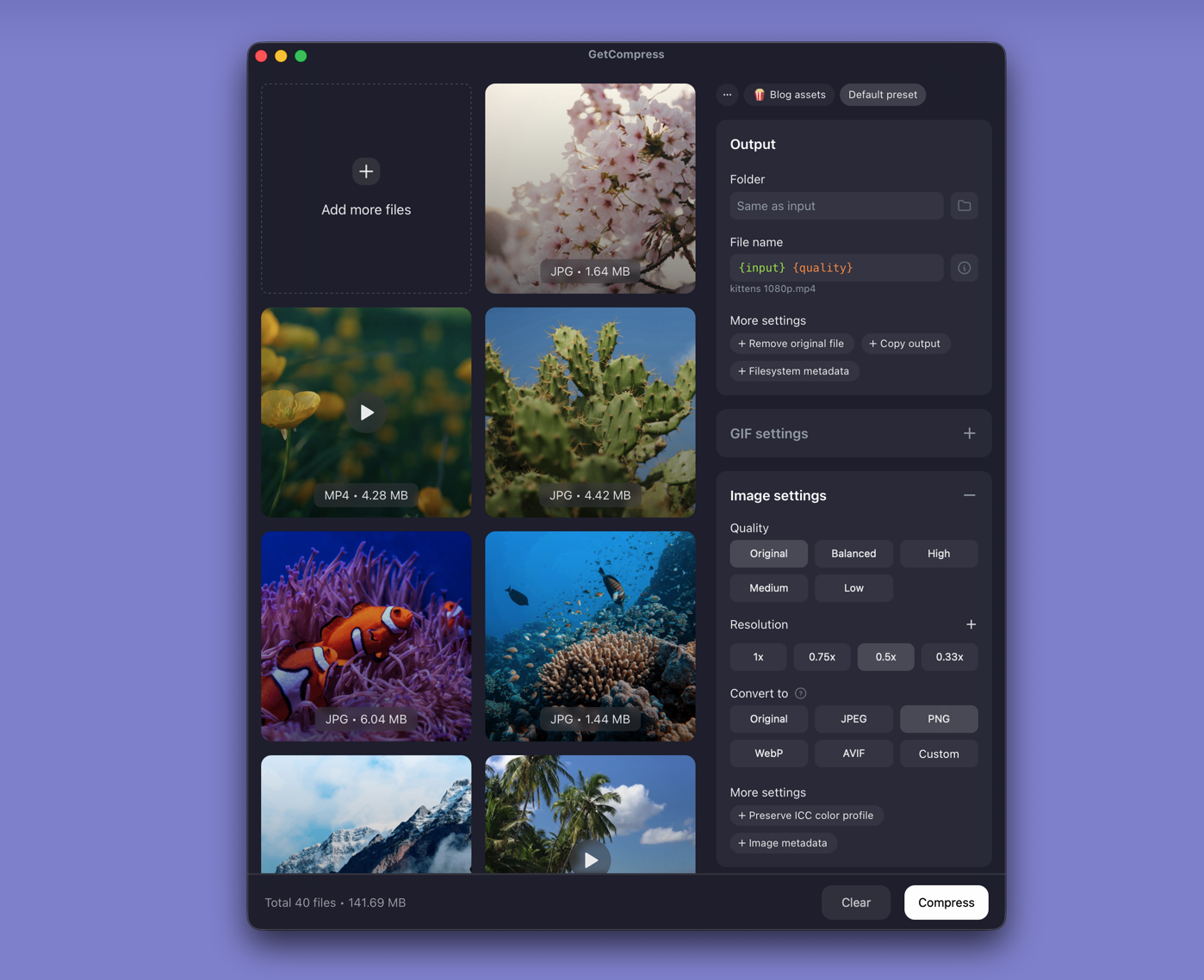
- Export JPEG from Photos or Lightroom first.
- Drop the deliverables folder into GetCompress .
- Set max width and a quality level (for example High or Medium) to match the portal.
- Export a sized copy; keep masters untouched.
Limitation: GetCompress does not develop DNG. It sizes and compresses JPEG deliverables after demosaic.
Which method should you use
| Situation | Start here |
|---|---|
| Photos opens the DNG cleanly | Photos export |
| Blank preview or client recipes | Lightroom |
| Same width across many exported JPEG proofs | GetCompress after export |
When Photos export is enough
Photos (or Lightroom) can work when one export already matches portal width and quality.
GetCompress also helps when the proof folder still needs a consistent max width, quality preset, or local batch after export. It does not replace Lightroom. For sizing rules after export, see how to compress images on Windows . For Mac, see DNG to JPG on Mac .
- Convert RAW to JPG on WindowsConvert RAW to JPG on Windows with Photos, Lightroom, or camera software. Keep RAW masters; deliver JPEG for clients and portals.
- Convert CR2 to JPG on WindowsConvert Canon CR2 to JPEG on Windows with Photos, Lightroom, or delivery sizing in GetCompress. Keep RAW masters; export JPG for clients.
- How to Compress Images on WindowsCompress images on Windows with GetCompress, Photos, or FFmpeg. Resize JPG and PNG, convert WebP, and keep sharp UI for email or web.
- Convert DNG to JPG on MacConvert DNG to JPEG on Mac with Photos, Preview for single files, or delivery sizing in GetCompress. Keep RAW masters.