Convert JPG to AVIF on Mac: 3 Methods
Convert JPG to AVIF on Mac with GetCompress, avifenc, or FFmpeg. Resize first and keep a JPEG fallback in HTML.
Marketing sites still ship oversized JPEG heroes. AVIF often cuts bytes on modern browsers without an obvious quality hit on photos. It is a web delivery format, not a replacement for email or slides. Convert heroes, keep JPEG fallbacks in <picture>, and check analytics before you drop legacy formats.
Method 1: GetCompress
Best for: Marketing folders that need resize plus AVIF in one pass, with presets for heroes and thumbs.
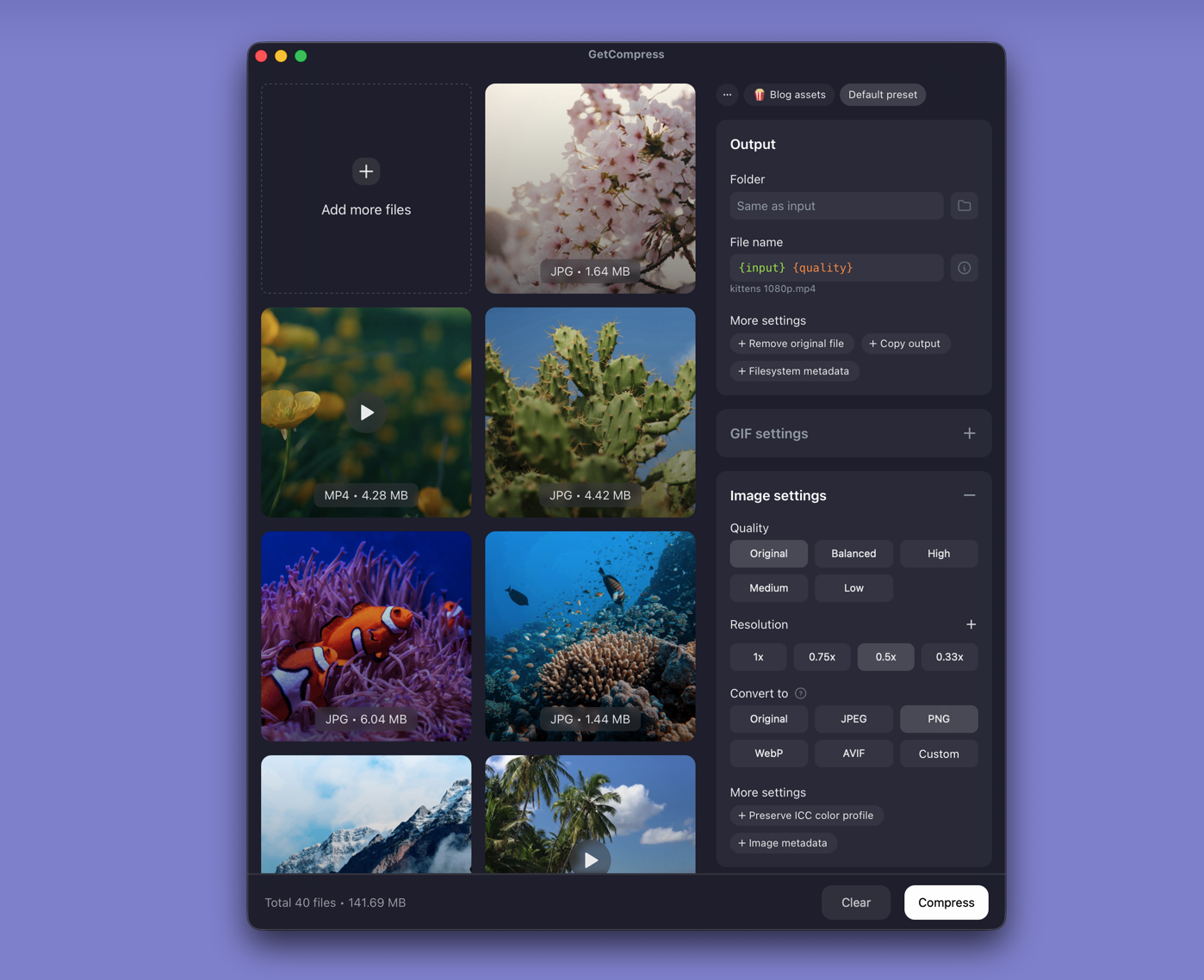
- Open GetCompress and drop JPEG heroes into the queue.
- Set output to AVIF, choose quality, and optional max width.
- Preview a photo and a gradient hero for banding.
- Export locally; keep JPEG masters for editors and fallbacks.
Save separate presets for heroes and thumbnails so one aggressive setting does not crush small product images. Processing stays on your Mac.
Method 2: avifenc in Terminal
Best for: Scripts and CI when you already use Homebrew.
brew install libavif
avifenc --min 22 --max 28 photo.jpg photo.avif
Batch:
mkdir avif-out
for f in *.jpg *.jpeg; do
 [ -f "$f" ] || continue
 avifenc --min 22 --max 28 "$f" "avif-out/${f%.*}.avif"
done| Flags | Effect |
|---|---|
--min 20 --max 24 | Higher quality, larger files |
--min 22 --max 28 | Balanced starting point |
--min 26 --max 32 | Smaller thumbs; check banding |
Resize first with Preview (Tools → Adjust Size) or sips -Z 2400 hero.jpg --out hero-resized.jpg. A 6000 px camera JPEG rarely helps if the hero displays at 1200 px.
Limitation: Slow on large folders. You babysit flags and fans.
Method 3: FFmpeg
Best for: Teams that already batch video with FFmpeg builds that include libaom-av1.
ffmpeg -i photo.jpg -c:v libaom-av1 -crf 30 photo.avifLimitation: Quality and speed depend on your build. Prefer avifenc when AVIF is the only job.
Which method should you use
| Situation | Start here |
|---|---|
| Bulk heroes, presets, local preview | GetCompress |
| CLI or CI with Homebrew | avifenc |
| Existing FFmpeg image pipeline | FFmpeg |
Serve AVIF first and JPEG second in <picture>, with matching dimensions to avoid layout shift. Spot-check Lighthouse and real devices after deploy. General resize advice: compress images on Mac . For another modern web format, see PNG to WebP on Mac .
What AVIF is for
| Format | Best for | Avoid for |
|---|---|---|
| AVIF | Site heroes, product grids | Email, print, legacy CMS |
| JPEG | Fallback, universal share | Maximum compression on modern web |
| WebP | Middle-ground support | Very old browsers |
Photos usually shrink more than flat UI screenshots. Gradients show banding first; tune quality there before you encode a full folder.
When a JPEG is enough
Keep JPEG alone for email, many CMS uploads, and social tools that reject AVIF.
GetCompress fits when you ship static sites regularly, need width caps without editing shell loops, and want local encoding of embargo campaign art. Keep JPEG masters in a source folder; commit AVIF and JPEG pairs for delivery. It does not replace your CMS or design tool.
- Convert PNG to WebP on MacConvert PNG to WebP on Mac with GetCompress, cwebp, or a Preview resize first. Keep a JPEG or PNG fallback for older browsers.
- How to Compress Images on MacCompress images on Mac with GetCompress, Preview, or sips. Resize JPG and PNG, convert HEIC, and keep sharp UI for email or web.
- Convert JPG to AVIF on WindowsConvert JPG to AVIF on Windows with GetCompress, avifenc, or FFmpeg. Resize first and keep a JPEG fallback in HTML.
- Batch Convert HEIC on MacBatch convert HEIC to JPG on Mac with GetCompress, Photos, or Terminal sips. Real estate and event photo workflows.