Convert M4V to MP4 on Windows: 3 Methods
Convert M4V to MP4 on Windows with GetCompress, Clipchamp, or FFmpeg. Remux when codecs match, or re-encode for SharePoint and Teams.
M4V from iPhones, iTunes libraries, and Mac teammates often confuses Windows-first workflows. SharePoint may reject the extension, or an upload form lists MP4 only even when the video inside is already H.264. This guide covers unprotected M4V. DRM-protected iTunes Store titles cannot be converted with these tools.
M4V vs MP4
Both containers can hold the same H.264 or HEVC streams and AAC audio. Windows apps and portals often filter on the file extension.
| M4V | MP4 | |
|---|---|---|
| Common source | iPhone AirDrop, iTunes exports, Apple presets | Web uploads, Android, most Windows apps |
| Built-in Windows apps | Opens in some apps, not all | Widely accepted |
| Upload forms | Sometimes rejected on extension | Usually accepted |
| First step | Remux or export to .mp4 | Already the everyday choice |
If the clip plays and only the extension blocks upload, remux or export is enough. If the portal also caps megabytes, convert and compress together. See how to compress video on Windows .
Method 1: GetCompress
Best for: One file or phone sync folders with files you send often, and forms that also list a megabyte cap.
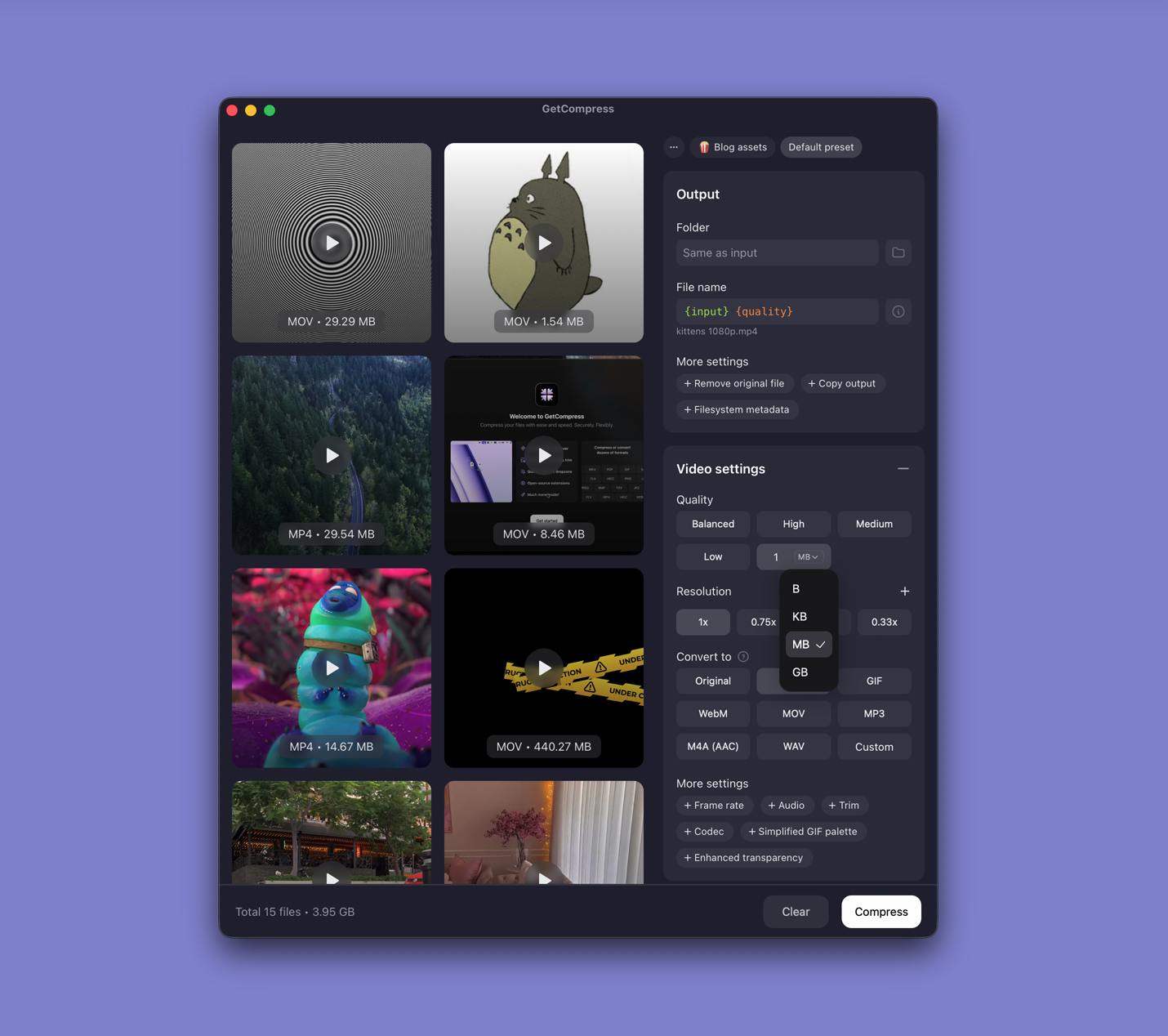
- Drop one unprotected M4V or a whole folder into GetCompress .
- Choose MP4 output.
- Trim idle time in the preview if needed.
- Set a quality level (Original, High, Medium, Balanced, or Low) or resolution, or type a target file size when the form states a limit.
- Export and drag the MP4 into Teams, SharePoint, or the upload field.
Processing stays on your PC. Save a preset such as “720p ticket video” so you can reuse it next time.
Method 2: Export in Clipchamp
Best for: One or two unprotected M4V clips.
- Open the M4V in Clipchamp.
- Trim the timeline if needed.
- Export at 1080p (or 720p for email and Teams).
| Situation | Export choice |
|---|---|
| One clip for a ticket | 720p after trim |
| Client review in OneDrive | 1080p |
| Portal with a hard MB cap | Trim first, then Method 1 or 3 |
Limitation: No typed megabyte target, and opening each file by hand gets slow for folders.
Method 3: Convert with FFmpeg
Best for: Fast remux when codecs already fit, plus PowerShell loops.
winget install --id Gyan.FFmpeg -eTry remux first:
ffmpeg -i input.m4v -c copy output.mp4When remux fails:
ffmpeg -i input.m4v -c:v libx264 -crf 22 -preset medium `
 -c:a aac -b:a 128k -movflags +faststart output.mp4
Batch every M4V in a folder:
mkdir mp4-out
Get-ChildItem *.m4v | ForEach-Object {
 ffmpeg -i $_.Name -c copy "mp4-out\$($_.BaseName).mp4"
 if ($LASTEXITCODE -ne 0) {
 ffmpeg -i $_.Name -c:v libx264 -crf 22 -preset medium `
 -c:a aac -b:a 128k -movflags +faststart `
 "mp4-out\$($_.BaseName).mp4"
 }
}| Symptom after remux | Fix |
|---|---|
| Video plays, no audio | Re-encode with -c:a aac |
| Upload still rejects file | Add -movflags +faststart |
| File huge but short | Re-encode at 720p or raise CRF |
For MOV sources, see MOV to MP4 on Windows .
Limitation: You maintain the scripts. Play the output before deleting the M4V original.
Which method should you use
| Situation | Start here |
|---|---|
| Batch, presets, or a size cap | GetCompress |
| One phone or iTunes clip | Clipchamp |
| Remux first or automate a folder | FFmpeg |
When Clipchamp alone is enough
If one Clipchamp export produces a playable MP4 under the limit, stop there.
GetCompress fits when iPhone sync folders arrive often, when a whole import session needs one preset, or when format and size must be fixed together. Keep unprotected masters if you may need a fresh export later.
- Convert MOV to MP4 on WindowsConvert MOV to MP4 on Windows with GetCompress, Clipchamp, or FFmpeg. Get H.264 MP4 for uploads, Teams, and size-limited portals.
- Convert MKV to MP4 on WindowsConvert MKV to MP4 on Windows with GetCompress or FFmpeg. Remux when codecs fit, or re-encode H.264 for Clipchamp, Teams, and uploads.
- How to Compress Video on WindowsCompress video on Windows with GetCompress, Clipchamp, or FFmpeg. Trim first, pick 720p or 1080p, and clear email or upload size limits.
- Convert M4V to MP4 on MacConvert M4V to MP4 on Mac with GetCompress, QuickTime, or FFmpeg. Remux when codecs match, or re-encode for uploads and Windows teammates.