Convert MOV to AVI on Windows: 3 Methods
Convert MOV to AVI on Windows with GetCompress or FFmpeg. Use H.264 or MJPEG inside AVI for legacy tools that still reject MP4.
MOV files from iPhones, Mac colleagues, and screen recorders sometimes must become AVI for legacy Windows software, lab systems, or upload validators that never moved to MP4. Clipchamp cannot export AVI, so you need GetCompress or FFmpeg. Convert locally and confirm the exact codec the destination wants before you batch a folder.
MOV vs AVI
| MOV | AVI | |
|---|---|---|
| Common source | iPhone AirDrop, QuickTime, Final Cut | Legacy Windows apps, old archives |
| Modern upload portals | Usually accepted via MP4 | Often legacy-only |
| Codec inside | H.264, HEVC | H.264, MJPEG, or older |
| Best first step | Ask if MP4 works | Match the validator’s codec |
Ask whether the validator checks extension only or probes the codec inside. That answer saves hours of wrong batch settings. When modern formats work, prefer MOV to MP4 on Windows . For size caps, see how to compress video on Windows .
Method 1: GetCompress
Best for: AirDrop folders from Mac teammates and a preset that matches a picky validator.
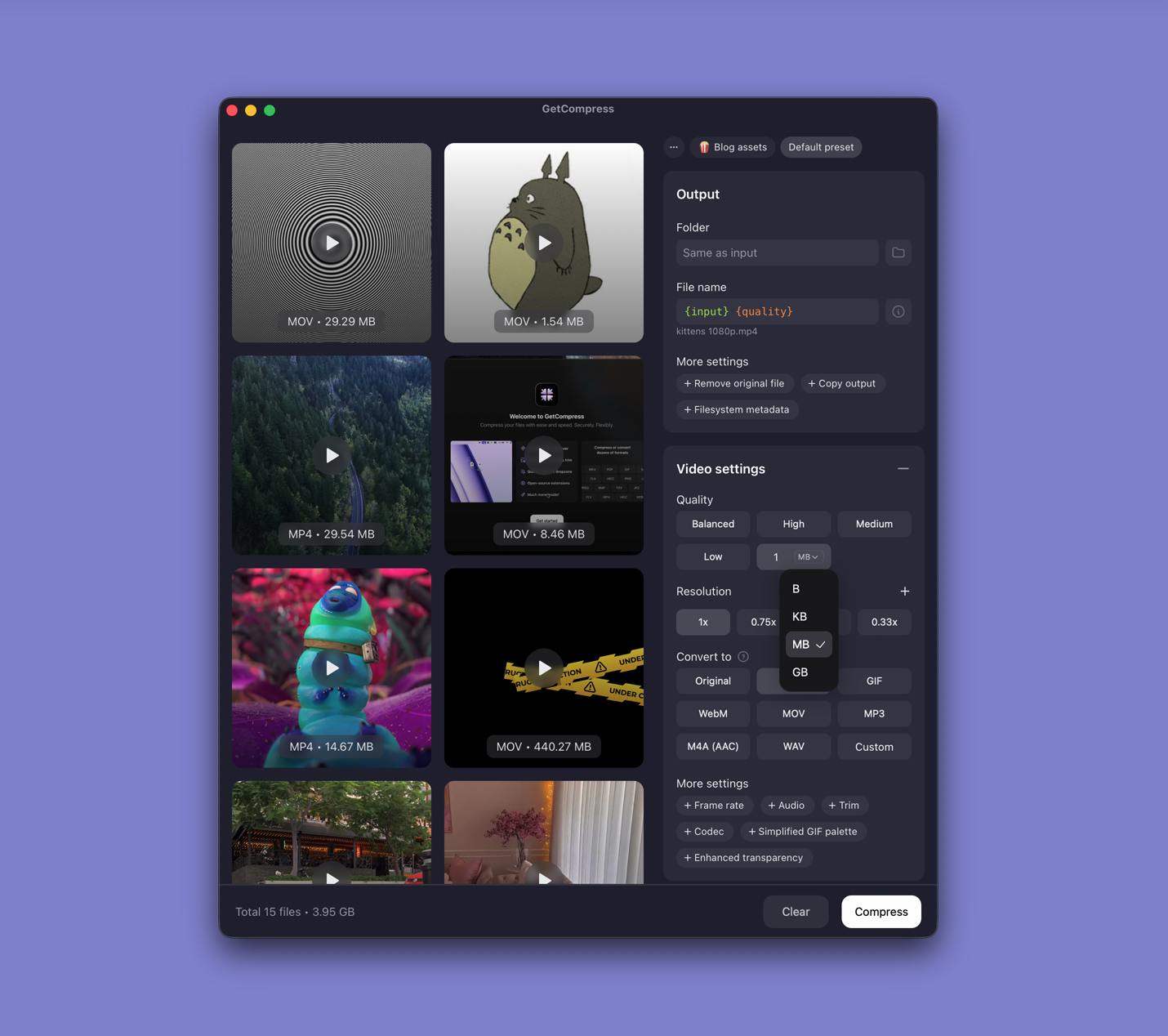
- Drop one MOV or a whole folder into GetCompress .
- Choose AVI output.
- Trim in the preview when the validator only needs part of the recording.
- Set a quality level (Original, High, Medium, Balanced, or Low) or resolution, or type a target file size when the portal caps megabytes.
- Test one AVI in the destination software before you batch the rest.
Processing stays on your PC. Save the preset after the first accepted upload.
Method 2: Convert with FFmpeg
Best for: Explicit H.264 or MJPEG recipes and PowerShell batches.
winget install --id Gyan.FFmpeg -eH.264 inside AVI:
ffmpeg -i input.mov -c:v libx264 -crf 22 -preset medium `
 -c:a libmp3lame -b:a 192k output.avi
Legacy MJPEG AVI:
ffmpeg -i input.mov -c:v mjpeg -q:v 5 -c:a pcm_s16le output.aviBatch a folder:
mkdir avi-out
Get-ChildItem *.mov | ForEach-Object {
 ffmpeg -i $_.Name -c:v libx264 -crf 22 -preset medium `
 -c:a libmp3lame -b:a 192k "avi-out\$($_.BaseName).avi"
}| Symptom | Fix |
|---|---|
| Legacy app rejects file | Try the MJPEG recipe |
| Huge AVI | Prefer MP3 audio over PCM |
| Slow encode | Use -preset veryfast for tests |
Document the recipe that worked in your team wiki. MJPEG files run large; plan disk space before migrating a whole drive.
Limitation: You maintain the recipes. Test one file before a batch.
Method 3: Trim in Clipchamp first
Best for: Visual trim before AVI encode.
- Open the MOV in Clipchamp when import succeeds.
- Trim the timeline to the segment the legacy tool needs.
- Export MP4 temporarily if you want a trimmed intermediate, then convert with Method 1 or 2.
Skipping Clipchamp and trimming with FFmpeg -ss / -to is fine when you know the timecodes. Older HEVC MOV clips may need HEVC to H.264 on Windows first if the legacy tool rejects HEVC in any container.
Limitation: Clipchamp cannot export AVI. It is a trim helper only.
Which method should you use
| Situation | Start here |
|---|---|
| Recurring legacy files you send | GetCompress |
| Exact H.264 or MJPEG flags | FFmpeg |
| Visual trim needed | Clipchamp, then Method 1 or 2 |
When MP4 is the better deliverable
If the recipient can take MP4, stop converting to AVI. AVI only helps when a validator or old app still demands it.
GetCompress fits when Mac-origin MOV files must land in a legacy AVI pipeline every week. Keep the MOV master. Verify one converted AVI in the destination software, then run the batch.
- Convert MOV to MP4 on WindowsConvert MOV to MP4 on Windows with GetCompress, Clipchamp, or FFmpeg. Get H.264 MP4 for uploads, Teams, and size-limited portals.
- How to Compress Video on WindowsCompress video on Windows with GetCompress, Clipchamp, or FFmpeg. Trim first, pick 720p or 1080p, and clear email or upload size limits.
- Convert WMV to MP4 on WindowsConvert WMV to MP4 on Windows with GetCompress, Clipchamp, or FFmpeg. Re-encode to H.264 for uploads, editing, and sharing.
- Convert MOV to AVI on MacConvert MOV to AVI on Mac with GetCompress or FFmpeg. Use H.264 or MJPEG inside AVI for legacy Windows tools that still reject MP4.