Convert Video to GIF on Windows: 3 Methods
Convert MOV or MP4 to GIF on Windows with GetCompress, Clipchamp (for MP4), or FFmpeg. Trim first, keep width low, and ask if video is allowed.
Your bug repro is a screen MP4. The ticket form or design review thread only accepts GIF. You need a short loop, not a full-screen animation that exceeds the attachment cap.
Before palette tuning in PowerShell, ask whether MP4 works. A trimmed MP4 is often much smaller and clearer for UI demos. When GIF is mandatory, three routes cover most Windows jobs: GetCompress for a local trim-and-export flow, Clipchamp for a video alternative, and FFmpeg for exact palette commands.
Method 1: GetCompress
Best for: bug repros, QA presets, and local GIF export with trim and frame preview.
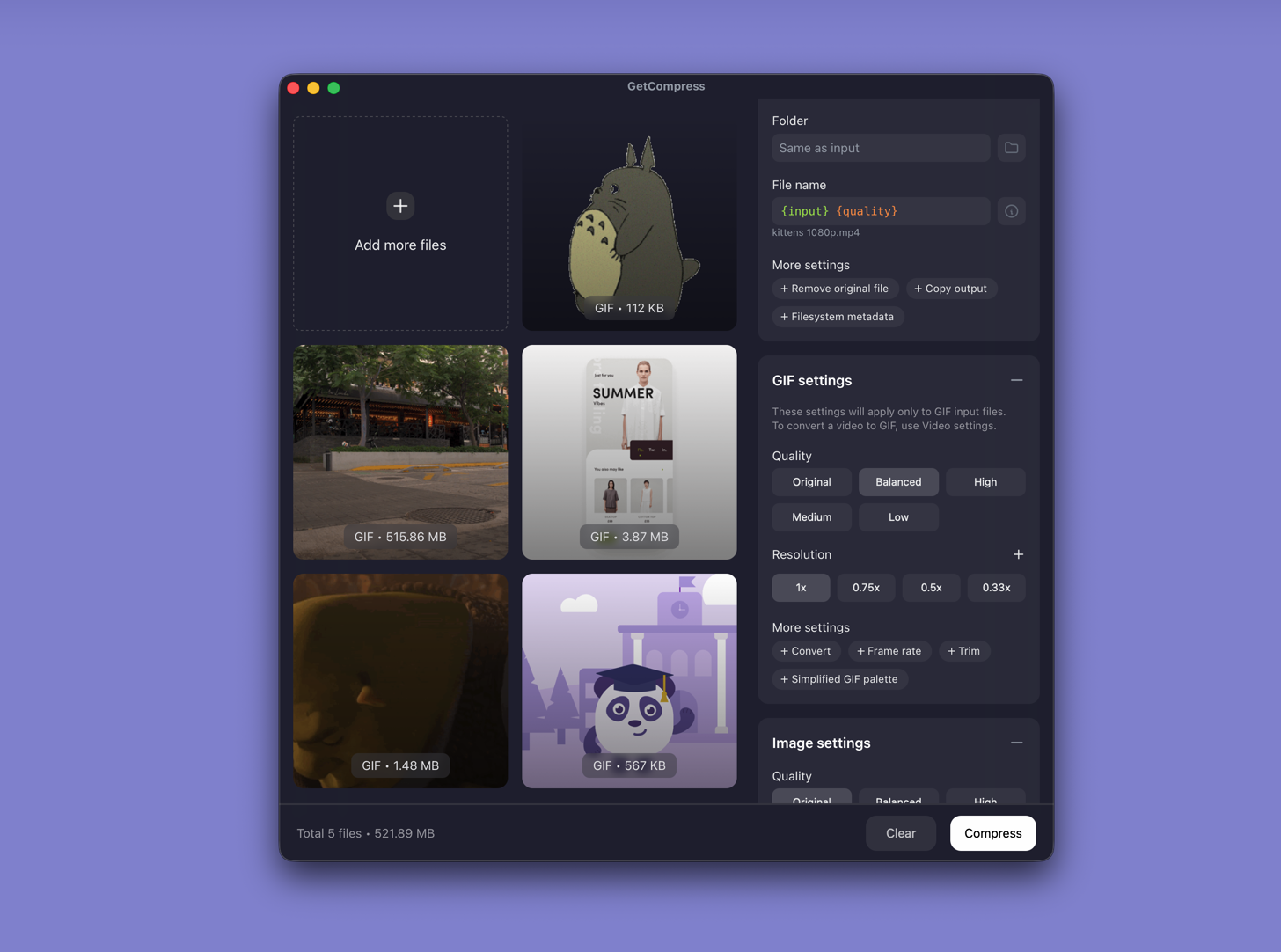
- Open GetCompress and drop a MOV or MP4 into the queue.
- Trim start and end in the preview so only the action remains.
- Choose GIF output, set a sensible width (800 px is common for tickets), and check the loop.
- Export, then attach the file. Keep the video master.
Processing stays on your PC. Save a preset such as “bug GIF 800w” so the next repro takes a few clicks. You can also compress an existing oversized GIF without re-recording. For shrinking GIFs already on disk, see compress GIFs on Windows .
Method 2: Trim in Clipchamp, then ask about MP4
Best for: One clip when the destination accepts video.
- Open the MP4 or MOV in Clipchamp (built into many Windows 11 installs).
- Trim the timeline to the action and remove idle cursor time.
- Export at 720p or 1080p.
Upload that MP4 if the tool allows it. Teams and many issue trackers accept video now.
| Format | Typical 5 s UI clip size | Color quality |
|---|---|---|
| MP4 (H.264) | Often 1 to 3 MB | Full |
| GIF | Often 5 to 20 MB | 256 colors |
Clipchamp cannot save GIF. If the form truly requires GIF, use Method 1 or 3.
Xbox Game Bar and Snipping Tool captures often land as MP4 with extra seconds before the action. Trim those idle frames before you convert.
Limitation: No GIF export, no batch queue, no shared QA preset.
Method 3: FFmpeg palette export
Best for: Scripts, PowerShell batches, and exact width or fps flags.
Install FFmpeg with winget:
winget install --id Gyan.FFmpeg -effmpeg -i input.mp4 -vf "fps=10,scale=800:-1:flags=lanczos,split[s0][s1];[s0]palettegen[p];[s1][p]paletteuse" -loop 0 output.gif| Part | Meaning |
|---|---|
fps=10 | Ten frames per second |
scale=800:-1 | 800 px wide |
palettegen / paletteuse | Better colors than a naive GIF encode |
Shorter clip:
ffmpeg -ss 00:00:02 -t 4 -i input.mp4 -vf "fps=8,scale=640:-1:flags=lanczos,split[s0][s1];[s0]palettegen[p];[s1][p]paletteuse" -loop 0 bug.gifLimitation: You maintain the commands. Easy to mis-set scale or fps when you are in a hurry.
Which method should you use
| Situation | Start here |
|---|---|
| GIF required, recurring bug report videos | GetCompress |
| Video is allowed | Clipchamp export |
| Scripts or exact FFmpeg flags | FFmpeg |
For MOV sources that need MP4 first, see MOV to MP4 on Windows .
Settings that keep GIF files small
| Lever | Practical tip |
|---|---|
| Trim | Keep loops under about 5 to 10 seconds |
| Width | Start at 800 px; try 640 px if the file is still large |
| Frame rate | 8 to 10 fps is enough for most UI clicks |
| Prefer MP4 | Use GIF only when the tool rejects video |
| Attachment limit | Starting point |
|---|---|
| About 5 MB | 640 px, 8 fps, under 5 s |
| About 10 MB | 800 px, 10 fps |
| No hard cap | Still prefer MP4 when allowed |
Some Azure DevOps fields accept MP4 in comments but not in description uploads. Check the field rules before you spend time on GIF.
When a simpler export is enough
Clipchamp plus an MP4 attachment can work when the thread accepts video. FFmpeg is enough for a one-off GIF if you already keep the palette command nearby.
GetCompress also helps when GIF is required often: trim and frame preview in one place, reusable presets, local processing for unreleased UI, and optional batch queues after a test round. It does not replace a dedicated animation tool for long looping marketing GIFs.
- Compress GIFs on WindowsCompress GIFs on Windows with GetCompress, Clipchamp MP4 export, or FFmpeg. Trim, shrink width, or switch to MP4 when the tool allows video.
- Convert MOV to MP4 on WindowsConvert MOV to MP4 on Windows with GetCompress, Clipchamp, or FFmpeg. Get H.264 MP4 for uploads, Teams, and size-limited portals.
- Convert Video to GIF on MacConvert MOV or MP4 to GIF on Mac with GetCompress, QuickTime (for MP4), or FFmpeg. Trim first, keep width low, and ask if video is allowed.
- Frame rate explainedUnderstand video frame rate (24, 30, 60 fps), how FPS affects file size and motion, and when to lower it before you compress a share copy.