Convert AVCHD to MP4 on Windows: 3 Methods
Convert AVCHD to MP4 on Windows with GetCompress, Clipchamp, or FFmpeg. Remux or re-encode MTS clips for editing and uploads.
AVCHD footage from camcorders lands as MTS or M2TS files inside a nested card structure. Windows editors, SharePoint, and web upload forms expect plain MP4 instead.
You notice when Clipchamp chokes on the folder layout, when a client portal rejects MTS, or when you need one highlight clip without sharing an entire PRIVATE directory tree. Three solid routes cover most Windows jobs: GetCompress for batch cards, Clipchamp for one clip, and FFmpeg for PowerShell remux.
AVCHD vs MP4
AVCHD stores H.264 video with AC-3 or AAC audio in MTS containers on SD cards. MP4 wraps the same family of codecs in a file Windows apps accept by default.
| AVCHD (MTS) | MP4 | |
|---|---|---|
| Common source | Consumer camcorders, school events, weddings | Web, phones, editors |
| Folder layout | Nested AVCHD / BDMV structure | Single files |
| Upload forms | Often rejected | Usually accepted |
| Best first step | Remux or re-encode to MP4 | Already compatible |
Remux with -c copy is fast when codecs already match MP4 expectations. When playback fails, re-encode audio to AAC.
See HEVC to H.264 on Windows for newer HEVC camera exports. When file size is the blocker, see the video compression guide .
Method 1: GetCompress
Best for: event offloads, full card copies, and portals that list a hard megabyte cap.
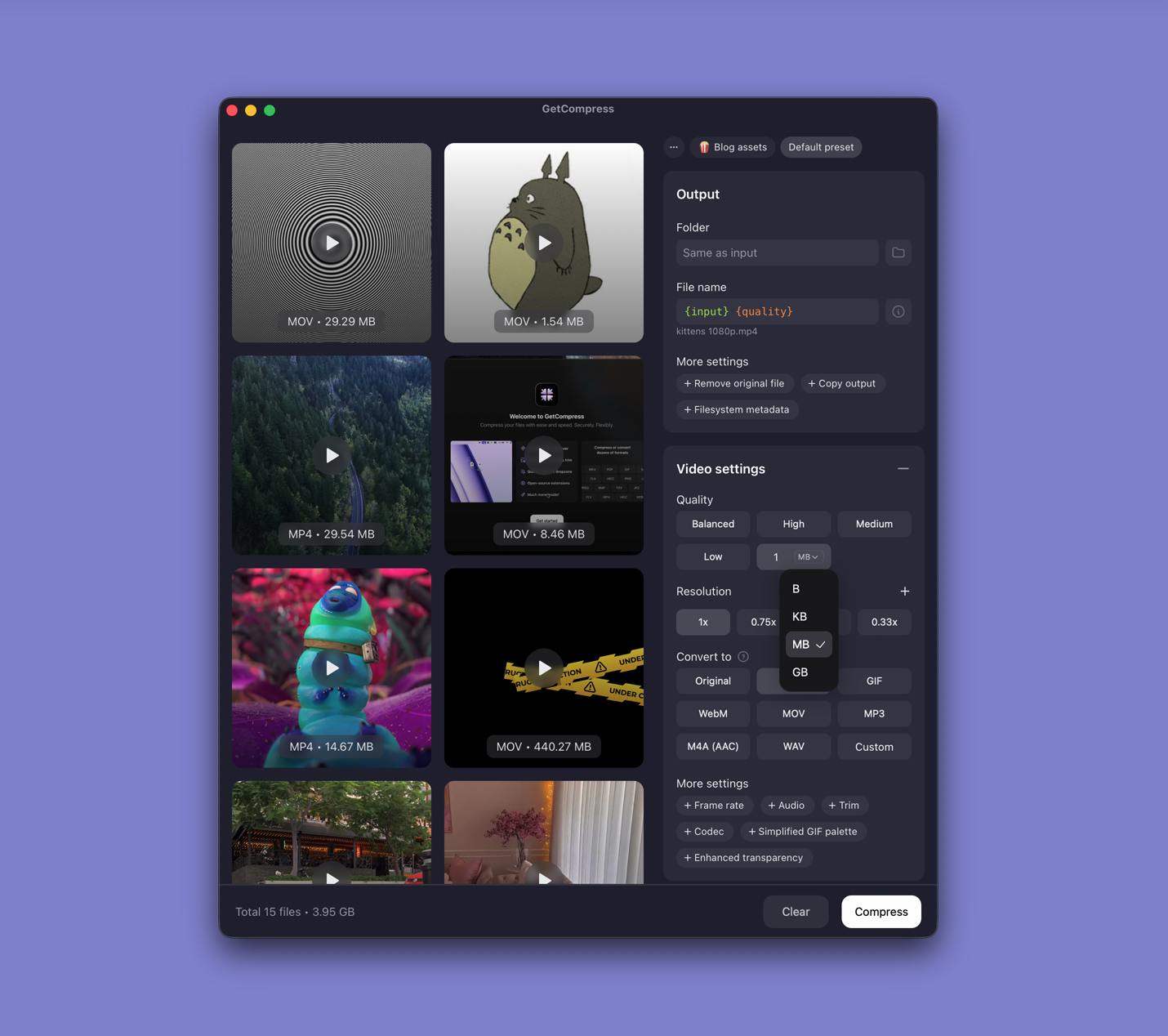
- Copy MTS files out of the nested AVCHD tree into a flat folder on your drive.
- Open GetCompress and drop the folder into the queue.
- Choose MP4 output, set resolution and quality, or set an exact target file size when the portal states a limit (video only).
- Trim in the preview if you only need one segment from a long take.
- Export, then upload or hand off the MP4 copies.
Save a preset such as “1080p client highlight” so you can reuse it next time. Folder monitoring can watch an offload folder after each card ingest.
Method 2: Clipchamp
Best for: One highlight clip when you do not need a batch queue.
- Copy MTS files out of the nested AVCHD tree into a flat folder.
- Open a clip in Clipchamp (built into Windows 11).
- Trim the timeline to the segment you need.
- Export at 1080p (or 720p for chat attachments).
Export re-encodes, which is slower than remux but produces a clean MP4 for sharing.
| Situation | Export choice |
|---|---|
| One highlight for a client | 1080p after trim |
| Full interview | 1080p, trim dead air first |
| Portal with a hard MB cap | 720p export or compress after |
Limitation: Clipchamp does not batch an entire event card.
Method 3: FFmpeg in PowerShell
Best for: Remux speed, folder loops, and interlaced sources.
Install FFmpeg with winget:
winget install --id Gyan.FFmpeg -eFast remux when video is already H.264:
ffmpeg -i input.mts -c copy -movflags +faststart output.mp4When audio fails, re-encode audio to AAC:
ffmpeg -i input.mts -c:v copy -c:a aac -b:a 192k -movflags +faststart output.mp4Full re-encode for maximum compatibility:
ffmpeg -i input.mts -c:v libx264 -crf 20 -preset medium `
 -c:a aac -b:a 192k -movflags +faststart output.mp4
Batch every MTS in a folder:
mkdir mp4-out
Get-ChildItem *.MTS,*.mts | ForEach-Object {
 ffmpeg -i $_.Name -c copy -movflags +faststart "mp4-out\$($_.BaseName).mp4"
 if ($LASTEXITCODE -ne 0) {
 ffmpeg -i $_.Name -c:v libx264 -crf 20 -preset medium `
 -c:a aac -b:a 192k -movflags +faststart "mp4-out\$($_.BaseName).mp4"
 }
}
For interlaced AVCHD, add -vf yadif before libx264 if motion shows combing artifacts. For MOV from newer cameras, see MOV to MP4 on Windows .
Limitation: You maintain the commands yourself.
Which method should you use
| Situation | Start here |
|---|---|
| Full card, recurring events, or MB cap | GetCompress |
| One Clipchamp-friendly clip | Clipchamp |
| Remux scripts or interlaced flags | FFmpeg |
When a Clipchamp export is enough
Clipchamp can finish a single highlight when the exported MP4 lands under the limit after a trim and a 1080p or 720p export.
GetCompress also helps when you offload many MTS clips after each event, need a reusable preset, or must hit an exact video target file size. Processing stays on your PC. It does not replace Premiere or DaVinci Resolve. For the Mac workflow, see AVCHD to MP4 on Mac .
- Convert MOV to MP4 on WindowsConvert MOV to MP4 on Windows with GetCompress, Clipchamp, or FFmpeg. Get H.264 MP4 for uploads, Teams, and size-limited portals.
- Convert HEVC to H.264 on WindowsConvert HEVC to H.264 on Windows with GetCompress, Clipchamp, or FFmpeg. Get playable H.264 MP4 for older PCs and upload tools.
- How to Compress Video on WindowsCompress video on Windows with GetCompress, Clipchamp, or FFmpeg. Trim first, pick 720p or 1080p, and clear email or upload size limits.
- Convert AVCHD to MP4 on MacConvert AVCHD to MP4 on Mac with GetCompress, QuickTime, or FFmpeg. Remux or re-encode MTS clips for editing and uploads.