Compress Audio Files on Mac: 3 Methods
Compress audio on Mac with GetCompress, QuickTime, or afconvert and FFmpeg. AAC and M4A for podcasts, lectures, and uploads.
A WAV lecture can be hundreds of megabytes. Upload forms want something smaller. Podcast hosts, course portals, and email attachments all expect compressed audio, but the wrong export can make speech sound muddy.
The fix is usually simple. Pick a lossy codec (AAC or MP3), set a bitrate that matches speech or music, and export a copy while you keep the master. Three solid Mac routes: GetCompress for batches, QuickTime for one video extract, and Terminal for scripted WAV conversion.
Formats in plain terms
| Format | Typical use | Size for 30 min speech |
|---|---|---|
| WAV | Editing master | 300 MB or more |
| M4A / AAC | Sharing on Mac and most platforms | 15 to 30 MB at 128 kbps |
| MP3 | Universal legacy support | Similar to AAC at same bitrate |
For spoken word, 96 to 128 kbps AAC is often enough. Music may need 160 to 192 kbps. Always listen once on laptop speakers before you batch fifty files.
Exact target file size is a video-only workflow in GetCompress. For audio, control size with bitrate and duration (trim silence first).
Method 1: GetCompress
Best for: One file or many: lecture or podcast recordings, extracting audio from MP4 / MOV, and reusable bitrate presets.
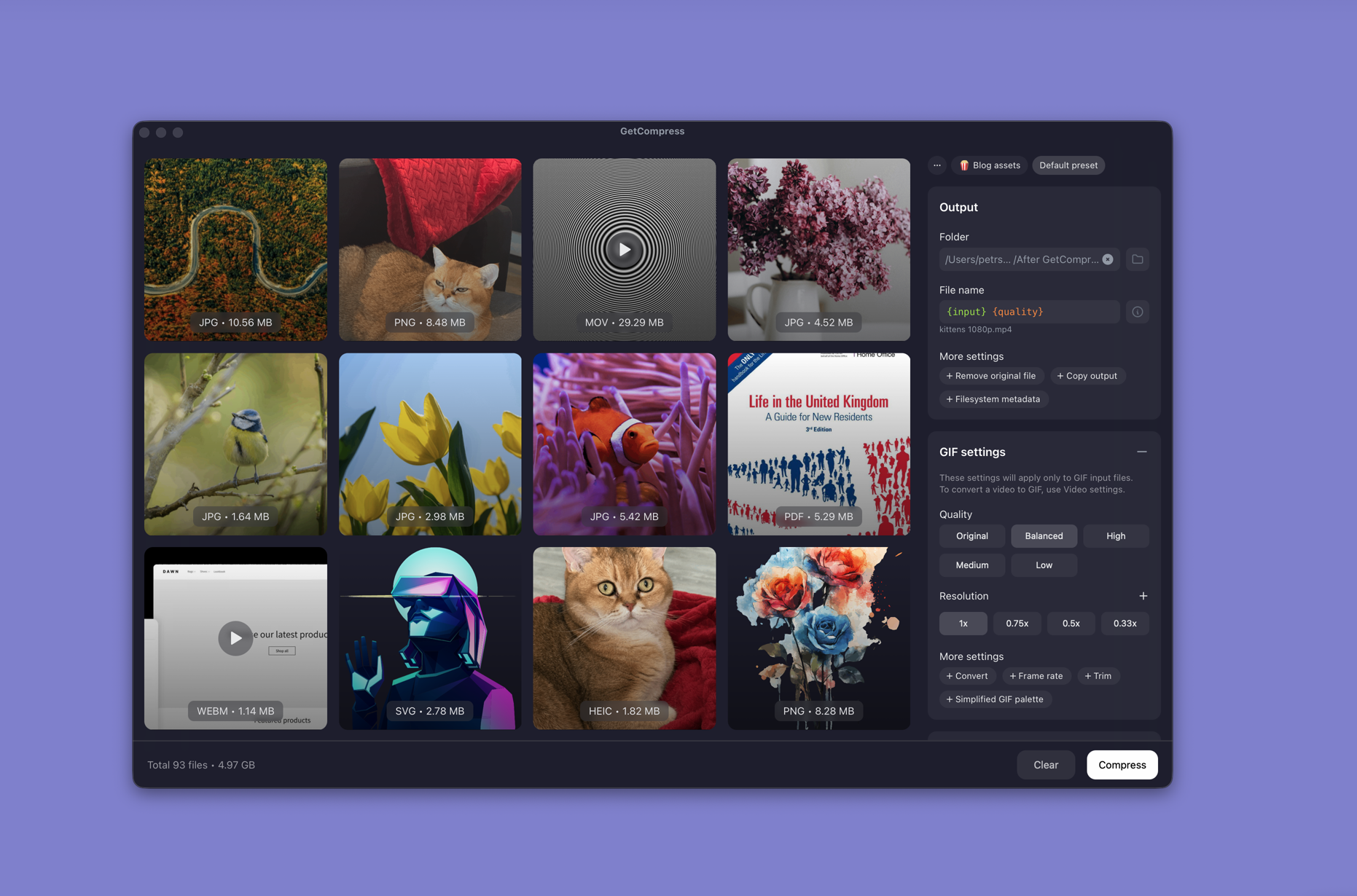
- Open GetCompress and drop MP4, MOV, WAV, or M4A files into the queue.
- Choose AAC (M4A) or MP3 output and pick a bitrate (128 kbps for speech is a common start).
- Save a preset for repeat jobs (speech vs music).
- Export to a folder you choose on disk.
- Optional: enable folder monitoring when new recordings land in the same export directory every week.
Processing stays on your Mac. Nothing is uploaded to an online converter.
Method 2: QuickTime Audio Only
Best for: One MP4 or MOV when you only need the soundtrack.
- Open the file in QuickTime Player.
- Edit → Trim if you need to cut intro silence.
- File → Export As → Audio Only → M4A.
QuickTime picks a sensible AAC rate. You cannot set an exact bitrate or queue a folder.
If the source is audio-only WAV, use Method 1 or 3 instead. When you need noise reduction or multi-track edits, open the project in GarageBand, then Share → Export Song to Disk → AAC.
Limitation: One file at a time. No typed bitrate control.
Method 3: afconvert and FFmpeg
Best for: WAV to M4A without a GUI, and folder loops.
Built-in afconvert:
afconvert -d aac -f m4af -b 128000 lecture.wav lecture.m4aInstall FFmpeg through Homebrew for more formats:
brew install ffmpegStrip audio from video:
ffmpeg -i video.mp4 -vn -c:a aac -b:a 128k audio.m4aBatch many MP4 files:
mkdir -p audio-out
for f in *.mp4; do
 ffmpeg -i "$f" -vn -c:a aac -b:a 128k "audio-out/${f%.mp4}.m4a"
done
For MP3:
ffmpeg -i lecture.wav -c:a libmp3lame -b:a 128k lecture.mp3Limitation: You maintain the commands. Listen once before you run a semester of recordings.
When audio files exceed upload limits
| Source | Why it is large | Quick fix |
|---|---|---|
| WAV export from a DAW | Uncompressed samples | Export M4A at 128 kbps |
| MP4 lecture recording | Video + audio together | Extract audio only |
| Stereo AAC at 256 kbps | Higher bitrate than needed | Drop to 128 kbps for speech |
Consumer email often stops around 20 to 25 MB. See the email attachment size limits guide . If the file is video with a talking head, compressing the video track may be enough: how to compress video on Mac .
M4A and MP3 can carry metadata. Prefer local tools over browser upload forms for internal interviews. See are online file compressors safe .
Which method should you use
| Situation | Start here |
|---|---|
| Many files or reusable presets | GetCompress |
| One video soundtrack | QuickTime |
| WAV scripts or MP3 flags | afconvert / FFmpeg |
When QuickTime is enough
QuickTime Audio Only can finish a single lecture extract when the M4A lands under the host cap after a trim.
GetCompress also helps when recordings pile up weekly, you mix video extracts with standalone WAV, or the team needs a named bitrate preset. Processing stays local. It does not replace GarageBand or Logic for creative editing. For the Windows workflow, see compress audio files on Windows .
- Convert MP4 to MP3 on MacConvert MP4 to MP3 on Mac with GetCompress, QuickTime, or FFmpeg. Extract audio as M4A by default, or MP3 when a legacy tool requires it.
- Compress Audio Files on WindowsCompress audio on Windows with GetCompress, Clipchamp, or FFmpeg. Export M4A or MP3 for podcasts, lectures, and upload limits.
- How to Compress Video on MacCompress video on Mac with GetCompress, QuickTime, or FFmpeg. Trim first, pick 720p or 1080p, and hit email or upload size limits without guessing.
- Online compressor safetyWhat happens when you upload files to online compressors, and what to use on Mac instead with Preview, QuickTime, and GetCompress.